Compact View in File Explorer reduces the spaces between items, allowing content to be visible simultaneously. Using it might be preferable for some users and managed environments who want to maximize the details seen on File Explorer and the information shown on screen. Moreover, it is helpful for users with smaller screens and touch devices because it improves workflows and overall accessibility.
By the end of this guide, you will learn how to enable or disable Compact View. We will cover GUI methods, as well as the Registry Editor, Command Prompt, PowerShell, and Group Policy.
Different ways to enable or disable Compact View in File Explorer
📌 Prerequisites:
- Your computer needs to have an updated version of Windows 11. Although these methods are available in all editions, note that Group Policy Editor is not present in Windows Home.
- You will need administrative privileges for methods like PowerShell, Command Prompt, and the Group Policy Editor.
📌 Recommended deployment strategies:
| Click to Choose a Method | 💻 Best for Individual Users | 💻💻💻 Best for Enterprises |
| Method 1: File Explorer Command Bar | ✓ | |
| Method 2: Folder Options | ✓ | x |
| Method 3: Registry Editor | ✓ | ✓ |
| Method 4: Command Prompt | ✓ | ✓ |
| Method 5: PowerShell | ✓ | ✓ |
| Method 6: Group Policy Preferences | x | ✓ |
Method 1: How to tweak Compact View using File Explorer’s Command Bar
📌 Use Case:
- This method is a great option for individual computers to make quick changes without diving deep into system settings or using code.
📌 Prerequisites:
- Your device should be running Windows Version 21H2 (which supports Compact View) or later.
- IT policies or third-party tools must not restrict File Explorer. To check, see if the View menu and Compact View options can be seen in File Explorer. If these are grayed out, then restrictions are in effect.
Follow these steps to toggle Compact View via the File Explorer Command Bar:
- Open File Explorer via the Win + E shortcut. Also, you can click the folder icon on the taskbar.
- Click the View drop-down menu on the Command Bar.
- Next, hover your mouse over Show, and click Compact View to turn it on or off.

💡 Note: If Compact View is on, a check mark is beside it. Otherwise, the feature is off.
Method 2: How to use Folder Options to toggle Compact View
📌 Use Case:
- Good for computers and everyday users who want a quick way to enable or disable Compact View.
📌 Prerequisites:
- Your computer should have an updated version of Windows 11 installed.
- You need to disable Tablet mode for this setting to work.
- Group Policy adjustments should not block visual or layout optimizations.
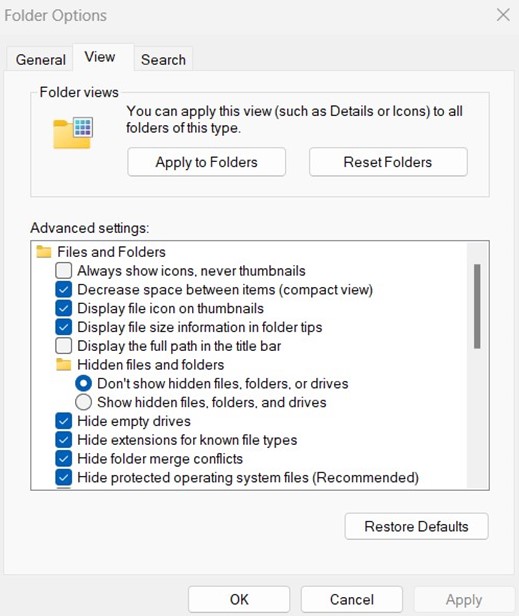
Here is how you can make changes to Compact View through Folder Options:
- Open File Explorer via the Win + E shortcut or by clicking its icon on the taskbar.
- Click on the three dots in the Command Bar and pick Options to open Folder Options.
- Next, go to View.
- Find and check/uncheck the “Decrease space between items (Compact View)” option.
- Click Apply, then OK.
Method 3: How to utilize the Registry Editor to configure Compact View
📌 Use Cases:
- Good for admins making tweaks to user profiles.
- This method is a go-to option if Group Policy is unavailable in your system.
- You can use this in systems where File Explorer settings are unavailable.
📌 Prerequisites:
- This method needs administrator privileges.
- You need full access to File Explorer.
Here’s how to use the Registry Editor to turn Compact View on or off:
- Open the Registry Editor.
- On the left pane, locate and go to this key: HKEY_CURRENT_USER\Software\Microsoft\Windows\CurrentVersion\Explorer\Advanced.
- In the right pane, locate the UseCompactMode value.
- Double-click UseCompactMode and set its value (Decimal) accordingly:
- 1 = activates Compact View
- 0 = deactivates Compact View
- Click OK, then close the Registry Editor.
⚠️ Warning: Modifying the Registry may cause some issues. To avoid such cases, back up the Windows Registry beforehand.
Method 4: How to use the Command Prompt to turn Compact View on or off
📌 Use Cases:
- This method is useful for users who want a quick, scriptable method.
- Best for applying the change across multiple machines or via deployment tools.
📌 Prerequisites:
- Requires administrator privileges to implement.
- No tools or third-party settings should override layout settings.
Here are the steps to turning Compact View on or off via the Command Prompt:
- Open the Command Prompt (Administrator).
- Execute this command to enable Compact View:
reg add"HKCU\Software\Microsoft\Windows\CurrentVersion\Explorer\Advanced"/v UseCompactMode /t REG_DWORD /d1/f
- To disable Compact View, run this command:
reg add"HKCU\Software\Microsoft\Windows\CurrentVersion\Explorer\Advanced"/v UseCompactMode /t REG_DWORD /d0/f
- Close the Command Prompt and check File Explorer to see if the changes have occurred.
Method 5: How to use PowerShell to modify Compact View on File Explorer
📌 Use Cases:
- You can use this for remote management and login scripts.
- Useful for power users and IT admins responsible for deployment scripts and managing several machines simultaneously.
📌 Prerequisites:
- You will need administrator privileges to use this method.
- Be sure you are running PowerShell as the same user account whose settings you want to change.
Here’s how to use PowerShell to tweak Compact View settings:
- Open PowerShell (Administrator).
- Execute this command to enable Compact View:
Set-ItemProperty -Path "HKCU:\Software\Microsoft\Windows\CurrentVersion\Explorer\Advanced" -Name "UseCompactMode" -Value 1
- You can disable Compact View with this command:
Set-ItemProperty -Path "HKCU:\Software\Microsoft\Windows\CurrentVersion\Explorer\Advanced" -Name "UseCompactMode" -Value 0
- Close PowerShell and open File Explorer to see if the changes have been implemented.
Method 6: How to use Group Policy Editor to enable or disable Compact View
📌 Use Cases:
- This method is ideal if you are managing an environment that uses Microsoft Enterprise or Education.
- Ideal for domain-linked devices managed through Active Directory.
📌 Prerequisites:
- Unavailable in Windows Home; must have Pro, Enterprise, or Education editions to work.
- You must have admin privileges to access and modify Group Policy.
Here is how you can use the Group Policy Editor to manage Compact View:
- Open the Group Policy Editor. Press Win + R, type gpedit.msc, and press Enter.
- Navigate to: User Configuration > Administrative Templates > Windows Components > File Explorer.
- Locate “Turn off Compact View.”
- Double-click the policy and set it accordingly:
- Enabled to disable Compact View
- Disabled or Not Configured to allow Compact View.
- Click Apply, then OK.
💡Note: You can immediately check File Explorer to see if changes are in effect. You can restart File Explorer via the Task Manager or force update Group Policy if they are not visible.
⚠️ Things to look out for
| Risks | Potential Consequences | Reversals |
| Configuring the wrong registry key | Compact View may not be applied. Plus, this could break system-related behavior. | Make sure you’re following the correct Registry key. If necessary, backup and restore the Registry. |
| Typos in the Command Prompt or PowerShell | The command will fail or modify the wrong key. | Re-enter the commands listed above carefully. |
| Using Hex instead of Decimal in the Registry Editor | Compact View will not be applied and may behave unpredictably. | Ensure you’ve selected DWORD (32-bit) Decimal when setting the Registry value. |
Additional considerations when tweaking Windows 11 File Explorer Compact View
For users who manage numerous folders and prefer a denser layout
The users who would benefit the most from Compact View are those who manage lots of files and directories. Thanks to its denser layout, this setting will easily let them navigate the many folders throughout File Explorer.
Consider touch devices when managing Compact View
When managing a fleet of computers, consider users utilizing touch-enabled devices. The default spacing may improve usability for some Windows tablet users whose workflows involve dragging and dropping files and folders.
Modifications should comply with organizational standards
When implementing Compact View in an enterprise setting, be sure to check if this aligns with organizational standards.
Troubleshooting common Compact View issues
Changes are not taking effect
If they fail to occur, you can restart File Explorer via the Task Manager. Here’s how:
- Open Task Manager using the CTRL + Shift + Esc shortcut.
- Locate or search for Windows Explorer.
- Right-click Windows Explorer and select Restart.
Alternatively, you can also restart your computer.
The Registry value is missing
If you are using Windows Registry to toggle Compact View and if the UseCompactMode key does not exist, you can create it using these steps:
- Open the Registry Editor and head to this key: HKEY_CURRENT_USER\Software\Microsoft\Windows\CurrentVersion\Explorer\Advanced.
- Right-click and select New > DWORD (32-bit) Value.
- Name it UseCompactMode.
- When setting the value, make sure it is in Decimal.
Group Policy tweaks are not taking effect.
If you choose the Group Policy Editor method to enable or disable Compact View, you can run the gpupdate /force command in the Command Prompt to force update Group Policy.
Set Compact View to meet user needs and standards
Managing Compact View in Windows 11 File Explorer enables IT admins to review its settings and the user interface to meet organizational needs and user preferences.
Several straightforward methods exist to accomplish this, from PowerShell and Command Prompt codes to GUI-based changes. For those implementing this on a large fleet of computers, Group Policy and Registry allow deeper control.
Related topics:
- How to Customize the Details Pane of File Explorer in Windows
- How to Show or Hide the Preview Pane in File Explorer in Windows 11
- How to Add or Remove Recent Files in File Explorer Home in Windows 11
- How to Configure Search History in Windows File Explorer
- How to Display the Full Path in the Title Bar of File Explorer in Windows 10