Key Points
- Windows 11 widgets can be added, removed, resized, and rearranged directly from the Widgets board using supported, user-level controls.
- Individual widget management is per-user, while administrators can enable or disable the entire Widgets board via Registry or Group Policy.
- Content relevance is influenced through widget feed settings, including region, language, interests, and Microsoft account sign-in.
- Registry and Group Policy provide centralized enforcement for managed environments, but do not support granular widget-level control.
- Post-configuration verification is essential to ensure widget changes persist across restarts, sessions, and managed endpoints.
Windows 11’s widget board provides quick access to information, including weather updates, news, and other productivity tools. Aside from that, Windows also allows end-users to personalize their experience, matching their preferences for clean, organized, or balanced designs.
Suppose you’re looking for ways to add or remove elements in your widgets board, read on. This guide will walk you through customizing the widgets board, along with key considerations and troubleshooting tips for common issues.
Methods to customize the widgets board in Windows 11
Windows 11 offers multiple ways to manage the widgets flyout menu natively. Through this, both users and administrators can add, remove, or customize their widgets in a way that effectively supports their workflow.
However, to ensure a smooth widgets customization experience, verify if you meet the following prerequisites:
- Enabled Widgets feature in Windows 11
- Microsoft account or organizational account for full widget availability
- Administrator rights if applying scripted or enforced configurations
- Internet connectivity for real-time widget updates
📌 Recommended deployment strategies:
Method 1: Adding new widgets via widget settings
The Widgets board is the primary and supported interface for managing widgets in Windows 11. Through this, end-users can add their preferred widgets with just a few clicks, without requiring elevated permissions, system changes, or other administrative tools.
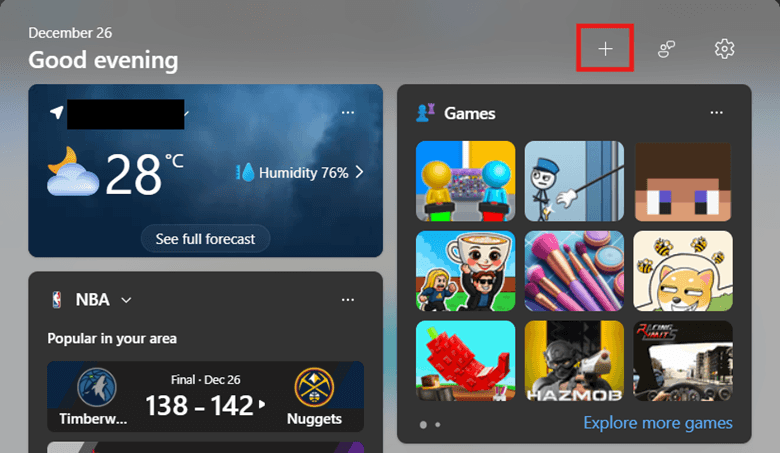
- Press Win + W to open the widgets board, then click the Add widgets button.
- Select the widget you want to add, then press the Pin button to save it in your widgets board.
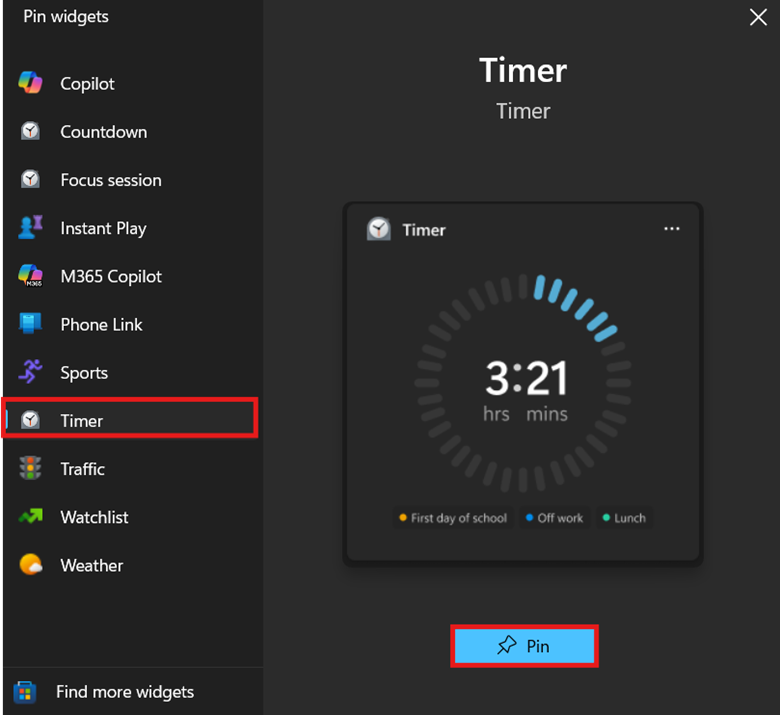
- Repeat step 2 for each widget you want to add to the widgets board.
- Optionally, you can select the Find more widgets button to further customize your widget experience.
Method 2: Removing or hiding widgets from the widget board
Aside from adding widgets, the widgets board also allows you to hide widgets for a more streamlined navigation experience. This helps users prevent any unproductive, redundant, or distracting widgets from cluttering the flyout menu.
- Press Win + W to open the widget board.
- Hover your cursor over the widget you want to remove, then select the More options button (•••).
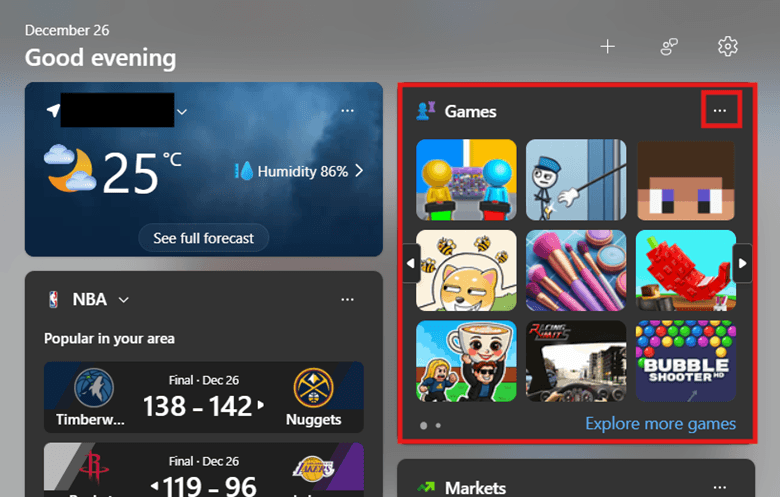
- In the More options context menu, select Hide this widget or Unpin this widget.

- Repeat steps 2 and 3 as needed for other widgets you wish to remove.
- Confirm that your target widget is no longer visible on the board.
Method 3: Customize widget size and placement in the widget board
After adding or removing widgets, customizing widget size and placement transforms widget collections into a purpose-driven dashboard. This method allows users to visually prioritize critical widget functions, speeding up workflows as a result.
- Press Win + W to open the widgets board, then hover over the widget you want to customize.
- Select the More options button (•••) in the widget’s upper right.
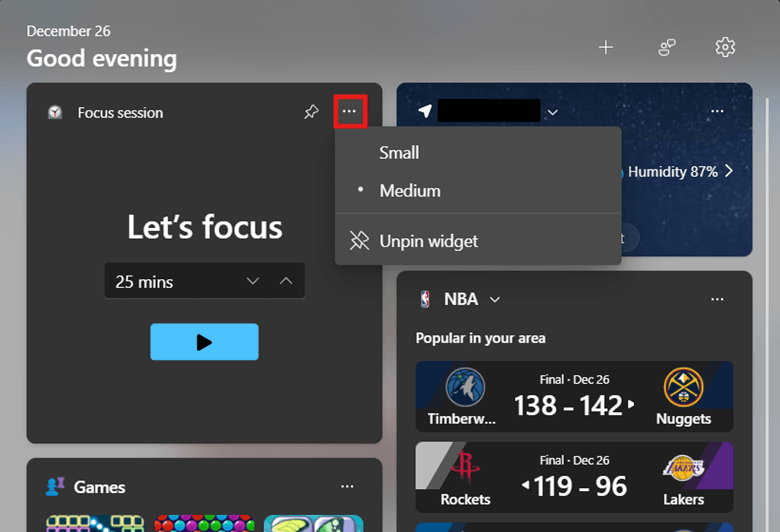
- Pick your preferred configuration from the resulting context menu.
- Note: More options settings depend on the widget and may include size or customization settings.
- Drag and drop widgets to arrange them according to relevance or task priority.
Method 4: Manage Windows 11 widget board content preference settings
Managing widget content settings ensures that the widget board displays relevant, accurate, and workflow-appropriate information. By doing this, you’re enhancing the usefulness and effectiveness of widget content, fine-tuning it to support your workflow and meet your preferences.
- Launch Microsoft Edge and sign in using your Microsoft Account.
- Go to msn.com, scroll down, then select Personalize.
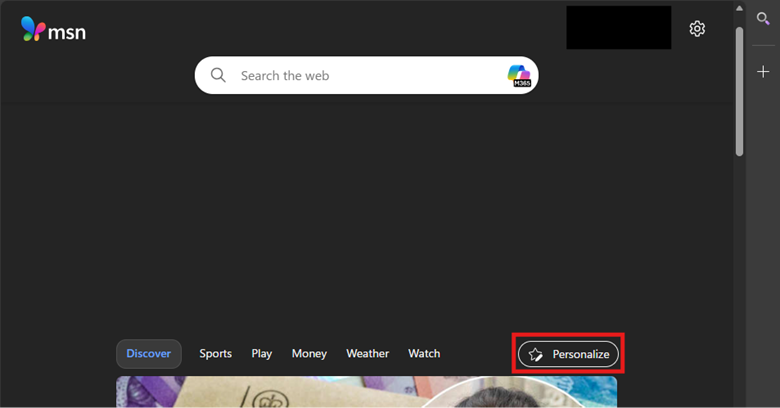
- Scroll down the Discover interests then tap the + beside the interest to add more of it to your feed.

- To remove a previously added interest, select the check mark beside an interest.
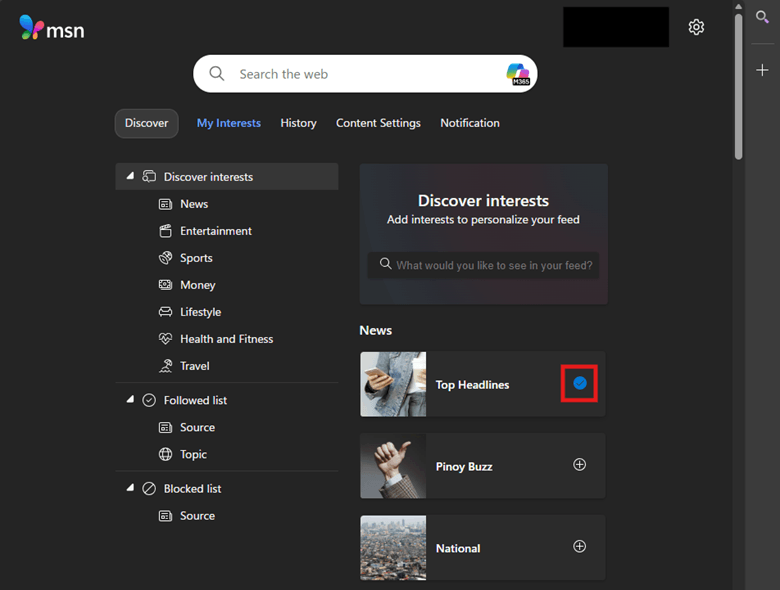
- Return to the widget board to verify that the feed reflects your preferred change.
Method 5: Enable or disable the widget board entirely through the Registry
Technicians have the option to enforce the behavior of the widget board, allowing them to toggle the feature to fit their environment’s workflow. Additionally, registry configurations can be automated via PowerShell scripting, ensuring consistent deployment across managed endpoints.
⚠️ Important: Create a Windows Registry backup before proceeding. (See ⚠️ Things to look out for)
- Press Win + R, type regedit, then press Ctrl + Shift + Enter.
- Navigate to the following path:
HKEY_LOCAL_MACHINE\SOFTWARE\Policies\Microsoft\Dsh
- Right-click the Dsh subkey, select New > DWORD (32-bit) Value, then name it AllowNewsAndInterests.
- Note: Some users may need to manually create the Dsh subkey, as it’s not present by default in all Windows 11 installations.
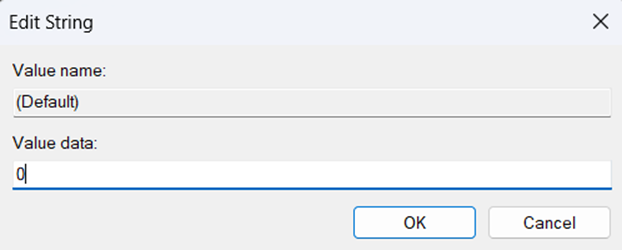
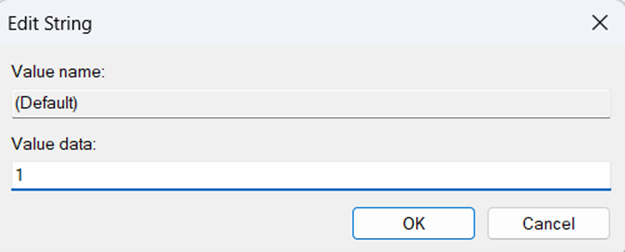
- Double-click AllowNewsAndInterests, then set its default value to:
- 0 to disable the Widget panel altogether.
- 1 to enable the Widget panel functionality.
- Press OK on the Edit String window, then restart your device to apply the change.
Optional automation script for multiple endpoint deployments
Enter the following script to disable the Widget board panel:
New-Item -Path "HKLM:\SOFTWARE\Policies\Microsoft\Dsh" -Force Set-ItemProperty -Path "HKLM:\SOFTWARE\Policies\Microsoft\Dsh" ` -Name "AllowNewsAndInterests" -Value 0 |
To restore the Widget board panel, execute the following script:
New-Item -Path "HKLM:\SOFTWARE\Policies\Microsoft\Dsh" -Force Set-ItemProperty -Path "HKLM:\SOFTWARE\Policies\Microsoft\Dsh" ` -Name "AllowNewsAndInterests" -Value 1 |
Method 6: Enforce widget board configuration via Group Policy
For domain-controlled environments, Group Policy offers a centralized and repeatable method for controlling the availability of the Widgets feature across endpoints. This method is useful for enterprise, education, and shared-device scenarios where Widget panel consistency is a must.
- Press Win + R, type gpedit.msc, then press Ctrl + Shift + Enter.
- Go to the following path:
Computer Configuration > Administrative Templates > Windows Components > Widgets
- Double-click the Allow widgets policy, then set the policy to your preferred widget configuration:
- Disabled: This option disables the Widgets panel.
- Enabled or Not Configured: Restores both the Widgets panel and news feed functionality.
- Press Apply, then OK to save the policy change.
- Close the Local Group Policy Editor, open an elevated PowerShell Prompt, then enter gpupdate /force.
💡 Note: The Local Group Policy Editor applies the configuration locally. To deploy this change within a domain-joined environment, apply this configuration as a GPO to a specific organizational unit (OU).
Method 7: Verify post-configuration widget board behavior in Windows 11
Validating widget behavior ensures that the changes you made to the Widgets board apply correctly and behave as expected. Without proper verification, user-initiated changes may not persist as expected, while administrators risk enforcing inconsistent navigation experiences across endpoints.
Recommended action plan:
- Press Win + W to open the Widgets board.
- Confirm that your target widgets are added or removed accordingly after the change.
- Restart the device to check your widget configuration’s persistence.
- For deployed configurations, verify if your personalization settings apply uniformly across sessions.
Considerations when managing Windows 11 widget settings
When customizing the Widgets board, it’s important to keep in mind that several environmental and configuration factors can impact widget availability and consistency.
Information delivery on cloud-dependent widgets
Many widget board elements, such as weather, traffic, and news, pull live data from online sources. When a device is offline or has limited connectivity, these widgets may not update, display incomplete information, or fail to load entirely. Once connectivity is restored, content typically refreshes automatically.
Some widgets require specific account types
Certain widgets, such as Outlook or Calendar widgets, may not function without the appropriate account type or permissions. If a widget doesn’t display the expected content, verify if an account sign-in status is required to access the target information.
Third-party widgets can vary per endpoint
Support for third-party widgets is still evolving and may differ based on Windows version, region, or Microsoft Store availability. As a result, not all users will see the same widget options, and availability may change over time as support expands.
Hiding the Widgets board entirely through policy
Disabling Widgets using Group Policy or the Registry Editor removes the entire Widgets experience for all affected accounts. This entails that users can’t add, remove, or customize widget-related configurations while the policy is in effect.
Roaming profiles may sync widget personalization inconsistently
In environments using roaming profiles or profile synchronization, widget layout and personalization settings may not always sync as expected. Profile configuration and testing are recommended to ensure consistent widget behavior across endpoints.
⚠️ Things to look out for
| Risks | Potential Consequences | Reversals |
| Widgets can’t be added to the widget board. | Users may assume their widget functionality is broken, increasing the volume of support requests. | Verify if the user is signed into the correct account and confirm if Widgets are enabled via Registry or Group Policy. |
| Widget reappears after removal. | Inconsistent widget behavior can revert user-initiated widget settings. | Review profile sync settings and confirm if widget behavior changes after signing out and back in. |
| The Widget board doesn’t open. | Without Widget board access, users lose access to all widget functionality and GUI settings. | Ensure widget functionality is enabled and confirm no policies are disabling Widgets in the background. |
| Incorrect Widget content. | Widgets may display that is not aligned with user preferences or regional settings, reducing their perceived relevance. | Adjust language, region, and personalization settings in the Widgets configuration |
| Widget layout resets. | This causes users to repeatedly lose their widget arrangement, which can frustrate end-users. | Restart explorer.exe or sign out and back in to ensure layout changes are correctly saved. |
| Making Registry changes without backing up the Registry. | Registry misconfigurations can impact device stability. Without a backup, this can make recovery more challenging. | Back up the Windows Registry before making changes. If possible, use Group Policy instead for easier reversals. |
Leverage automation to customize Widget boards at scale
Adding or removing widgets from the Widgets board helps administrators to shape a consistent, distraction-free interface for end users. With straightforward controls in the Widgets UI, plus options for broader policy or automation enforcement, widget management supports diverse productivity and compliance needs.
NInjaOne enables administrators to manage Windows 11 Widgets feature availability through script-driven configuration and centralized policy enforcement. You can leverage NinjaOne’s remote script deployment feature to deploy registry configuration scripts that toggle the Widget board’s visibility centrally and at scale.
Related topics: