
Key Points
Steps Recorder is a built-in Windows tool that can be enabled or disabled via Group Policy or Registry settings.
- Enable or disable Steps Recorder using Group Policy: navigate to Computer Configuration > Administrative Templates > Windows Components > Steps Recorder, then configure “Do not allow Steps Recorder to run.”
- Use Registry Editor to manage Steps Recorder: create or edit DisableUAR under HKEY_LOCAL_MACHINE\SOFTWARE\Policies\Microsoft\Windows\AppCompat (set to 1 to disable, 0 to enable).
- Configure user-specific access via Local Group Policy Editor under User Configuration > Administrative Templates > Windows Components > Steps Recorder.
- Troubleshoot issues like crashes, non-saving recordings, or launch failures by checking system policies, running SFC /scannow, and verifying folder permissions.
There are instances where users need to document a whole process they’re doing in Windows. The good thing is Windows offers a handy tool for this purpose. Windows Steps Recorder, otherwise known as Problem Steps Recorder (PSR), is a built-in Windows tool that records actions when a user needs to document a procedure they’re doing in the Windows system.
Steps Recorder records information, including screenshots and text descriptions. Like some other Windows features, Steps Recorder can be turned on or off. This article will discuss the procedures for enabling and disabling the tool.
💡 If you prefer watching over reading, watch this video on How to Enable or Disable Steps Recorder in Windows
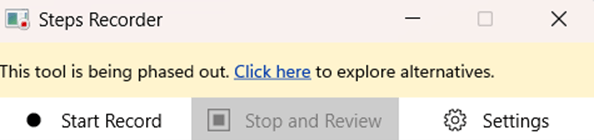
⚠️ Take note that as of February 2024, Microsoft has been slowly phasing out Steps Recorder. While you can still use it today, opening PSR will include a new banner notification, as seen in the image below:
Automate your processes to efficiently manage sprawling enterprise environments.
Discover NinjaOne IT Enterprise Management features.
Why enable or disable Steps Recorder
Users enable Steps Recorder to document screenshots and text descriptions of every action they take while doing a procedure. This documentation can be used to troubleshoot issues or create instructional materials.
Meanwhile, other users prefer to turn off Steps Recorder. This is to prevent unauthorized recording or enhance security posture in enterprise networks and environments.
How to Open the Steps Recorder in Windows 10 & 11
Before configuring the Steps Recorder setting, you can check its status first. Here’s how to access Steps Recorder in Windows 10 & 11:
- Using Run: Press Windows key + R, type psr.exe, and press Enter.
- Using Start Menu: Search for Steps Recorder in the Start Menu and click to open it.
How to enable or disable Steps Recorder
Method 1: Using Group Policy Editor (Windows 10/11 Pro & Enterprise)
- To open Group Policy Editor, press Windows key + R, type gpedit.msc, and press Enter.
- Navigate to Computer Configuration > Administrative Templates > Windows Components > Steps Recorder.
- Double-click Do not allow Steps Recorder to run.
- Choose one of the following:
- Select Enabled to disable Steps Recorder.
- Select Disabled or Not Configured to enable it.
- Click Apply and OK, then restart your computer.
Method 2: Using Registry Editor (Windows 10 & 11 Home, Pro, Enterprise)
- To open Registry Editor, press Windows key + R, type regedit, and press Enter.
- Navigate to: HKEY_LOCAL_MACHINE\SOFTWARE\Policies\Microsoft\Windows\AppCompat
- If the AppCompat key doesn’t exist, right-click on Windows, select New > Key, and name it AppCompat.
- Inside AppCompat, create a new DWORD (32-bit) Value named DisableUAR.
- Set the value:
- 1 to disable Steps Recorder.
- 0 to enable Steps Recorder.
- Close the Registry Editor and restart your computer.
Method 3: Using Local Group Policy Editor for individual users
- To open Local Group Policy Editor, press Windows key + R, type gpedit.msc, and press Enter.
- Navigate to User Configuration > Administrative Templates > Windows Components > Steps Recorder.
- Double-click Do not allow Steps Recorder to run.
- Modify the policy to enable or disable Steps Recorder as needed.
- Click Apply and OK.
Troubleshooting issues with the Steps Recorder
Steps Recorder is not opening
When Steps Recorder does not open, it may be because the feature is not enabled or there is a corrupted system file. To fix this:
- Ensure it hasn’t been disabled by checking Group Policy or Registry Editor.
- To see if a corrupted system file is involved, run SFC /scannow in Command Prompt to check for system file corruption.
Cannot save recordings
You may notice that recordings are not saved despite completing the recording process. To troubleshoot this:
- Check folder permissions where recordings are being saved. Ensure your user account has the necessary write permissions to the destination folder. If not, you can try to modify permissions.
- Try saving to a different location, such as the desktop.
Steps Recorder crashes or freezes
Sometimes, users may experience unresponsiveness or abrupt crashing when using Step Recorder. Here’s how you can fix the issue:
- Restarting your computer may solve unexpected crashes and unresponsiveness.
- You can also check Windows for updates. Ensure your Windows has the latest patches and drivers, as outdated software can often lead to compatibility problems and instability.
Windows Steps Recorder FAQs
1. How do I know if Steps Recorder is enabled or disabled?
To learn the status of the Steps Recorder, you can open the feature’s settings via Run or Start Menu. Then, follow the steps detailed in “How to Open Steps Recorder in Windows 10 & 11” listed above.
2. Can I disable Steps Recorder for specific users only?
Yes, use Local Group Policy Editor to modify the policy for specific users or groups:
- To open Local Group Policy Editor, press Windows key + R, type gpedit.msc, and press Enter.
- Navigate to User Configuration > Administrative Templates > Windows Components > Steps Recorder.
- Double-click Do not allow Steps Recorder to run.
- Select Enabled to disable Steps Recorder or Disabled/Not Configured to enable it.
- Click Apply and OK.
- Close Local Group Policy Editor.
3. Is Steps Recorder available in Windows 11?
Yes, Steps Recorder is available in both Windows 10 and Windows 11. However, PSR is being deprecated. Starting with the Windows 11 update in February 2024, Steps Recorder includes a new banner notification, encouraging users to explore alternatives.
4. What are the best alternatives to Steps Recorder?
Alternatives include Snagit, OBS Studio, and ShareX for more advanced screen recording.
5. Does disabling Steps Recorder improve security?
Yes, disabling Steps Recorder can enhance security by preventing unauthorized recordings in sensitive environments.
Get full control of native Windows software and enable or disable them at scale with NinjaOne.
➤ Try NinjaOne for free today.
Steps Recorder: A valuable tool in Windows
Step Recorder is a built-in tool in Windows that users can use to document a procedure. The feature records information such as screenshots and text descriptions of user actions. These recordings can then be used to backtrack steps in troubleshooting or when creating instructional materials.
Like some Windows features, Steps Recorder can also be enabled or disabled through Group Policy Editor, Registry Editor, or Local Group Policy Editor. Disabling it can improve security in enterprise environments by preventing unauthorized recordings. If Steps Recorder is not working, troubleshooting steps like checking policies, repairing system files, or updating Windows can help. This guide should help you configure this valuable tool.
Related topics:
- Turn On or Off Include System Audio when Recording with Snipping Tool in Windows 11
- How to Include System Audio When Recording with Snipping Tool (Video)
- How to Disable Screen Capture and Record with the Snipping Tool App in Windows 11
- How to Disable Screen Capture and Record with the Snipping Tool App in Windows 11 (Video)