This guide discusses what is Wake-on-LAN (WoL), the technology that allows you to remotely wake devices over a network. It includes a full description of how Wake-on-LAN works, including technical details about the “magic packet”. Also covered is practical information, including use cases, security risks, how to enable and configure Wake-on-LAN for local networks, and how it can be used over the internet.
With NinjaOne, you can send magic packets through the web UI and simplify this task.
What is Wake-on-LAN?
Wake-on-LAN is the networking standard for waking devices from sleep mode. Sleep mode is also known as stand by, a low power state in which much of the computer’s hardware is powered down, and only limited functionality is available.
This allows devices to run with minimum resources while not being actively used, increasing their lifetime and reducing power usage, while still being available for use over your network without somebody having to physically power them back up. Generally, devices in sleep mode will have stored their state in memory, meaning that they do not have to go through a full boot process and are much quicker to wake than from a cold start. Wake-on-LAN is commonly deployed in enterprise environments, allowing inactive workstations to sleep to save energy, while still allowing administrators to access them whenever required.
For devices that rely solely on Wi-Fi connections, there is also the Wake on Wireless LAN (WoWLAN) standard for the same purpose.
How Wake-on-LAN works (the “magic packet”)
Wake-on-LAN is an informal standard that has been widely adopted by hardware vendors since the mid-1990s. It works by sending a “magic packet”, a special Ethernet frame that can be detected by the network hardware to trigger the device to wake up. This magic packet is broadcast to the entire network, meaning that it only works on a subnet.
The magic packet contains the MAC address, which is the unique hardware identifier for the receiving network interface, so that it knows it is the target of the wake-up call. Devices with Wake-on-LAN enabled need to keep their network interfaces powered to receive these packets. However, the power required to detect the magic packet is far less than standard operation.
As Wake-on-LAN is not a formal standard, many vendors extend it with their own functionality.
Use cases for Wake-on-LAN
Configuring Wake-on-LAN is a common requirement in enterprise and education IT deployments, with the benefits including:
- Being able to wake devices to remotely access them for troubleshooting.
- Installing security patches and software updates out of hours or when employees are away from their desks
- In some implementations, Wake-on-LAN can be used to wake a device offering a service such as file sharing, allowing it to remain in a low-power state when not needed
IT enthusiasts also commonly deploy Wake-on-LAN in their home labs to keep their power bills low while keeping their devices accessible.
How to enable Wake-on-LAN
To use Wake-on-LAN, you must have supported network hardware. WoL is supported on most network interface cards.
Wake-on-LAN may not be enabled by default on all devices, so you will need to check the documentation for the networking hardware to ensure compatibility. You should also check your networking configuration and firewalls to ensure that Wake-on-LAN requests can move through your network.
On the devices that you wish to sleep and wake remotely, you will need to ensure that Wake-on-LAN is enabled in the BIOS/UEFI interface.
Then, you will need to configure Wake-on-LAN in your operating system. To do this on Windows:
- Right-click on the Start button and open the Device Manager
- Right-click on your ethernet network adapter inlist of devices and click Properties
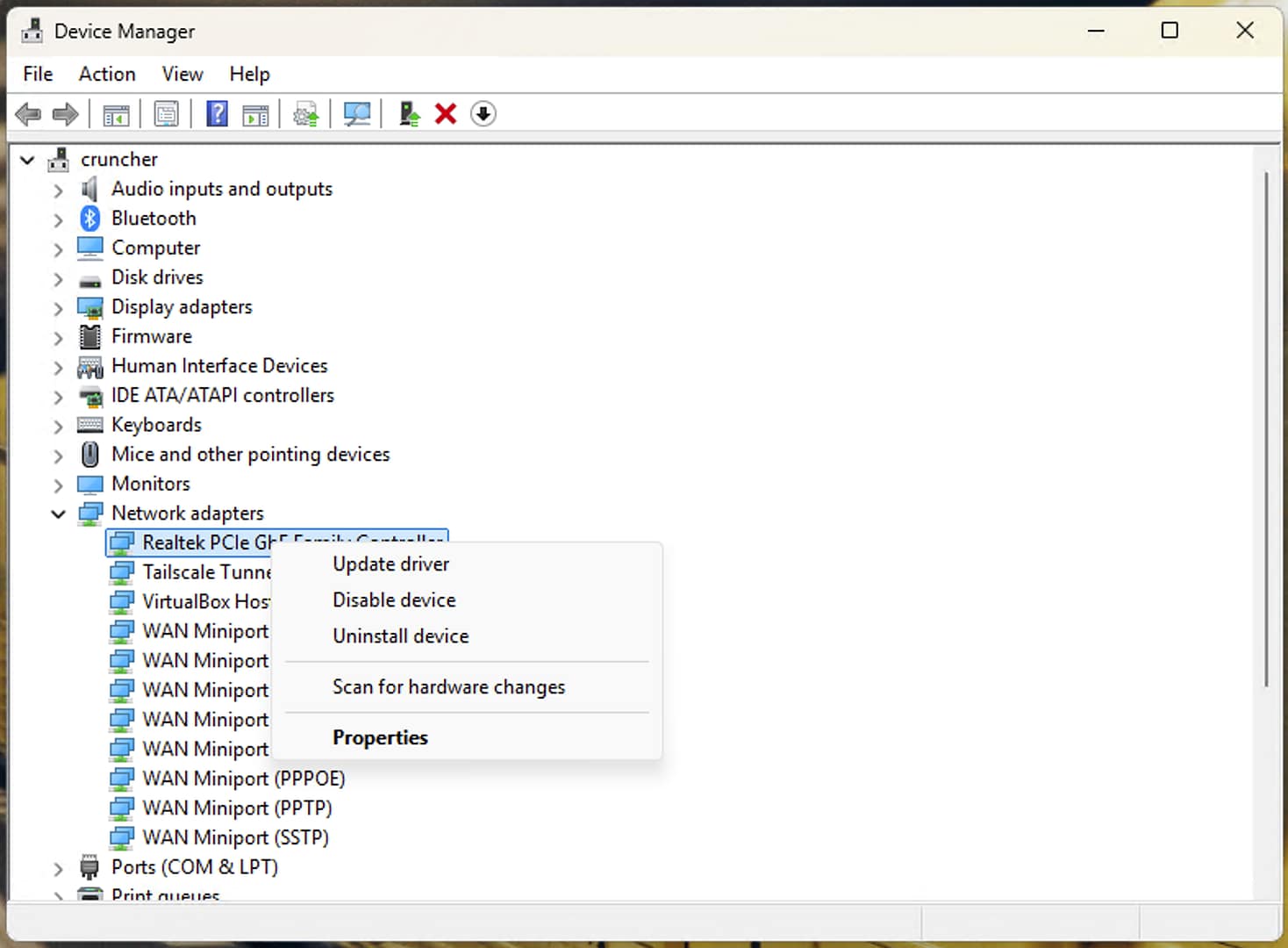
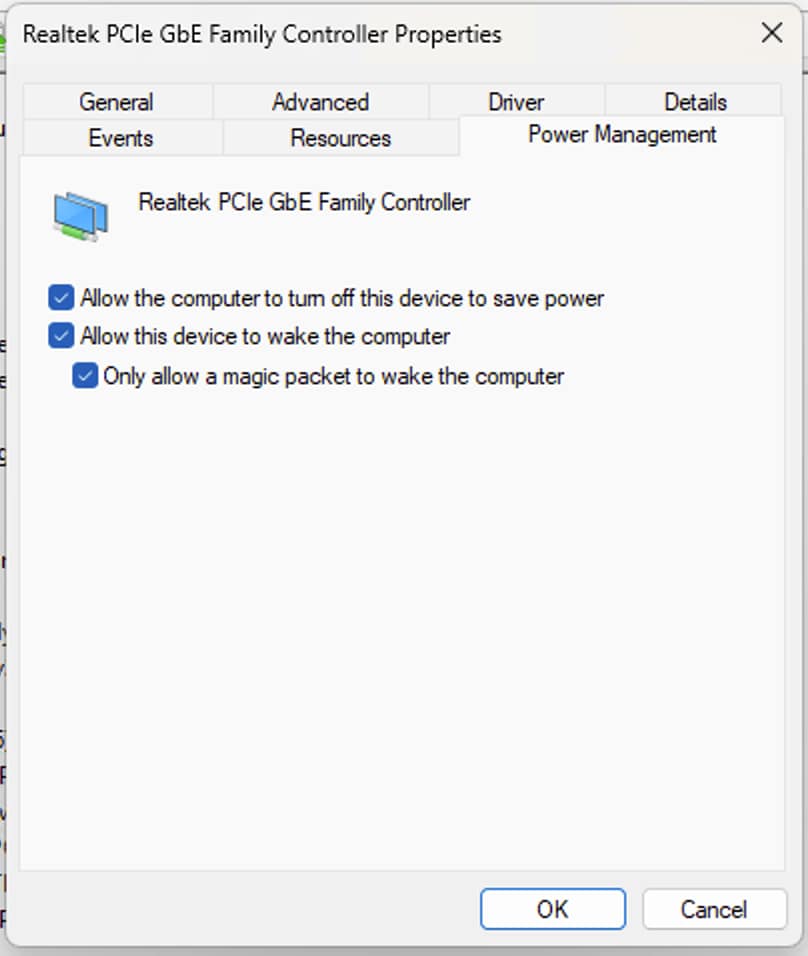
- In the Power Management tab, check both the Allow this device to wake the computer and Only allow a magic packet to wake the computer checkboxes
- In the Advanced tab, ensure the Wake on Magic Packet setting is enabled
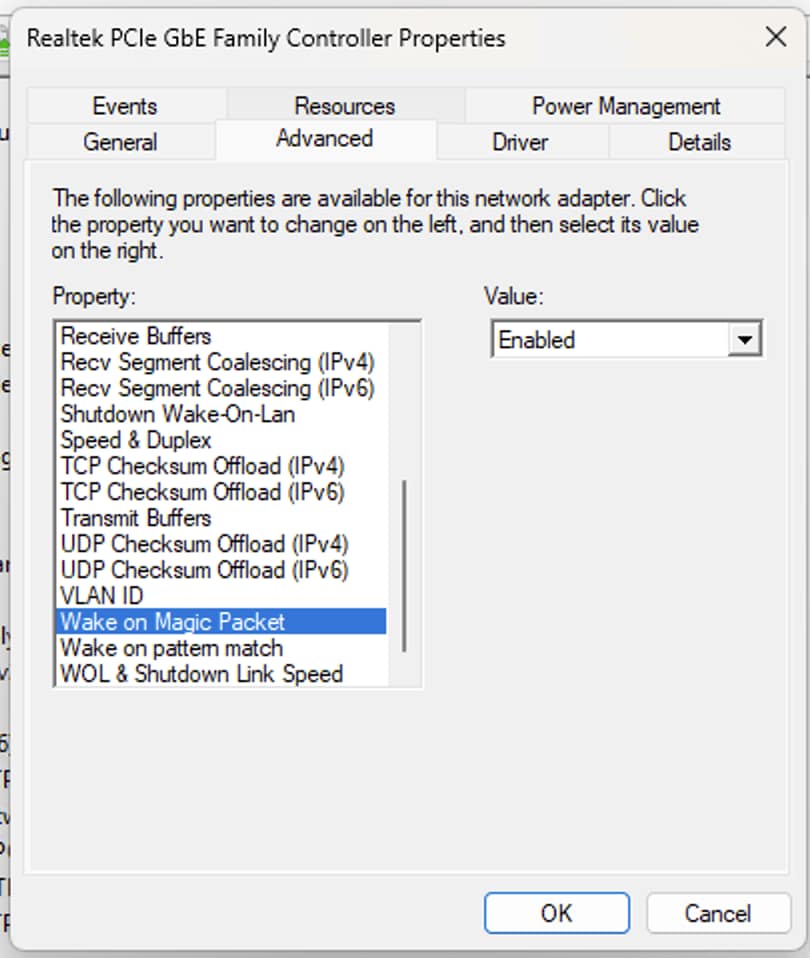
If these options are unavailable, ensure your device supports WoL and that your drivers are up-to-date.
To enable WoL on macOS devices, turn on Wake for network access in the Battery settings (it can be found by clicking on the Options… button). The steps for enabling Wake-on-LAN on Linux systems will depend on your distribution and may require the use of the terminal, so it’s best to check the specific documentation for your distribution.
How to wake a device with Wake-on-LAN
To wake a device with Wake-on-LAN enabled from sleep, you will need to send it a magic packet. In some cases, this will happen automatically when you attempt to access the device over the network. However, you can also manually send a magic packet using one of the following tools:
Note that since these are third-party tools, you should vet them before you use them – their inclusion in this article does not indicate endorsement.
Experience how NinjaOne makes Wake-on-LAN operations easier.
Wake-on-LAN over the Internet
The technical implementation of Wake-on-Lan means that it only works on the local subnet and does not function over the Internet. However, you can remotely access a device on your local network to send a magic packet to wake another device. For example, you may have a remotely manageable router or network switch that allows for the sending of magic packets, or be able to access the remote network via a VPN.
Many remote monitoring and management tools also allow you to wake devices remotely.
Risks and security considerations
Wake-on-LAN is a relatively low security risk and is often enabled by default on devices. By following best practices for general network security, including the implementation of firewalls and access control, you can ensure that only legitimate wake-up requests propagate on your network.
Wake-on-LAN, power management in IT, and remote monitoring and management
Wake-on-LAN is an essential requirement for any remote monitoring and management platform for use in enterprise and education environments.
The NinjaOne IT management platform supports sending magic packets for Wake-on-LAN through its web interface. This allows you to configure your IT infrastructure for the highest efficiency while still allowing you to access distant devices to resolve issues, install patches, and perform other maintenance tasks.