

Key Points
- Confirm BIOS or UEFI firmware version directly by accessing the setup interface during PC startup (usually via F2, F10, F12, or DEL keys), a method that works on any operating system.
- The primary method for Windows 10 and 11 is to run the msinfo32 command and find the “BIOS Version/Date” field under System Summary.
- Retrieve the current BIOS/UEFI firmware version quickly in Windows using command-line utilities, such as the WMIC command in Command Prompt.
- An alternative, quick check for the BIOS/UEFI version is available in Windows by executing the dxdiag command in the Run dialog.
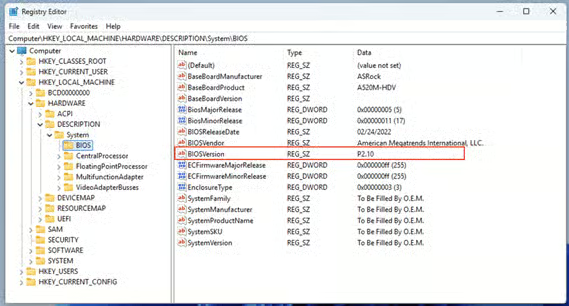
- Advanced users can locate the current UEFI or BIOS firmware version within the Windows Registry Editor at the path HKEY_LOCAL_MACHINE\HARDWARE\DESCRIPTION\System\BIOS.
This guide explains how to confirm the BIOS or UEFI firmware version on Windows 10 and Windows 11 devices (as well as for other versions of Windows, Linux, and any other PC). It covers using the built-in Windows system information and DirectX tools, the registry, the command line, and checking the BIOS directly to find out which firmware version is installed.
Watch How to Confirm BIOS or UEFI Firmware Version in Windows 10/11 for a visual guide.
Background: Understanding BIOS and UEFI
The BIOS (Basic Input/Output System) is the firmware that interacts with your computer’s hardware, initializing it and allowing it to boot into a usable state, ready to load your operating system.
Unified Extensible Firmware Interface (UEFI) is a more modern firmware standard designed to replace the BIOS. It serves the same purpose but offers more modern functionality, such as secure boot and support for booting from both legacy MBR and modern GPT partitions (allowing support for larger drives with more partitions).
While ‘BIOS’ refers to a specific set of standards and a specific kind of firmware, it’s often used as a generic term for any PC firmware. This can lead to confusion, so to be clear, the term ‘Legacy BIOS’ is sometimes used for non-UEFI systems.
BIOS vs UEFI differences
| Feature | Legacy BIOS | UEFI (Unified Extensible Firmware Interface) |
| Firmware type | 16-bit | 32-bit or 64-bit |
| Partition scheme | MBR (Master Boot Record) | GPT (GUID Partition Table) |
| Drive size support | Supports disks up to 2 TB | Supports disks larger than 2 TB |
| Number of partitions | Maximum of 4 primary partitions, or 3 primary + 1 extended | Supports up to 128 partitions |
| Boot mode | Legacy Boot | Secure Boot and Fast Boot |
| Security | No built-in security features | Supports Secure Boot to block malware from running at startup |
| Bootloader location | Stored in the first sector of the disk (MBR) | Stored in the EFI System Partition (ESP) |
| Power management | Basic power management | Support for Advanced Power Management (APM) and Advanced Configuration and Power Interface (ACPI) |
| Update process | BIOS firmware updates usually must be flashed manually or using a special tool | Firmware updates can be deployed via Windows Update or other built-in OS utilities |
Why you need to know your BIOS or UEFI version
There are several scenarios where you will need to know your BIOS or UEFI version:
- Troubleshooting: Some troubleshooting steps may be specific to a BIOS or UEFI version.
- Upgrading: Motherboard manufacturers periodically release firmware updates that fix bugs and introduce new features or support for newly released hardware. Checking whether your motherboard is already running the latest version prevents wasting resources spent updating it.
- Compatibility: Some hardware is only compatible with certain BIOS/UEFI versions. One famous example is AMD Ryzen CPUs that will only work with certain firmware versions, requiring an update before they can be used.
Important Caution: A firmware update should be performed only when you have a specific reason (e.g., a bug fix, a security patch, or hardware compatibility). The process is delicate; if the update is interrupted by a power loss or system failure, it can potentially render the motherboard unusable (“bricking” the system). Always back up critical data before proceeding.
💻 Looking to update? Ensure your BIOS update goes smoothly.
Read How To Update Your PC’s BIOS. →
How to check BIOS or UEFI firmware version on Windows 10, Windows 11, and other PCs
There are several ways you can locate the version in Windows 10, Windows 11, and on other PCs.
Directly in the BIOS or UEFI setup interface itself
This method will work on any PC running Windows 10, Windows 11, or any other operating system.
When your device is powered on (not resumed from standby or rebooted, but started from a completely ‘off’ state), you can press a key or button on your keyboard or device to interrupt the boot process and launch the BIOS or UEFI setup interface.
Which button this exactly differs from device to device, but it is usually the DELETE key, the ESCAPE key, or one of the F1, F2, F10, or F12 keys. The key you need to press may be indicated on-screen when your computer starts (for example, it may say Press ESC to enter SETUP), or it can be found in its user manual. As a last resort, trial-and-error is also a valid approach used by many IT technicians to find out which key enters the BIOS.
Once the BIOS/UEFI setup interface opens, you can navigate it to check the firmware version.
Using System Information in Windows 10 and Windows 11 to find BIOS or UEFI version
The System Information tool in Windows 10 and Windows 11 can be used to check the current BIOS and UEFI firmware version of your motherboard:
- Right-click on the Start button
- Select Run
- Enter msinfo32 in the Run dialog and press OK
- Click System Summary in the left navigation tree
- In the list of values to the right of the System Information Window, scroll down to the BIOS Version/Date item
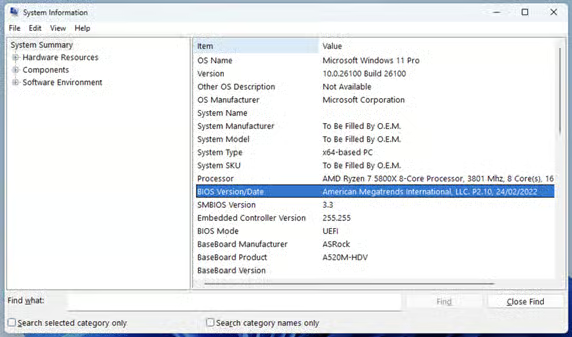
You can also check the BIOS Mode value to determine whether your system is using a legacy BIOS or UEFI.
Finding BIOS or UEFI firmware version using the DirectX diagnostic tool
You can also use the DirectX diagnostic tool in Windows 10 and Windows 11 to find the BIOS or UEFI version:
- Right-click on the Start button
- Select Run
- Enter dxdiag in the Run dialog and press OK
- Optionally check for signed drivers
- In the DirectX diagnostic tool, the BIOS/UEFI version will be displayed
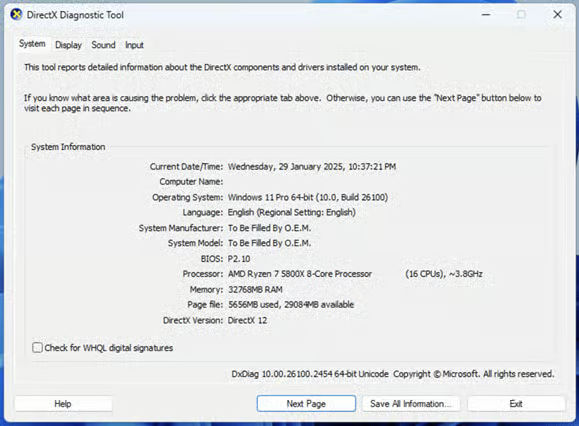
Note that this provides significantly less information than using the System Information tool.
Checking the current BIOS/UEFI version in the Registry Editor
The Windows 10 and Windows 11 Registry Editor can also be used to check BIOS or UEFI version:
- Open the Registry Editor
- Navigate to HKEY_LOCAL_MACHINE\HARDWARE\DESCRIPTION\System\BIOS
- Check the BIOSVersion key to find your current BIOS/UEFI firmware version
Pro Tip for Linux Users: On most Linux distributions (Ubuntu, Fedora, etc.), you can instantly check the firmware version by opening the terminal and executing the command: sudo dmidecode -s bios-version
Finding BIOS or UEFI version using the Command Line (WMIC)
Running outdated BIOS or UEFI firmware poses significant risks, including exposure to critical vulnerabilities (like Spectre or Meltdown), system instability, and the inability to support newer components or operating system features. Addressing these risks requires a reliable, managed patching strategy.
For IT professionals who frequently use scripts or need to quickly retrieve system information without navigating the GUI, the Windows Management Instrumentation Command-line (WMIC) is often the fastest method.
- Open the Command Prompt by typing CMD in the Windows search bar.
- Enter the following command and press Enter: wmic bios get smbiosbiosversion
This command directly queries the system’s BIOS information and outputs the current firmware version, making it ideal for automation tasks.
Prepare your system for modern hardware.
Learn how to Convert Windows 11 ISO From Legacy BIOS to UEFI.
Keeping firmware and software up-to-date in enterprise
Keeping software and firmware up to date is vital for the security and stability of Windows 10 and Windows 11 devices. Doing this manually becomes difficult as you manage more devices in more locations.
NinjaOne provides an enterprise MDM and endpoint management solution that lets you manage all the Windows, Apple, Android, and Linux devices in your organization from a single web interface. You can check that devices and UEFI firmware are up to date and deploy and test software updates to ensure that all your devices are running optimally and securely.