


In an increasingly digitized age, data has become a highly valuable asset for organizations across various sectors, from business enterprises to healthcare centers to government institutions.
Thus, protecting this data has become paramount for any IT teams and MSPs. Among the many data security tactics administrators and cybersecurity specialists employ is performing a full backup of their clients’ systems to ensure data isn’t lost and operations can be maintained smoothly. However, before your IT team adopts this measure, it is essential to know how a full system backup actually works.
In this guide, we’ll discuss the answer to “What is a full backup?”, what is and isn’t included in a full backup, the pros and cons of using one, and the most recommended practices to maximize its effectiveness.
Find out which backup option suits your organization’s needs
The true scope of a full system backup
To understand the actual coverage of a full backup, one should understand what a full backup is and how it works.
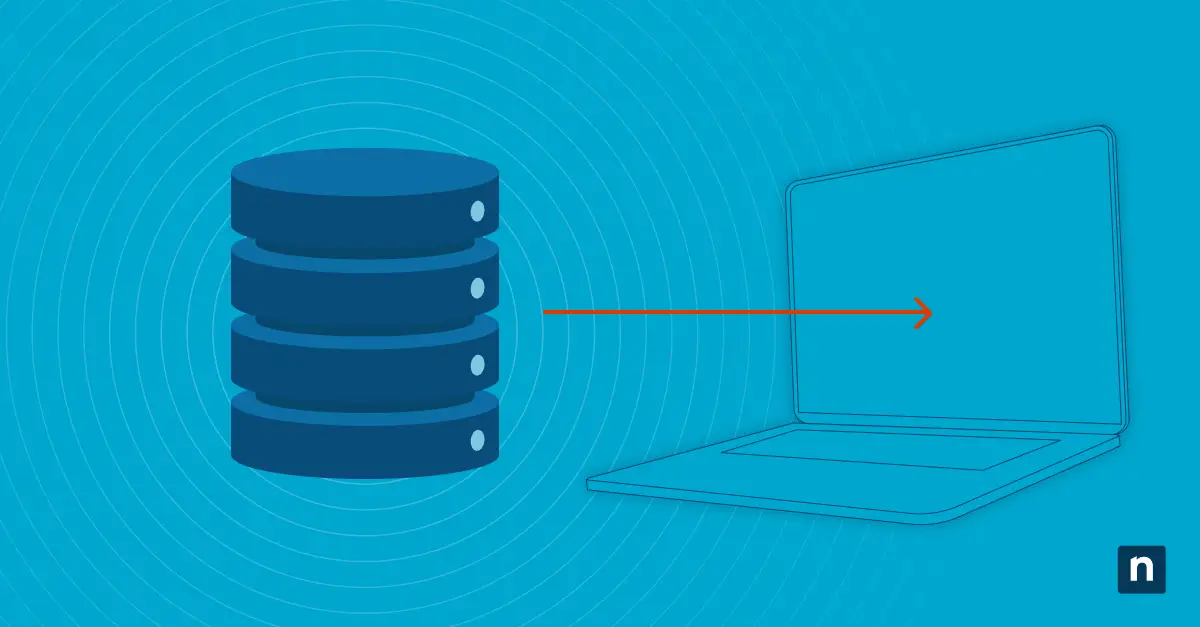
A full backup, also known as a complete backup, is the process of creating copies of an entire dataset, whether it be from a single endpoint or an entire enterprise system, and storing them in a physical or cloud storage medium. By creating a complete copy, IT teams and their clients can restore data to a previously captured state when needed. This can help organizations recover more efficiently from incidents involving lost, stolen, deleted, or corrupted data and support the restoration of normal operations.
However, because a full backup copies all data within a defined scope, users might assume that it includes every piece of data associated with a system
What’s included in a complete system backup
In reality, a complete system backup includes the core components of a system’s operations and recovery. Core system components include:
- Operating system files
- Installed applications
- System configurations and settings
- User accounts and profiles
- Files and folders stored on the system
- Boot configuration and system state
What a full system backup excludes
Depending on the backup configuration and defined scope, some data may be excluded from a full system backup. Common examples include:
- External drives
- Cloud-based data
- Temporary or cached files
- Unmapped network storage
Why do full backups exclude certain data
Full system backups may exclude some data for the following reasons:
- No substantial importance
If an organization or IT team does not need this data for its operations, then chances are it will not be included in the full backup process.
- Can be rebuilt automatically
Some data types, such as system-generated files and cache data, can recreate themselves automatically by the operating systems or applications, making it unnecessary to back them up.
- Safety and complexity
Some data types may require separate handling because corrupted or compromised data could affect the reliability of backup and recovery operations.
- Backup performance improvement
Because full backups copy entire data sets, it can take time to complete the process and requires tons of storage space. Thus, full backups sometimes exclude data for speed and storage efficiency.
By being knowledgeable of what full backups include and exclude, and by understanding why they do so, admins and users can better familiarize themselves with the advantages and gaps within their data protection plans.
Types of full system backups
Users and admins can implement full system backups through various methods and technologies. The following examples include common full backup types, as well as related backup approaches that can support different recovery and data protection needs.
Active full backup
This type of backup creates an entirely new copy of a dataset straight from the source. However, as it is resource-intensive (high network and storage usage), this type is utilized for first-time backup creation.
Synthetic full backup
This type reads and recreates a dataset using a previously created backup or a subsequent incremental backup as its source. Therefore, it is best used for clients who wish to attain a full copy using fewer resources.
Mirror full backup
This type recreates an exact replica or “mirror” of a dataset along with its configurations and deletions. It is ideal for users who want fast recovery and direct access.
Image-based full backup
This type creates an image-level replica of a sector or system, including operating systems, applications, and configurations, and is therefore ideal for disaster recovery.
File-level backup
This type takes a granular approach to backup and recovery by copying select files and folders rather than the entire dataset, making it best suited for individual file recovery.
Reverse incremental backup
And lastly, this approach updates an existing backup with the latest changes while preserving previous recovery points. As a result, the most current version of the data is readily available for recovery, while historical versions can still be retained.
Choosing the right backup method or approach depends on your recovery goals, operational requirements, and available resources. Understanding the strengths and tradeoffs of each option can help you build a backup strategy that best fits your needs.
Difference between full vs incremental and differential backups
Despite its reliability and fast recovery, full backups are a resource-intensive process, requiring loads of storage space, network data, and time. Therefore, rather than performing a complete backup frequently, it is recommended to pair it with incremental or differential backups.
Different Types of backups:
- A full backup copies an entire dataset.
- An incremental backup copies only the data that has changed since the last backup.
- A differential backup falls in between the two, where, after the initial full backup, any subsequent changes will be copied.
A well-made backup strategy should not rely solely on recreating and storing all data on a regular basis. It should also include other backup types to ensure efficient copying and restoration.
System backup and recovery best practices
With knowledge comes application. Once you have familiarized yourself with how full system backups function, you and your team should be able to formulate strategies that safeguard clients’ data and recover it quickly and effectively when incidents arise unexpectedly.
Here are our best practices for your system backup and recovery plans.
Schedule regular full and incremental backups
When determining the frequency of your backup schedule, consider factors such as business hours, storage size, and data retention periods.
Store backups in multiple locations
Follow the 3-2-1 rule of backing up data, where you create 3 copies and store them in 2 on-site and 1 off-site storage mediums.
Test restore processes regularly
Ensure that your backup data remains reliable by regularly testing restoration. Set a recovery-time objective (RTO) and recovery point objective (RPO) that will serve as baselines for success.
Protect backup data from unauthorized access
Limit access to backup data to a select number of personnel within your team. Create clearly defined roles and assign them accordingly. Likewise, implement strong security features like passwords, encryption, and multi-factor authentication.
Ensure backups include all critical systems
Never assume that all system data has been copied and stored. Always take inventory of your backup’s contents, especially if they are missing data crucial for system operations.
Common misconceptions about full system backups
More often than not, the misuse of full system backups stems from misunderstandings about how they work. Here are a few common misconceptions surrounding full backups.
Misconception #1: A full backup includes all data everywhere
A full backup does not necessarily include all data associated with a system. The data included in a backup depends on its configured scope and policies, which may include or exclude specific files, locations, or systems based on organizational requirements.
Misconception #2: Cloud data is automatically included
Cloud data is typically stored in its own storage, separate from the systems being backed up. Full system backups may not include them unless the backup solution and configuration are specifically designed to protect those cloud-based resources.
Misconception #3: One backup is enough for long-term protection
Relying on one storage medium for your backup data is discouraged, as it can be left exposed to multiple external threats, such as theft, corruption, and physical damage.
Misconception #4: Full backups eliminate the need for testing
If left unchecked, a full backup’s health and integrity can be compromised, resulting in the potential loss of crucial data.
Misconception #5: System backups always include external devices
As with cloud data, external devices are not automatically included in a full backup’s coverage. Whether they are protected depends on the backup scope and configuration defined for the system.
Correcting how we think full backups work can greatly assist in recalibrating our backup strategies and, in turn, strengthen our data protection infrastructure and protocols.
Experience fast and simple backup built into your IT operations
Conclusion
A full backup may copy a system’s entire dataset, but that does not mean that all forms of data are included in its scope. By understanding what a full backup includes and excludes, users and admins can get a better idea of the overall effectiveness and reliability of their backup strategies and policies.
At the end of the day, performing full backups isn’t just about protecting and maintaining your dataset’s integrity. It is also about understanding what is included in your backup scope and ensuring it aligns with your recovery and data protection requirements.
Related topics: