


Key Points
- Use the built-in toggle: Edge provides a native switch to show or hide the title bar when vertical tabs are active.
- Improve space: Hiding the title bar frees up vertical pixels, which may be useful on smaller laptops and touch devices.
- Keep controls accessible: Keep the title bar visible if users rely heavily on traditional window drag or title display.
- Standardize by profile: Define a default setting for each device class or user group to maintain consistency.
- Validate after change: Test snap layouts, window dragging, and multi-monitor workflows.
Vertical tabs in Microsoft Edge are a great way to reclaim horizontal space, especially on smaller-screen devices. However, many users notice that the traditional window title bar starts to feel redundant once the vertical tab sidebar takes over navigation. To address this, Edge includes a built-in option that hides the title bar whenever vertical tabs are enabled.
In this guide, we walk you through enabling MS Edge vertical tabs and establishing standards across devices.
Prerequisites
Make sure you have these before proceeding:
- Microsoft Edge on Windows 11 (any channel, though newer builds have more consistent behavior).
- Vertical tabs must be available in your version of Edge.
- Local permission to change Edge settings (for managed environments, this may depend on profile restrictions).
Configuring the show/hide title bar vertical tabs on Edge
Step 1: Turn vertical tabs on
Before you can show or hide the title bar, Edge needs to be in vertical tabs mode. Turning on vertical tabs shifts navigation to a sidebar and prepares Edge to apply layout-specific options like hiding the title bar. Once enabled, you’ll see the updated window chrome and can proceed to customize title bar visibility.
How to do this:
- Open Microsoft Edge.
- Right-click the horizontal tab strip. In the latest Edge version, this feature is located in the left-hand corner, indicated by an arrow symbol pointing down.
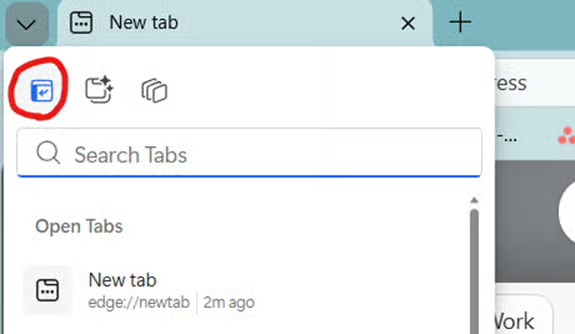
- Select Turn on vertical tabs.
- Or click the Vertical tabs icon if it’s already present on the tab bar.
- Edge will redraw the interface with the tab list running vertically.
From there, you now have two options to show or hide the title bar. Let’s explore them.
💡 You can also read: How to Enable or Disable Vertical Tabs in Microsoft Edge in Windows 11
Step 2: Show or hide vertical tabs
Option 1: From the Edge settings
This is the most reliable and universally available method.
How to do this:
- In Edge, go to: edge://settings/appearance
- Scroll to the Appearance or Customize sidebar and tabs section (label varies by version; may also appear as Customize browser > Sidebar and tabs.).
- Find the setting: Hide title bar while in vertical tabs
- Toggle:
- On: Hide the title bar
- Off: Show the title bar
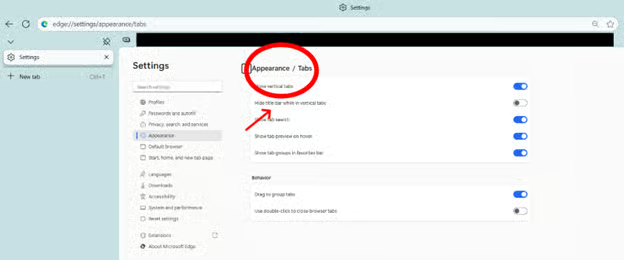
- If the change doesn’t apply immediately, close and reopen the Edge window.
Option 2: Quick toggle from the tab panel
Some Edge builds include a direct toggle inside the vertical tabs panel.
How to do this:
- Make sure vertical tabs are enabled.
- Open the Vertical Tabs menu (ellipsis or header control).
- Choose Hide title bar or Show title bar if the option appears.
- Confirm the window chrome updates right away.
💡 Note: This menu-based toggle isn’t available in all channels. It appears more consistently in Dev and Canary builds.
Regardless of the option you chose, you now need to validate whether it worked.
Step 3: Validate and UX checks
After adjusting the title bar setting, it’s important to test a few everyday windowing behaviors to make sure nothing feels off or harder to use. Hiding the title bar changes how Edge handles dragging, snapping, and multi-monitor movement, so a quick validation helps catch issues before they impact users. These checks ensure the layout remains intuitive and consistent across different devices and display setups.
Drag & Window Movement
- Ensure you can still drag the window using the small top margin or frame area.
- If users struggle to grab the window, consider leaving the title bar visible.
Snap Layouts
- Hover over the maximize button to check Snap Layouts.
- Test snapping Edge left, right, or into corners.
Multi-Monitor Behavior
- Move the window across monitors with different resolutions or scaling.
- Ensure the vertical tabs layout and hidden title bar mode remain stable.
Title Visibility
- The title may only appear in Alt+Tab, taskbar previews, or tooltips when hidden.
- Confirm this is acceptable for your workflows (e.g., documentation, monitoring).
Step 4: Create documentation
When managing multiple devices or user groups, it helps to define a standard setting for how Edge should handle vertical tabs and the title bar. A consistent default reduces user confusion and keeps the browser experience predictable across your fleet. By documenting these choices up front, admins can ensure smoother onboarding and easier troubleshooting.
Suggested Defaults
- Small-screen laptops (≤14”): Hide the title bar to maximize usable space.
- Training labs, kiosks, shared stations → Show the title bar for clarity and discoverability.
- Developer or power user devices → Allow customization, but document your recommendation.
Document the following
- Your default setting and rationale
- Who may override it
- Any exceptions (e.g., screen capture machines)
- Where users can find the toggle in Edge settings
💡 Note: Edge does not currently offer a dedicated GPO/MDM policy for this setting, so treat this as a per-profile preference rather than an enforced configuration.
Troubleshooting common issues
Toggle missing
The option to hide the title bar only appears when Vertical Tabs is enabled, so make sure the browser is already in vertical tab mode before looking for the setting. If it still isn’t visible, update Microsoft Edge to the latest Stable or Beta build, since older versions may not support this UI feature. Restarting Edge or switching profiles can also force the setting to appear if it was temporarily cached.
Can’t drag the window after hiding the title bar
When the title bar is hidden, the draggable region becomes smaller, so try grabbing the very top margin or the thin frame area above the vertical tabs panel. Some users may find this less intuitive, so if window movement becomes frustrating, simply re-enable the title bar for better accessibility. Touch-screen users in particular may benefit from keeping the traditional drag zone visible.
Inconsistent behavior across profiles
Edge stores appearance settings per profile, so hiding the title bar in one profile does not carry over to others. If things look different between windows, check which profile is active, such as work or guest. Adjust the setting in the correct profile or enable profile sync if consistency is required.
Title needed for screen capture or monitoring
Some workflows rely on having a visible title bar, such as documentation screenshots or help desk sessions. In those cases, leave the title bar visible so titles are always readable and consistently captured. This also helps reduce confusion when switching between multiple Edge windows.
Conflicts with themes or extensions
If the toggle behaves inconsistently, temporarily switch back to Edge’s default theme and disable any appearance-related extensions. Re-test the setting, then re-enable items one by one to identify which customization caused the conflict.
MS Edge vertical tabs
Edge gives you the option to streamline its interface by hiding the title bar when vertical tabs are active. Once vertical tabs are enabled, you can toggle title bar visibility through Edge’s Appearance settings or (in some builds) via the tab panel.
After changing the setting, validate window dragging, snapping, and multi-display behavior. For larger teams, set a sensible default for each device class and document the steps so users can switch when necessary.
Related links:
- How to Disable Microsoft Edge from Launching at Startup in Windows
- How to Add or Remove the Sidebar in Microsoft Edge
- How to Enable or Disable Vertical Tabs in Microsoft Edge in Windows 11
- How to Enable or Disable Vertical Tabs in Microsoft Edge in Windows 11 (Video)
- How to Enable or Disable Tab Organization Suggestions in Microsoft Edge






