Key Points
- Connected classroom technology combines devices, networks, and learning platforms into one integrated ecosystem.
- They are designed to make education more accessible and personalized.
- Effective device governance aligns IT policies with instructional goals, ensuring students have access to the right tools without unnecessary restrictions that slow down teaching.
- Protecting student data is both a legal requirement and an ethical responsibility, requiring schools to enforce encryption, identity controls, and strict app approval processes.
- Sustainable connected classrooms require lifecycle planning, teacher support, and resilient infrastructure to deliver long-term value to students and educators.
You’ve probably heard about “connected classroom technology” before, but didn’t really know it had a name. Fair enough: A recent Deloitte article found that around 10% of the world’s population (or around 800 million) use an AI tool every week, with experts predicting that emerging technologies will continue to reshape businesses (and schools!) in the next 18-24 months.
That level of adoption—especially when you consider that AI was only really introduced not so long ago—is outstanding. So it’s not surprising that the same technologies have expanded to today’s classrooms, where tablets, laptops, interactive displays, cloud-based learning platforms, and high-speed internet work together to make education more accessible and personalized.
But here’s the thing: Building a connected classroom requires deliberate planning and smart governance. Without these, the technology can become more of a burden than a benefit—for both teachers and students (you only have to watch our IT Horror Story podcast to realize the truth of this).
This guide breaks it all down in plain, simple language.
The right RMM can help make connected classroom governance much easier.
Explore NinjaOne RMM for Education.
What does a connected classroom look like?
Let’s first define a secure digital classroom infrastructure.
A connected classroom, which can sometimes be called a smart classroom or digital classroom, is an educational environment equipped with technology that enhances both the teaching and learning experience. Think: The typical classroom, but made much more engaging.
A typical connected classroom includes:
- Tablets or laptops
- Teacher-managed instructional devices
- Interactive flat panel displays or smartboards
- Smart projectors
- Secure WiFi infrastructure
- A Learning Management System (LMS) like Google Classroom or Microsoft Teams for Education
- Collaboration tools like Google Docs, Zoom, or Microsoft OneNote
The key word here is integrated. All these devices and online tools function as a connected ecosystem where each component supports the other. A student’s tablet communicates with the LMS; the teacher’s device pushes content to the smartboard; assignments, grades, and announcements flow through the same platform.
When everything is properly connected and configured, learning can happen seamlessly.
How to map out your education device governance framework
Think of your connected classroom architecture as the blueprint of a house. Before anyone moves in, you need to plan where the walls go, where the power outlets are, and how the plumbing connects everything.
The same logic applies here.
Here are some steps to keep in mind. Take note that these are not fixed patterns; feel free to adjust them according to your own school’s priorities.
Start with the devices
Device selection is one of the most important decisions a school can make. In most cases, your school will operate a mixed-device environment, such as using laptops in computer labs and Chromebooks for everyday coursework. While the variety can seem overwhelming (especially if you’re unsure which endpoint is best for a specific use case), the general rule of thumb is to choose devices that are most appropriate for the following:
- Age group
- Durability
- Manageability
Many schools have adopted a 1:1 device program, where every student is assigned a personal device. This ensures equal access to digital tools and enables personalized learning. That said, 1:1 programs also come with their own management challenges, especially when students go home with their devices.
Shared device programs, where multiple students rotate through the same device, are another common model. However, they require strong reset and re-enrollment procedures to protect the personally identifiable information (PII) of each student between sessions.
Build a reliable network
Once you’ve decided on which devices to use and for which use case, you must now plan for network segmentation, or separating student devices from administrative systems to reduce security vulnerabilities.
The most important aspect here is bandwidth: It must be sufficient to support entire classrooms streaming video, running cloud-based apps, and participating in video calls simultaneously without lag or dropout.
You should also consider planning for backup connectivity. If the main internet connection goes down during a lesson, what’s the fallback? A secondary connection, local content caching, or offline-capable applications can prevent a single network outage from derailing an entire school day.
Expert tip: Check our guide, Backup Strategy for Small Business Guide, for more tips. While this article focuses on small businesses, there are still excellent strategies that you can apply in your school.
Choose your learning platforms wisely
Lastly, choose the most suitable LMS for your school. These systems are the digital backbone of a connected classroom as they are where teachers post assignments, students submit work, grades are tracked, and announcements are shared. Platforms like Google Classroom, Canvas, and Microsoft Teams for Education are widely used and well-integrated with other tools.
When evaluating an LMS, look for:
- Ease of use
- Cross-platform compatibility
- Data privacy compliance
- Scalability
How to align device governance with learning goals
IT governance refers to the policies, rules, and configurations that determine how devices are used, who can access what, and what happens when rules are broken.
Some schools tend to overlook this because they assume that this framework has no bearing on educational institutions. But device governance isn’t “just” an IT concern. It directly affects what happens in the classroom. A good governance strategy helps you support the proper learning outcomes and prevent threat actors from exploiting your system.
Here are a few ways to improve your device governance in your school:
Define device profiles by grade level
Every student does not need access to the same apps and features as others. A first grader’s tablet should look and function differently from a high schooler’s laptop, for example.
Take care to create standardized device profiles tailored to grade levels and subject areas. These profiles will then define which apps are installed, which websites are accessible, and what system settings are available to students.
Control distractions without killing flexibility
A common challenge in connected classrooms is keeping students focused. With internet-connected devices, the temptation to browse social media, play games, or watch videos is always present.
Your education device governance framework must address this by blocking access to non-educational apps and websites during class hours, and, in some cases, locking devices into kiosk mode (a setting where the device only runs one approved app at a time). This is especially useful during exams or structured lessons.
Even so, governance should be smart, not confining. Teachers need enough flexibility to adapt their lessons, introduce new tools, and respond to the unexpected. It’s important that you find the balance so that students can still learn without being exposed to distracting (or even dangerous) materials.
Set up role-based access
Well-governed connected classrooms use role-based access control (RBAC), where different users get different levels of permission (this falls under the security principle of least privilege).
In practice, this means that students receive restricted access focused on learning tools, and teachers get broader access to instructional apps and classroom management features. IT admins should also retain full control over device configurations and security settings.
This layered approach improves usability without compromising security.
Enforce testing mode during assessments
During exams, your devices need to behave differently from how they do during regular lessons. Testing mode, which is often enforced through an RMM platform like NinjaOne RMM for Education, locks devices into a single browser or app, disables screen capture, blocks external communication, and applies time-based restrictions.
This reduces cheating, supports fair assessments, and eliminates the need for constant physical supervision.
How to protect student privacy in connected classroom
Educational institutions must comply with a range of student data protection regulations. In the United States, this includes FERPA (Family Educational Rights and Privacy Act) and CIPA (Children’s Internet Protection Act). In Europe, GDPR compliance applies.
Schools must design their connected classroom environments with these regulations in mind from day one, not as an afterthought. Remember: Protecting data is the law, and violating it can lead to serious repercussions.
Here are some strategies to consider:
- Enforce encryption and identity management: All student data should be encrypted and protected with identity management systems, such as single sign-on (SSO) or multi-factor authentication (MFA).
- Implement third-party app approval systems: Maintain a controlled list of approved applications and restrict students from installing anything outside of that list. Before any third-party app is approved, its data collection practices, privacy policy, and compliance with relevant regulations should be reviewed by IT or administrative staff.
- Maintain transparent monitoring policies: Make sure that students and parents are clearly informed about how a child’s data is being monitored, why, and how that data is stored and used. This builds trust and reduces the risk of legal or reputational issues.
- Have data retention guidelines: Ensure that your school clearly defines how long student data is kept and when it is deleted. Retaining data longer than necessary increases risk. Clear retention policies, aligned with local regulations, help your institution stay compliant and reduce its data exposure.
How your secure digital classroom infrastructure can support teachers and IT teams
Even the best-designed connected classroom will fail if the people using it aren’t supported. Teachers who feel overwhelmed by technology won’t use it effectively, and students will miss out on its benefits.
Thankfully, there are easy strategies you can use to help support your teachers and IT teams.
- Support teacher training and ongoing professional development: It’s important that your teachers are confident and comfortable when teaching in connected classrooms. If possible, try to invest in regular, practical training that goes beyond a one-time workshop. Your teachers need to know how to use the LMS, troubleshoot basic device issues, manage a classroom of students on screen, and adapt their lessons for digital delivery.
- Have clear escalation procedures: It’s inevitable that something wrong will happen in connected classrooms, but that’s why your teachers need to know what to do after it happens. Establish a clear support escalation path, including what a teacher should do first, when to escalate to IT, and what the expected response time is. It is also a good idea to have internal help guides or FAQs to empower teachers to resolve minor issues independently without waiting for IT.
- Follow device troubleshooting workflows: A good security practice is to have a robust RMM, like NinjaOne RMM for Education, in place so your IT team can resolve issues remotely in real time. Schools should also define device reset procedures for common scenarios; for example, what happens when a shared device needs to be wiped between class periods, or when a student’s account becomes locked.
Support every school device with NinjaOne RMM for Education.
How to ensure network and infrastructure resilience
Okay: Infrastructure planning is the least glamorous part of this process, but it’s also one of the most critical.
Make sure you design your networks with concurrent usage in mind. This means, for example, that one class should be able to stream an educational video simultaneously while another classroom runs a virtual lab. Network segmentation is also important: Student devices should be on a separate network segment from administrative systems to reduce the risk of a student accidentally (or deliberately) accessing sensitive school data.
You should also consider investing in backup connectivity options, such as a secondary internet connection. This ensures that learning stays on track even if the primary connection goes down. We also highly recommend that you test your network performance regularly to detect any minor changes immediately and resolve them before they become bigger issues.
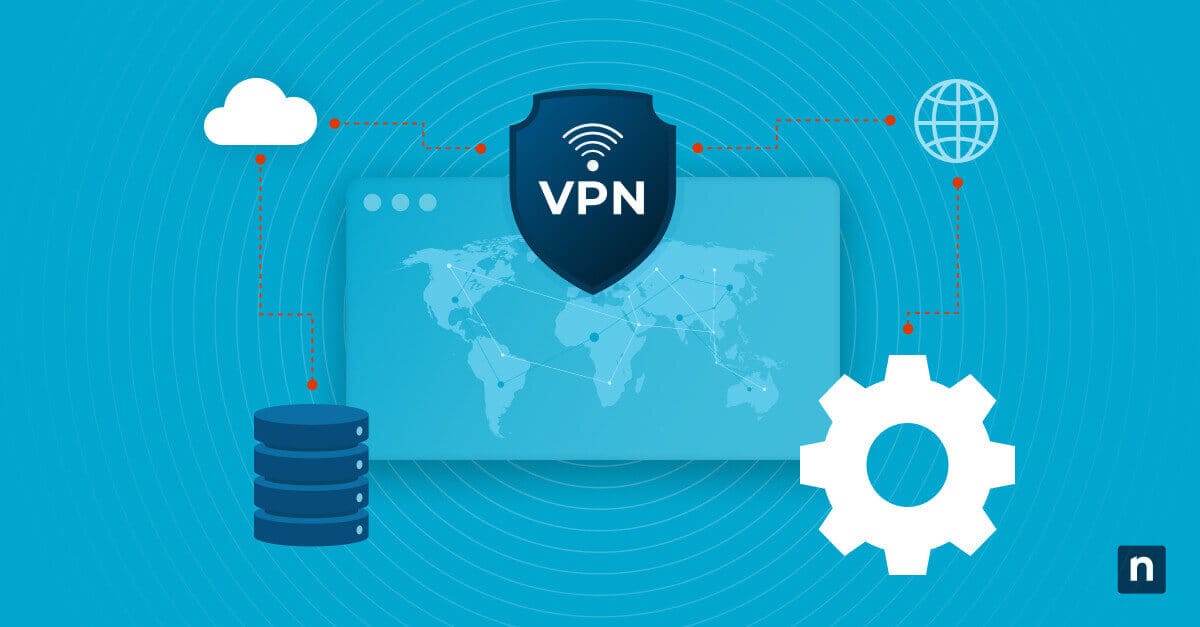
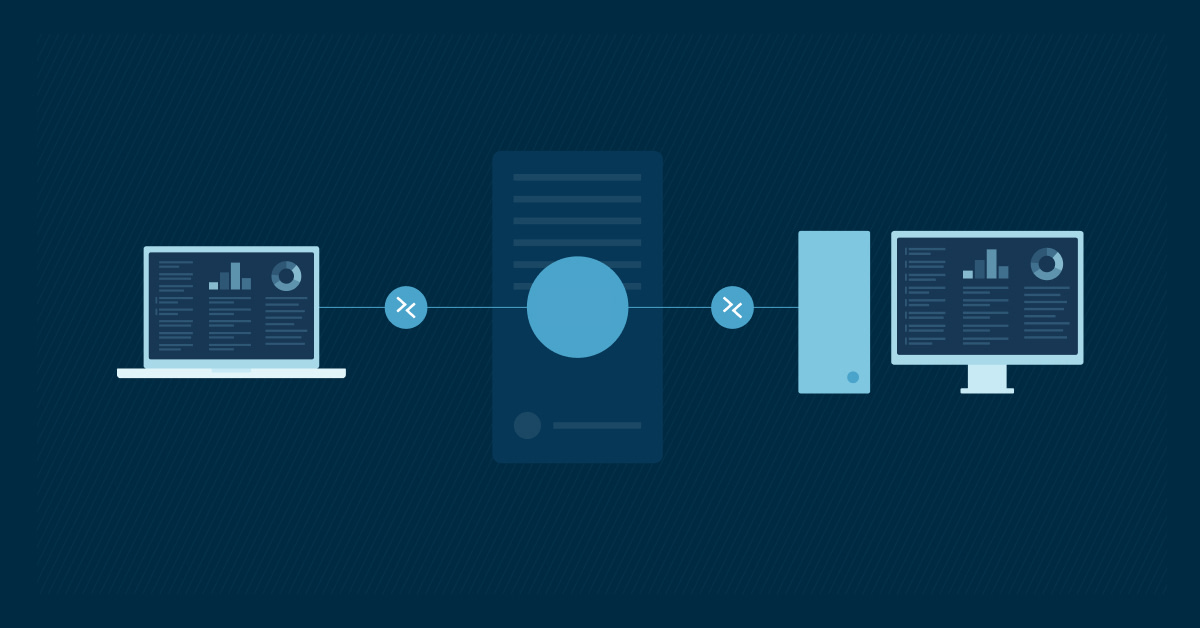
Lastly, consider your secure remote support capabilities. IT staff should be able to connect to and troubleshoot devices remotely, whether students are on campus or learning from home. This requires a VPN or secure remote management protocol that doesn’t compromise network security.
How to plan for device lifecycle sustainability
Schools must plan for hardware lifecycle management to avoid using aging or incompatible devices that are expensive to maintain and frustrating to use.
- Multi-year refresh cycles: Most school devices have a practical lifespan of three to five years. It’s a good idea to have multi-year refresh cycles as part of your regular security hygiene, where aging devices are replaced on a predictable schedule rather than as an emergency response to failures.
- Standardized hardware models: Use consistent hardware models across grade levels or campuses to make device management simpler. This allows your IT team to apply uniform configurations and troubleshoot issues faster. And while hardware diversity can sometimes be unavoidable, take note that this creates complexity and may be considered a security vulnerability.
- Repair, replace, and responsible disposal: Make sure that you have clear procedures for handling damaged devices, including how and when devices are replaced or repaired. Additionally, make sure that you practice responsible disposal once a device has reached its end of life (EoL). Environmentally responsible disposal, through certified e-waste recyclers, protects both the environment and any residual data on the devices.
Quick-Start Guide
NinjaOne offers several capabilities that are relevant for designing and securing a connected classroom:
Device Management & Security
- Endpoint Management: Monitor and manage all classroom devices (Windows, Mac, Linux) from a centralized console
- Mobile Device Management (MDM): Manage Android and iOS devices used in classrooms with policies for app management, content protection, and security posture
- Device Approval & Registration: Control which devices connect to your network through approval workflows
- Multi-Factor Authentication (MFA): Secure technician and user access to the management platform
Security & Compliance
- Real-Time Vulnerability Management: Identify and track CVEs on classroom devices automatically
- Antivirus Integration: Deploy and monitor integrated antivirus (Bitdefender/Webroot) across devices
- Patch Management: Automate OS and software patching to keep devices secure
- Disk Encryption: Monitor and enforce encryption status on devices
- Credential Store: Securely manage and exchange credentials for device access
Device Control & Monitoring
- Remote Access: Connect to classroom devices via NinjaOne Remote or integrated tools (Splashtop, ConnectWise Control)
- Maintenance Mode: Suppress alerts and scans during class time or maintenance windows
- Device Roles: Create custom roles for different device types (student devices, teacher devices, lab equipment)
- Custom Fields: Track classroom-specific metadata and asset information
Reporting & Visibility
- Comprehensive Dashboards: Monitor device health, threats, and compliance status
- Device Inventory: Track all connected devices and their configurations
- Activity Logging: Audit all management actions and device events
Building secure connected classrooms
The most successful connected classrooms are built on a foundation of clear governance, strong security, reliable infrastructure, and supported people. When devices are well-managed, student data is protected, teachers feel confident, and networks stay resilient, technology stops being a source of stress and starts being what it was always meant to be: A tool that makes great teaching and engaged learning possible.
Related topics: