Key Points
How to Turn Periodic Scanning On or Off in Microsoft Defender
- Check requirements:
- Third-party antivirus with real-time protection installed.
- Windows 10 build 14352 or later, or any version of Windows 11.
- Enable or disable via Settings:
- Go to Start > Settings > Windows Security > Virus & threat protection > Microsoft Defender Antivirus options.
- Toggle Periodic scanning On or Off.
- Use Local Group Policy Editor (Pro/Edu/Enterprise only):
- Run gpedit.msc.
- Navigate to Computer Configuration > Administrative Templates > Windows Components > Microsoft Defender Antivirus.
- Edit Turn off Microsoft Defender Antivirus → set to Enabled (disable) or Not Configured (enable).
- Enable scanning:
- Adds an extra layer of protection alongside third-party antivirus software.
- Disable scanning:
- Avoids system slowdowns or conflicts with other antivirus tools.
This tutorial provides detailed step-by-step instructions on how to turn periodic scanning with Microsoft Defender on or off in Windows 10 and Windows 11. It explains how to use the Windows Settings app, the Windows Registry, and Local Group Policy Editor to enable or disable limited periodic scanning by Windows Defender.
Before you start
Note that periodic scanning in Microsoft Defender is only available when third-party anti-malware software is installed, for example, Malwarebytes or AVG, and real-time scanning is enabled for that product.
If you do not have third-party antivirus with real-time protection installed, the option to enable or disable periodic scanning may not be displayed. You will also need to be running Windows 10 build 14352 or later (or any version of Windows 11).
Also, for devices enrolled in Microsoft Intune, Periodic Scanning settings might be controlled centrally by your organization and cannot be accessed through UI or Registry.
Before you begin, consider doing a full system virus scan. You should also ensure that real-time scanning is enabled in your third-party antivirus solution. Whether you rely on automatic background scanning or manual antivirus scans, you should ensure that your system is regularly backed up, so that you can restore it in case of a malware infection.
You must be logged in as an administrator to perform all the following methods.
How to turn off/disable limited periodic scanning in Microsoft Defender
You can disable periodic scanning using the Windows Settings app, Local Group Policy Editor, or Windows Registry Editor.
Using the Windows Settings app
To turn off limited periodic scanning by Windows Defender when third-party antivirus is installed using the Windows Settings app, follow the steps below on both Windows 10 and Windows 11 PCs.
- Right-click on the Start button and select Settings
- If you are running Windows 11, click on Privacy & Security in the Settings sidebar, then click on Windows Security, and finally, click on Virus & threat detection
- If you’re running Windows 10, click on Update and Security, then click on Windows Security, and finally, click on Virus & threat detection
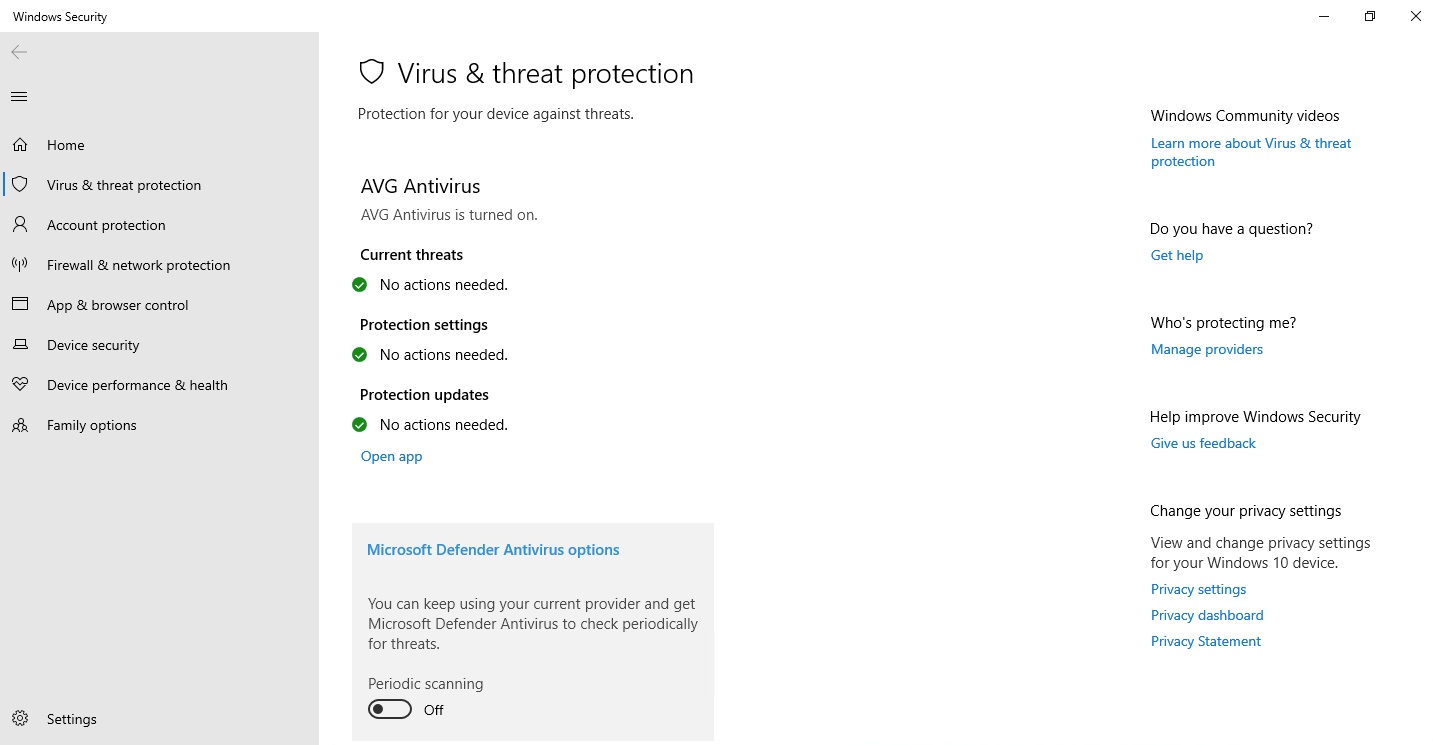
- Click to expand Microsoft Defender Antivirus options
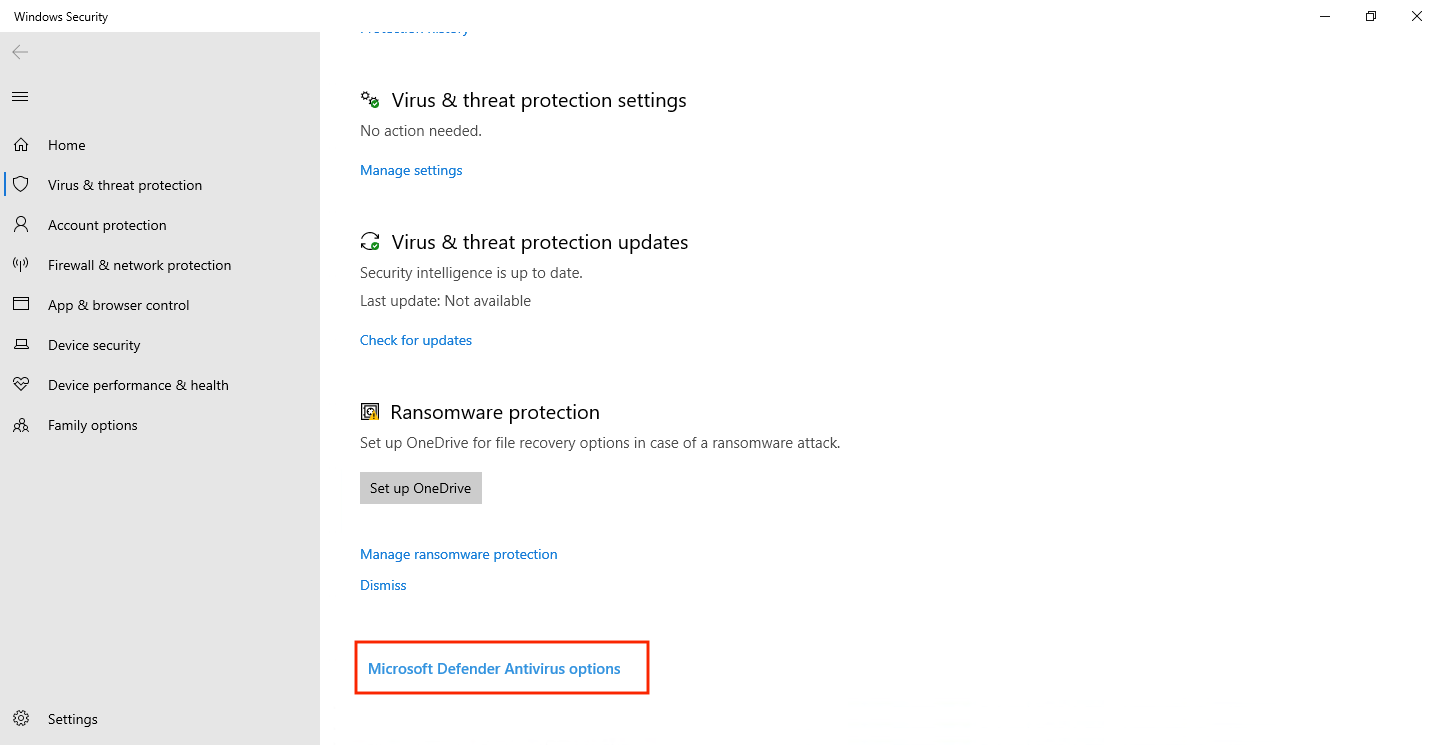
- Toggle the Periodic scanning option to the off position
Using the Local Group Policy Editor
The Local Group Policy Editor is only available in the Pro, Education, and Enterprise versions of Windows 10 and Windows 11. It is not available in Home Editions.
By default, Microsoft Defender Antivirus ignores any changes made using Local Group Policy if tamper protection is enabled. You’ll need to disable tamper protection by going to the ”Virus & threat protection settings” in the Windows Security app. Before you start, you can back up your Local Group Policy Editor settings before making changes in case you want to revert them.
- Right-click on the start button and select Run
- Enter the command gpedit.msc in the run dialog and press the OK button to open the Local Group Policy Editor
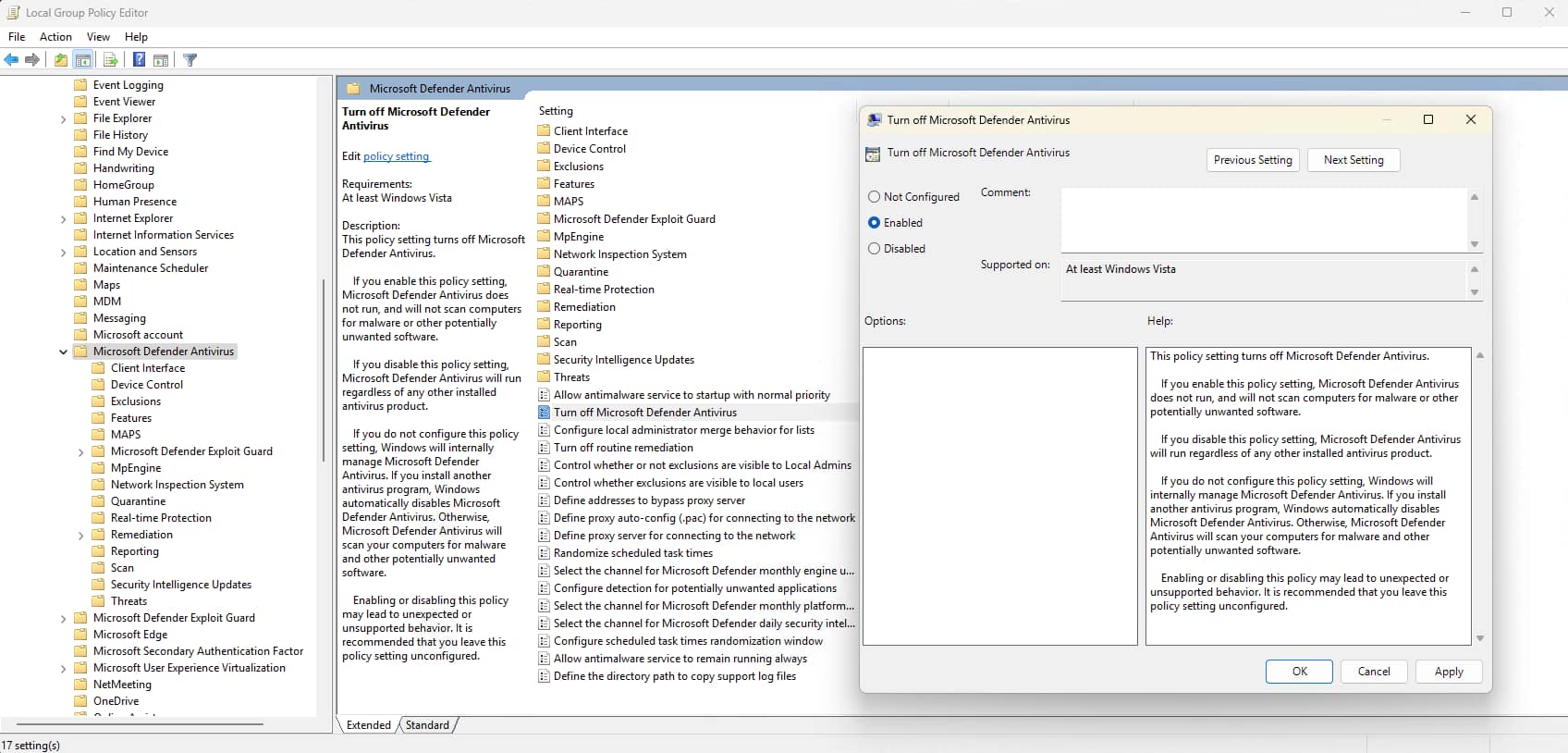
- Go to Computer Configuration > Administrative Templates > Windows Components > Microsoft Defender Antivirus
- Double-click on the Turn off Microsoft Defender Antivirus to edit it
- Change the value of the Turn off Microsoft Defender Antivirus setting to Enabled to disable Microsoft Defender completely
Note that you must ensure that you have effective, reliable, and reputable third-party antivirus software installed if you disable Microsoft Defender.
Using PowerShell
You can also schedule the Microsoft Defender periodic scanning through PowerShell. The command line Set-MpPreference should give you the option to execute commands related to Windows Defender scans and updates.
- Press the Windows key + X, and select “Windows PowerShell (Admin)” or “Windows Terminal (Admin)” to open PowerShell as administrator.
- To enable periodic scanning, enter this command and press Enter:
Set-MpPreference -DisablePeriodicScanning $false - If you want Microsoft Defender to periodically check for definition updates everyday, enter this command:
PS C:\> Set-MpPreference -SignatureScheduleDay Everyday - If you want to schedule a specific time of day to check for definition updates, enter this command:
PS C:\> Set-MpPreference -SignatureScheduleTime 02:00:00
Using the Windows Registry Editor
While Registry Editor is available for all Windows versions, some capabilities, such as disabling Microsoft Defender, can be ignored or overridden on modern systems with tamper protection enabled.
For this method, note that the DisableAntiSpyware key is no longer honored in modern versions of Windows 10 and 11. This is to prevent malware from turning off Microsoft Defender. The successful execution of this method can only be done in Windows Server environments, or under special enterprise policy configurations.
Before you make changes to the Windows Registry, you should make a backup of your registry settings so that you can restore them in case of a problem.
- Right-click on the start button and click Run.
- Type the command regedit.exe, then press the Enter key to open the Registry Editor.
- Navigate to Computer\HKEY_LOCAL_MACHINE\SOFTWARE\Policies\Microsoft\Windows Defender
- If a key named DisableAntiSpyware does not exist, highlight the Windows Defender key in the navigation tree, then select Edit > New > DWORD (32-bit) Value from the toolbar
- Name the new DWORD value DisableAntiSpyware then double-click on it to edit it
- Set the DWORD Value data to 1 to completely disable Microsoft Defender
Again, you must install a reputable third-party antivirus if you are disabling Microsoft Defender.
How to turn on/enable Microsoft Defender Periodic Scanning
The same methods described above can be used to re-enable Microsoft Defender periodic scanning on Windows 10 and Windows 11 systems.
Using the Windows Settings app
Follow the steps for turning off limited periodic scanning, detailed above, but instead toggle the Periodic scanning option to the on position.
Using the Local Group Policy Editor
Follow the steps for turning off Microsoft Defender Antivirus using Local Group Policy shown above, but instead set the Turn off Microsoft Defender Antivirus setting value to Not configured.
Why you may need to enable or disable Microsoft Defender periodic scanning on Windows 10 and Windows 11
Enabling Microsoft Defender periodic scanning provides an additional layer of protection in addition to your third-party anti-malware solution. While some may consider these extra scans redundant, one antivirus solution could catch infections that others do not. Provided your PC has the resources required, there is no major downside to enabling Microsoft Defender periodic scanning.
However, there are circumstances where you may wish to keep this option disabled. Microsoft Defender periodic scanning may conflict with other antivirus solutions causing unexpected behavior. Your system may also not have the resources (e.g., RAM and CPU) to run periodic scans in addition to your third-party real-time scanning without affecting the performance of your PC. You may also wish to keep it disabled if you run resource-intensive tasks like video editing, gaming, or virtualization.
Troubleshooting Microsoft Defender periodic scanning
If you find that the periodic scanning option reverts to a previous setting after Windows updates, you can try enabling or disabling Microsoft Defender using Local Group Policy or the Windows Registry.
If you cannot change the setting due to tamper protection, you should temporarily disable tamper protection in Windows Security, make the changes, and then re-enable tamper protection.
If limited periodic scanning conflicts with your third-party antivirus, you should consult the documentation for your antivirus software to determine whether you should enable or disable limited periodic scanning.
Managing antivirus and security in fleets of Windows 10 and 11 PCs in enterprise and education
Endpoint Management by NinjaOne lets you deploy and manage third-party antivirus software across all of your Windows 10 and Windows 11 devices, wherever they are located. It provides a centralized interface for managing built-in Windows and third-party security software, as well as monitoring and remote support functionality.
With NinjaOne, you can keep your operating systems and antivirus software up-to-date. Real-time and limited periodic scanning ensures you are one step ahead of vulnerabilities and threats. NinjaOne’s centralized reporting tools notify you whenever there is an issue, allowing you to automate remediation before the issue escalates.