Windows 11’s Battery Saver mode is your device’s lifeline when power is low, automatically curbing background tasks and lowering screen brightness to extend runtime. This guide walks you through precisely how to lower screen brightness while in battery saver by using command/scripting tools or the Registry Editor, giving you control over this key power-saving feature.
Methods for changing screen brightness in battery saver mode
Tailoring your screen dimming during battery saver mode ensures optimal visibility and power efficiency.
📌 Use cases: Users and organizations set the screen brightness in battery saver mode to have a good balance of visual optimization and aggressive power saving. Setting the brightness percentage for battery saver mode can help keep the device usable in low-battery scenarios, while in workspaces or outdoors, since the default 30% brightness can be too dim.
📌 Prerequisites: The methods in this guide are available for all editions of Windows 11 (update 22H2 or later). Ensure that you have administrative privileges, as well as basic familiarity with command-line tools and the Registry when following these procedures.
We recommend checking ⚠️ Things to look out for before proceeding.
📌 Recommended deployment strategies:
| Click to Choose a Method | 💻 Best for Individual Users | 💻💻💻 Best for Enterprises |
| Method 1: Windows Terminal (Command Prompt or PowerShell) | ✓ | |
| Method 2: Registry Editor | ✓ | ✓ |
Method 1: Using Windows Terminal (Command Prompt or PowerShell)
Adjust brightness during Battery Saver with a single command for quick, scriptable changes.
📌 Use cases: Ideal when you need immediate adjustments or to deploy settings across multiple devices via scripts. Perfect for IT admins managing policies or users preferring terminal efficiency over GUI navigation.
Step-by-step procedure:
- Press Win + X, then select Terminal (Admin).
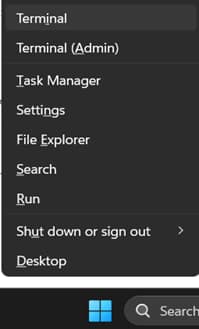
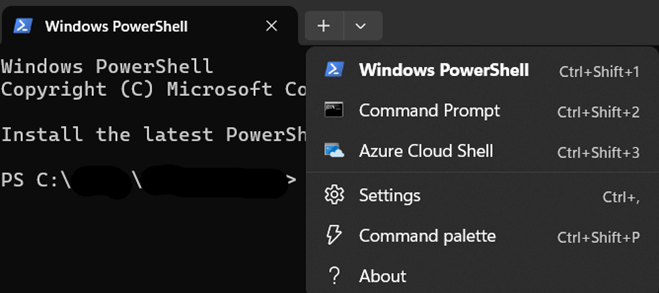
- Select your preferred command-line tool (Command Prompt or PowerShell):
- By default, PowerShell is the set command tool in the Terminal.
- To select Command Prompt, click the dropdown chevron (˅) in the tabs above the window, then select it.
- In your chosen tool (CMD or PowerShell), run this configuration command:
powercfg /setdcvalueindex SCHEME_CURRENT SUB_ENERGYSAVER ESBRIGHTNESS <percentage>
- Replace
<percentage>with your desired brightness level (e.g., 0-100).
- Replace
- After running it, execute this command to verify that the new setting takes effect:
Get-CimInstance -Namespace root/wmi -ClassName WmiMonitorBrightness
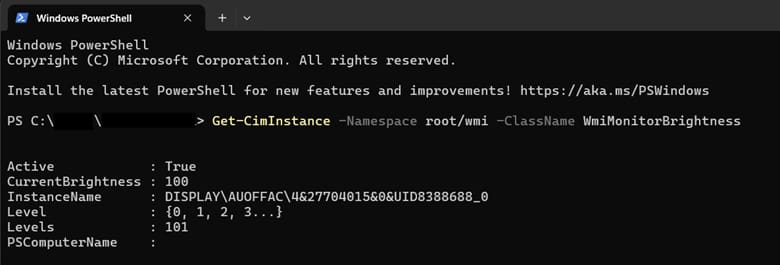
- Look for the value of
CurrentBRIGHTNESSin the output.
- Look for the value of
Your new brightness settings should take effect instantly the next time your device activates battery saver mode. If it is already active, toggle it off or on via the system tray battery icon to see your customized dimming. Windows 11 will keep using this configuration until it is modified again.
Method 2: Using Registry Editor
Directly modify Windows 11’s power settings through the registry for targeted control when other methods aren’t viable.
📌 Use cases: This is ideal for deploying enterprise-wide brightness policies via Group Policy Preferences (GPP) or when troubleshooting scenarios where powercfg commands fail. It is not recommended for casual users due to the higher risk.
⚠️ Warning: Editing the Registry incorrectly can lead to serious system instability. Always back up your Registry or create a system restore point before proceeding. Review the ⚠️ Things to look out for section to learn more.
Step-by-step procedure:
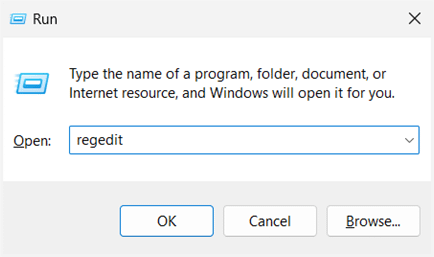
- Open the Run dialog (Win + R), then type regedit to open the Registry Editor.
- Confirm the UAC prompt if it pops up.
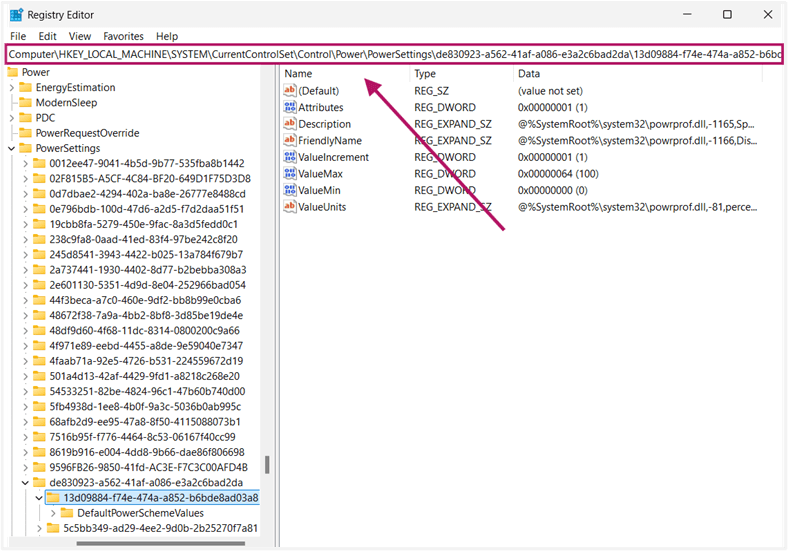
- Go to or paste this path in the address bar: HKEY_LOCAL_MACHINE\SYSTEM\CurrentControlSet\Control\Power\PowerSettings\de830923-a562-41af-a086-e3a2c6bad2da\13d09884-f74e-474a-a852-b6bde8ad03a8
- Under this key, open the DefaultPowerSchemeValues subkey.
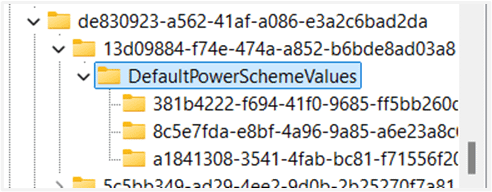
- Identify your active power scheme GUID (e.g., 381b4222-f694-41f0-9685-ff5bb260df2e for Balanced).
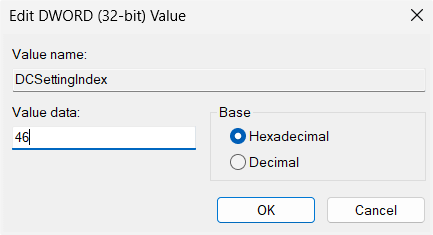
- Double-click DCSettingIndex (battery power):
- Set Base to Hexadecimal.
- Enter brightness percentage in Value data (e.g., 32 for 50%).
- If needed, repeat step 5 for ACSettingIndex for plugged-in behavior.
- Close Registry Editor and restart your device to apply changes.
- Toggle battery saver mode to activate the new brightness setting.
💡 Note: You can use the verification step in Method 1 to verify the battery saver screen brightness setting.
⚠️ Things to look out for
This section highlights potential challenges to keep in mind while following this guide.
| Risks | Potential Consequences | Reversals |
| 1. Incorrect Registry edits | The operating system can become unstable, and booting up fails. | Back up the registry (regedit > File > Export) or create a System Restore Point. Watch How to Back Up and Restore Windows Registry for more details. |
| 2. Incorrect hex conversion in the Registry DWORD value | Extreme brightness (100%) or no display (0%) | Recalculate decimal-to-hex: [Desired %] > Hex (e.g., 50% = 32); or verify it via powercfg /query |
| 3. Typos in powercfg commands | Settings not applied or unexpected power behavior | Check syntax via SCHEME_CURRENT(caps), SUB_ENERGYSAVER(exact spacing) in the command-line tools.You can also run |
| 4. Wrong power scheme GUID | Changes could affect the wrong profile (e.g., High Performance). | Make sure to match the GUID in the Registry to your active power scheme. Confirm active scheme: |
| 5. Forgotten powercfg /apply | Settings can appear in the query, but don’t activate. | Always run the apply command after changes. Toggle Battery Saver manually post-configuration. |
| 6. Over-aggressive dimming | Unusable screen in bright environments | Test settings at 50% first. Remember: Does lowering brightness save battery? Yes, but balance usability. |
Key considerations for lowering screen brightness in battery saver
Optimizing brightness settings requires understanding Windows 11’s technical constraints and behavior.
No native Group Policy control
Windows 11 lacks direct GUI or GPO settings for battery save brightness percentage. A workaround for this is deploying Registry edits (Method 2) via Group Policy Preferences (GPP) or Intune administrative templates, targeting the Registry key path.
Power scheme specificity
Adjustments to the battery saver’s screen brightness through Windows Terminal (command-line tools) will only affect your current active power scheme. To apply your adjustment to all schemes, run this command:
powercfg /setacvalueindex <SCHEME_GUID> SUB_ENERGYSAVER ESBRIGHTNESS <percentage>powercfg /setdcvalueindex <SCHEME_GUID> SUB_ENERGYSAVER ESBRIGHTNESS <percentage>
You can find the GUID (<SCEME_GUID>) for each power scheme via powercfg /list.
Quick-Start Guide
NinjaOne provides some power management scripts and settings, NinjaOne offers several related scripts that might be helpful:
1. Power Management Scripts:
- “Change Power and Sleep Settings” script allows configuring power and sleep settings
- “Set Bandwidth Delivery Optimization for Windows” script which relates to power management
2. Battery-Related Script:
- “Check Battery Health” script is available that can retrieve overall battery health
Optimize battery saver screen brightness to balance visibility and power saving
Lowering screen brightness while in battery saver is your most effective tool for balancing visibility and extended runtime in Windows 11. Whether you use Command Prompt/PowerShell for quick adjustments or Registry Editor for enterprise deployment, you now have precise control over this critical power-saving feature.
These methods ensure your devices maintain optimal usability during low-power scenarios, whether preserving battery during critical meetings or squeezing extra runtime for field work.
Related topics
- How to Enable or Disable the Battery Percentage Display on the Taskbar in Windows 11
- A Simple Guide: How to Change Windows 10 Power Settings
- How to Enable or Disable Power Throttling in Windows
- How to Check Your Windows Device Battery Health with PowerShell
- How to Turn On or Off Play HDR Content When on Battery in Windows 10