
Key Points
- Toggle cloud delete prompts directly in OneDrive settings.
- Use registry settings for scripted or admin-level enforcement.
- Confirm prompt behavior in File Explorer for cloud-backed files.
- Validate new settings with cloud-only and offline file tests.
The OneDrive “Delete” confirmation in Windows 11 is a simple safeguard for preventing accidental data loss. However, IT teams and end-users may want to disable this dialog box to streamline the user experience or routine workflow. Follow along this guide to see how you can modify this behavior.
Allow or remove the OneDrive “Delete File” confirmation
Before adjusting this default behavior, review this checklist to confirm you have sufficient access and meet the necessary system requirements.
- Windows 11 device with cloud sync enabled
- File Explorer access to cloud-backed folders
- Sufficient privileges to modify user-level registry settings or run configuration commands
- Optional: RMM, Microsoft Intune, or scripted GPO-based deployment for larger environments
These prerequisites reduce configuration issues and support reliable testing.
With that in mind, these are the steps to manage the cloud delete prompt in OneDrive settings:
- Open File Explorer and navigate to your OneDrive folder.
- Create or delete an existing OneDrive file to trigger a deletion prompt.
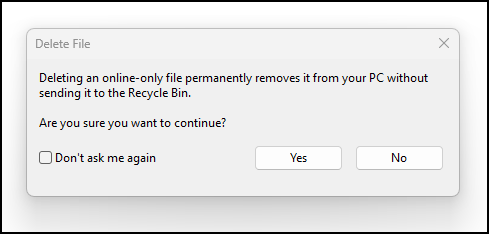
- In the dialog box, tick the box beside the “Don’t ask me again” option to disable future prompts when deleting files.
- Select ‘Yes’ to confirm the deletion after choosing your preference.
Restart File Explorer and test the behavior by deleting another file from the OneDrive folder.
Things to look out for when disabling the “Delete File” confirmation prompt
Below are common risks, along with some practical ways to reverse or prevent such issues.
| Risks | Possible consequences | Reversals |
| Conflicting OneDrive and File Explorer settings | Delete confirmation prompts may appear inconsistently for users | Review both settings and reapply the intended configuration |
| Sync delays or stalled uploads | File deletion behavior may appear inconsistent during certain sync states | Check sync status and force a manual sync |
| Use of unsupported registry-based configurations | Administrator settings may not apply as expected | Remove unsupported registry settings and rely on the default OneDrive behavior |
| Inconsistent behavior on personal and business accounts | Prompt behavior may differ across accounts | Validate each account type and document expected results |
Looking out for these potential conflicts reduces disruption in hybrid or large environments.
Managing device settings in multi-user and hybrid environments
Updating device settings across multi-user or hybrid environments is more efficient with a Remote Monitoring and Management (RMM) software. RMMs like NinjaOne enables teams to centrally monitor endpoints, deploy standard configurations, and reduce manual intervention across distributed environments, even when certain application behaviors are managed at the user level.
Apart from deploying patches and policies, NinjaOne also offers a range of solutions for endpoint monitoring, backup, and documentation, making it an all-powerful tool for MSPs and Enterprise IT. This centralized approach enables teams to stay agile and well-equipped even as environments evolve or change.
Related topics: