



Key points
- A patch management SOP gives MSPs a repeatable, scalable process for deploying updates across Windows, macOS, and third-party apps to reduce cybersecurity risk.
- Categorize patches by urgency: critical security updates weekly, OS patches monthly, and feature updates quarterly to balance risk and operational continuity.
- An effective MSP patch management SOP covers eight steps: inventory, classification, Windows/macOS updates, third-party patching, testing, rollback, and compliance reporting.
- Choose from three deployment methods: manual scripting, Group Policy/Registry (Windows-only), or an RMM platform — based on environment size and complexity.
A well-defined standard operating procedure for patch management SOP is a must for any organization—and no, that is not an exaggeration or a clickbait sentence. We’ve discussed patch management in depth in several other articles (links at the end of this article). For this guide, we focus on building a patch management SOP for MSPs, specifically across Windows, macOS, and third-party applications.
This article aims to help you establish a repeatable, scalable, and secure patching process for endpoints under management, with technical implementation details for automation, auditing, and compliance.
Need some extra information? Watch “How to Build a Patch Management SOP for MSPs” for a detailed breakdown.
📌 Recommended deployment strategies:
|
Click to Choose a Method |
💻
Best for Individual Users |
💻💻💻
Best for Enterprises |
| Method 1: Manual scripting | ✓ | |
| Method 2: Group Policy and Registry (Windows only) | ✓ | |
| Method 3: RMM platforms, such as NinjaOne | ✓ | ✓ |
A note about choosing a method and following the SOP steps
Before we continue, it’s essential to understand the difference between deployment methods and SOP steps. While they work together, they serve different purposes.
Steps are what you do in the SOP. These are universal actions you follow in any patch management process.
Methods are how you deploy the SOP. These are implementation approaches based on your tools, environment size, and technical setup. The deployment strategies below reflect the available methods for executing an effective patch management SOP. Keep in mind that you only need to choose one method (for example, using an RMM platform), depending on which best fits your environment.
It’s also worth noting that there will be some overlap between the steps and methods.
📌 Prerequisites:
- Devices must be enrolled in an RMM, MDM, or centralized patching platform.
- Administrator privileges on target endpoints.
- Internet access to vendor update services (Microsoft, Apple, third-party app vendors)
- PowerShell 5.1+ on Windows (see Verify Your PowerShell Version)
- Terminal or shell access on macOS endpoints
- Optional: Access to WSUS, JAMF, Munki, or a cross-platform tool like NinjaOne
Create a patch management SOP: Step-by-step guide
Step 1: Inventory and classification of patch targets
You can’t patch what you don’t know exists. In this step, you will discover all endpoints in your environment and categorize them by OS type, version, and installed version.
A. For Windows devices
1. Open PowerShell, and execute this command:
Get-HotFix
This command will detail all Windows updates and patches (hotfixes) installed on the endpoint’s system, including the HotFixID, description, installed date, and who installed it.
2. Open Command Prompt, and execute this command:
systeminfo | findstr /B /C:”OS Name” /C:”OS Version”
B. For macOS
1. Open Terminal
2. Execute the following commands:
sw_vers – Displays the current macOS version and build information
softwareupdate –history – Shows all software updates installed via Apple’s update system
ls /Applications – Lists down applications installed
C. For third-party applications
1. On Windows:
Get-WmiObject -Class Win32_Product | Select-Object Name, Version
2. On macOS (execute in Terminal):
Use ls /Applications or Munki to inventory
💡 Tip: Tag endpoints by patch group or criticality to stage updates efficiently.
Step 2: Define patch categories and frequency
You now must categorize patches and define how often each type of update is applied.
| Category | Frequency (recommended) | Targets |
| Critical Security Updates | Weekly | All endpoints |
| OS Cumulative Patches | Monthly | Windows and macOS devices |
| Feature Updates | Quarterly | As-needed or customer-approved |
| Third-Party Applications | Weekly | Examples: browsers, Java, Zoom, Adobe |
💡 Tip: Use tools like NinjaOne to enforce patch timing.
Step 3: Trigger Windows updates
Triggering Windows updates is a simple and effective way of reducing human error, especially if you manage a large fleet. We’ve listed a few methods to try, but we’ve noted which steps truly automate the process, and which provide a one-time execution of a Windows update.
-
Via PowerShell – One-time update
- Open PowerShell.
- Execute these commands to download and install Windows updates automatically:
Install-Module PSWindowsUpdate
Get-WindowsUpdate -AcceptAll -Install -AutoReboot
-
Via Group Policy Path – Complete automation
- Press Win + R, type gpedit.msc, and click Enter.
- Navigate to Computer Configuration > Administrative Templates > Windows Components > Windows Update.
- Enable:
- Configure Automatic Updates
- Scheduled install day/time
- No auto-restart with logged-on users
💡 Note: Depending on your Windows version, these policies may appear inside subfolders such as Legacy Policies, Managed End Users, or Managed Updates under the Windows Update folder.
-
Via Registry – Complete automation
⚠️ Warning: Make sure to back up your Registry before proceeding. Incorrect configurations can lead to system instability.
- Press Win + R, type regedit, and click Enter.
- Select: HKEY_LOCAL_MACHINE\Software\Policies\Microsoft\Windows\WindowsUpdate\AU
- Set the values as:
- AUOptions = 4 (Auto download and schedule install)
- ScheduledInstallDay = 2 (Tuesday)
- ScheduledInstallTime = 3 (3 A.M.)
- NoAutoRebootWithLoggedOnUsers = 1
💡 Note: Feel free to adjust the values as needed or desired.
-
Via Command Prompt – One-time execution
- Open an elevated command prompt.
- Run the following PowerShell command directly from CMD:
powershell -Command “(New-Object -ComObject Microsoft.Update.AutoUpdate).DetectNow()”
This command helps the Windows Update Agent check for available updates. Keep in mind it won’t install them, so for the installation process, you can use PowerShell (Step A) or the automation methods in Steps B/C.
Note: Older commands like wuauclt /detectnow and usoclient StartScan were used in past Windows versions, but they are now deprecated or unreliable on Windows 10/11.CMD no longer provides a built-in method to directly download and install updates from Windows Update.
⚠️ Things to look for
- Reboots & user impact: Even with “No auto-restart with logged-on users,” some updates may still require a reboot to complete. Plan maintenance windows accordingly.
- Edition differences: Some Group Policy paths or policy names vary by Windows edition/version; check subfolders as noted.
- Managed environments: If you use WSUS/Intune, ensure these settings align with your management policies to avoid conflicts.
Step 4: Apply macOS updates
This step ensures that Apple devices are updated reliably and securely. Take note that this step does not automate the process but instead applies updates as a one-time execution.
- Execute these commands in Terminal to check for updates, install them, and reboot the device after updates:
softwareupdate –list
softwareupdate -i -a
sudo shutdown -r now
Step 5: Patch third-party apps
Apps like browsers, Zoom, and Java are huge attack surfaces and must be patched regularly.
-
For Windows (PowerShell-based uninstall/install or use Chocolatey)
- Install Chocolatey.
- Execute this command:
Set-ExecutionPolicy Bypass -Scope Process -Force
iex ((New-Object System.Net.WebClient).DownloadString(‘https://chocolatey.org/install.ps1’))
choco upgrade all -y
-
For macOS (using Homebrew)
- Install Homebrew.
- Execute this command:
/bin/bash -c “$(curl -fsSL https://raw.githubusercontent.com/Homebrew/install/HEAD/install.sh)”
brew upgrade
💡 Note: Optionally monitor logs or exit codes for failures and retry automation as needed.
Step 6: Patch approval and testing workflow
Testing and phased deployment are essential to ensure all patches are stable.
- Define a test group (5–10% of fleet)
- Deploy to test devices and document outcomes
- Stage in patch waves for larger rollout
Track KBs or app versions per wave - Use NinjaOne or SharePoint to track patch exceptions
Step 7: Rollback strategy
Sometimes patches go wrong. When they do, you need a fast and reliable way to undo them without losing data or productivity.
-
For Windows
- Open an elevated command prompt.
- Execute this command:
wusa /uninstall /kb:XXXXXXX /quiet /norestart – Removes specific Windows update
Checkpoint-Computer -Description “Pre-Patch Restore” -RestorePointType “MODIFY_SETTINGS” – Creates a System Restore Point before making system changes.
💡 Note: Remember to replace “XXXXXXX” with the actual KB number of the update they want to remove.
-
For macOS
- Use Time Machine or snapshots.
- Performing a full backup before major upgrades is highly recommended.
Step 8: Reporting, compliance, and alerting
Alerts help you identify failed patches early, and reports show clients or management that you’re staying secure and compliant.
-
For Windows
This command will create a CSV file containing a detailed list of installed updates. Having this file allows you to easily review update history, share patch information, and use the data for compliance checks or troubleshooting.
- Open PowerShell.
- Execute this command:
Get-HotFix | Export-Csv “patch_report.csv”
Get-WindowsUpdateLog
-
For macOS
- Execute this command:
softwareupdate –history
-
Use NinjaOne or a third-party RMM
- To alert on patch failures
- To generate compliance summaries
- To track third-party patch status
- To produce executive patch reports
Deployment methods
Method 1: Manual scripting
📌 Use Cases: For environments without centralized management, or for testing and small deployments.
📌 Prerequisites:
- Local admin privileges on endpoints
- PowerShell 5.1+ installed on Windows, or Terminal access on macOS
- Internet access for vendor update services
- (Optional) If the PSWindowsUpdate module fails to install, you may need to install the NuGet provider and register the PowerShell Gallery repository first.
Steps:
-
For Windows (via PowerShell)
- Open PowerShell.
- Execute these commands in order:
-
- Install the PSWindowsUpdate module.: Install-Module PSWindowsUpdate
- Run an update scan and install all available patches : Get-WindowsUpdate -AcceptAll -Install -AutoReboot
- Force scan manually if needed.
wuauclt /detectnow
usoclient StartScan
-
For macOS (via Terminal)
- Execute these commands in order:
- List available updates: softwareupdate –list
- Install all available updates: softwareupdate -i -a
- Reboot after update, if required: sudo shutdown -r now
Method 2: Group Policy and Registry (Windows only)
📌 Use Cases: Ideal for Windows environments that rely on domain management and need consistent policy enforcement.
📌 Prerequisites:
- Domain-joined Windows devices
- Access to the Group Policy Management Console
- (Optional) Admin access to modify the Registry
Steps:
-
Via Group Policy
- Press Win + R, click gpedit.msc, and click Enter.
- Navigate to:
Computer Configuration > Administrative Templates > Windows Components > Windows Update - Enable and configure:
- Configure Automatic Updates = Enabled.
- Set the install day and time.
- Enable “No auto-restart with logged-on users”.
- (Optional) Specify internal update source via WSUS.
💡 Note: Depending on your Windows version, these policies may appear inside subfolders such as Legacy Policies, Managed End Users, or Managed Updates under the Windows Update folder.
-
Via Registry enforcement (legacy or non-domain)
- Press Win + R, click regedit, and click Enter.
- Navigate to: HKEY_LOCAL_MACHINE\Software\Policies\Microsoft\Windows\WindowsUpdate\AU
- Set the values:
- AUOptions = 4 (Auto download and schedule install)
- ScheduledInstallDay = 2 (Tuesday)
- ScheduledInstallTime = 3 (3 A.M.)
- NoAutoRebootWithLoggedOnUsers = 1
💡 Feel free to adjust the values as needed or desired.
Method 3: RMM platforms, such as NinjaOne
📌 Use Cases: Ideal for scalable, automated patching across large environments with dashboards, alerting, rollback, and compliance reporting.
📌 Prerequisites:
- Endpoints enrolled in an RMM platform like NinjaOne
- Patch policies created and assigned to groups
- Admin access to define automation rules and scheduling
Steps:
- Log in to the NinjaOne console.
- Create a patch policy that covers Windows, macOS, and third-party apps.
- Organize devices by tags, groups, or urgency levels.
- Set recurring patch schedules with defined maintenance windows.
- Enable alerts for failures, overdue patches, or reboots required.
- Monitor real-time compliance dashboards and reports.
- Deploy rollback or remediation scripts when needed.
💡 Tip: Combine patching with post-deployment tasks like cleanup scripts, reboot deferrals, or service restarts by using NinjaOne automation. This ensures smoother updates and minimizes disruption. You can also get more detailed instructions here:
How NinjaOne supports your patch management SOP
- Automating OS and app patching across Windows/macOS: NinjaOne streamlines patch deployment across operating systems and third-party applications using customizable policies and zero-touch automation. This means that patches can be deployed automatically without manual intervention, reducing human error and improving operational efficiency.
- Defining patch windows, test groups, and exceptions: You can set recurring patch schedules, assign devices to test groups, and create exception rules to accommodate unique compliance or business needs.
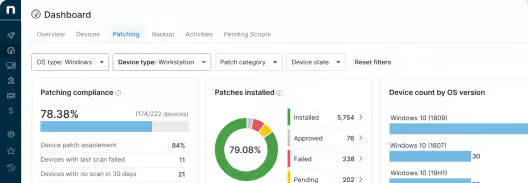
- Providing dashboards and compliance reporting: Real-time visual dashboards and exportable reports let you track patch status, view device compliance rates, and demonstrate SLA or regulatory alignment.
- Alerting on failure, missed reboots, or patch delays: NinjaOne automatically notifies technicians when a patch fails, an endpoint requires a reboot, or a scheduled update window is missed.
- Allowing scripted rollback or remediation steps: Admins can run custom PowerShell or shell scripts within NinjaOne to uninstall problematic updates, restart services, or fix broken software without manual intervention.
- Grouping/tagging endpoints by patch urgency or environment: Devices can be tagged based on location, function, or criticality to enforce different patching priorities and reduce risk to business-critical systems.
Find out why 30,000+ customers worldwide trust NinjaOne for their patch management.
→ Explore NinjaOne Patch Management
Building an effective patch management SOP
A strong patch management SOP ensures secure, consistent, and efficient update cycles across environments. Don’t take this procedure for granted: Even smaller organizations need a robust patch management SOP to reduce the risk of malware and other threats.
Related topics:
- What is Patch Management? Definition, Benefits, & Best Practices
- Why Patch Management Is Important for MSPs
- Patch Management Process: Best Practices
- How to Create a Patch Management Policy: Definition & Steps
- Patch Management – A Dummies Guide [download]
- Revolutionize Patch Management with NinjaOne’s Patch Intelligence AI
- Patch Management Process: Best Practices
- Patch Management Lifecycle Explained