Remote support software for IT teams and MSPs with NinjaOne Remote
NinjaOne Remote, built into the NinjaOne platform, gives IT teams and MSPs attended and unattended remote support for Windows, macOS, Linux, and mobile devices






Common remote support software challenges
| Problem | How NinjaOne resolves it |
IT teams need to troubleshoot employee devices without waiting for users to bring them onsite or walk through technical fixes themselves. | NinjaOne lets technicians connect directly to managed devices and troubleshoot issues remotely, giving them hands-on access to the user’s device without requiring physical access. |
Remote support can take longer when technicians have to switch between tools to access devices, exchange files, and communicate with users. | NinjaOne brings remote control, file transfer, and technician-user chat into the same remote session, helping technicians investigate and resolve issues without relying on separate support tools. |
Users may be unavailable when a device needs troubleshooting, making it difficult for IT teams to resolve issues outside the user’s working hours. | NinjaOne supports unattended remote access to managed devices, allowing authorized technicians to connect without requiring the end user to approve each session. |
IT teams and MSPs may need to support devices that are not yet enrolled in their management platform, particularly during one-time or urgent support requests. | NinjaOne Quick Connect enables technicians to provide temporary remote support to unmanaged devices through an invitation-based connection, making it suitable for ad hoc support and new-device onboarding. |
How NinjaOne remote support software helps MSPs and IT teams
Resolve issues without being onsite
Technicians can remotely connect to Windows and Mac endpoints to troubleshoot and resolve issues in real time, reducing the need for onsite visits and helping minimize user downtime.
Start support with fewer steps
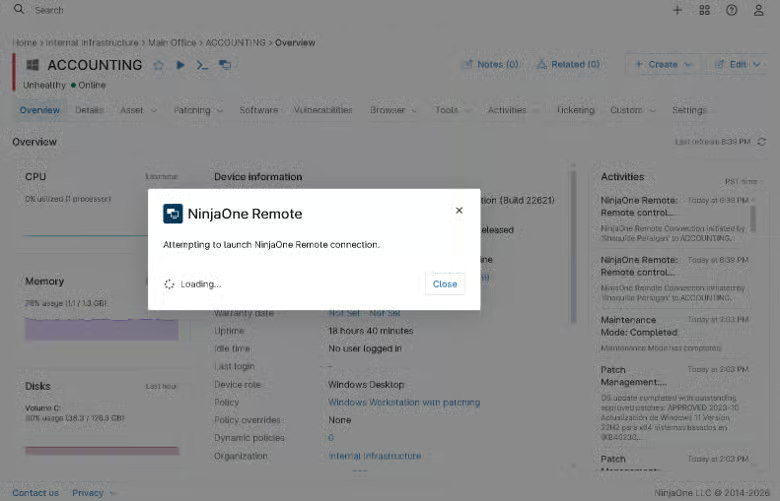
Technicians can launch remote-control sessions directly from NinjaOne, making it easier to connect to an endpoint and begin troubleshooting without switching between separate applications.
Fix issues without switching tools
Technicians can transfer files, chat with users, and use keyboard shortcuts in the same session, so a fix does not require a second application.
Support devices outside your management scope
Quick Connect gives technicians temporary, invitation-based access to devices that are not enrolled in NinjaOne, so urgent requests do not wait on agent deployment.
Keep a record of remote activity
Role-based access, session logs, and session recordings give administrators a record of who connected to a device and what happened during the session.
Features and Solutions

Fast, reliable remote sessions
Connect to Windows, macOS, and Linux endpoints for responsive remote troubleshooting, with video quality settings that can be adjusted to help optimize performance on different connections.

Attended and unattended support
Provide remote assistance whether an end user is present or a device needs maintenance without user interaction. Technicians can also configure approval requirements when end-user consent is needed.

Quick Connect for unmanaged devices
Connect to devices that are not enrolled in NinjaOne through an invitation-based Quick Connect session. Access is temporary and limited to the specific invitation, making it suitable for on-demand support.

File transfer and remote tools
Transfer files between the technician and remote device, send keyboard commands, use clipboard synchronization, and access other session controls without switching to separate support tools.

Remote troubleshooting across operating systems
Support Windows, macOS, and Linux devices with remote access capabilities. NinjaOne Remote also supports mobile devices, with available control or viewing capabilities depending on the operating system and device enrollment type.

One-click remote support
Start a remote session directly from the NinjaOne console to quickly troubleshoot and resolve issues without requiring technicians to be physically present at the device.
How organizations use remote support software
Supporting remote and hybrid employees
IT teams can use NinjaOne Remote to troubleshoot Windows and Mac devices without requiring employees to bring devices onsite or wait for an in-person visit. Technicians can connect directly to a managed endpoint, investigate issues, and provide hands-on support while the employee continues working remotely. This helps IT teams resolve common desktop and application issues without requiring physical access to the device.
Resolving IT issues directly from support tickets
Technicians can launch a remote-control session directly from a NinjaOne support ticket, allowing them to move from issue identification to troubleshooting without switching between separate tools. Once connected, technicians can interact with the remote device in real time, investigate the issue, and apply the necessary fix. This helps keep the support workflow centralized and reduces the steps required to begin troubleshooting.
Troubleshooting devices that require hands-on assistance
When an issue cannot be diagnosed through monitoring or standard troubleshooting steps, technicians can use NinjaOne Remote to interact with the endpoint as if they were physically at the device. Remote control, chat, keyboard shortcuts, file transfer, and other session tools allow technicians to investigate problems and assist users without traveling to the device.
This is why customers love us
100,000
Endpoints managed
“NinjaOne is a scalable solution. It’s built on a modern SaaS architecture and it’s future-proof.”
40%
More Cost Effective
“NinjaOne’s price point is 40% less than any other endpoint management tool on the market, while being more powerful and easy to use.”

10-15
Tools Replaced
“Before, I needed 10-15 different tools to execute what NinjaOne does in its centralized, single pane of glass.”

30%
Less time for patching
“We observed a 30% reduction in the time taken for patch deployments compared to our previous solution.”

2,000
Endpoints managed
“NinjaOne gives me much more flexibility and security in my work”

30%
Annual ROI
“[NinjaOne] has already shown its value in ROI…it’s at least a hundred thousand dollars annually.”
24x
Faster Endpoint Management
“Our processes have become 24x faster with NinjaOne.”

20-40
Hours Saved Each Week
“Leveraging the automations feature within NinjaOne has enabled me to save upwards of what would likely be 20 to 30 to even 40 hours per week.”


Rolling out remote support software involves four stages, from initial configuration to ongoing oversight
I. Configure remote access and permissions
An administrator enables NinjaOne Remote, configures session settings, and establishes access permissions for authorized technicians. For teams supporting devices that aren’t enrolled in their RMM, such as personal or contractor machines, Quick Connect provides an option for on-demand remote support.
II. Connect to devices
Technicians select the connection method that fits the situation:
- Managed devices: Start a remote session directly from NinjaOne.
- Unmanaged devices: Use Quick Connect to provide on-demand support.
- Unattended access: Connect to supported devices without requiring the end user to be present.
III. Troubleshoot and resolve issues
Once connected, technicians use available remote support features, such as file transfer, command-line access, and background mode, to diagnose and resolve issues. These capabilities can help reduce the need for onsite visits and minimize disruption to end users.
IV. Review session activity
Administrators periodically review available session logs and activity records to monitor remote access usage and support internal security procedures. Regular reviews help teams maintain oversight as their remote support operations grow.
Why organizations trust NinjaOne
Remote support that resolves issues without interrupting users
NinjaOne Remote gives IT teams and MSPs secure remote access to Windows and Mac endpoints for real-time troubleshooting. Technicians can take control of devices, transfer files, chat with users, and record sessions without needing to be physically present at the endpoint.
Northeast IT Systems uses NinjaOne Remote and Quick Connect to handle 95% of troubleshooting needs remotely, eliminating unnecessary manual remediation and allowing technicians to resolve issues without sending someone onsite. The MSP also replaced a separate remote-support tool with NinjaOne Remote.
“I can hop on a machine, fix the problem, and go away without interrupting the user.”
Ben Gagnon, Technical Operations Specialist, Northeast IT Systems
Resolve IT issues without being onsite
Give technicians a faster way to troubleshoot and support Windows and Mac devices remotely. NinjaOne Remote lets IT teams connect to endpoints, take control of devices, transfer files, chat with users, and troubleshoot issues in real time, all from a centralized platform. Quick Connect also lets technicians provide on-demand support to unmanaged devices when needed.
Related Resources
NinjaOne Remote
Take direct control of remote IT assets for complex remediation with NinjaOne integrated remote access software for Mac and Windows. Access with a single click.

NinjaOne Remote Documentation
NinjaOne Remote gives IT teams and Managed Service Providers (MSPs) a fast, secure, and reliable way to connect to any endpoint, no matter where it’s located.
Remote Support Software FAQs
What is NinjaOne Remote?
NinjaOne Remote lets IT technicians and support teams connect to and troubleshoot computers and other devices remotely from inside the NinjaOne platform, with remote control, file transfer, chat, and session recording built in.
How does NinjaOne Remote work?
NinjaOne Remote lets technicians securely connect to managed devices over the internet to view screens, take control, troubleshoot issues, and provide assistance without being onsite, directly from the NinjaOne platform.
Is the software compatible with all operating systems?
Yes, with some differences by platform. NinjaOne Remote supports Windows, macOS, and Linux endpoints, and also connects to Android, iOS, and iPadOS devices for troubleshooting and support, with available control and viewing capabilities varying by operating system and device enrollment type.
Can I transfer files between the local and remote machines?
Yes. NinjaOne Remote supports file transfer between the local and remote machines, allowing technicians to securely move files during a remote support session.
Does the software allow session recording?
Yes. NinjaOne Remote supports session recording, allowing technicians to record remote support sessions for documentation, training, and review.
Can I use the software for remote support sessions on mobile devices?
Yes. NinjaOne Remote supports remote access to Android, iOS, and iPadOS devices. Available remote control and viewing capabilities vary depending on the operating system and device enrollment type.
How does NinjaOne Remote help secure remote support sessions?
NinjaOne secures remote support sessions with encrypted connections and access controls designed to help prevent unauthorized access. Technicians can also control session permissions and end connections when support is complete.
Can I control a pc remotely using MDM?
Not typically. MDM is designed to manage and configure devices, such as applying policies, deploying apps, and enforcing security settings. For interactive remote control of a PC, you need remote support or remote access software such as NinjaOne Remote.
