
Key Points
- Standardize the Lifecycle: Manage apps by configuring environment policies, selecting removal methods, and preventing re-provisioning for new user profiles.
- Execute Multi-Layered Removal: Use PowerShell commands with AllUsers parameters or system menus to purge applications and block reappearance during updates.
- Leverage Administrative Controls: Use Group Policy and registry modifications to enforce organization-wide restrictions and clean up AI integrations.
- Verify Environment Compatibility: Audit Windows build versions and organizational needs to decide between hiding the UI or fully removing package files.
- Secure Persistent Entry Points: Disable secondary AI features in app settings and manage enterprise access via the Microsoft 365 admin center.
Windows Copilot is a powerful AI assistant integrated into many Microsoft apps and processes. However, some end-users may not need Copilot to optimize workflow. If you can determine who these users are, this guide is your next stop for managing Copilot access in controlled IT environments.
Uninstalling the Copilot App
There are several paths to removing Copilot from endpoint devices, namely:
✔️ Start Menu
✔️ Windows Settings
✔️ Microsoft Edge
✔️ PowerShell Command
🥷 Tip: You can use any of the tools and settings to remove Copilot for the active user. Meanwhile, PowerShell can be used to remove access for all users.
This video covers “How to Uninstall or Reinstall the Copilot app in Windows 11” from start to finish.
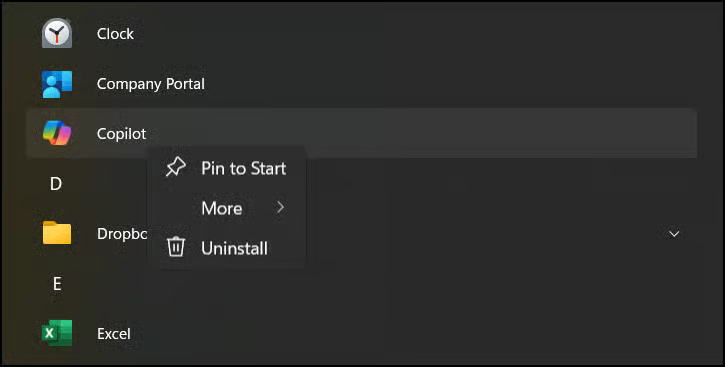
Method 1: Uninstall Copilot using the Start Menu (current user only)
- On the Start Menu, select All apps.
- Locate the Copilot app, right-click on it, and choose Uninstall.
- Confirm the uninstallation when prompted.
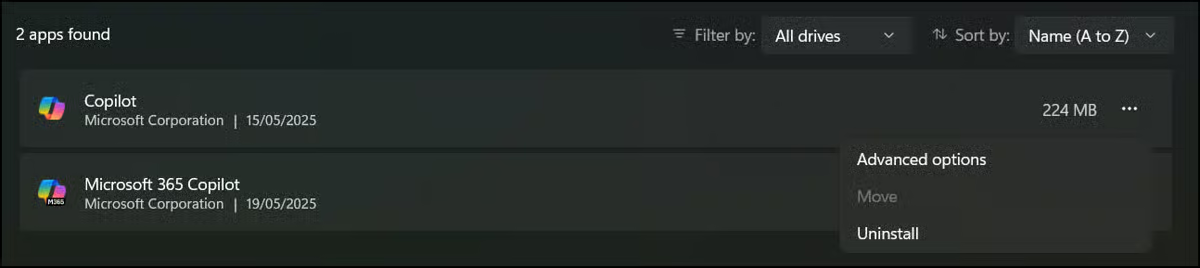
Method 2: Uninstall Copilot via Windows Settings (current user only)
- Open Settings (Win + I), then navigate to Apps → Installed apps.
- Find Copilot in the list.
- Click on the three-dot menu next to Copilot and select Uninstall.
- Confirm the uninstallation when prompted.
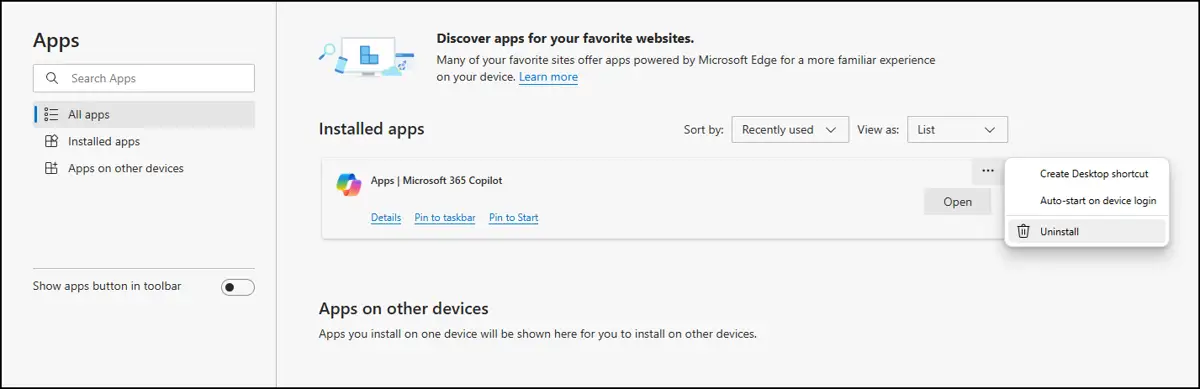
Method 3: Remove the Copilot App in Microsoft Edge
If the Microsoft 365 Copilot app is also installed on the browser, you can uninstall it using these steps:
- Open Microsoft Edge. Type
edge://apps/in the address bar and press Enter. - Locate the Copilot app.
- Click on the three-dot menu next to Copilot and select Uninstall.
- Confirm the uninstallation when prompted.
Method 4: Uninstall Copilot using a PowerShell command (current user only)
- Open Windows Terminal and select Windows PowerShell.
- Execute the following command:
Get-AppxPackage | Where-Object {$_.Name -Like '*Microsoft.Copilot*'} |
Remove-AppxPackage -ErrorAction Continue
Method 5: Uninstall Copilot using a PowerShell Command (all users)
- Open Windows Terminal and select Windows PowerShell.
- Execute the following command:
Get-AppxPackage -AllUsers | Where-Object {$_.Name -Like '*Microsoft.Copilot*'} |
Remove-AppxPackage -ErrorAction Continue
Method 6: Prevent Re-provisioning (New User Profiles)
To ensure Copilot doesn’t reappear when a new user logs into the device, remove the provisioned package:
Get-AppxProvisionedPackage -Online | Where-Object {$_.DisplayName -like "*Microsoft.Copilot*"} |
Remove-AppxProvisionedPackage -Online
Reinstalling the Copilot app
On the other hand, you can quickly reinstall Copilot via the Microsoft Store or by using an executable (.exe) installer.
Method 1: Microsoft Store (current user only)
- Open the Microsoft Store and search for Microsoft Copilot.
- Click on Get or Install to begin the app installation.
Method 2: Using the installer executable
- Download the Microsoft Copilot Installer.exe from the official Microsoft Store website.
- Run the installer to reinstall the Copilot app.
Method 3: Windows Package Manager (winget)
For a quick, scriptable reinstallation, run the following in Terminal: winget install “Microsoft Copilot”
Managing Copilot via Group Policy
For enterprise environments, administrators can manage the availability of the Copilot app using Group Policy:
- Press Win + R and type gpedit.msc. Tap OK to open the Group Policy Editor.
- Navigate to Computer Configuration → Administrative Templates → Windows Components → Windows Copilot.
- Configure the Turn off Windows Copilot policy:
- Set to Enabled to disable Copilot.
- Set to Disabled or Not Configured to enable Copilot.
🥷 Note: This policy setting is only available in Windows 11 build 22631.3810 and Windows 10 build 19045.4593 or later.
New for 2026: Targeted App Removal Administrators can now use the RemoveMicrosoftCopilotApp policy to trigger an automatic one-time uninstallation on managed devices.
- Path: User Configuration → Administrative Templates → Windows AI → Remove Microsoft Copilot App.
- Criteria: The app must not have been launched in the past 28 days for this policy to trigger.
Additional Tips after uninstalling Copilot
After uninstalling Copilot, the program’s icon may remain in the taskbar. When this happens, you will have to restart the system or manually remove the icon via taskbar settings.
In some instances, you may be unable to configure the Copilot app because it’s not on the list of installed apps. To address this, ensure that the system is updated to the latest version of Windows.
Lastly, if your system belongs to a managed IT environment, you may find that some of the methods or instructions here are restricted based on administrative policies. In such situations, consult with your IT support before taking further action.
Pro Tip: Cleaning up System App Integrations If you’ve uninstalled the app but still see “Cocreator” in Paint or AI features in Notepad:
- Notepad: Go to Settings (gear icon) → AI Features and toggle off the Copilot integration.
- Paint: These features are often controlled via specific registry keys under HKLM\SOFTWARE\Microsoft\Windows\CurrentVersion\Policies\Paint.
Strategies for managing Copilot user access
Copilot can impact end-user productivity in both ways. As a result, uninstalling the AI assistant for certain users or groups is standard practice for streamlining the user experience and compliance with organizational policies.
To recap, if you need an access management strategy for Copilot, remember that you can use the Start Menu, Windows Settings, PowerShell, and even Micorsoft Edge to make adjustments for the current user. For devices with shared access, you can use PowerShell instead.
For organization-wide deployment, you may use the Group Policy Editor to uninstall Copilot if your Windows build and edition meet the basic requirements.