
Key Points
- Create an elevated shortcut: Right-click the desktop, create a shortcut pointing to %ComSpec% (or %ComSpec% /k), name it Elevated Command Prompt, open its Properties > Advanced, and check Run as administrator.
- Quick elevation alternative: Press Win + S, type cmd, and press Ctrl + Shift + Enter to trigger an admin session instantly without creating a shortcut.
- Fix Taskbar pinning issues: When pinning the shortcut to the Taskbar, ensure you enable Run as administrator in the Taskbar icon’s properties so Windows doesn’t revert to launching a standard non-admin prompt.
- Execute elevated tasks: Use the shortcut for system-level maintenance such as running sfc /scannow, chkdsk, or managing network and user accounts.
- Troubleshoot elevation: Verify your Windows account has administrative rights and check that User Account Control (UAC) is set to notify you when apps attempt system changes.
This step-by-step tutorial shows you how to create an elevated Command Prompt shortcut with administrative privileges in Windows 10 and Windows 11. It explains how to create a shortcut, ensure it will run as an administrator, pin it to the Start menu or taskbar, and give it a unique icon.
Understanding the Elevated Command Prompt in Windows 10 and Windows 11
An ‘elevated’ Command Prompt in Windows means it is running with administrative privileges. By default (and even while logged in with an administrator account), Command Prompt does not open with administrative privileges on Windows 10 and Windows 11.
An elevated Command Prompt is required to perform tasks that affect the system. This includes maintenance and repair tasks, such as verifying system files using the System File Checker, checking disks using Check Disk, as well as managing networking, users, and other administrative functions.
NinjaOne Advanced Automation solutions can help optimize crucial and tedious IT workflows.
Benefits of creating a shortcut for an elevated Command Prompt
Pro Tip: If you ever need an elevated prompt without setting up a shortcut, press Win + S, type cmd, and press Ctrl + Shift + Enter. This immediately triggers the admin UAC prompt.
If you’re in a hurry, and you’re just looking for a quick and easy way to run a Command Prompt command as administrator, right-click the Start button and click Windows PowerShell (Admin) on Windows 10, and Terminal (Admin) on Windows 11.
In Windows 11, the default command-line host is Windows Terminal. If you open Terminal as Admin, it may default to PowerShell. You can change Terminal’s startup default to Command Prompt by going to Terminal Settings > Startup > Default Profile.
PowerShell is replacing the Command Prompt in Windows 10 and 11 and will happily run almost any Command Prompt command (PowerShell is also a much more powerful and modern tool, so you should switch to it for general use and creating scripts in the future).
The biggest caveat of moving to PowerShell as the default terminal in Windows is old Command Prompt scripts. While running commands should mostly work, some older scripts that use environment variables or piping may not behave correctly. If you regularly deal with old scripts that don’t need to be rewritten just to make them work with PowerShell, creating a shortcut to an elevated Command Prompt is a time-saver for system administrators.
How to create an elevated Command Prompt shortcut in Windows 10 and Windows 11
To create an elevated Command Prompt shortcut in Windows 10, follow these steps:
- Right-click on the Desktop
- If you are using Windows 11, select Show more options (Windows 10 users can skip this step)
- Select New > Shortcut
- In the Type the location of the item: field, enter %ComSpec% /k
Note: Entering %ComSpec% or simply cmd.exe directly in the target box works just as well. The /k switch stands for “keep” and is only strictly necessary if you append an auto-executing command right after it (e.g., %ComSpec% /k sfc /scannow).
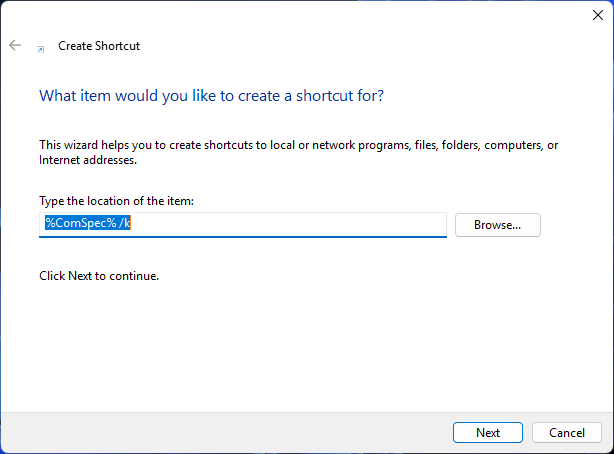
- In the Type a name for this shortcut: field, enter Elevated Command Prompt
- Click Finish to create the shortcut
- Right-click on the new Elevated Command Prompt shortcut on your desktop
- Select Properties
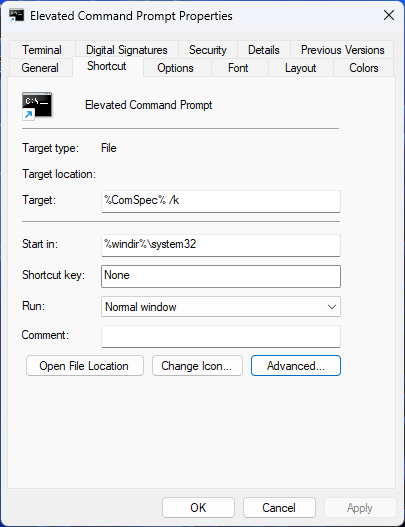
- In the Shortcut tab, click on Advanced… and check the Run as administrator checkbox
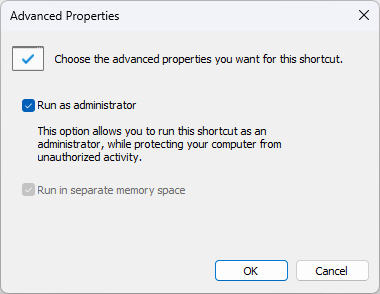
- Click OK, and then Apply to confirm the change
- Close the Properties dialog
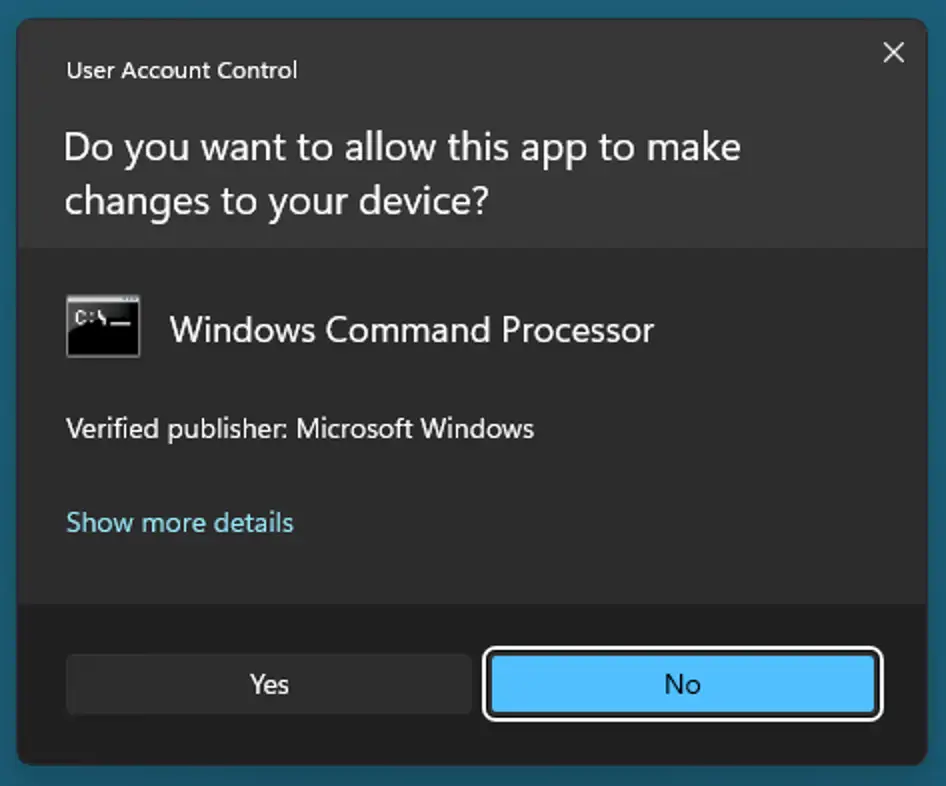
- You can now run Command Prompt as administrator by opening the new desktop shortcut — note that you’ll receive a User Account Control prompt to confirm that you want to allow the Command Prompt to make administrative changes to your system
- Important for Taskbar Pinning: If you drag this custom shortcut to the Windows Taskbar, Windows may link to the standard cmd.exe binary rather than your custom shortcut file. To guarantee it opens with admin rights every time, right-click the desktop shortcut > Show more options (Win 11) > Pin to Taskbar. Then, right-click the Taskbar icon itself, right-click Command Prompt, select Properties > Advanced, and check Run as administrator there as well.
In Windows, the %ComSpec% environment variable always points to the full path to the Windows Command Prompt executable (cmd.exe). The /k parameter ensures that the cmd.exe window stays open once it has opened, as the default behavior is to close immediately once execution has completed.
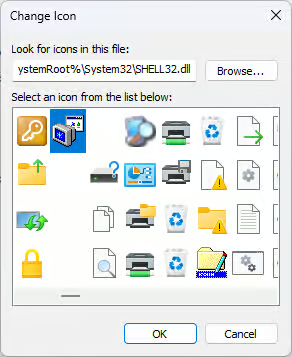
If you want to change the icon for the elevated Command Prompt shortcut, re-open the properties, navigate back to the Shortcut tab, and then:
- Click Change Icon
- Select a new icon from the Windows defaults, or browse to your own icon file
- Click OK
- Click Apply to confirm the change and then close the Properties dialog
Troubleshooting the elevated Command Prompt shortcut in Windows
If you receive access denied errors while trying to open Command Prompt as an administrator, first check that you are logged in to a user account that has administrative privileges. A quick way to check whether your account is an administrator is to right-click on the Start button and see if the option to run PowerShell or Terminal as administrator is there — if it isn’t, you may not have administrative privileges.
It is also possible that User Account Control (UAC) is silently preventing Command Prompt from opening as administrator. You can check this by following these steps to open the Control Panel and view UAC settings:
- Right-click on the Start button and select Run
- Enter control in the Open: field and then click OK
- Open User Accounts from the Control Panel
- Select Change User Account Control Settings
If UAC is set to Never notify, it’s possible that your shortcut is set up properly but that it’s not displaying the UAC prompt to actually open the Command Prompt. Change the UAC setting to notify you when an app tries to make changes to your computer and test your elevated Command Prompt shortcut again.
Domain/GPO Restrictions: On enterprise or domain-joined machines, administrative rights and UAC elevation may be restricted by Group Policy. If your account is in the local Administrators group but elevation still fails, check with your network administrator to verify if the policy “User Account Control: Behavior of the elevation prompt for administrators” is set to block elevation requests.
Best practices for using an elevated Command Prompt
Use an elevated Command Prompt only for administrative tasks. For general usage, use a regular non-administrative terminal so that you can’t accidentally make any changes to your system.
It’s also important to never run commands or scripts from the Internet without first understanding what they are intended to do. Look up the programs and parameters for each command and check what the outcome of running them will be. Unfortunately, hackers are known to post malicious code and scripts online, hoping that someone will run them without first checking, thereby compromising security and potentially installing malware or granting the hacker access.
Enhance efficiency by automating Command Prompt tasks through robust automation tools.
Save time with a one-click elevated command prompt. Watch How to Create an Elevated Command Prompt Shortcut now.
Deploying Administrative Command Prompt and PowerShell Scripts
The NinjaOne Endpoint Management platform can deploy administrative Command Prompt and PowerShell scripts to a fleet of devices in an enterprise environment, including remote devices for remote workers and office environments on a Windows domain. By centralizing and automating your administrative tasks, you can ensure that every device is fully configured, up-to-date, and secured — and that users don’t feel the need to try to perform administrative tasks themselves.
Want to learn more about how NinjaOne can streamline your IT workflows? Check out our Endpoint Management FAQ for answers to common questions.