


Microsoft Edge uses Efficiency mode to reduce CPU and battery usage. The feature minimizes background activity and lowers power consumption, making it practical for most laptops. By default, Efficiency mode is activated when a laptop is on battery; however, you might want to enable it even when the device is plugged.
This guide will walk you through different methods of enabling or disabling Efficiency mode while connected to power.
Are you a visual learner? Watch “How to Enable or Disable Efficiency Mode When Connected to Power in Microsoft Edge” for a guided summary.
How to turn Microsoft Edge Efficiency mode on or off
Managing Efficiency mode while connected to power gives administrators the power to optimize browser performance and energy use on a device or across a system. This section goes through four methods to enable or disable Efficiency mode.
📌 Prerequisites: Before making any changes, make sure that you have the following.
- Microsoft Edge version 105 or later
- Any edition of Windows 11
💡 Note: The following methods only affect the trigger behavior of Efficiency mode when on AC power only.
📌 Recommended deployment strategies:
| Click to Choose a Method | 💻 Best for Individual Users | 💻💻💻 Best for Enterprises |
| Method 1: Configure via Edge Settings (GUI) | ✓ | |
| Method 2: Configure via Group Policy | ✓ | |
| Method 3: Configure via Registry Editor | ✓ | |
| Method 4: Configure via PowerShell | ✓ | |
| Method 5: Configure via .reg file | ✓ |
Method 1: Enable or disable Efficiency mode via Edge settings (GUI)
The fastest and easiest method in this guide is the configuration via Edge settings.
📌 Use Cases: This method is ideal for the users below.
- Individual users
- Non-managed environments
- Developers or testers who need to adjust browser behavior temporarily without impacting other users or systems
To configure Efficiency mode using Edge settings, do the following:
- Open Microsoft Edge
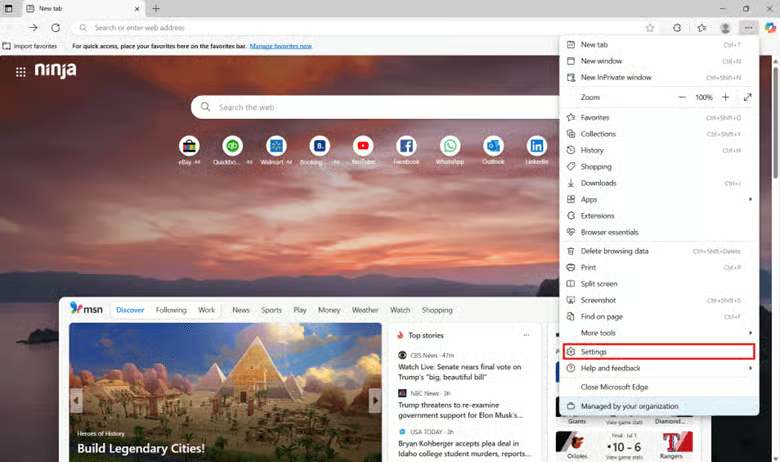
- Click the three-dot menu (⋯), then Settings.
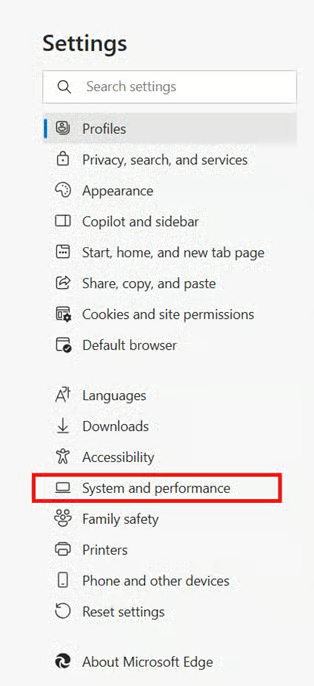
- Go to System and performance.
- Under Performance, locate Turn on efficiency mode when connected to power.
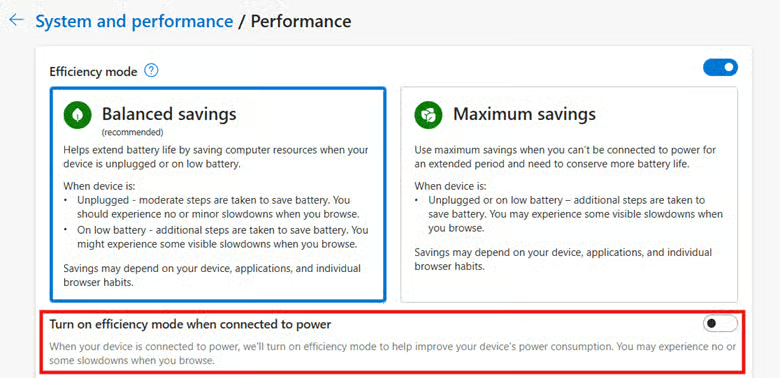
- Toggle the switch:
- On = Enables Efficiency mode even when the device is plugged in
- Off = Efficiency mode activates only when on battery
Once done, the change takes effect immediately and applies per profile.
Method 2: Configure via Group Policy
When you use Group Policy, you can configure the settings while ensuring individual users cannot override them.
📌 Use Cases: This method is ideal for the following scenarios.
- Enterprise-wide deployment
- Standardization of Edge performance behavior across devices
📌 Prerequisites:
Before proceeding, you’ll need the following (in addition to the general prerequisites mentioned earlier).
- The latest Microsoft Edge ADMX templates installed
- Administrator privileges
To configure Efficiency mode, follow these steps:
- Open Group Policy Editor (gpedit.msc).
- Navigate to: Computer Configuration > Administrative Templates > Microsoft Edge > Performance
- Double-click Enable efficiency mode on power connections.
- Set to:
- Enabled = Efficiency mode turns on while plugged in
- Disabled = Only activates on battery
- Not configured = Uses default Edge behavior
- Click OK, then run gpupdate or force to apply
Method 3: Configure via Registry Editor
The Registry Editor method is a good alternative for script-based deployment when Group Policy isn’t available.
📌 Use Cases: This is ideal for the following setups.
- Smaller organizations or advanced individual setups without Group Policy access
- Pilot environments that need flexible testing or one-time configuration
📌 Prerequisite:
- Before proceeding, make sure that you have administrator privileges.
To enable or disable Efficiency mode in Edge via Registry Editor, follow these steps:
- Press Win + R, type regedit, and press Enter to open Registry Editor
- Navigate to: HKEY_LOCAL_MACHINE\SOFTWARE\Policies\Microsoft\Edge
- (Create the key if it doesn’t exist.)
- Create or modify the following DWORD (32-bit) value:
- Name: EfficiencyModeEnabled
- Value:
- 1 = Enable Efficiency mode while on power
- 0 = Disable Efficiency mode while on power
- Close Registry Editor and restart Microsoft Edge.
⚠️ Warning: Editing the registry can cause system issues. Create a backup before proceeding. (Read more about potential issues with this method in the Things to look out for section.)
Method 4: Enable or disable Efficiency mode via PowerShell
📌 Use Cases: Ideal for IT admins automating large-scale rollouts via login scripts or deployment tools like NinjaOne
📌 Prerequisites:
- Before proceeding, make sure that you have administrator privileges. (Read more about potential issues with this method in the Things to look out for section.)
Enable Efficiency mode when plugged in:
New-Item -Path "HKLM:\SOFTWARE\Policies\Microsoft\Edge" -Force | Out-NullSet-ItemProperty -Path "HKLM:\SOFTWARE\Policies\Microsoft\Edge" -Name "EfficiencyModeEnabled" -Value 1
Disable Efficiency mode when plugged in:
Set-ItemProperty -Path "HKLM:\SOFTWARE\Policies\Microsoft\Edge" -Name "EfficiencyModeEnabled" -Value 0
Method 5: Enable or disable Efficiency mode with a .reg file
Finally, the .reg file method is ideal for quick deployments and offline environments.
📌 Use Cases: This method is ideal for the following situations.
- Quick deployments
- IT support teams, when distributing settings via email or USB during on-site visits
- Offline environments where scripting tools may not be available
📌 Prerequisites:
Before proceeding, make sure that you have administrator privileges. (Read more about potential issues with this method in the Things to look out for section.)
Enable Efficiency mode while connected to power:
Windows Registry Editor Version 5.00
[HKEY_LOCAL_MACHINE\SOFTWARE\Policies\Microsoft\Edge]"EfficiencyModeEnabled"=dword:00000001
Disable Efficiency mode while connected to power:
Windows Registry Editor Version 5.00
[HKEY_LOCAL_MACHINE\SOFTWARE\Policies\Microsoft\Edge]"EfficiencyModeEnabled"=dword:00000000
Once done, save it as a .reg file and run it with administrative privileges.
⚠️ Important: Make sure to restart Edge to apply changes.
⚠️ Things to look out for
| Risks | Potential Consequences | Reversals |
| Registry misconfigurations | Microsoft Edge may behave inconsistently. Efficiency mode may not be applied when not desired (or vice-versa). System issues may occur due to misconfigurations. | Manually reconfigure the registry. Alternatively, restore your Registry backup. |
| Script execution without admin rights | PowerShell and .reg file executions will silently fail. | Ensure that you have administrator privileges. |
Additional considerations before you enable or disable Efficiency mode in Microsoft Edge
If you’re still not sure about the best configuration for Efficiency mode, consider the following points:
Policy precedence
If your device is part of a managed environment, Group Policy and Registry configurations override GUI settings. In this case, you won’t be able to use the GUI (Method 1) to configure Efficiency mode if it’s locked via policy.
Performance impact
Disabling Efficiency mode while on power may improve performance but increase resource usage. In addition, configuring this feature with the methods listed above controls only what happens while on AC power.
Sleeping tabs
Efficiency mode is compatible with Sleeping Tabs, another Microsoft Edge feature. Together, both Efficiency mode and Sleeping Tabs features help maximize your system’s responsiveness.
Maximize your browser performance with Microsoft Edge’s Efficiency mode
When you manage Efficiency mode, you are able to optimize browser performance, resource use, and energy use on individual laptops and across your system. By using any of the methods above, individual users and system administrators can easily configure the feature for their environment.
Related topics:
- How to Disable Microsoft Edge from Launching at Startup in Windows
- How to Enable or Disable Graphics Hardware Acceleration in Microsoft Edge
- How to Enable or Disable Autofill in Microsoft Edge in Windows 10
- How to Change Maximum Processor Frequency in Windows
- How to Enable or Disable Eco Mode for an App or a Process in Windows 10






