
Key Points
- You can enable Microsoft Edge’s enhanced security mode through the browser settings or by enforcing policies.
- Select Balanced or Strict mode based on your tolerance for site breakage and required security posture.
- Add and document per-site exceptions only when necessary, and confirm enforcement through edge://policy.
The Microsoft Edge enhanced security mode is one of the most straightforward ways to optimize browser security and performance. This guide demonstrates how to enable or turn off this feature to align with the user or environment’s security and usability needs.
Setting up enhanced security mode
To start, confirm your preparedness by going over this quick deployment checklist:
- A Windows 11 device with Microsoft Edge installed and up to date.
- Local administrator access to review and change Edge security settings.
- Microsoft Intune, an RMM like NinjaOne, or Group Policy templates for deploying settings across multiple devices.
Then choose between the two methods below based on the scale of coverage.
Method 1: Set up enhanced browser security via Edge settings
Microsoft’s default browser provides a quick way to adjust settings for individual users or test configurations.
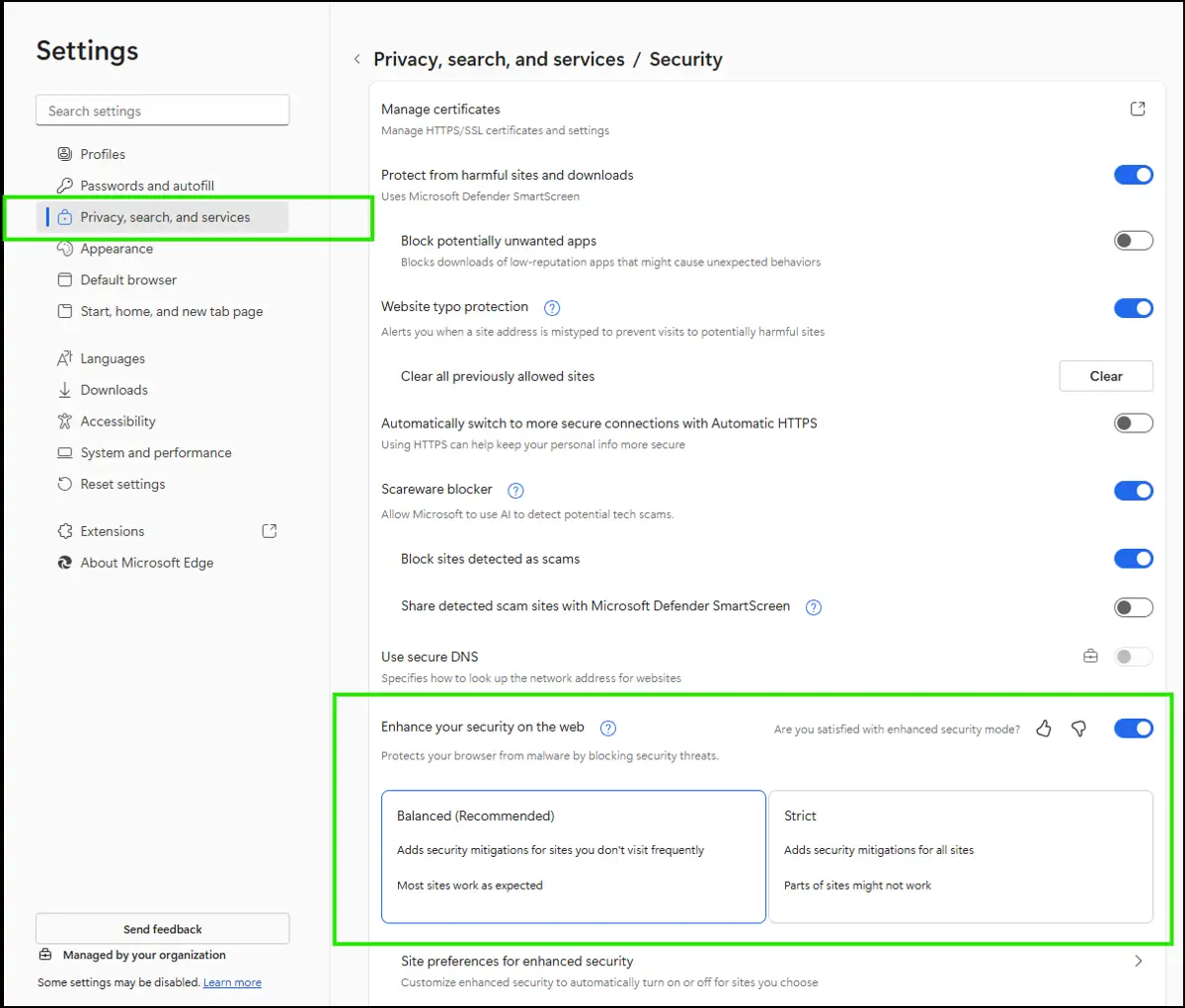
- Open edge://settings/privacy.
- In Security, turn Enhance your security on the web on or off.
- Select Balanced or Strict to set the protection level.
- Test a few business-critical sites to confirm compatibility.
If you need broader control or want to enforce consistency across multiple devices, you can apply the same setting through policy, which we’ll cover next.
Method 2: Deploy enhanced security mode via Group Policy
For handling multiple endpoints, policy enforcement ensures consistent behavior and reduced configuration drift.
- Open the Microsoft Edge administrative templates in Group Policy.
- Navigate to Computer Configuration (or User Configuration) → Administrative Templates → Microsoft Edge.
- Locate and double-click the policy named “Enhance the security state in Microsoft Edge” (or EnhanceSecurityMode).
- Select Enabled and set the default value 0 to 1 (Balanced) or 2 (Strict).
- Click Apply, then OK.
Restart Edge, then navigate to edge://policy to confirm the setting is active. You can also force a policy refresh using gpupdate /force.
Additional steps and troubleshooting
Policies typically override individual browser settings. With that in mind, below are some ways to align the enhanced browser setting with other security processes or protections.
Adding per-site exceptions
If certain business sites break while enhanced security mode is active, you can allow them individually without disabling security for the entire browser.
While on the affected site, open the lock icon or site permissions and allowlist the address. You can also manage entries from the exceptions list at Enhance your security on the web → Site preferences for enhanced security.
Aligning enhanced security mode with related protections
Enhanced security mode in Edge is even better when paired with a consistent security posture across the browser and OS. However, conflicts may occasionally arise between related settings and policies.
To ensure there are no issues, review your SmartScreen, Application Guard, and browser configurations. Then, ensure User Account Control (UAC) and other system controls do not interfere with the expected behavior.
Record your chosen baseline to maintain consistency across teams and device groups.
Using a PowerShell script and deploying via RMM
As an alternative to Group Policy, IT teams can enforce the enhanced security mode in Microsoft Edge using a custom PowerShell script that writes the required policy value to the Windows registry, and then deploy it to the client computers.
In general terms, the script targets the Microsoft Edge policy path, creates the key if it does not exist, and sets the EnhanceSecurityMode value to the desired level, such as Balanced or Strict.
This approach allows to enforce Enhanced Security Mode in Microsoft Edge at scale. .
Reviewing and documenting the new settings
After the initial setup, open edge://policy to confirm that the changes are actually being enforced. Then, before pushing the configuration to everyone, test it with a small group and make sure your key business applications behave as expected.
For auditing and troubleshooting later, keep a record of policy identifiers, version details, and test results in your centralized documentation system.
Centralized script management for IT teams
The enhanced security mode in Microsoft Edge provides a straightforward way to streamline organizational policies and meet compliance baselines. When enforced centrally, it eliminates per-device configuration and ensures the setting is applied uniformly across all managed endpoints.
In large or complex environments, NinjaOne users can simplify rollouts with their own or community-created PowerShell scripts across Windows-based environments. This approach minimizes configuration drift, enables remote script deployment, and supports scalable and granular automation that meets business needs and drives growth.
Related topics:
- Hide or Show App and Browser Control in Windows Security
- How to Enable or Disable Automatic Sign-in on Microsoft Edge
- Managing Site Exceptions for Enhanced Security in Microsoft Edge
- How to Enable or Disable Efficiency Mode When Connected to Power in Microsoft Edge
- How to Enable or Disable Bypass Enhanced Security Mode in Microsoft Edge






