

Key points
- Microsoft Edge enhanced security mode site exceptions balance robust endpoint protection with smooth website functionality and usability.
- Local users can manage security exceptions through Edge browser settings or directly via the address bar drop-down menu.
- Administrators can centrally configure and deploy site exception lists using Windows Registry keys or elevated PowerShell commands.
- Corporate infrastructure deployments require the official Group Policy administrative template path known as EnhanceSecurityModeBypassListDomains.
- Security exceptions require precise wildcard formatting syntax to effectively exempt corporate subdomains without causing policy processing issues.
Users may be asked for a Microsoft Edge security exception to achieve full website functionality. These site exceptions should complement your enhanced security settings to balance online protection and usability, streamlining browser tasks.
This article explains how to add a security exception in Edge for Windows 10/11, how to manage your list efficiently, and the key points to consider before deployment.
Need a visual guide to help your understanding on the topic? Watch our video: Managing Site Exceptions for Enhanced Security in Microsoft Edge.
How to remove or add a security exception in Microsoft Edge
For smooth rollouts, consider your organization’s technical constraints and goals before selecting a method.
📌 Prerequisites:
- Windows 10 or Windows 11 operating system (OS)
- Microsoft Edge
- Administrator privileges (for Registry Editor, Group Policy, and PowerShell methods)
📌 Recommended deployment strategies:
Click to Choose a Method | 💻 Best for Individual Users | 💻💻💻 Best for Enterprises |
| Method 1: Edge settings | ✓ | |
| Method 2: Address bar | ✓ | |
| Method 3: Registry Editor | ✓ | |
| Method 4: PowerShell | ✓ | |
| Method 5: Group Policy Editor | ✓ |
Method 1: Manage site exceptions via Microsoft Edge settings
📌 Use Cases: Support-led assistance for new users
- Open Microsoft Edge.
- Press Alt + F and click Settings.
- Navigate to Privacy, search, and services.
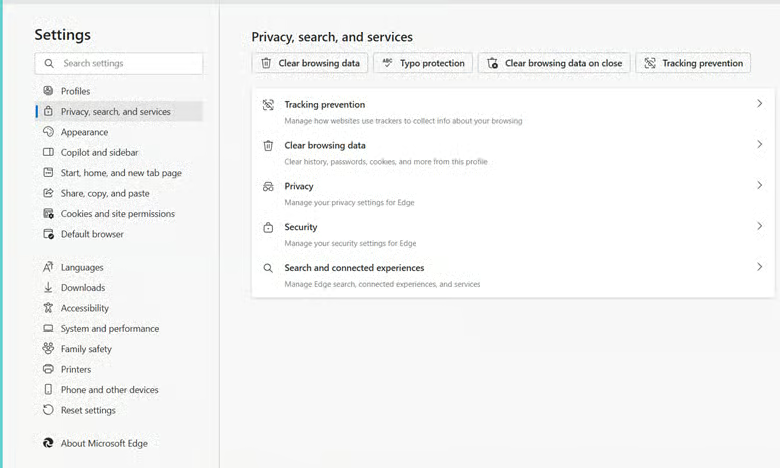
- Click Security, and toggle Enhance your security on the web on or off.
- Click on Manage enhanced security for sites.
- To add a site to your exception list:
- Click Add a site under either “Always use enhanced security for these sites” or “Never use enhanced security for these sites.”
- Enter the full URL and click Add.
- To remove a site from your exception list:
- Click the three-dot menu next to the site name and select Remove.
- To add a site to your exception list:
Method 2: Toggle Enhanced Security for a site via the address bar
Conveniently toggle Enhanced Security on or off through Microsoft Edge’s address bar.
📌 Use Cases: Tighten or loosen MS Edge security with a few clicks without opening menus or restarting.
- Open Microsoft Edge.
- Navigate to your preferred website (e.g., www.facebook.com).
- Click the lock icon in the address bar.
- In the dropdown, click on Enhance security for this site.
- Toggle Use enhanced security for this site on or off.
Method 3: Configure site exceptions via Registry Editor
⚠️ Warning: Editing the registry can cause system issues. Create a backup before proceeding.
While you can use the Registry Editor to configure the global Enhanced Security mode, you can also use it to directly deploy your site exception lists. This is incredibly useful for standalone machines, non-domain endpoints, or automated IT builds.
📌 Use Case: Toggle Enhanced Security mode system-wide.
1. Press Win + R, type regedit, and press Enter.
2. Navigate to: HKEY_LOCAL_MACHINE\SOFTWARE\Policies\Microsoft\Edge
3. (Optional Global Toggle) To change the security mode itself:
- Right-click the right-hand pane and select New > DWORD (32-bit) Value.
- Name the value “EnhanceSecurityMode”.
- Double-click on EnhanceSecurityMode to modify its data.
- To disable Enhanced Security, type 0.
- To set Enhanced Security to “Balanced”, type 1.
- To set Enhanced Security to “Strict”, type 2.
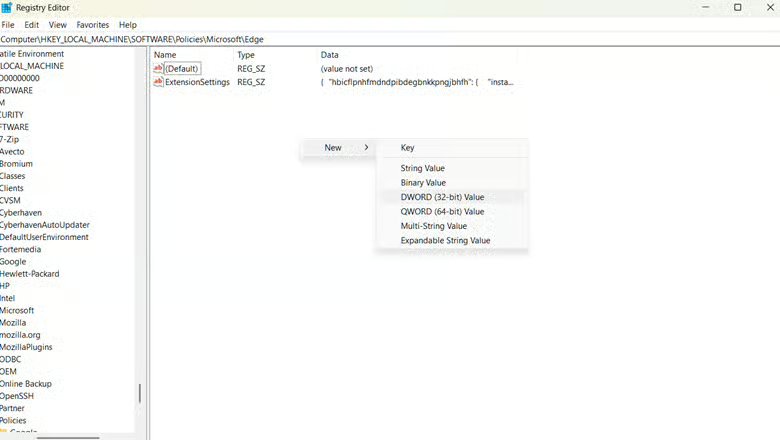
4. (Site Exceptions) To add websites to the exception list:
- Right-click the Edge folder in the left sidebar, select New > Key, and name it EnhanceSecurityModeBypassListDomains
- Click on the new EnhanceSecurityModeBypassListDomains key you just created.
- Right-click the right-hand pane, select New > String Value (REG_SZ).
- Name the value a number (e.g., 1) and double-click it.
- Enter the domain you want to exempt (e.g., [*.]example.com) as the Value data and click OK.
- For additional websites, repeat the process using sequential numbers (2, 3, etc.) as the names.
5. Close the Registry Editor.
6. Restart the workstation (or restart the Microsoft Edge process) to apply changes.
Method 4: Manage site exceptions using PowerShell
Because Microsoft Edge policies are directly linked to the Windows Registry, PowerShell is an excellent tool for silently adding or removing site exceptions across multiple endpoints simultaneously. This allows IT teams to deploy trusted domains without relying entirely on manual Group Policy updates.
📌 Use Cases: Automated standardization and deployment of Microsoft Edge Enhanced Security exception lists across local machines or via an RMM (Remote Monitoring and Management) tool.
1. Press Win + R, type powershell, and press Ctrl + Shift + Enter to open an elevated window.
2. To automatically build the required registry paths and drop a trusted internal domain straight into the Edge exception list, run the following commands:
| $Path = “HKLM:\SOFTWARE\Policies\Microsoft\Edge\EnhanceSecurityModeBypassListDomains” if (-not (Test-Path $Path)) { New-Item -Path $Path -Force } New-ItemProperty -Path $Path ` -Name “1” ` -Value “your-internal-site.com” ` -PropertyType String ` -Force |
(Optional) If your security policy requires you to prevent users from bypassing or modifying these security settings locally, you can also lock the global behavior by running:
| Set-ItemProperty -Path “HKLM:\SOFTWARE\Policies\Microsoft\Edge” -Name “EnhanceSecurityModeAllowUserBypass” -Value <value> |
- Replace <value> according to your security policy:
- To deny changes to Enhanced Security, type 0.
- To allow changes to Enhanced Security, type 1.
3. Close PowerShell.
4. Restart the Microsoft Edge browser on the workstation to apply and enforce the new exceptions.
Method 5: Configure site exceptions via Group Policy
Set your organization’s Microsoft Edge Enhanced Security mode policy for safer browsing or full accessibility.
⚠️ Warning: Misconfiguring your policy can expose your infrastructure. Read our guide to learn how to handle the risks.
📌 Use Cases: Centrally modify site exceptions or turn Enhanced Security on or off across all workstations.
📌 Prerequisites: Windows 10/11 Pro, Enterprise, Education editions.
- Press Win + R, type gpedit.msc, and press Enter.
- Navigate to: Computer Configuration > Administrative Templates > Microsoft Edge > Security
- Locate and double-click on “EnhanceSecurityMode”.
- Set the policy to Enabled and choose the desired mode (Balanced or Strict).
- To specify site exceptions:
- Navigate to the “Configure the list of domains for which enhanced security mode will not be enforced” policy (internally recognized by system administrators as EnhanceSecurityModeBypassListDomains).
- Enable the policy and input the list of URLs to be exempted.
- Click OK and close the Group Policy Editor.
- Run gpupdate /force in Command Prompt to apply changes.
📌 Pro-Tip: Use Correct URL Wildcard Syntax
When adding site exceptions via administrative methods like the Windows Registry, PowerShell, or Group Policy, Microsoft Edge requires specific formatting syntax to recognize domains properly. Leaving a URL as a plain string or adding standard web prefixes may cause the exception to fail.
- Use the explicit wildcard format [*.]example.com to exempt the main domain along with all associated subdomains (such as mail.example.com or erp.example.com).
- Avoid typing generic prefixes like https:// or www. inside Registry or Group Policy lists unless you intend to restrict the exception exclusively to that single, exact address.
How to verify Microsoft Edge security exceptions
To ensure that your Microsoft Edge security exceptions were successfully applied, simply do the following:
- Open Microsoft Edge and navigate to a site added to/removed from the exception list.
- Click the lock icon in the address bar to confirm the site’s current security status.
- Confirm that the site’s security settings reflect the configured exception.
⚠️ Things to look out for
| Risks | Potential Consequences | Reversals |
| Accidentally added multiple unsafe websites to the site exception list | Workstation exposed to malware and possible data leaks | Go to Settings > Privacy, search, and services > Manage enhanced security for sites, and update your site exceptions |
| Policy applied overruns pre-established site protections | Enterprise-wide exposure that’s hard to audit | Centrally revert GPO changes via Active Directory Group Policy Management. Explore Microsoft’s official documentation here |
| Misapplied policy to the wrong Organizational Unit | Inheritance problems and policy conflicts | Revert disruptive policies, run gpupdate /force to apply your changes, and reboot client computers |
Additional considerations for Microsoft Edge Enhanced Security mode
Keep the following in mind when managing site exceptions:
Maintain security exceptions
Constant upkeep leads to long-term efficiency. Regularly schedule reviews and update your Microsoft Edge site exceptions list to keep browser performance and security balanced and robust.
Monitor trusted sites
Highlighting reputable websites lets you uphold safety protocols and streamline browser-related workflows. To reduce system vulnerabilities, always run checks on whitelisted sites.
Audit changes
Uphold accountability by keeping track of when you remove or add a security exception on Edge. Doing so will help troubleshoot potential issues down the line while keeping a digital ledger of consistent domains.
Troubleshooting
If your Microsoft Edge security exception updates won’t reflect correctly, try doing the following:
Verify Microsoft Edge security exception policies
If your exceptions aren’t applying properly, it may be due to conflicting policies. To check, open Microsoft Edge and use the address bar to search for edge://policy.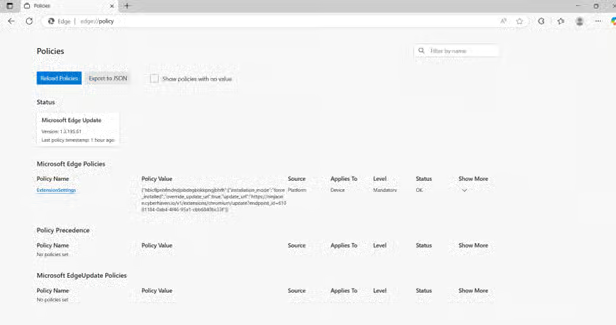
Doing so will display Microsoft Edge policies, which devices they are active on, and their status. Understanding these factors is key to troubleshooting potential Microsoft Edge policy conflicts.
Update Microsoft Edge
Ensure your Microsoft Edge browser and your administrative templates (MSEdge.admx) are fully updated. Keeping your policy files fresh ensures they match modern Chromium engine behaviors. For instance, legacy options like “Basic” mode have been completely removed by Microsoft, leaving only Balanced (1) and Strict (2) as valid configurations. Updating templates prevents policy mismatches and ensures your exception syntax processes correctly.
Check for typos
Lastly, check for any syntax mistakes. Proper spelling is especially vital when registry keys or policy names are involved, so compare your work with Microsoft Edge’s policy documentation to verify.
💡 Note on Admin Lockouts
When you deploy site exceptions via GPO, PowerShell, or Registry (HKLM), these settings will be grayed out for local users in the Edge interface with a “Managed by your organization” icon. Users cannot manually override or delete these central policies locally; changes must be made directly from your administrative source.
Effortlessly manage site exceptions with automated solutions
Adding and removing site exceptions is a major aspect of browser management. Keeping an updated list of websites under enhanced security helps protect your infrastructure while improving usability across your organization.
That said, monitoring hundreds of devices for their site exceptions can be daunting. Elevate your cybersecurity with best-in-class endpoint software, which offers management tools that help eliminate IT misery.
Related topics:
- How to Enable or Disable Send Do Not Track Requests in Microsoft Edge in Windows 10
- How to Disable Microsoft Edge from Launching at Startup in Windows
- How to Enable or Disable “Add Profile” in Microsoft Edge
- How to Add or Remove the Sidebar in Microsoft Edge
- How to Enable or Disable IE Mode in Microsoft Edge
- How to Enable or Disable Sync Browsing Data in Microsoft Edge Across Devices
- How to Enable or Disable Split Screen Feature in Microsoft Edge
Quick-Start Guide
NinjaOne provides several ways to manage Microsoft Edge settings and security:
- Group Policy Management
- NinjaOne allows you to configure Microsoft Edge policies across your organization
- You can use the ExtensionSettings policy to manage browser extensions and site access
- Group policies can override individual user settings for consistent security
- Site Exception Strategies
- While specific details for site exceptions are limited in the NinjaOne documentation, you can typically:
- Define allowed or blocked websites
- Create security policies that control site access
- Manage browser settings across multiple devices
- While specific details for site exceptions are limited in the NinjaOne documentation, you can typically:
- Policy-Based Security Controls
- NinjaOne supports creating policies that can:
- Restrict or allow specific websites
- Manage browser security settings
- Enforce consistent security configurations
- NinjaOne supports creating policies that can: