


Key points
- Selective blocking prevents problematic KBs from installing without pausing the entire patch cycle, maintaining security and compliance.
- You can use PowerShell, Group Policy, Registry edits, and Windows Update for Business to block a specific patch.
- RMM can be used to create update exclusions and monitor compliance across thousands of managed endpoints.
Microsoft releases cumulative updates monthly, but not every patch is safe to deploy immediately. Some updates can break applications, disrupt workflows, or cause stability issues on client devices. MSPs and IT admins often need a way to block a specific Windows update while keeping the rest of the patch cycle on schedule. Each Windows update is identified by a unique Knowledge Base (KB) number, which makes it possible to target and block only the problematic patch.
For a quick visual overview, watch our video guide on How to Block Specific Windows Updates Without Pausing Entire Patch Cycles.
Need granular control when patching distributed systems?
Guide to blocking a specific Windows update without pausing patch cycles
By using tools like PowerShell, Group Policy, Registry edits, and RMM scripting, you can selectively stop problematic KBs without pausing Windows Update entirely. This keeps endpoints secure with the latest fixes while preventing known bad patches from causing downtime.
📌 Prerequisites:
- Devices must be running Windows 11, or Windows Server 2016, 2019, 2022, or later.
- You need administrator rights on local or remote endpoints to block or defer updates.
- PowerShell 5.1 or higher must be available to run scripts for hiding or unhiding specific KB updates.
- Access to the Windows Registry is required if you plan to configure update blocks manually.
- Group Policy Management Console (GPMC) should be available in domain environments for enforcing update rules at scale.
- Optionally, an RMM platform such as NinjaOne can be used to deploy scripts, enforce policies, and report on blocked updates across client devices.
NOTE: Windows 11 devices using safeguard holds or modern update orchestration policies may behave differently from legacy Windows 10 servicing workflows. Validate update exclusions against your current servicing channel and update ring configuration.
Method 1: Block a specific Windows update using PowerShell
You can use PowerShell to hide a single problematic KB so it will not install, while allowing all other updates to proceed normally.
Prerequisites:
- Administrator rights on the endpoint or via your RMM
- PowerShell 5.1 or higher with internet access to install the PSWindowsUpdate module
- The exact KB number you want to block
Here are the steps to use PowerShell to block a specific Windows update:
- Open PowerShell and install the module using this command:
Install-Module PSWindowsUpdate -Force
- Next, use this command to list pending updates and confirm the KB number:
Get-WindowsUpdate -MicrosoftUpdate
- Subsequently, use this code to hide the specific KB (replace KB5000000 with your target) so it will not install:
Get-WindowsUpdate -KBArticleID KB5029263 | Hide-WindowsUpdate -Confirm:$false
- To view hidden updates, use this:
Get-WindowsUpdate -IsHidden
- To unhide, use this command:
Hide-WindowsUpdate -KBArticleID ‘KB5000000’ -MicrosoftUpdate -Hide:$false -Confirm:$false
In restricted enterprise environments, access to the PowerShell Gallery may be blocked. You may need to pre-stage the PSWindowsUpdate module internally or allow temporary outbound access to PSGallery.
Method 2: How to use Microsoft’s wushowhide.diagcab tool to block specific updates
The wushowhide.diagcab tool lets you manually block specific Windows updates without pausing the entire patch cycle. It’s good for use in individual machines, but not for automation or deployment at scale.
Prerequisites:
- You’ll need local administrator rights on the endpoint.
- Download of the wushowhide.diagcab tool from Microsoft.
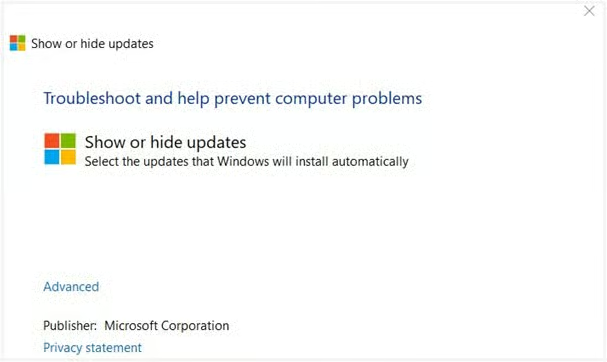
Use the wushowhide.diagcab tool via these steps:
- Download wushowhide.diagcab from Microsoft’s site.
- Run the tool and follow the on-screen prompts to scan for available updates.
- Select the problematic update and choose Hide update to block it.
Microsoft’s wushowhide.diagcab utility is considered legacy and may not function consistently on newer Windows 11 builds. Microsoft now recommends using Windows Update for Business and Microsoft Intune.
Method 3: Block updates via GPO or Registry (driver example)
If a Windows update keeps pushing an unwanted driver, you can block it by targeting its hardware ID. You can do this via GPO or the Registry.
Prerequisites:
- Administrator rights and access to the Group Policy Management Console (for domain devices) or Registry Editor (for standalone devices)
- The hardware ID of the driver you want to block, which can be found in Device Manager > Device Properties > Details tab > Hardware IDs
To use Group Policy to block a specific Windows update, use these steps:
- Open the Group Policy Editor and navigate to:
Computer Configuration > Administrative Templates > System > Device Installation > Device Installation Restrictions.
- Enable Prevent installation of devices that match any of these device IDs. To remove the policy, you can set it back to Not Configured or Disabled.
- Add the hardware IDs of the driver you want to block.
You can perform the Registry method by running this code on PowerShell:
| New-Item -Path “HKLM:\SOFTWARE\Policies\Microsoft\Windows\DeviceInstall\Restrictions” -Force Set-ItemProperty -Path “HKLM:\SOFTWARE\Policies\Microsoft\Windows\DeviceInstall\Restrictions” -Name “DenyDeviceIDs” -Value “PCI\VEN_8086&DEV_1234” |
To undo the change, follow these steps:
- Open Registry Editor.
- Go to: HKLM\SOFTWARE\Policies\Microsoft\Windows\DeviceInstall\Restrictions
- Delete the DenyDeviceIDs entry, or remove the entire Restrictions key.
- Reboot your computer so the changes can take effect.
⚠️ Warning: Be sure to use this method carefully. Blocking by hardware ID will prevent Windows from reinstalling the driver properly until the policy or registry entry is removed.
Method 4: Use Registry to log or tag blocked updates
You can log which KBs have been blocked by writing them into the Registry. This gives technicians or RMM tools a local record to validate against during audits or compliance checks.
Prerequisites:
- Administrator rights to create or edit Registry keys under HKLM
- Consistent naming conventions for Registry entries (e.g., KB numbers as value names)
Here’s how to use the Registry to log or tag blocked updates:
- To create a Registry key to hold blocked KBs, run this command:
New-Item -Path “HKLM:\SOFTWARE\Org\UpdateExclusions” -Force
- Next, add the KB number you want to track:
Set-ItemProperty -Path “HKLM:\SOFTWARE\Org\UpdateExclusions” -Name “KB5029263” -Value “Blocked”
- Here’s how to record when the block was last updated:
Set-ItemProperty -Path “HKLM:\SOFTWARE\Org\UpdateExclusions” -Name “LastUpdated” -Value (Get-Date).ToString(“u”)
- To validate, you can run this on the Command Prompt:
reg query HKLM\SOFTWARE\Org\UpdateExclusions
This method is ideal for keeping a simple local record of blocked KBs on each endpoint, which can also be deployed at scale via RMM.
Method 5: Use Windows Update for Business (WUfB) policies to delay updates (optional)
Windows Update for Business lets you delay certain types of updates through Group Policy. This does not block an individual KB, but it allows you to pause entire categories of updates until you’ve had time to test them.
Prerequisites:
- You will need Windows Pro, Enterprise, or Education edition (WUfB is not available on Home).
- Access to the Group Policy Management Console (GPMC).
Here’s how you can use Windows Update for Business (WUfB) policies to prevent updates for the time being:
- Open the Group Policy Editor.
- Navigate to:
Computer Configuration > Administrative Templates > Windows Components > Windows Update > Windows Update for Business.
- Configure these policies:
- Select when Quality Updates are received
- Select when Feature Updates are received
- Set the number of days to defer each type of update based on your patching strategy.
Organizations using Microsoft Intune or Windows Autopatch can also implement update deferrals and safeguard holds through deployment rings and update policies. This provides more granular cloud-managed update control for hybrid and remote work environments.
When should you block a Windows update?
Blocking a Windows update should generally be a temporary mitigation strategy used when a patch introduces operational risk. Common scenarios include:
- Blue screen or boot loop issues after Patch Tuesday
- Broken VPN, printing, or RDP functionality
- Application compatibility problems
- Driver instability after cumulative updates
- Security software conflicts
- Failed deployments across pilot groups
IT teams should avoid long-term update suppression whenever possible. Instead, validate problematic KBs in testing groups, monitor Microsoft advisories, and re-enable updates once a fixed release becomes available.
⚠️ Things to look out for
| Risks | Potential Consequences | Reversals |
| Blocking the wrong KB | May stop critical security fixes from being applied | Unhide the KB with PowerShell or wushowhide and allow Windows Update to install it. |
| Overusing WUfB or GPO delays | Devices may fall behind on cumulative updates, leaving gaps in protection. | Adjust or disable the policy to resume normal update flow. |
| Registry entries misconfigured | Can cause updates or drivers to fail unexpectedly | Remove or correct the Registry keys and restart the device. |
Additional considerations when blocking specific Windows updates
Watch for supersession
Some blocked KBs may be replaced by newer rollups. Check each month’s updates and reblock the new KB if needed.
Reporting
Use event logs and Windows Update logs with the Get-WindowsUpdateLog command to confirm that updates are being suppressed correctly.
Third-party patch tools
Be cautious of conflicts if you are also using WSUS, Intune, or third-party patch management. These tools may override or bypass manual blocks.
Dependencies
Some Windows updates require prerequisites. Blocking one update can delay others until the dependency is installed.
Best practices for blocking Windows updates safely
Blocking Windows updates should be treated as a temporary operational safeguard rather than a permanent patching strategy. To reduce risk while maintaining compliance:
- Test monthly updates in pilot groups before broad deployment
- Document all blocked KBs and review them regularly
- Use deployment rings or phased rollouts for production systems
- Monitor Microsoft release notes and known issue advisories
- Re-enable blocked updates once fixes or superseding patches become available
- Avoid delaying security updates longer than necessary
For MSPs, combining selective KB blocking with RMM automation and compliance reporting helps maintain visibility across large endpoint environments.
Troubleshooting issues related to blocking specific Windows updates
Update still installs
Check if the KB was replaced by a newer rollup or delivered through another update bundle. If necessary, reblock the superseding KB.
Hide-WindowsUpdate not working
Confirm that the PSWindowsUpdate module is up to date and that PowerShell is running with administrator rights.
Device ID block ineffective
Validate that you are using the correct hardware ID. Run pnputil /enum-devices /connected to list IDs and confirm accuracy.
Registry not applying
Double-check the Registry path, data type, and permissions. Make sure the key is created under HKLM and not HKCU.
NinjaOne services for blocking specific Windows updates
| What NinjaOne can do | What it is | How it helps |
| KB-specific hide scripts | Deploys PowerShell hide commands via its automation policies | This lets you block targeted KBs at scale on various endpoints without manual effort. |
| Registry audit | Checks Registry keys for blocked update markers | It confirms which endpoints have exclusions. |
| Endpoint tagging | Tags devices with temporary exclusions | This makes it easy to track which systems are holding back a KB |
| Alerts on reclassified updates | Triggers alerts if an excluded update installs after supersedence | This ensures blocked patches don’t slip back in through rollups. |
| Reporting update compliance | Reports update status while honoring exclusions | MSPs can isolate problematic updates without disrupting organization-wide patch hygiene. |
Quick-Start Guide
NinjaOne offers several ways to block or control specific Windows updates:
1. Patch Approval Options:
You can preemptively approve or reject patches at the following levels:
- Global level
- Policy level
- Device level
2. Specific Blocking Methods:
Manually approve or reject patches by:
- KB (Knowledge Base) number
- Patch ID
Set patches to “Manual” approval to review them before installation
- Use the “Reject” option to block specific patches
3. Advanced Control:
- Configure delayed approvals (up to 30 days for most updates, 365 days for feature updates)
- Use Patch Intelligence AI to automatically evaluate and potentially block problematic patches
- Create policy-level overrides for specific patches
4. Uninstalling Patches:
- Uninstall previously installed patches that support rollback
- Prevent future installation of specific patches
Need granular control when patching distributed systems?
Block specific updates and maintain stability while keeping patch cycles on track
Blocking individual Windows updates is essential when stability or compatibility is at risk, especially if updates can hinder tools and workflows your technicians use. By targeting specific KBs instead of pausing patching altogether, MSPs and IT admins can keep devices secure while avoiding downtime from problematic and disruptive updates.
Related topics:
- 4 Ways to Easily Disable Windows Updates in Windows 10
- How to Turn On or Off Show Windows Update Restart Notifications in Windows 10
- How to Clear Windows Update History in Windows 10 and Windows 11
- Guide to Diagnosing Windows Update Issues Using PowerShell
- How to Turn On or Off Windows Update Delivery Optimization in Windows 11






