Cloud remote access software with NinjaOne Remote
NinjaOne Remote gives technicians one-click access to Windows, macOS, and Linux endpoints from the cloud-native NinjaOne console, with no VPN required.
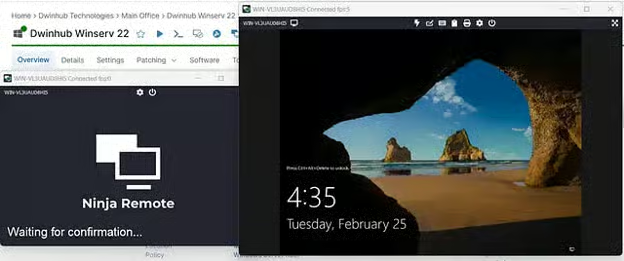
NinjaOne Remote gives technicians one-click access to Windows, macOS, and Linux endpoints from the cloud-native NinjaOne console, with no VPN required.






| Problem | How NinjaOne resolves it |
| Remote devices sit outside the office network, so VPN-based tools need extra setup to reach them. | NinjaOne Remote connects to managed endpoints over the internet from the cloud-based console, with no VPN required. |
| Slow home or branch connections make remote sessions hard to use. | Technicians lower video quality, switch to grayscale, or turn on a hybrid TCP and UDP link. |
| Taking over the screen to fix an issue interrupts the end user. | On Windows devices, background mode lets technicians work in a separate session while the user keeps working. |
| Unattended access raises questions about who connected and when. | Roles control which technicians can reach each device, and NinjaOne logs every session in the device activity feed. |
Technicians support remote and on-site devices from one console, with no VPN connection to maintain.
End users on Windows devices keep working during maintenance, because technicians can connect in background mode.
Users on slow home or branch connections still get remote support, because technicians tune session quality to the bandwidth.
Security reviews have a record of each remote session, because NinjaOne logs every connection in the activity feed.

Technicians start a session from a device page in the NinjaOne console with one click. NinjaOne Remote connects to Windows, macOS, and Linux endpoints over the internet, so off-site devices are reachable without a VPN.

Technicians adjust video quality, switch to grayscale, and turn on a hybrid TCP and UDP link to match the available bandwidth. These settings keep sessions usable on slow connections.

Technicians choose which of the remote device’s monitors to view, and a red frame marks the monitor in focus. File transfer opens local and remote file explorers side by side for moving files in either direction.

On Windows devices, background mode opens a separate session where technicians run tools such as File Explorer, Registry Editor, and PowerShell. In a standard session, a chat window lets technicians talk with the end user.

Each session is encrypted with x25519, XSalsa20, and Poly1305. Administrators can require end users to approve a connection, and roles limit which technicians can access each device. A session timeout ends a session after the technician’s device sits idle for a set time.

NinjaOne Remote is available in the NinjaOne mobile app. Technicians can connect to managed devices from a phone or tablet when they are away from a desk.
Technicians connect to laptops at home, in branch offices, and on the road from the same console they use for on-site devices. NinjaOne Remote reaches each device over the internet, so support does not wait on a VPN connection. Off-site users get help on the same timeline as users in the office.
On Windows devices, technicians connect in background mode to collect logs, restart services, or edit the registry while the user keeps working. For work that needs a full session on supported Windows versions, technicians can show a black screen on the remote monitor. The user stays productive, and the technician completes the fix without asking the user to step away.
MSP technicians connect to devices across client organizations from one multi-tenant console. Roles limit each technician to the client devices they are permitted to reach, and every session is logged for review. Quick Connect adds one-time access to client devices that do not have the NinjaOne agent installed yet.
100,000
Endpoints managed
“NinjaOne is a scalable solution. It’s built on a modern SaaS architecture and it’s future-proof.”

40%
More Cost Effective
“NinjaOne’s price point is 40% less than any other endpoint management tool on the market, while being more powerful and easy to use.”

10-15
Tools Replaced
“Before, I needed 10-15 different tools to execute what NinjaOne does in its centralized, single pane of glass.”

30%
Less time for patching
“We observed a 30% reduction in the time taken for patch deployments compared to our previous solution.”

2,000
Endpoints managed
“NinjaOne gives me much more flexibility and security in my work”

30%
Annual ROI
“[NinjaOne] has already shown its value in ROI…it’s at least a hundred thousand dollars annually.”

24x
Faster Endpoint Management
“Our processes have become 24x faster with NinjaOne.”

20-40
Hours Saved Each Week
“Leveraging the automations feature within NinjaOne has enabled me to save upwards of what would likely be 20 to 30 to even 40 hours per week.”
Administrators enable NinjaOne Remote at the organization or device level, and NinjaOne deploys it to managed endpoints.
Administrators configure permissions and connection approval requirements, while technicians install the NinjaOne Remote player app to start sessions.
Technicians start a session with one click from a device page or from a NinjaOne ticket.
Administrators check the device activity feed, where NinjaOne logs each remote session and the technician who started it.
See the Remote Access resource catalog for setup detail.
NinjaOne Remote handles 95 percent of troubleshooting needs within the platform for Northeast IT Systems, an MSP in western Massachusetts.
“I can hop on a machine, fix the problem, and go away without interrupting the user.”
Ben Gagnon, Technical Operations Specialist, Northeast IT Systems
“When we do receive calls, NinjaOne’s remote access reduced our issue resolution time by 89%.”
Phil Collett, IT director, Citrus Motors
Cloud remote access in NinjaOne Remote is one-click remote control of managed Windows, macOS, and Linux endpoints from the cloud-native NinjaOne console. Sessions connect over the internet, so technicians support on-site and remote devices without a VPN.
No. NinjaOne Remote is built directly into the NinjaOne platform and is currently available only as part of it. Technicians start sessions from the same console they use for monitoring, patching, and automation.
Each session is encrypted with x25519, XSalsa20, and Poly1305. Roles control which technicians can access each device, and NinjaOne logs every session in the device activity feed. Administrators can also require end users to approve a connection before it starts.
Yes. On Windows devices, background mode opens a separate session, so technicians can run maintenance tools while the user keeps working. Technicians can also show a black screen on supported Windows devices so their activity is not visible on the monitor.
Technicians can lower video quality, switch to grayscale, and turn on a hybrid TCP and UDP link that sends traffic over the lighter UDP protocol. These settings keep sessions usable when bandwidth is limited.
Yes. Quick Connect gives technicians one-time access to devices that do not have the NinjaOne agent installed. It suits ad hoc support, emergency fixes, and onboarding new devices.
Yes. End users connect through the NinjaOne end-user portal. Administrators set permissions that limit each user to the machines they are allowed to access.
Yes. Technicians start recording from the session settings menu, and the recording runs until they stop it or the session ends. Recordings save to a directory on the technician’s computer, not the end user’s device.