Key Points
- Understand the Workflow: Zero-touch device provisioning builds a bootable USB with OSDCloud and the NinjaOne agent.
- Know the Tool Boundary: OSDCloud is an independent PowerShell module; NinjaOne takes over device management once the Windows image lands.
- Gather the Prerequisites: Windows ADK, the WinPE add-on, Windows Configuration Designer, Visual Studio Code, and a 32 GB+ USB drive.
- Automate Post-install Management: The NinjaOne agent handles patch management, software deployment, AV/EDR installation, and endpoint hardening.
Modern provisioning in IT refers to defining your desired settings and software to meet your organizational goals. It’s the process of setting up your IT infrastructure (including hardware, networks, and virtual machines, among others) to make it available to systems and users. Device provisioning is a subset of this, often used to set up devices within the Internet of Things (IoT), including mobile devices.
The importance of device provisioning can’t be overstated. It’s the first step in setting the right environment for your workload requirements. Effective device provisioning ensures that all employee devices, from laptops to phones, are set up and coordinated correctly from the start.
You may be researching the steps needed to apply a device provisioning package using a bootable USB. This is particularly important if you want to create efficient, repeatable processes that scale or when considering mobile device management for your organization.
In this article, we’ll cover how to create a bootable USB with OSDCloud with a NinjaOne agent installed. Using zero-touch provisioning, the NinjaOne agent automates various time-consuming processes, such as deploying patches, installing applications, pushing settings, and more. This process also plays a key role in golden image management, empowering your IT team to maintain its security posture even in different cloud environments and footprints.
NinjaOne enables zero-touch device provisioning while providing the advantages of ongoing endpoint management.
Definition of terms
First, let’s define some key terms related to device provisioning that you need to know.
- Bootable USB. This is a USB drive that contains a bootable operating system or software.
- Thin image. This is a barebones image of an operating system directly from Microsoft.
- NinjaOne agent. This is a lightweight software agent installed on the endpoint that connects the device to the NinjaOne console. Once installed, it gives IT teams real-time visibility into the device and lets them monitor, patch, deploy software, and remotely support it, without needing on-site access.
- OSDCloud. Now maintained as OSDCloud by Recast, this is the current, dedicated PowerShell module for deploying Windows 11 from WinPE using cloud-based images and vendor driver packs. (Windows 10 reached end of support on October 14, 2025, so new device provisioning should target Windows 11.) It supersedes the older OSDCloud v1 workflow that lived inside the general-purpose OSD module.
- Zero-touch provisioning. This automatically sets up devices, allowing IT professionals to install network devices without manual intervention. It’s most beneficial when you want to quickly deploy network devices on a larger scale.
Device provisioning with NinjaOne
Note: OSDCloud is an independent, community-maintained project, not a NinjaOne product. This guide shows how to pair it with the NinjaOne agent so that once Windows finishes installing, NinjaOne takes over device configuration and management.
1. Prepare the environment
Before initiating the provisioning process, ensure you have the necessary tools and resources.
Requirements:
- Windows ADK: The Windows Assessment and Deployment Kit (ADK) allows IT personnel to assess their Windows systems and components before they’re deployed to users. You can download it at the official Microsoft site.
- WinPE add-on for Windows ADK: Windows Preinstallation Environment (WinPE) is an operating system used to install, deploy, and repair Windows editions.
- Windows Configuration Designer: This is used to create the provisioning package that deploys the NinjaOne agent. Find it at the official Microsoft site.
- USB thumb drive at least 32 GB in capacity
- The target device being hardwired to an Ethernet for an Internet connection
- NinjaOne agent MSI file
- Visual Studio Code with the PowerShell extension installed: You can download the Visual Studio Code here.
Resources:
- Commands to boot USB
- Examples of startup scripts
- OSDCloud documentation: Full details can be found on the official OSDCloud website.
2. Create a bootable USB
After downloading and installing the prerequisites, create a provisioning package for the NinjaOne agent. For additional instructions, refer to the official OSDCloud website.
- Insert the USB drive into your computer.
- Open Visual Studio Code and execute the included example build PowerShell script. Note that you may want to modify the parameters of what’s being installed for your specific needs.
- To install the NinjaOne agent, go to Provisioning Commands > Primary Context > Commands > Install. Then you can configure the commands as necessary. See Figure 1.
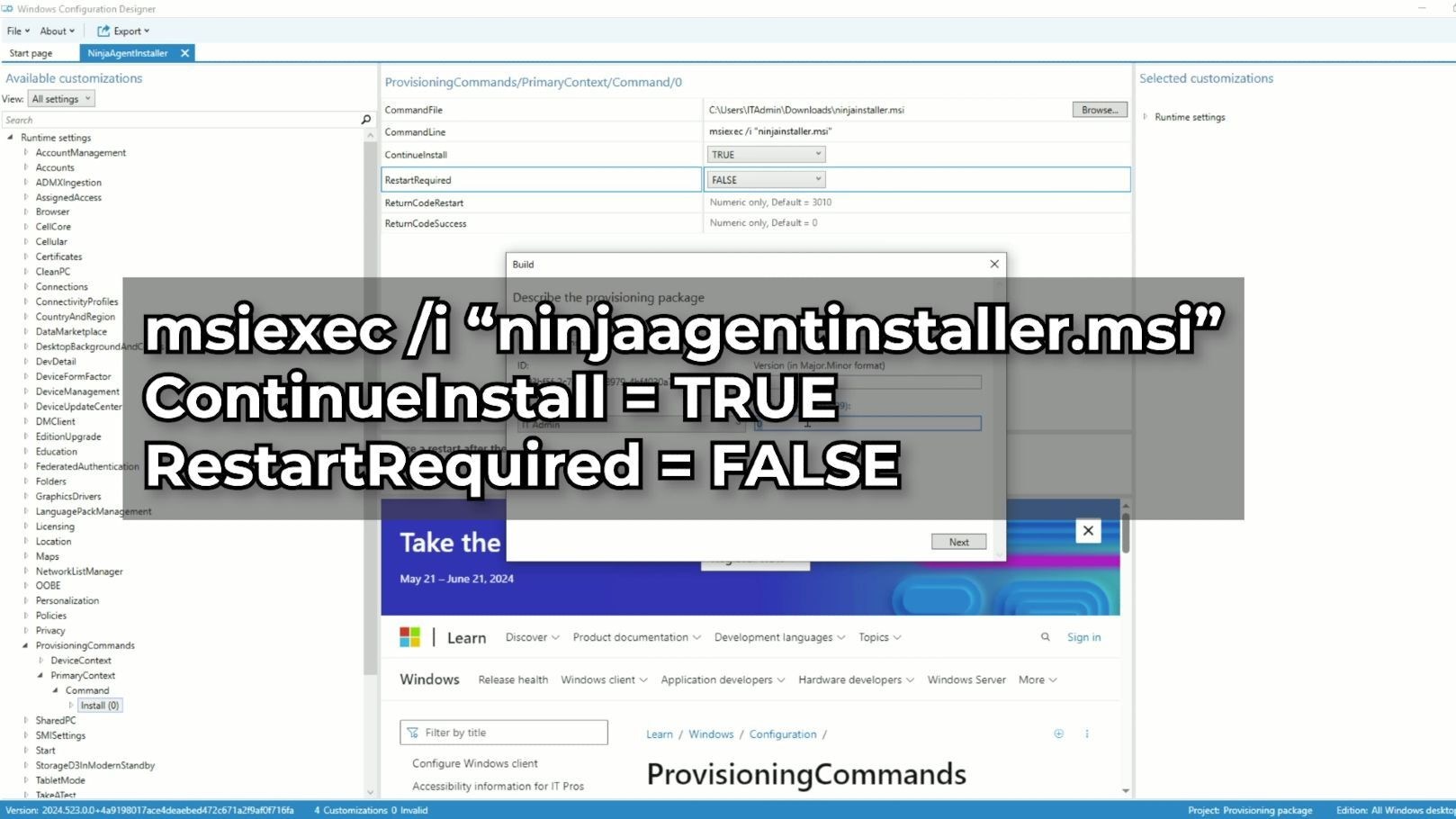
(Figure 1 — Configuring provisioning commands.)
- You’ll be prompted to select the USB drive you want for the bootable media.
- Create a folder on the USB drive’s WinPE partition. Create another folder nested inside called Automate. Create another folder labeled Provisioning and include the NinjaOne agent MSI file. Your file address should now look like this:
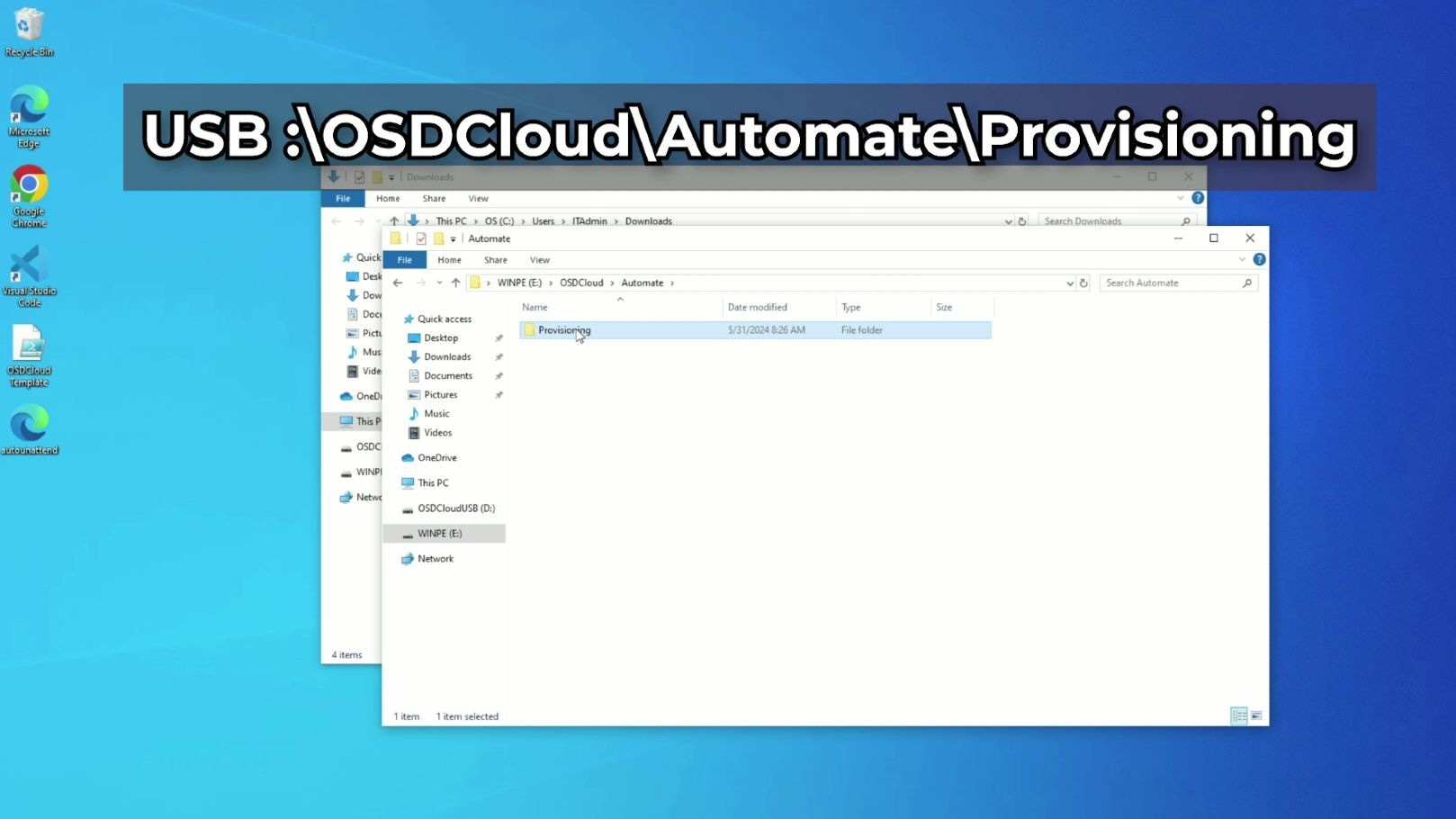
(Figure 2 — Automate provisioning file view.)
- An optional but frequently used step would be to include an unattend.xml answer file to help automate aspects of the Windows Out-of-Box Experience or OOBE. This site allows options to be configured and an XML file to be generated. Rename this file to unattend.xml and place it directly on the WinPE partition of the USB drive.
3. Initiate the provisioning process
Eject the USB drive (now a bootable USB) from your computer and insert it into the target device. Note that this should be connected via Ethernet.
- Boot the target device and access the boot selection menu by pressing F12.
- Select the USB drive from the menu and proceed. The process will be zero-touch from this point forward.
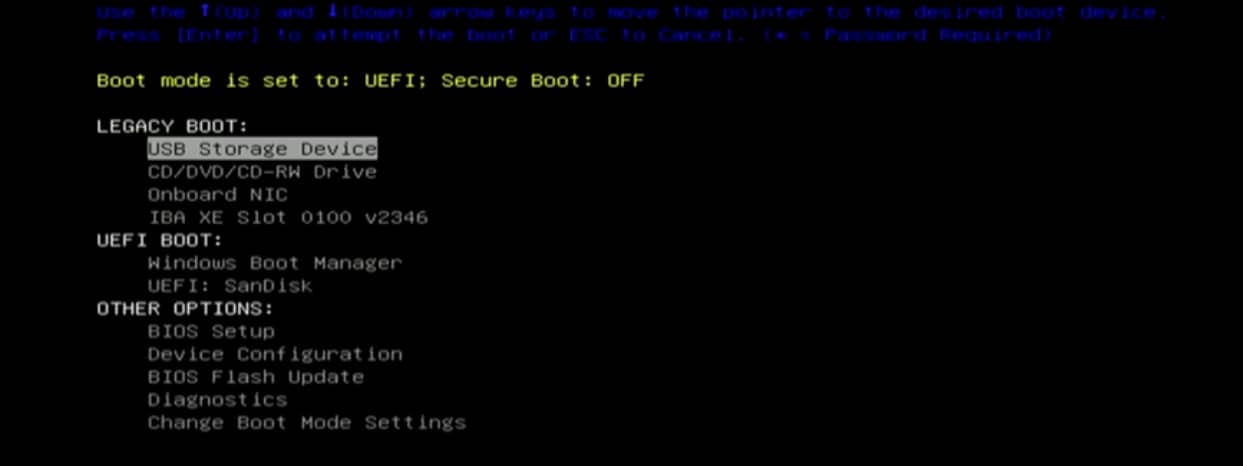
(Figure 3 — Booting the target device.)
- The selected version of Windows will be downloaded from Microsoft and installed on the computer. If applicable, utilize the unattend.xml file for OOBE automation.
- The provisioning package will then automatically install the NinjaOne agent.
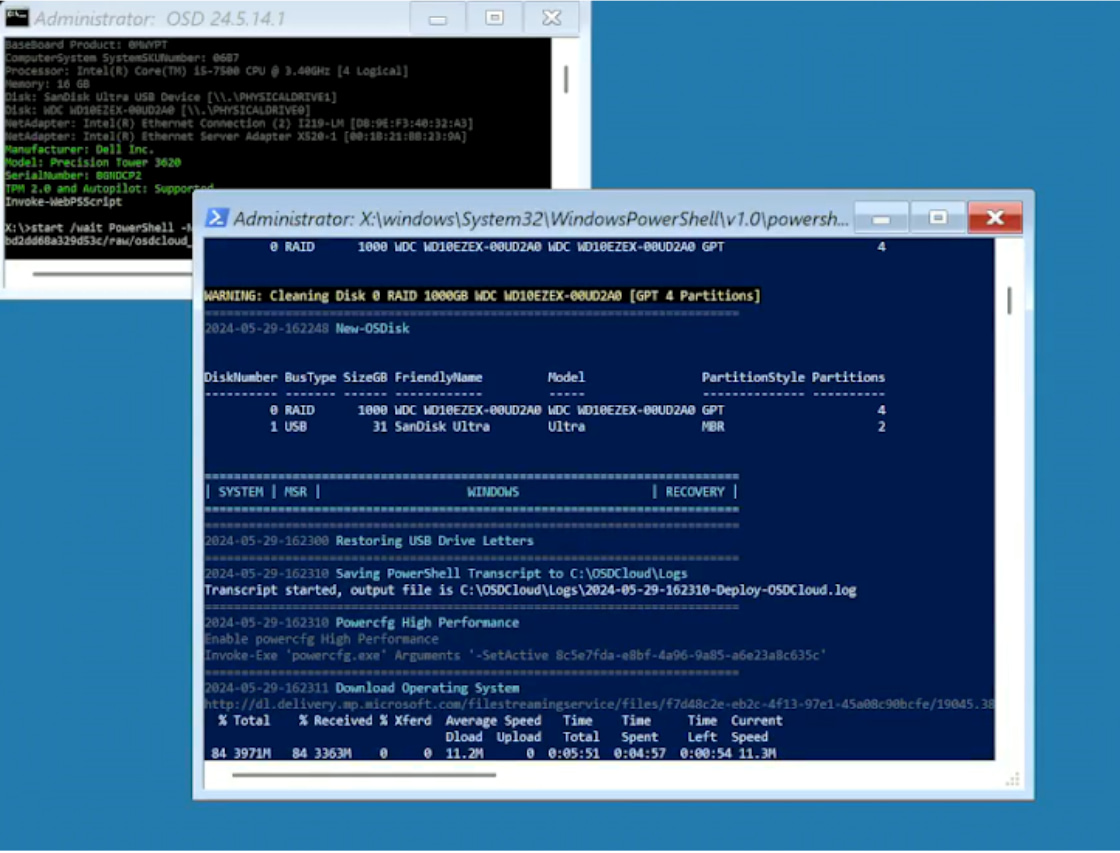
(Figure 4 — NinjaOne install from provisioning package.)
4. Begin device provision phase handled by NinjaOne
Once Windows is installed, the device provisioning phase transitions to NinjaOne.
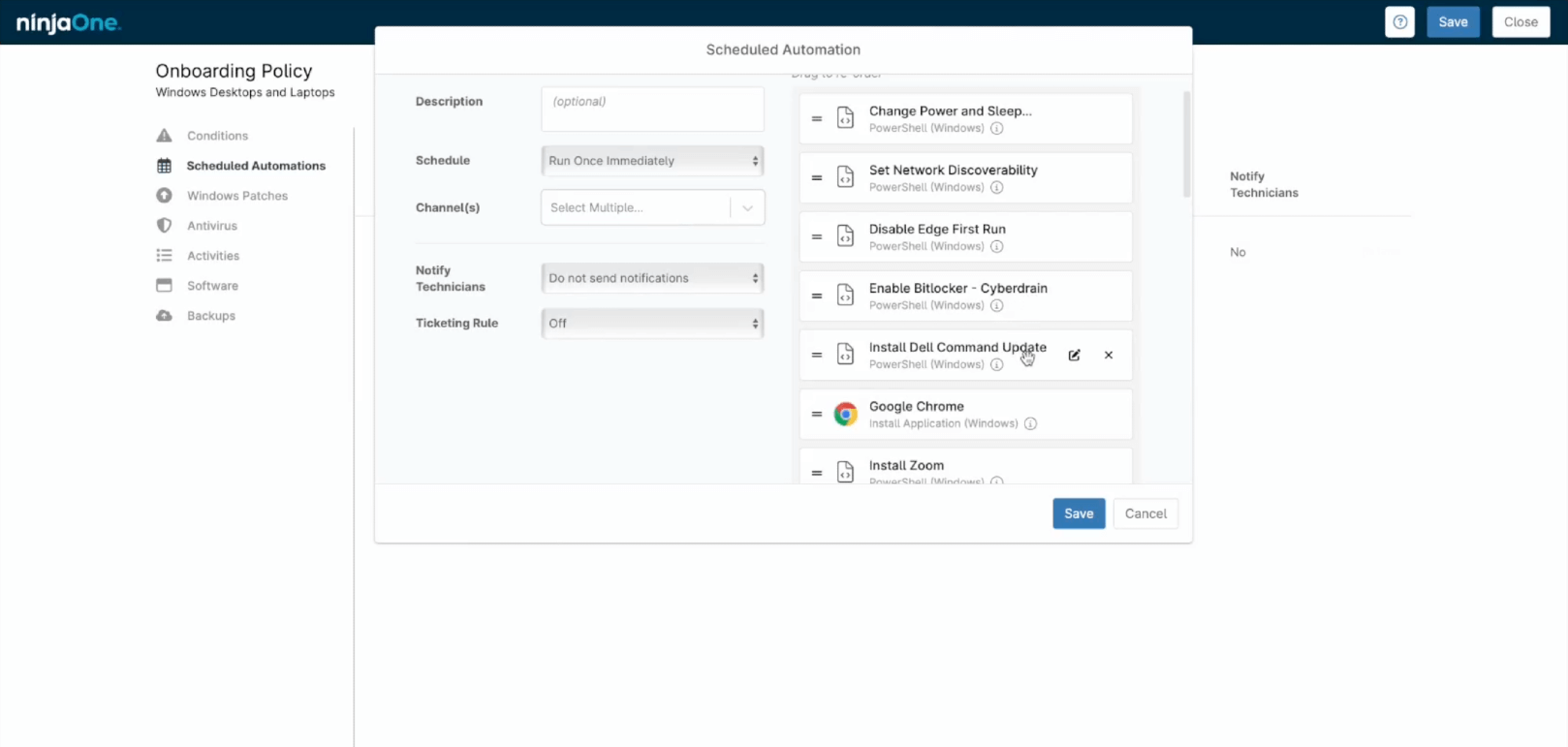
- NinjaOne begins delivering configurations to the device, including application deployment, AV/EDR installation, endpoint hardening settings, patch management, and more.
- This automated approach ensures consistency, improves efficiency, and reduces manual intervention, making device management more scalable.
- NinjaOne doesn’t deliver the Windows image itself. Once the image lands, NinjaOne takes over ongoing device configuration, patching, and monitoring. In this way, NinjaOne still optimizes your workflow and enhances your ongoing endpoint management.
Optimize device setup with NinjaOne’s streamlined zero-touch provisioning—automate deployment and get devices ready instantly.
Streamline device provisioning with NinjaOne
NinjaOne, the endpoint management platform trusted by nearly 40,000 customers in 140+ countries, helps you establish a streamlined device provisioning workflow to improve operational efficiency and scalability. By integrating OSDCloud for Windows deployment, NinjaOne simplifies the initial setup process, ensures that your devices are correctly configured, and helps keep your devices compliant with organizational and other regulatory policies.
Healthily obsessed with your success, NinjaOne is single-minded in improving your overall device management strategy. If you’re ready, request a free quote, sign up for a 14-day free trial, or watch a demo.