

Key Points
- Use RMM data to forecast infrastructure needs, improve device performance, and identify potential CPU, memory, and storage bottlenecks before they become problems.
- Automate hardware inventory and performance checks with PowerShell, Bash, and CMD scripts to flag aging or underperforming devices.
- Monitor CPU, memory, disk, and hardware trends over time to spot recurring bottlenecks and make more informed decisions about refresh cycles and budget.
- Centralize device data, encryption status, security policies, warranty information, and support timelines to better coordinate hardware and software lifecycle planning.
- Standardize data across platforms and check WMI, script permissions, and output access when capacity-planning data is missing or inconsistent.
NinjaOne helps support capacity planning with automated inventory, scripting, reporting, trend monitoring, and lifecycle tagging.
Capacity planning is a key role for IT teams and managed service providers (MSPs) to plan ahead and ensure their IT infrastructure can handle and enable future growth. RMM capacity planning uses remote monitoring and management software to track device performance and hardware age over time, so IT teams can forecast bottlenecks and plan hardware refreshes before they impact users.
This guide provides examples of how remote monitoring and management (RMM) platforms, combined with scripting and automation, can be used to assess your devices’ performance and utilization, ensuring they meet your end-users’ needs. By leveraging PowerShell on Windows and Bash scripting on macOS and Linux, you can proactively identify devices that no longer meet end-users’ requirements and align your hardware refresh lifecycles with real-world trends.
Why do IT teams and MSPs need informed hardware capacity planning
Productivity suffers when users’ devices can’t keep up with their day-to-day tasks. Insufficient drive space can slow down devices and prevent them from functioning correctly. A lack of CPU power or memory can make apps run slowly (especially modern web-based productivity software), and obsolete hardware may not support modern encryption and security standards. All of these can negatively impact a business’s efficiency and even lead to compliance issues.
Centrally monitoring for under- or overutilized devices enables proactive identification of these problems. Devices can then be upgraded, replaced, or reassigned on a lifecycle that ensures all IT resources are fully optimized, without unnecessary cost. This is especially critical now after Windows 10 reached its end of support in October 2025. Organizations still running it face real security and compliance risks, and hardware that can’t run Windows 11 should be prioritized for replacement.
What are the key goals and prerequisites of RMM capacity planning?
RMM platforms provide a central place for collecting, parsing, reporting, and alerting on devices’ hardware, software, and user activity. As part of their remote management features, many RMM solutions also support remote script execution.
This allows you to deploy custom scripts that collect the metrics relevant to your organization and ensure that all devices meet your requirements. This can include:
- Inventory age and specification data
- CPU, memory, disk I/O, and thermal performance
- Underperforming or over-utilized devices
- Hardware health metrics
To do this, you will require the following:
- An RMM platform with inventory collection, automation, and reporting (for example, NinjaOne)
- Script support (PowerShell for Windows, Bash for Linux/macOS)
- Access to system BIOS or WMI for hardware manufacturing data
- Optional access to Group Policy in Windows domain environments to enforce consistent logging and data availability
- Knowledge of your organization’s hardware lifecycle policies or warranty periods
In addition, you can use RMM to monitor compliance factors, such as whether encryption is enabled or not, and enforce policies.
What’s the difference between RMM capacity planning and IT asset management (ITAM)?
They overlap but serve different purposes. ITAM focuses on tracking what you own, licenses, warranties, purchase dates, and compliance status. Capacity planning focuses on how those assets are performing and whether they’ll continue to meet demand.
RMM platforms like NinjaOne increasingly combine both functions, but it’s worth keeping the distinction in mind: a device can be fully compliant on paper while quietly becoming a performance bottleneck in practice.
Using PowerShell to collect hardware age and specifications
While it’s increasingly common for devices to last many years and still perform their intended tasks, age can be a good indicator that hardware may be a candidate for replacement. For example, you may want devices to always be under warranty, or to identify devices that will no longer receive the latest operating system updates. You may also want to identify whether you have specific device models in your fleets to address known flaws or product recalls.
On a Windows device with PowerShell available, you can get its hardware manufacturer and model by running this command:
Get-CimInstance Win32_ComputerSystem | Select-Object Manufacturer, Model
You can also retrieve the BIOS release date, which can be used to assess a device’s age:
Get-CimInstance Win32_BIOS | Select-Object ReleaseDate
Run the following command on the device to catalog CPU info:
Get-CimInstance Win32_Processor | Select-Object Name, MaxClockSpeed, NumberOfCores
Use this one to query RAM and disk capacity:
Get-CimInstance Win32_PhysicalMemory | Measure-Object -Property Capacity -Sum
Get-PSDrive -PSProvider ‘FileSystem’ | Select Name, Free, Used
Once the data has been collected, you can export the output of the above commands by running this command:
Export-Csv -Path “C:\Reports\hardware_summary.csv” -NoTypeInformation
This data can then be held for future analysis, or sent to your RMM platform for reporting.
Using CMD-based inventory and performance checks
Legacy devices that don’t support PowerShell can be inspected using CMD commands from the command prompt.
(Note that wmic is deprecated and disabled by default in Windows 11 22H2+. For modern endpoints, use PowerShell’s Get-CimInstance cmdlets. The wmic examples below apply only to legacy Windows 10 systems still in your environment.)
Run this command to get the system model and manufacturer name:
wmic computersystem get manufacturer, model
Use this one to read BIOS date and version:
wmic bios get releaseDate, version
Input the command below to check system uptime:
net statistics workstation | findstr ““since””
Run this one to read disk usage:
wmic logicaldisk get caption, size, freespace
Using Bash on Linux/macOS for asset inventory
You can also catalog your Linux and macOS devices for capacity planning using Bash commands and scripting.
CPU info on Linux can be collected by running this command:
lscpu | grep “Model name”
Check the amount of RAM on Linux with the following command:
free -h
Use this command to output disk and partition usage on Linux and macOS:
df -h
Run the command below to read the BIOS or hardware date in Linux:
dmidecode -t bios | grep -i date
Use this command to retrieve hardware details on macOS:
system_profiler SPHardwareDataType
For Apple Silicon Macs (M1/M2/M3/M4), hardware reporting differs significantly from Intel Macs, so ensure your RMM agent supports Apple Silicon natively.
If your RMM is cross-platform and supports Windows, macOS, and Linux, you can collect all capacity planning data in one location for a full overview of your devices’ health and usage.
Using the Windows Registry to detect aging hardware characteristics
The Windows Registry provides IT administrators with vital information for capacity planning. You can query registry values with PowerShell. For example, the installation date of the OS (a proxy for system deployment date) is stored in InstallDate at HKEY_LOCAL_MACHINE\SOFTWARE\Microsoft\Windows NT\CurrentVersion, while the system model and OEM tag are often stored in the SystemProductName and BaseBoardManufacturer within HKEY_LOCAL_MACHINE\HARDWARE\DESCRIPTION\System\BIOS.
Using Group Policy to enforce baseline logging for capacity monitoring
Group Policy in Active Directory can be used to enforce configuration settings to standardize the data logged for later inventory and performance analysis. Using Group Policy Objects (GPOs), you can enforce audit logging of performance events, trigger local scripts to run on startup/shutdown to capture system information, and configure Windows Event Logs to retain performance or storage usage metrics.
Group Policy can also be used to schedule scripts to upload captured information to your RMM solution if it does not do so itself through its agent software.
Trending and threshold-based forecasting
Effective capacity planning requires identifying trends over time to predict future performance issues (such as a device running out of space), and future capacity requirements. For example, you may:
- Track systems with <15% disk space for more than 30 days
- Monitor average RAM usage exceeding 85% over 2 months
- Identify systems with CPUs running consistently above 80%
Tracking these metrics will help identify devices that are falling behind, before they frustrate users.
Additional considerations for IT capacity planning with RMM
You should keep an inventory of all of your devices and automate warranty checks using your RMM platform. If a device malfunctions, you can immediately determine whether the best action is repair or replacement.
In addition, plan your hardware and software lifecycles in coordination: if a known operating system or software requirement is on the horizon, make sure your hardware refresh aligns with it and meets those requirements. This can be aided by differentiating refresh cycles by device role, ensuring that:
- Costs are optimized,
- Users aren’t receiving devices that exceed their requirements, and
- Power users aren’t limited by their hardware.
By correlating your capacity planning across hardware and software and identifying and meeting user requirements, you can support IT budgeting discussions with evidence and justify the resources required to keep your users working efficiently.
Troubleshooting data collection during RMM capacity planning
There are a few common issues IT departments and MSPs run into when collecting hardware data remotely:
- Incomplete hardware data: Ensure the WMI service is running or PowerShell is allowed.
- Old systems missing CIM classes: Use Get-CimInstance as the standard across all supported PowerShell versions. (For legacy systems still running Windows 7/8 without CIM support, consider wmic as a CMD-based fallback.
- Inconsistent outputs across OS: Normalize data in CSV with clear headers and units before reporting
- Data collection fails: Verify script permissions and output folder access
Using NinjaOne for fully informed, data-driven RMM capacity planning
NinjaOne enables data-driven capacity planning, powered by its RMM platform and comprehensive enterprise IT administration and MSP toolset.
Using NinjaOne, you can perform cross-platform inventory tracking, including the automated, periodic collection of:
- Operating system
- Manufacturer/model
- CPU
- Memory
- Storage
- BIOS/UEFI
- Other hardware and software data across Windows, macOS, and Linux.
You can deploy custom PowerShell, CMD, and Bash scripts to every device, schedule data collection jobs to identify trends, and export all data for custom hardware lifecycle reporting. NinjaOne also includes device inventory tools, so you can tag devices by age, warranty status, or role to support capacity planning and ensure that no device is left behind.
Want to know the answers to the most common questions IT teams and MSPs ask about RMM? Explore our RMM FAQs.
Quick-Start Guide
Capacity Planning with NinjaOne RMM
NinjaOne offers several features that can support capacity planning:
1. Device and Performance Monitoring
– The RMM allows you to track key performance metrics like:
– Device uptime
– CPU usage
– Memory usage
– These metrics help you understand the current resource utilization of your devices
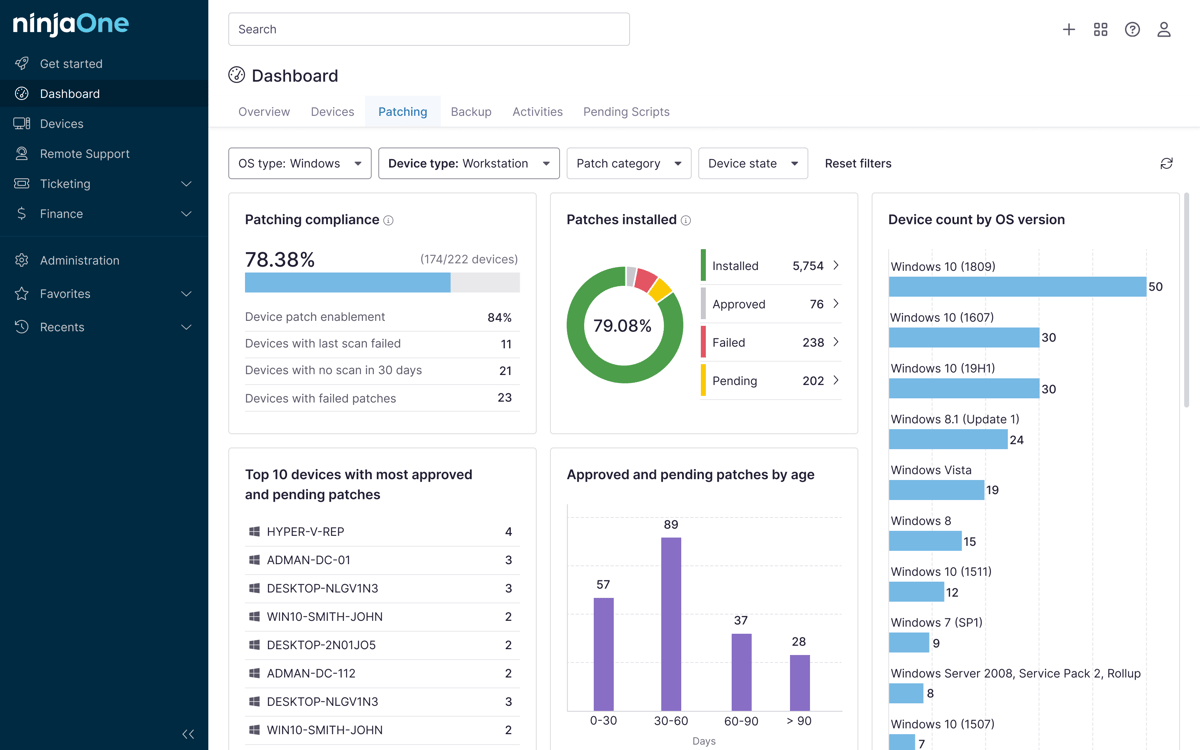
2. Patch Management for Strategic Updates
– NinjaOne supports “Ring Deployments” for patching, which can be a form of capacity planning
– You can:
– Create device groups with different roles
– Stagger patch deployments across different “rings”
– Test updates on a small group before wider deployment
3. Network Management System (NMS)
– Provides monitoring for network devices like routers, switches, and firewalls
– Helps track network infrastructure performance and capacity
4. Asset Management
– Tracks device information and inventory
– Helps understand your current infrastructure and potential upgrade needs
5. Reporting and Insights
– Generate reports on device performance
– Identify trends in resource utilization
– Make informed decisions about potential upgrades or expansions
Recommended Approach
– Regularly review performance metrics
– Use ring deployments to minimize risk during updates
– Monitor device health and resource consumption
– Plan infrastructure changes based on comprehensive data