


Key points
- Microsoft Defender for Business delivers built-in antivirus, EDR, and automated remediation tools, making it ideal for SMBs and MSPs managing multi-tenant environments.
- Onboard Windows devices using PowerShell scripts, Group Policy Objects (GPO), or RMM integration for scalable, consistent protection.
- Configure and monitor all clients through the Microsoft 365 Defender Portal or Microsoft Lighthouse for real-time visibility and incident response.
- Fine-tune ASR rules, firewall policies, ransomware protection, and tamper protection per client or device group.
- Use Advanced Hunting with KQL for threat analytics, enable alert notification, and integrate with SIEM tools like Microsoft Sentinel.
- Combine Microsoft Defender with NinjaOne’s unified endpoint management platform for complete oversight, patching, and automated remediation across multiple clients.
This guide explains how to set up Microsoft Defender for Business in MSP environments, including deployment, configuration, and ongoing management. It includes instructions for onboarding devices using PowerShell or Group Policy Objects (GPO), as well as advice on how to configure security policies and perform ongoing monitoring and reporting on all of your endpoints.
Understanding Microsoft Defender for Business is critical for in-house IT administrators and MSPs who manage multiple clients. Its antivirus, endpoint detection and response (EDR), firewall management, and automated investigation and remediation tools offer powerful protection and can additionally be integrated with your MSP platform or remote monitoring and management (RMM) solution for enhanced visibility and faster resolution times.
For a quick visual overview, watch our video guide on How to Set Up Microsoft Defender for Business in MSP Environments
What is MS Defender for Business? What you need to know
Microsoft Defender for Business protects your devices from threats such as malware and hacking, and is included in Microsoft 365 Business Premium subscriptions at no additional cost. It’s also available as a standalone add-on for clients of other Microsoft 365 tiers.
Microsoft Defender can be deployed by internal IT teams, or by managed service providers (MSPs), and administered either through its Microsoft 365 tenant (using PowerShell or the web interface), or using Microsoft Lighthouse for multiple clients. Leading RMM platforms can also integrate with MS Defender for Business for centralized oversight and management.
When deploying Microsoft Defender for Business and designing and implementing your security policies, your goals should include:
- Scalable onboarding of client devices
- Policy customization per client or device group
- Real-time detection and response
- Automated remediation of threats
- Reporting and alerting consistency across tenants
Initial setup in Microsoft 365 and Defender Security Portal
Microsoft Defender for Business is included in Microsoft 365 Business Premium subscriptions or can be purchased as a standalone subscription. Once you have a valid license that covers your users, you can get it set up by following these steps:
- Go to the Microsoft Defender portal at security.microsoft.com, then navigate to Settings > Endpoints > Onboarding
- Select Windows 10 and 11 > Download onboarding package
- Assign devices to appropriate security groups for policy application
Onboarding packages can be deployed via local script, Group Policy (GPO), or using your RMM.
Onboarding devices using PowerShell
For devices not managed by Intune or GPO, PowerShell can be used as an alternative to onboard devices to Microsoft Defender for Business:
- Download the onboarding package (selecting the Local script as the deployment method) from the Defender portal and extract it
- Run the extracted onboarding script locally or deploy it via RMM by executing WindowsDefenderATPOnboardingScript.cmd
- Verify onboarding by running Get-MpComputerStatus | Select AMServiceEnabled, OnboardingState, and check that OnboardingState is set to 1 (onboarded) or 2 (onboarding in progress).
Onboarding devices via Group Policy
Group Policy can also be used to onboard devices on a Windows domain:
- Download the onboarding package from the portal (selecting Group Policy as the deployment method) and extract it to a network share available to target devices
- Open the Group Policy Management Console
- Navigate to Computer Configuration > Administrative Templates > Windows Components > Microsoft Defender Antivirus > Onboarding
- Enable the Manage onboarding using local script setting and set the startup script to WindowsDefenderATPOnboardingScript.cmd
CMD enforcement for advanced or legacy environments
If Microsoft Defender is not running, you can confirm Defender is enabled (and hasn’t been disabled by a third-party antivirus) by starting the Defender service from the command prompt using the following commands:
Core Antivirus Service: Enter the following commands in an elevated CMD prompt.
sc config WinDefend start= auto
net start WinDefend
If you’re working with Defender for Business, enter the following command within an elevated CMD prompt to collect security telemetry and enable advanced threat detection and response:
sc config Sense start= auto
net start Sense
Check the status of local or enterprise Defender by entering the following commands as an admin:
sc query WinDefend
sc query Sense
Alternatively, you can confirm whether Defender is running by executing the following PowerShell command:
Get-MpComputerStatus | Select OnboardingState
Monitoring and reporting
The Microsoft Defender Portal can be used to monitor threat detections, view a device’s risk level, check active incidents and alerts, and review automated remediation actions.
You can also use Advanced Hunting and the KQL query language to find events, for example:
DeviceEvents | where ActionType contains “Antivirus” or ActionType contains “Remediation”
When configuring Microsoft Defender for Business, you should ensure notifications for high-severity alerts are enabled and being received by the right technicians, and consider forwarding log data to Microsoft Sentinel or your third-party SIEM tools.
Configuring security policies for clients and troubleshooting Microsoft Defender for Business setup
Once you have set up Microsoft Defender for Business and onboarded devices, you can use the Microsoft 365 Defender Portal to configure:
- Attack surface reduction (ASR) rules
- Ransomware protection
- Tamper protection
- Firewall enforcement
- Antivirus scanning and exclusions
When crafting your Microsoft Defender for Business policies and integrating it with your ITSM tools, consider how you will handle multiple tenants (especially important for MSPs), and how you will ensure all endpoint devices are properly onboarded. You should also ensure that Microsoft Defender does not conflict with any other endpoint security products that may already be deployed, such as CrowdStrike or Bitdefender.
To reduce the chance of deployment problems, test policies before deploying them. If something does go wrong, start by checking that:
- A valid Microsoft Defender for Business license is applied to all users
- Firewall rules and connectivity to *.wdatp.com endpoints are working
- The Defender service is enabled, and third-party AV is uninstalled
- Devices appear in the Defender portal
- Automation scripts or GPOs are correctly configured
Enhance Microsoft Defender for Business visibility, policy enforcement, and response automation
While the security tools provided by Microsoft Defender for Business are robust and integrate well with the Microsoft ecosystem, they still leave visibility gaps in complex deployments.
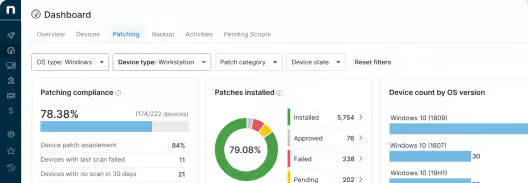
NinjaOne integrates with Microsoft Defender for Business to provide unified endpoint management, patch and software management, backup, and endpoint protection for all of your devices. It supports Microsoft Defender as well as third-party cybersecurity platforms, and provides complete oversight of your whole IT infrastructure, and even the infrastructure of multiple MSP customers.
NinjaOne includes support for script deployment, auditing, compliance, automated remediation, and alert forwarding from Microsoft Defender, so that you can ensure incidents are resolved as quickly as possible.






