Key Points
- Use quick controls by clicking the taskbar volume icon or pressing the keyboard media keys to mute or unmute Windows instantly.
- Manage per-app levels by opening Volume Mixer to mute or lower individual apps without affecting system audio.
- Verify the active output device to fix most “unmuted but no sound” issues when switching between speakers, headsets, Bluetooth audio, or external displays.
- Jump via shortcuts by using ms-settings URIs to open the Sound and Volume Mixer pages for faster navigation and support workflows.
- Check hardware mute switches and run quick sound tests to resolve situations where Windows is unmuted but the device stays silent.
- Standardize for users by documenting one fast mute and unmute path and a fallback method to cut help desk time and improve consistency.
Windows 11 gives you more than one way to control sound. The quickest controls sit on the taskbar and in the Volume Mixer. This guide walks through how to mute Windows options, app-specific volume, how to confirm the correct output device, and what to check if audio does not return after unmuting.
| Click to Choose a Method | 💻 Best for Individual Users | 💻💻💻 Best for Enterprises |
| Method 1: Mute or unmute from the taskbar | ✓ | |
| Method 2: Mute specific apps with Volume Mixer | ✓ | |
| Method 3: Verify or change the active output device | ✓ | |
| Method 4: Jump straight to sound pages (shortcuts) | ✓ | ✓ |
| Method 5: Per-device controls and quick tests | ✓ | |
| Method 6: Basic policy and UX guidance for teams | ✓ | |
| Method 7: When users need a clean reset | ✓ | ✓ |
How to unmute and mute Windows across various setups
Before you start, confirm these prerequisites so you do not troubleshoot the wrong issue and your mute or unmute actions work as expected.
📌 General prerequisites:
- Account permissions to access Settings and Volume Mixer.
- A working output device (built-in speakers, headset, Bluetooth audio, USB audio, or HDMI/DP display with speakers)
- Optional: A keyboard with media keys for quick hardware mute/unmute.
- For Bluetooth devices, confirm they are paired and connected.
- Check physical volume controls on external speakers or headsets.
Method 1: Mute or unmute from the taskbar
If you need to silence your PC immediately, the taskbar gives you the fastest way. This method works system-wide and requires no navigation.
📌 Use Cases: Instant silence during calls, presentations, or shared screens.
Steps:
- Click the speaker icon on the taskbar at the bottom right of the screen.

- In the volume flyout, select the speaker glyph to toggle mute or unmute.
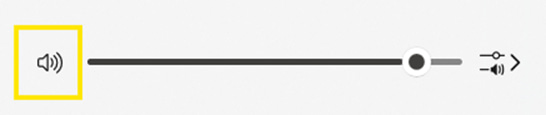
💡 Alternatively, drag the slider to zero if you need silent output.
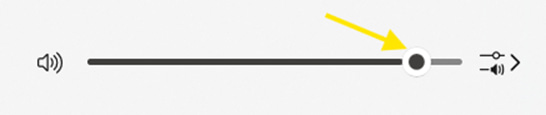
- If your keyboard has media keys, press the Mute key to toggle system sound.
Method 2: Mute specific apps with Volume Mixer
If you want to silence or adjust the volume of a specific application without muting the entire system, use the Volume Mixer. It gives you direct control over individual apps.
📌 Use Cases: When one app is too loud while you work in other tabs or windows.
📌 Prerequisites: Windows 11 Volume Mixer.
Steps:
- Right-click the speaker icon on the taskbar and select Open volume mixer.

💡 You can also navigate to Settings > System > Sound > Volume Mixer.
- Find the app you want to control.
- Toggle Mute for that app to silence it without affecting system audio.
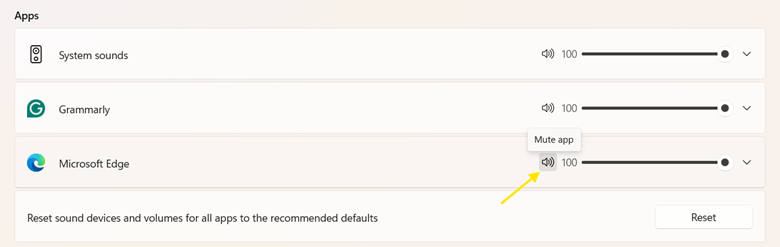
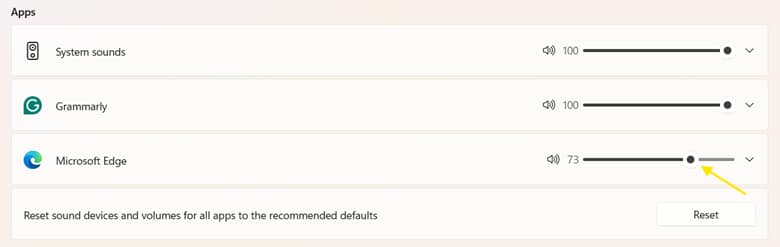
- Or drag the app’s volume slider to set its level relative to the system volume.
Method 3: Check and switch your active output device
If muting and unmuting do not fix the issue, Windows may be sending audio to the wrong device. This method helps you confirm the active device and switch to the correct one.
📌 Use Cases: Troubleshooting when sound is unmuted but still silent.
📌 Prerequisites: The intended device must be connected by wire or Bluetooth.
Steps:
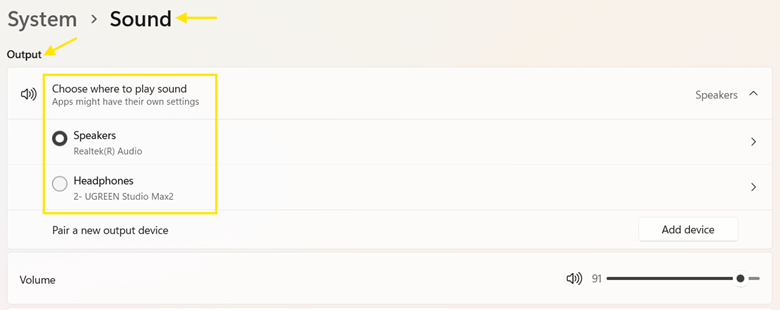
- Navigate to Settings > System > Sound.
- Under Output, check which device is marked as Active.
- If audio is going to the wrong device, select the correct one from the list.
- Test the audio to confirm that it plays through the selected device.
Method 4: Jump straight to sound pages (shortcuts)
If you manage multiple devices or frequently troubleshoot audio problems, shortcuts can save you time. Windows supports URI shortcuts that open sound pages instantly.
📌 Use Cases:
- Guiding users remotely without UI confusion.
- Jumping to the Sound or Volume Mixer pages during repeated testing.
📌 Prerequisites:
Steps:
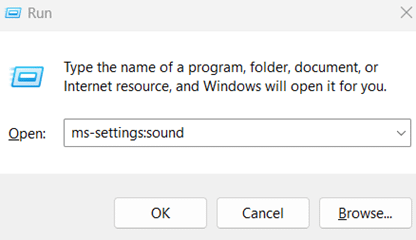
- Press Windows + R to open the Run dialog.
- Run one of these commands:
- ms-settings:sound – Opens the Sound settings page.
- ms-settings:apps-volume – Opens the Volume Mixer page.
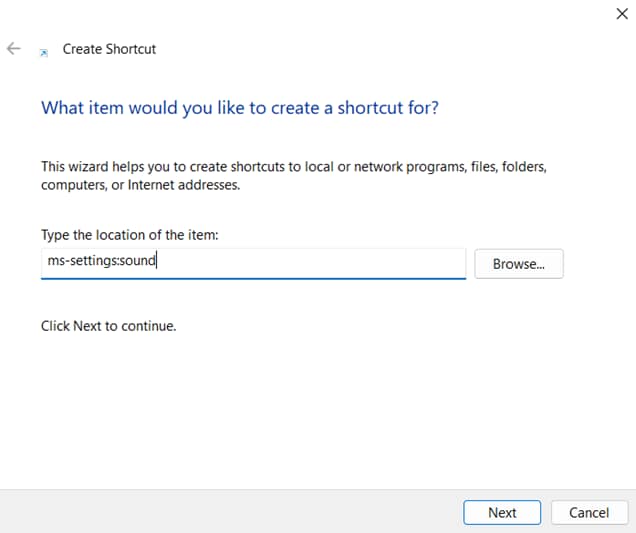
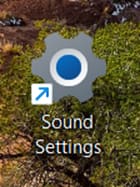
- For frequent use, create a desktop shortcut with one of the URIs:
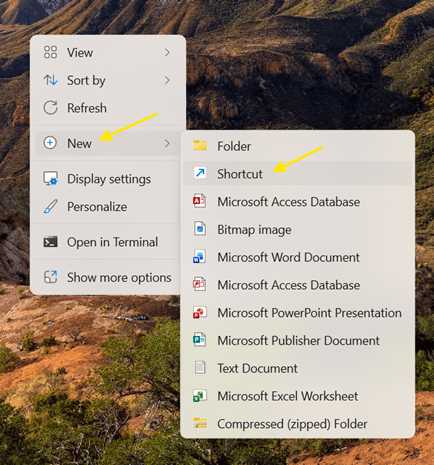
- Right-click a space on your desktop.
- Select New, then Shortcut.
- In the location field, paste the URI and click Next.
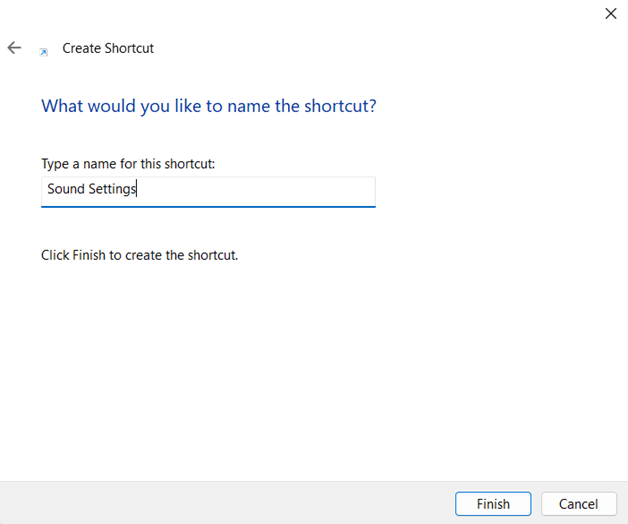
- Name the shortcut, then click Finish.
- The shortcut will appear on your desktop.
- Name the shortcut, then click Finish.
- (Optional) You can pin the shortcut to the Start menu or the Taskbar for faster access.
Method 5: Per-device controls and quick sound tests
Some sound issues come from the device, not Windows. Headsets, speakers, and Bluetooth devices often have their own mute switches or volume controls. Use this method to confirm the device is not muted or routed incorrectly.
📌 Use Cases: When the software mute or unmute does not restore sound.
📌 Prerequisites: The device must be connected and recognized by Windows.
Steps:
- Check the physical mute buttons or switches on the headset or speakers. Toggle them to confirm sound is not blocked at the device level.
- Open Settings > System > Sound, select your output device, and choose Test to play a known audio sample.
💡 Alternatively, you can also play a familiar video or song to verify output.
- If multiple outputs are available, temporarily disable any unused devices in Settings > Sound or Device Manager, then re-enable them. This forces Windows to route audio through the correct path.
- (Optional) Disconnect and reconnect Bluetooth or USB audio if it fails to switch profiles correctly.
Method 6: Basic policy and UX guidance for teams
In many organizations, consistent audio behavior matters. This method helps teams standardize how users mute, unmute, and troubleshoot sound. Clear guidance reduces interruptions during meetings and reduces support time.
📌 Use Cases: Help desks standardizing how to mute and unmute instructions.
📌 Prerequisites: Organizational approval for standard policies and documentation.
Steps:
- Standardize one primary mute path with the taskbar speaker icon. Use Volume Mixer as the secondary option for app-specific control.
- Document how users should pick the correct output device when docking, undocking, or moving between monitors or rooms.
- Include ms-settings:sound and ms-settings:apps-volume URIs for quick access to sound settings and Volume Mixer.
- Provide a short reference that shows mute and unmute, per app control, how to switch devices, and when to use the shortcuts.
Method 7: When users need a clean reset
If other methods do not resolve the issue, reset sound settings and reconnect the device to clear stuck states and restore normal audio.
📌 Use Cases: Persistent mute or unmute problems after several attempts.
Steps:
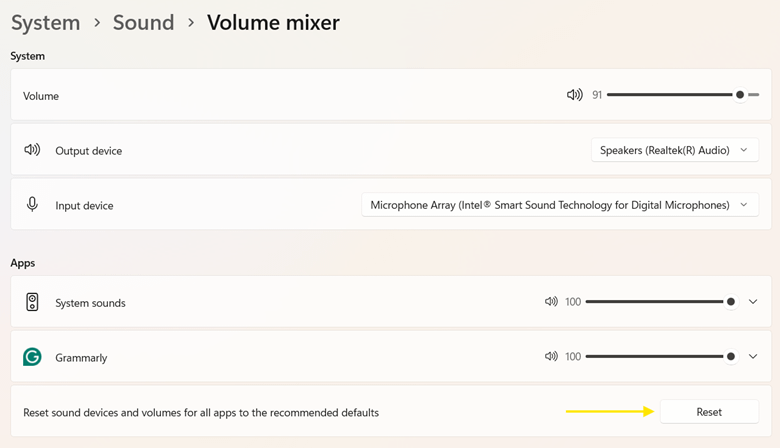
- Open Settings > System > Sound > Volume mixer.
- Click Reset (if available) to restore all app volumes and mute states to their defaults.
- Reconnect your audio device or switch to a different port (for USB headsets or external sound cards) to force Windows to re-enumerate the device.
- If the issue continues, update or reinstall audio drivers in Device Manager.
Best practices summary table
If you prefer a quick reference instead of reading through every method, here’s a condensed view of the most effective practices and their significance.
| Practice | Purpose | Value delivered |
| Use taskbar mute | Fast global toggle | Fewer clicks, consistent behavior across devices |
| Per-app mute in Mixer | Targeted audio control | Quieter calls without silencing system alerts |
| Validate output device | Correct audio routing | Fewer “it’s unmuted but no sound” issues |
| Pin ms-settings shortcuts | Faster navigation | Shorter handle times during troubleshooting |
| Publish one playbook | Unified team guidance | Fewer repeat tickets and smoother onboarding |
Troubleshooting
Some issues continue even after you mute or unmute. These checks address the most common cases in Windows 11.
Unmuted but still no sound
Confirm the correct Output device in Settings > System > Sound and verify the app isn’t muted in Volume mixer. Apps with their own volume rules can stay silent while system output is active.
Headset is silent only on calls
Check the headset’s hardware mute switch and review the app’s own audio settings. Some devices switch profiles during calls and may mute themselves at the hardware layer.
Sound drops after docking/undocking
Reselect the intended output device. Windows may switch to HDMI audio, USB audio, or built-in speakers when displays or docks reconnect.
No audio across all apps
Update or reinstall audio drivers, restart the Windows Audio service, and verify physical connections. Use a general no-sound troubleshooting checklist if the issue persists.
Per-app mute keeps returning
Some apps restore previous volume states. Reset Volume Mixer, then relaunch the app to clear cached volume rules.
Master how to mute Windows for a seamless audio experience
Mute and unmute should feel simple, regardless of the device you’re using. Use the taskbar for system-wide control, switch to the Volume Mixer when only one app needs to be quiet, and always check the active output device when sound doesn’t return.
For teams, add shortcuts and a simple playbook so users can resolve common issues independently without needing to call support. With these methods, you can maintain smooth and consistent audio behavior across any setup you use.
Related topics: