Key Points
- What is ipconfig: ipconfig is a Windows command-line tool used to display, troubleshoot, and manage network configuration.
- When to use ipconfig commands:
- Basic ipconfig command shows IP address, subnet mask, and default gateway for active adapters.
- Commands can be used to diagnose network connectivity issues, resolve IP conflicts, refresh DNS setting, configure static IPs, monitor VPN connections, and set up and test networks.
- Using ipconfig commands: To use ipconfig commands, open Command Prompt as an administrator, input your ipconfig command, then press Enter.
Whether in an office, at home, or working in a mix of both, your workforce needs a reliable network to ensure seamless digital collaboration. Network administrators need many tools to keep their network operating consistently.
Among the most versatile are command-line tools. They give network administrators the flexibility, speed, and precision needed to configure, monitor, troubleshoot, and secure network infrastructure effectively.
The versatile ipconfig command is one of the most used command-line tools. IPconfig is used to diagnose problems and optimize performance by helping you diagnose network connectivity issues and gather information about your computer’s configuration. With this guide to ipconfig commands, you’ll learn the most useful commands, what they do, and when to use them to streamline network administration.
Watch our video on IPConfig and why it matters.
Centralize endpoint management, monitoring, and support in a single platform.
What are ipconfig commands used for?
The ipconfig command, short for Internet Protocol Configuration, is a command-line utility that provides detailed information about your computer’s network settings. By entering specific ipconfig commands, you can retrieve valuable data such as:
Your computer’s IP address: Helps identify your device on a network, whether it’s a local area network (LAN) or the Internet.
- Your computer’s IP address: Helps identify your device on a network, whether it’s a local area network (LAN) or the Internet.
- The date and time your computer got its IP address: Shows when your IP was assigned and when it will expire, this useful when troubleshooting Dynamic Host Configuration Protocol (DHCP).
- The network adapter’s physical address: A unique identifier for your device, often needed for network security or device-specific configurations.
- The router your network is connected to: Identifies the device your computer uses to connect to the Internet or other networks.
- The DNS server: Shows which DNS server your computer uses to resolve website names into IP addresses.
You can also perform several actions to resolve specific network issues such as conflicts, misconfigurations, or connectivity failures. Here are some common use cases for ipconfig:
Use cases for ipconfig
- Diagnosing network connectivity issues: When your computer cannot connect to the Internet or another device, ipconfig helps determine the root cause.
- Resolving IP conflicts: In networks with use dynamic IP addresses, conflicts can arise if two devices are assigned the same address.
- Refreshing DNS settings: Outdated DNS settings may make it difficult (or impossible) for you to access certain websites. Running ipconfig can clear your DNS cache and ensure your system fetches the latest records.
- Configuring static IPs: ipconfig can help you identify existing network ranges, allowing you to easily set up devices like printers or servers that require a fixed IP.
- Monitoring VPN connections: For users working with VPNs, ipconfig provides details about VPN-assigned IP addresses and can assist in diagnosing connection drops.
- Network setup and testing: During initial network setups, ipconfig ensures devices have proper IP configurations and confirms that gateways and DNS servers are reachable.
As you can see, the ipconfig command is both reliable and versatile for beginners and IT professionals, making it indispensable for effectively maintaining and managing network performance.
How to use the ipconfig command
- Open Command Prompt as an administrator.
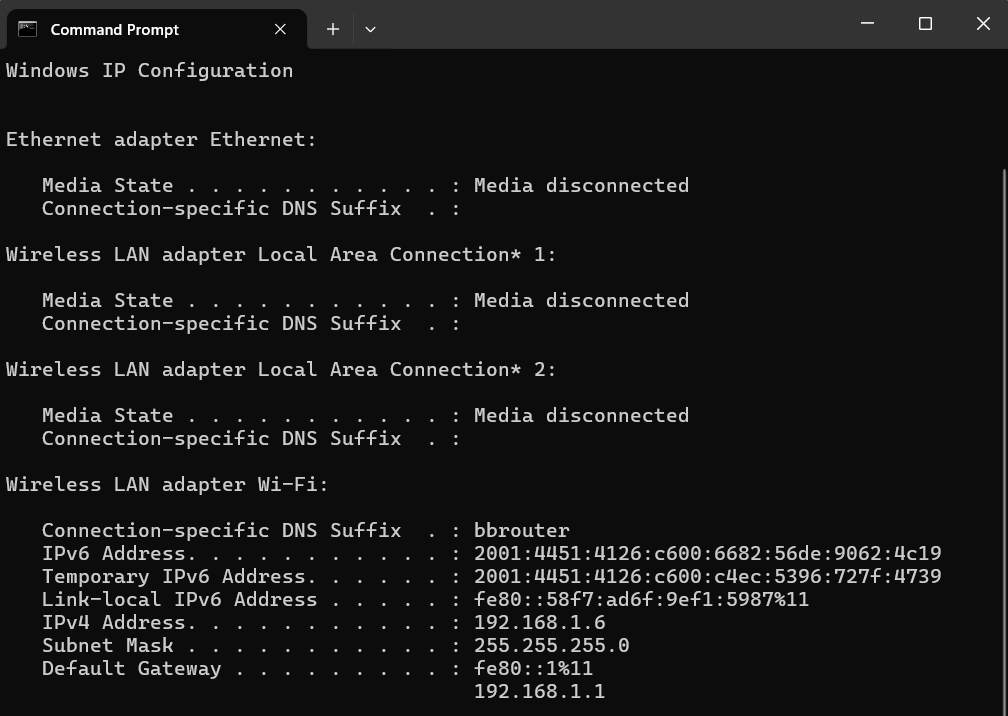
- In Command Prompt, type “ipconfig” and press Enter.
This displays basic information about your network interfaces, including the device’s IPv4 address, subnet mask, and default gateway for each active network adapter. These details are crucial for understanding how your computer communicates within a network and with the Internet. Here’s an example:
Advantages of ipconfig and command line arguments
One of the main advantages of using ipconfig commands is the ability to quickly retrieve network configuration information without relying on graphical user interfaces (GUI). Using the command line gives you quick and efficient access to information, especially when a GUI is not available or practical.
The ipconfig command displays the full system configuration, speeding up troubleshooting. This makes it easy to spot connectivity problems or IP address conflicts and correct them.
Furthermore, ipconfig commands offer a wide range of command line arguments that allow you to customize and fine-tune your network configuration. Understanding command line arguments helps you effectively manage your network configuration and easily resolve connectivity problems.
Commonly used ipconfig commands
In this section, we’ll go over what ipconfig can do, go over some of the common parameters used with ipconfig commands, and review some of the information you can access with these commands.
Before we go in-depth, you can use the table below to quickly check what each ipconfig command does:
| Command | Description |
| ipconfig | Allows you to see basic network information from your network adaptors |
| ipconfig /all command | Displays the full TCP/IP configuration for all adapters |
| ipconfig/ release | Releases the currently assigned IP address of a specific network interface |
| ipconfig/ renew | Renews DHCP configuration for all adapters |
| ipconfig /flushdns | Clears the DNS client resolver cache on your computer |
| ipconfig displaydns | Displays a list of all the DNS records stored in the cache |
| ipconfig registerdns | Manually refresh and update the DNS resolver cache on your computer |
| ipconfig /showclassid | Displays all DHCP class IDs available for a specific adapter |
| ipconfig /setclassid | Lets you assign a specific DHCP class ID to your network adapter |
| ipconfig /allcompartments | Shows detailed configuration information for all network compartments |
| ipconfig /release6 | Releases the IPv6 address assigned to your computer |
| ipconfig /renew6 | Requests a new IPv6 address from the DHCP server |
| ipconfig /? | Shows a complete list of all available parameters and their descriptions |
What does just ipconfig do?
Executing ipconfig without parameters lets you see the basic network information from your network adapters. To run the command, follow these steps:
- Press the Windows key or right-click on the Start menu.
- Open Command Prompt or PowerShell.
- Type ipconfig and press Enter.
Your screen will display information about all of your network adaptors, including Ethernet, wireless, and VPN if you’re using one.
What does the ipconfig /all command do?
The ipconfig /all command is a powerful command that provides comprehensive information about all network interfaces on your computer.
Here’s an example:
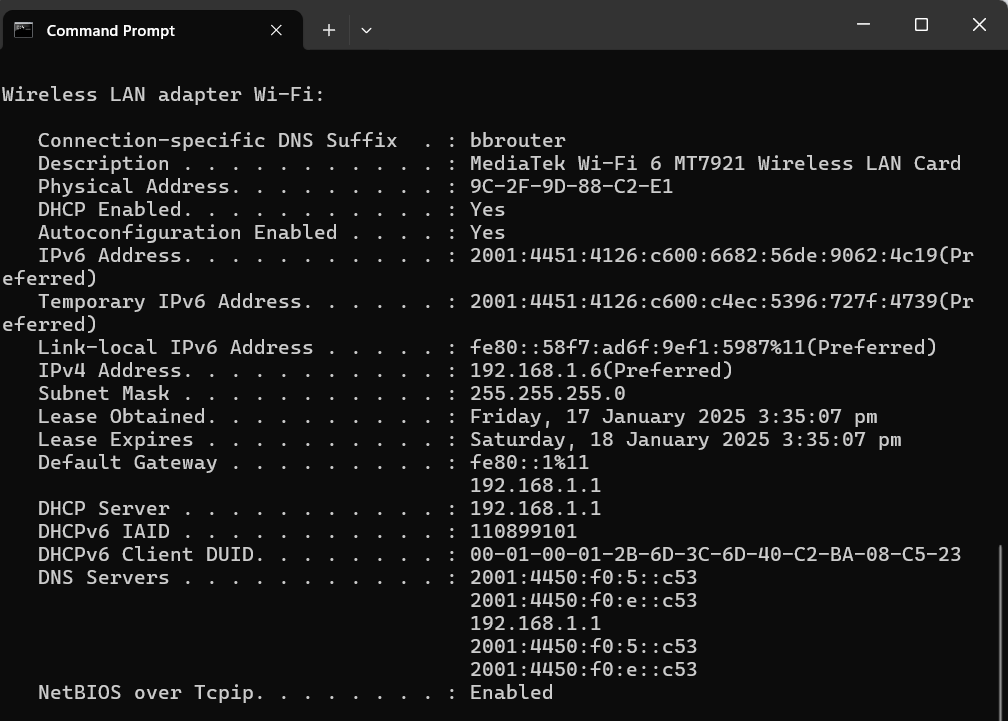
This command returns a detailed list of network adapters and their respective configurations, including:
- Physical address (MAC address) of your adaptor
- IP Address of your computer
- Default gateway: the router your computer is connected to
- DNS server: the server that translates domain names to IP addresses
- DHCP Server: the router or server that hands out IP addresses
- Lease Obtained: the date and time your computer received its IP address
Examining the output of the ipconfig /all command tells you if there are any misconfigurations or potential issues affecting your network connectivity.
Using ipconfig commands to release and renew your IP address
ipconfig/ release
This command releases the currently assigned IP address of a specific network interface. Executing it releases the IP address and makes it available for reassignment.
This is useful when obtaining a new IP address due to issues like network conflicts.
ipconfig/ renew
This command requests a new IP address for a specific network interface.
It makes your computer send a DHCP request to the network’s DHCP server, asking for a new IP address assignment.
Using these ipconfig/ release and ipconfig/ renew in conjunction can often resolve connectivity issues and ensure that your network interface is configured correctly.
ipconfig /flushdns
The ipconfig /flushdns command clears the DNS resolver cache on your computer. This helps resolve issues caused by outdated or corrupted DNS entries, such as when a website’s IP address has changed but your system still references the old address.
What does the ipconfig displaydns command do?
To view the contents of the DNS resolver cache on your computer, type the following command in Command Prompt:
ipconfig displaydns and press Enter.
The DNS resolver cache stores information about previously resolved DNS queries, such as the IP address of visited websites. The ipconfig displaydns command provides you with a list of all the DNS records stored in the cache. This is useful for troubleshooting DNS-related issues and allows you to check if the DNS resolver cache is holding outdated or incorrect information.
What is the impact of ipconfig registerdns?
To manually refresh and update the DNS resolver cache on your computer, go to Command Prompt and type:
ipconfig registerdns followed by Enter.
This command directs your computer to send a registration request to the DNS server, updating the DNS records associated with your computer. The ipconfig registerdns command comes in handy when you need to troubleshoot DNS-related issues or when you want to ensure that your computer’s DNS records are up to date. Executing ipconfig registerdns lets you resolve DNS conflicts, update outdated records, and improve the overall efficiency of your DNS resolution process.
Other common commands
ipconfig /showclassid
The ipconfig /showclassid command displays all DHCP class IDs available for a specific adapter. DHCP class IDs are used to specify additional settings or configurations for devices on a network.
ipconfig /setclassid
The ipconfig /setclassid command allows you to assign a specific DHCP class ID to your network adapter. This is helpful when troubleshooting or testing specific network configurations.
ipconfig /allcompartments
The ipconfig /allcompartments command provides detailed configuration information for all network compartments. This is useful for advanced troubleshooting systems with multiple virtual or physical network environments.
ipconfig /release [adapter]
The ipconfig /release [adapter] command requests that a DHCP server drop a network adapter’s current IP address. This is useful when two devices are assigned the same IP or when moving a network to another location.
ipconfig /renew [adapter]
The ipconfig /renew [adapter] command is best paired with /release [adapter] command to grant a new IP address to a network adapter to replace a previously dropped one.
ipconfig /release6
The ipconfig /release6 command releases the IPv6 address assigned to your computer. It’s the IPv6 counterpart to ipconfig /release and is essential for networks using IPv6.
ipconfig /renew6
The ipconfig /renew6 command requests a new IPv6 address from the DHCP server. This is particularly useful for troubleshooting IPv6-related connectivity issues.
ipconfig /?
The ipconfig /? command displays a complete list of all available parameters and their descriptions. It’s a quick reference for anyone learning the ipconfig command.
Streamline patching, speed up troubleshooting, and manage IP-connected devices with NinjaOne.
Gain insight with ipconfig
IPConfig commands are widely used, for good reason: They provide insight into network connectivity issues, allowing you to manage and troubleshoot them. When combined with a wide range of command-line arguments, config commands provide valuable information about your network configuration.
These commands also allow you to customize and fine-tune your settings, diagnose network problems, release and renew IP addresses, view DNS cache contents, and update DNS records, among other operations.
Along with ipconfig commands, other command-line arguments can also save time and automate processes. Having all of these tools in your toolbox can give you an edge in managing your network.
To maximize your computing resourced further, consider NinjaOne’s endpoint management software. It supports command-line arguments and provides features such as monitoring and alerting, software deployment, and patch management. Sign up for a free trial today.