Key Points
- To enable macOS Screen Sharing: Click System Settings → General → Sharing, toggle Screen Sharing, set allowed users, and confirm network visibility.
- To restrict macOS Screen Sharing: Select Only these users, then add approved accounts; avoid All users to reduce unintended exposure risk.
- To configure macOS Screen Sharing Session Level: Enable view-only or full control via VNC password; enforce strong passwords for remote control access.
- macOS Privacy Permissions: Require screen recording and accessibility approvals; limit access to trusted apps; ensure user awareness during sessions.
- Mitigate Screen Sharing Risks: To reduce the risk of unauthorized access, restrict public network exposure, enforce firewall rules, and require VPN and MFA as external access controls.
- Fix Screen Sharing Failures: Verify sharing is enabled, app permissions, network/VNC port 5900, firewall rules; restart service or update macOS.
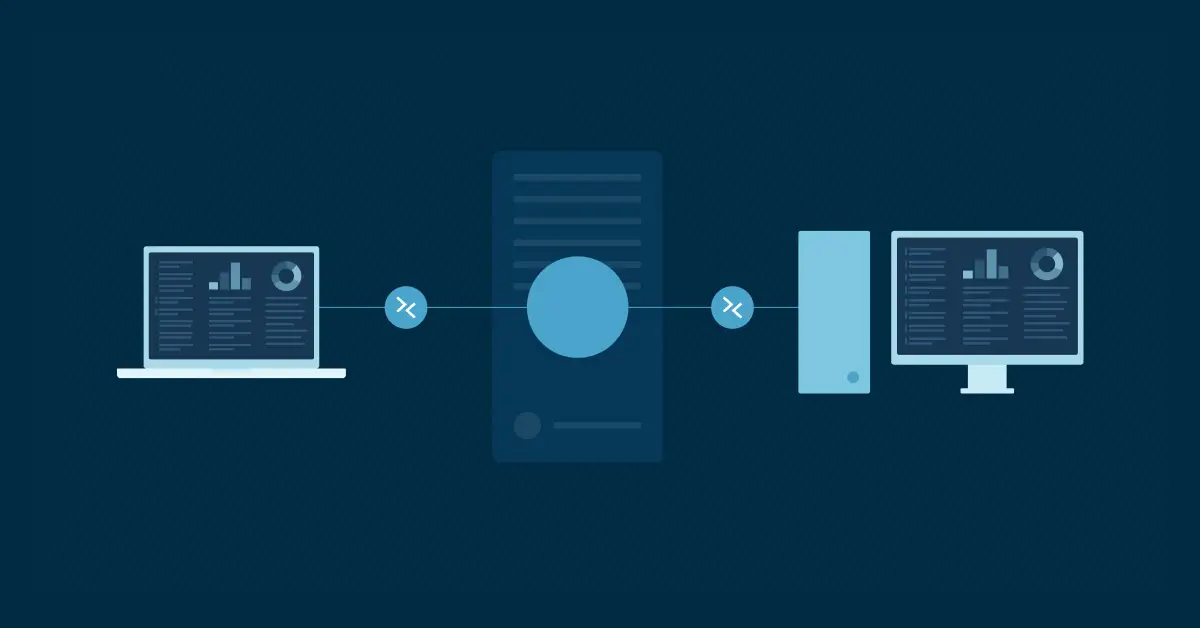
Apple macOS has a built-in screen-sharing feature that enables a user to view or control another Mac remotely. Teams can use it for collaboration, troubleshooting, and remote support.
The feature is very convenient, but you must learn about configuring it securely and setting clear guidelines for when and how it should be used, so you can minimize possible risks.
Configure macOS screen sharing in System Settings
To enable screen sharing on a macOS device:
- Open Sharing settings.
- On Ventura, Sonoma, Sequoia, or later versions:
- Click the Apple menu, then open System Settings.
- Click General → Sharing.
- On Monterey or earlier macOS versions:
- Click the Apple menu → System Preferences → Sharing.
- On Ventura, Sonoma, Sequoia, or later versions:
- Turn on Screen Sharing.
- Choose which users are allowed access. [Refer to How to choose allowed users.]
💡 Note: User-level access control is important because it helps prevent unintended exposure.
- Confirm the Mac’s network accessibility and firewall settings.
- In Screen Sharing settings, click Options.
- Ensure Allow incoming connections when the computer is logged in is marked/selected.
- For broader network access, review System Settings → Network → Firewall and allow screen sharing only from trusted networks.
⚠️ Warning: Expanding access beyond trusted networks can increase security risk. Avoid unrestricted access and use secure methods, such as VPN, to control remote connectivity.
How to choose allowed users
Once screen sharing is turned on, authorized users can connect over a local network or through configured remote access methods (such as VPN or managed services). To choose which users can access macOS screen sharing:
- Click the Apple menu, then open System Settings → General → Sharing.
- Select Screen Sharing.
- Find Allow access for, then choose either of these:
- All users to allow any user on the network to connect
- Only these users to allow only specific users to connect
- If you set it to Only these users:
- Click the + button.
- Select the users you want
- Choose Select to save your choices.
How to choose the screen sharing access level
Sessions can be view-only or allow full control, depending on how macOS screen sharing is configured. Here’s how you can configure that:
- Click Computer Settings.
- Choose the option that matches the access you want, as follows:
- Anyone can view the screen: for view-only access
- VNC viewers may control the screen with a password: allows remote access using a separate password; what the user can do still depends on system permissions.
💡 Note: VNC is the abbreviation for Virtual Network Computing, a remote desktop protocol used by macOS to support screen sharing connections.
Privacy and permission requirements for screen sharing
Recent macOS versions apply stricter privacy controls to screen sharing. For example, a user must approve screen recording and accessibility permissions for full functionality during a session. Such safeguards help prevent silent access to on-screen content.
Organizations should ensure that:
- Only authorized apps have screen recording permission.
- Accessibility access is limited to trusted tools.
- Users are clearly informed when screen capture is active.
Regardless of version, you must also clearly define the following:
- When screen sharing is allowed
- Whether sessions are view-only or allow control
- What logging and monitoring are required
- How misuse should be reported and escalated
Establishing clear boundaries helps reduce ambiguity and support more consistent, secure use.
Security considerations for Mac screen sharing
Organizations need to evaluate relevant controls because screen sharing makes a Mac a remotely accessible control and viewing endpoint. When that access is exposed or weakly protected, it can create a direct path to unauthorized access, data exposure, or lateral movement.
| What to evaluate | Why evaluate it |
| Whether the Mac is accessible from public networks | If the device is reachable from a public network, the attack surface grows significantly. Outside attackers can find and target the screen-sharing service, not just trusted users inside the organization. |
| Firewall settings and virtual private network (VPN) configurations | Firewall and network controls determine who can reach the screen-sharing service. Using a VPN on macOS helps limit exposure by requiring users to connect through a trusted private network instead of leaving the service openly accessible. |
| Whether access requires a VPN or another secure network | Requiring a VPN or another secure internal network adds a strong layer of protection. It helps ensure that only authorized users on trusted connections can attempt access, reducing the risk of direct external attacks. |
| Password-protected access | Without strong password protection, anyone who can reach the service may have a much easier time connecting. Passwords provide the first layer of defense against casual or opportunistic unauthorized access. |
| Multi-factor authentication (MFA) requirements | Passwords alone can be guessed, reused, phished, or stolen. MFA adds an extra layer of security when implemented through external access controls (such as VPN or identity providers), making unauthorized remote access more difficult. |
Collaboration and remote support use cases for Mac screen sharing
Screen sharing for collaboration usually involves short sessions between trusted users, such as:
- Walking other users through a task without being physically there
- Demonstrating how something is done on-screen
- Remotely going through a document or presentation together
Remote support often requires longer sessions and broader access to the system. These may include:
- Troubleshooting
- Setting up email
- Helping a user fix settings
- Installing or uninstalling apps
- Connecting a printer or another device
- Updating software
Troubleshooting macOS screen sharing issues
If the screen sharing feature is not working, follow these steps to help you identify and fix the most common issues.
Check Apple macOS screen sharing settings
Navigate to System Settings → General → Sharing, and make sure Screen Sharing is turned on. If it is already enabled, turn it off, wait a few seconds, and turn it back on.
Verify app permissions
macOS requires explicit permission for apps to record or share your screen. Go to System Settings → Privacy & Security → Screen Recording and confirm the relevant app (such as Zoom, Teams, or Screen Sharing) has permission enabled.
Confirm network connectivity
Screen sharing relies on a stable connection between devices. Verify if both Macs are on the same network, or that remote access is set up correctly if you are connecting from another location. Note that screen sharing over VNC usually uses port 5900.
Review firewall settings
Your firewall may be blocking screen-sharing connections. Go to System Settings → Network → Firewall and ensure Screen Sharing is allowed. Also, verify that network-level controls (such as router or VPN settings) are not blocking access.
Restart the screen sharing service
You can restart screen sharing from Terminal with these commands:
sudo launchctl stop com.apple.screensharing
|
💡 Note: For more recent versions of macOS, you can also use newer launchctl commands (such as kickstart) to restart services. In some cases, more advanced commands (such as bootout and bootstrap) may be used to fully unload and reload services, depending on the troubleshooting scenario.
Update macOS
Outdated system software can cause compatibility problems. Go to System Settings → General → Software Update and install any available updates.
Governance and policy alignment overview
To prevent policy drift, every organization should:
- Document approved screen-sharing workflows.
- Review authorized user lists on a regular basis.
- Align screen sharing policies with broader remote access policies.
- Train users on safe and appropriate use of screen sharing.
Good governance can help you ensure convenience does not weaken your security posture.
Enhance your macOS screen sharing with NinjaOne
NinjaOne has macOS MDM support to help IT teams and MSPs manage macOS device settings and configurations that affect screen sharing policies at scale. Some of these help standardize macOS screen sharing controls, reduce manual effort, and keep devices aligned with security policy over time.
Quick-Start Guide
NinjaOne offers a screen sharing solution for macOS:
NinjaOne Remote
NinjaOne’s built-in remote access tool supports macOS screen sharing. Key features:
- Device support: Works on Windows Workstation, Windows Server, and macOS
- Configurable: You can choose which device types can use the remote access tool at the organization level
- User confirmation: Option to require end-user confirmation before connecting
- Setup: Refer to Getting Started With NinjaOne Remote documentation for detailed configuration
Configuration Steps
To enable screen sharing on macOS in NinjaOne:
- Navigate to Administration → Organizations
- Select your organization and access the Remote Access settings
- Enable the remote access tool (NinjaOne Remote)
- Configure which device types can use it (select macOS)
- Optionally require end-user confirmation for connections
Both solutions provide secure, managed screen sharing capabilities for your macOS devices. Choose based on your organization’s needs—NinjaOne Remote for integrated management or Splashtop for specialized remote access features.
Mac screen sharing with care
mac0S screen sharing is a powerful built-in feature for collaboration and remote support. Without clear security controls, it can increase the risk of exposing sensitive data. On the other hand, your organization can use screen sharing to support productivity while maintaining strong security by carefully managing permissions and establishing clear governance standards.
Related topics: