Key Points
- All methods discussed are available for Pro, Enterprise, and Education versions of Windows 10 and 11 only.
- Methods for accessing the Local Group Policy Editor in Windows 10 and 11
- Run Dialog method: Press Win + R, type gpedit.msc, and click OK.
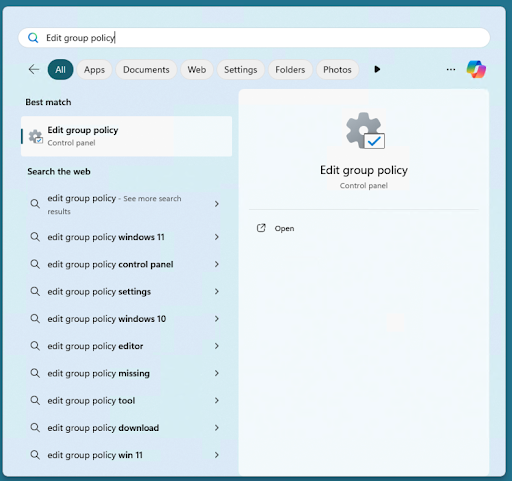
- Start Menu option: Type Edit group policy in the search box, then select it under Control Panel.
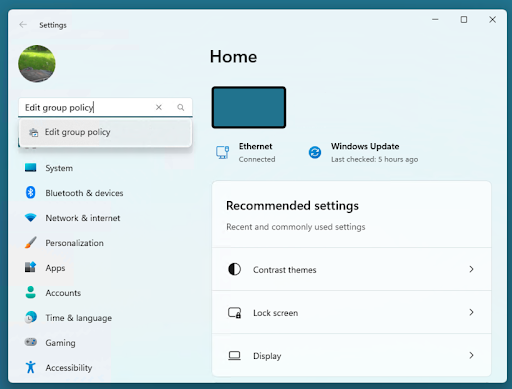
- Windows Settings access: Go to Settings, search “Edit group policy” in the sidebar, and open it.
- Control Panel method: Open Control Panel > Windows Tools, then choose Edit group policy.
- Access via CMD or PowerShell: Type gpedit.msc in CMD or PowerShell and press Enter.
The Local Group Policy Editor in Windows 10 and Windows 11 is a powerful tool for customizing how your PC behaves. This guide shows you the different methods to open the Local Group Policy Editor, including instructions on how to use the Run dialog, find the tool in the Start Menu, and how to access the Group Policy Editor from the command prompt and PowerShell.
For a visual walkthrough, watch the video “How to Open the Local Group Policy Editor in Windows 10 and Windows 11.”
Enhance your IT skills: Learn to apply local group policies to specific users so you can retain control over user permissions.
Methods to open the Local Group Policy Editor in Windows
There are several ways you can open the Local Group Policy Editor. The methods below should work on Windows 10 and Windows 11 systems.
Method 1: Opening Local Group Policy Editor from the Run dialog (gpedit.msc)
The most common way to open the Local Group Policy editor is via the Run dialog.
- Right-click the Start button and click Run. Alternatively, you can press the Windows Key + R to open the Run window.
- Type gpedit.msc and press OK.
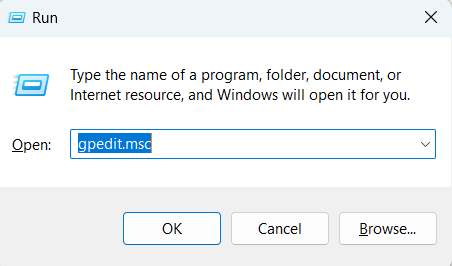
This should open the Local Group Policy Editor.
Method 2: Opening Local Group Policy Editor from the Start menu
You can also quickly open the Local Group Policy Editor from the Start Menu using the following steps:
- Click on the Start Button or press the Windows key.
- Open the Start menu and type Edit group policy in the search bar.
- Click on the Edit group policy result from the Control Panel.
Method 3: Open the Local Group Policy Editor via Windows Settings
The new Windows Settings app can be searched to open the Local Group Policy Editor:
- Right-click the Start button and select Settings.
- In the search box in the left sidebar, enter Edit group policy.
- Click on the Edit group policy result.
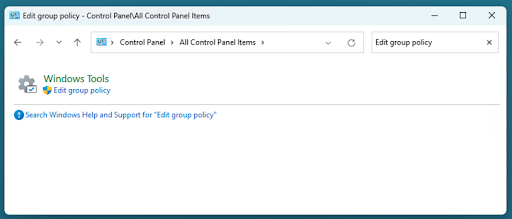
Method 4: Open the Local Group Policy Editor using the Control Panel
You can also access the Local Group Policy Editor from the legacy Windows Control Panel:
- Open the Start Menu.
- Search for and open the Control Panel.
- Click on Windows Tools.
- Search for Edit group policy.
- Open the Edit group policy search result from Windows tools.
Method 5: Access Local Group Policy Editor using command prompt or PowerShell
Finally, you can open the Local Group Policy Editor using the Windows command prompt or PowerShell.
- Open Command Prompt or PowerShell.
- Type gpedit.msc and press Enter.
What are Group Policies in Windows?
Group Policy is a tool for Windows device administration, including user and system settings, and third-party application configuration.
Group Policy can be either:
- Local Group Policy: Local policies are only stored and applied on the specific device they are configured on. Local Group Policy is always overruled by Group Policy in Active Directory when two policies conflict.
- Group Policy in Active Directory: Group Policy is most commonly used as part of the administration of a Windows Active Directory Domain in an enterprise environment where the control of multiple devices and users is required. Group Policies in Active Directory are scoped based on Organizational Unit, so that they can be applied based on staff role, device location, or other factors.
Group Policy is configured using Group Policy Objects (GPOs) that set security policies, user permissions, and other system or network configurations. Each GPO contains options that specify how a Windows or third-party application feature should function. GPOs are either applied to a single device and every user that logs into it (Computer Configuration), or to an individual user account (User Configuration).
Group Policy is commonly deployed on local machines and Windows domains to control settings such as:
- Network drives, desktop shortcuts to shared directories, and managing network printers.
- Configuring logon/logoff scripts.
- Enforcing browser configuration like home pages and security settings.
- Enabling antivirus and firewalls.
- Shutting off access to unauthorized applications (eg. only letting users open approved productivity software).
What is the Local Group Policy Editor and is it included in Windows?
The Local Group Policy Editor is included with Windows 11 and Windows 10 Pro, Enterprise, and Education editions. It is primarily for managing local Group Policies. It is not available on Home versions of Windows 10 and 11.
Group Policy in Active Directory is managed using a specific tool as part of Active Directory on Windows Server operating systems.
Troubleshooting
Below are common issues you can face when opening the Local Group Policy Editor and how you can resolve them:
Local Group Policy Editor is not opening
The most common issue users run into when they can’t open the Local Group Policy Editor is that they are running a Home edition of Windows. Typically, this is because they’re using a Home edition of Windows. Before taking any troubleshooting steps, ensure that you’re using a Pro, Enterprise, or Education edition of Windows.
While it is possible to use third-party tools, hacks, and workarounds to add Group Policy to Windows Home, it is not recommended as it involves modifying the system, and will not provide the full functionality. The only reliable way to access Group Policy in Windows 11 Home or Windows 10 Home is to upgrade to a Pro or Enterprise version of Windows.
I want to access the Local Group Policy Editor while using a Windows Home version
If you’re using Windows 11 Home or Windows 10 Home, then the Local Group Policy Editor is not available for use. However, you can still modify Group Policy settings using the Windows Settings app or via the registry.
Group Policy changes preventing Local Group Policy Editor from opening
If you’ve made changes to your Windows system using Group Policy and something has gone wrong (and you can’t identify the specific change you made, which is causing the problem), you can reset all local Group Policies by deleting the contents of these two directories (be sure to back up your system before you do this, if possible):
- %WinDir%\System32\GroupPolicy
- %WinDir%\System32\GroupPolicyUsers
Then run gpupdate /force or restart your PC for the reset to take effect.
Learn how to force a group policy update remotely. → Read this article on GPUpdate.
Managing Windows Group Policy in large-scale deployments
Rather than managing Windows 11 and Windows 10 PCs individually using Local Group Policies, Windows Group Policy in Active Directory makes it easy to centrally manage tens, hundreds, or even thousands of devices, letting you configure Group Policies based on a user’s location, user role, or the type of device they are using.
Group Policy only goes so far in managing large-scale Windows deployments. Full visibility of your IT assets, including how they are configured, and whether they are up-to-date is vital for cybersecurity and making sure devices are not misused. NinjaOne’s endpoint management software gives you centralized oversight and control over all of your devices (including Windows, Apple, and Android devices), with full integration with industry-standard endpoint protection tools for full visibility and enhanced security.