
Key Points
- Windows 11 offers built-in file name conflict dialogs that let users replace, skip, or compare files, enabling safe and scriptless conflict resolution.
- Keyboard shortcuts speed up conflict handling by accelerating navigation across multiple dialog boxes during high-volume file operations.
- Robocopy offers scriptable conflict handling through the use of switches, making it ideal for repeatable workflows and managed endpoints.
- Third-party tools follow their own conflict rules, requiring admins to configure server- or client-side policies to keep file handling consistent.
- Validate file transfers by checking timestamps, duplicate naming, and skipped content to avoid silent overwrites and inconsistent results.
- Documenting conflict-handling procedures ensures predictable outcomes, supports troubleshooting, and strengthens compliance across environments.
Windows 11 shows a conflict dialog when a copy or move operation encounters identical filenames in the destination. This guide covers methods for handling file name conflicts in Windows 11, along with validation workflows and troubleshooting tips to address common issues.
Different ways to resolve file name conflicts in Windows 11
Some environments strictly adhere to specific naming conventions. Although this can maintain neat file organization, it can also make naming conflicts routine, potentially causing workflow delays.
While manual approvals are suitable for everyday tasks, bulk operations require consistent decisions or automation to prevent overwhelming technicians. However, for a smooth configuration process, ensure that you meet the following prerequisites:
- A Windows 11 endpoint
- File Explorer or administrative shell access
- Scripting privileges for automation workflows
- Optional: RMM platform for centralized script delivery
📌 Recommended deployment strategies:
Method 1: Use the File Explorer conflict dialog to copy, replace, or skip files
By default, the Windows File Explorer conflict dialog automatically appears when the system detects name conflicts when copying or moving files. Learning how to operate the conflict dialog box allows you to make file-by-file or bulk decisions while minimizing the risk of accidental overwrites.
📌 Use Case: This method offers a scriptless way to handle file name conflicts on a local Windows 11 account.
File name conflict dialog workflow in Windows 11
- Copy or move files into a destination folder containing identical file names.
- Wait for the conflict prompt to appear.
- Select the option that reflects the action that you want to execute:
- Press Replace the file in the destination to overwrite an existing file in the target path:
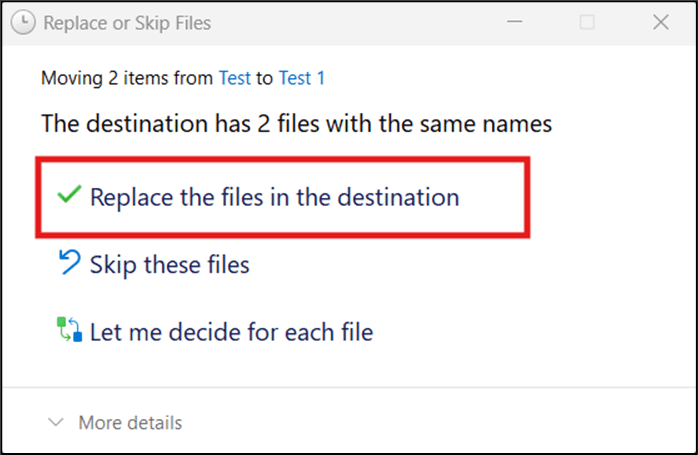
- Choose Skip this file to prevent any changes:
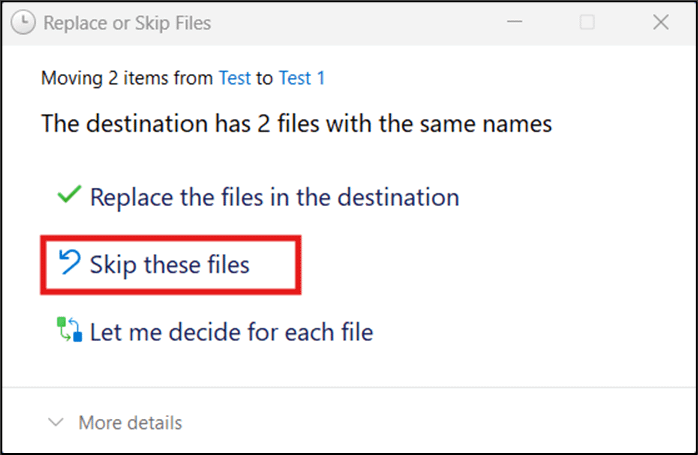
- Click Let me decide for each file to conduct side-by-side metadata comparisons:
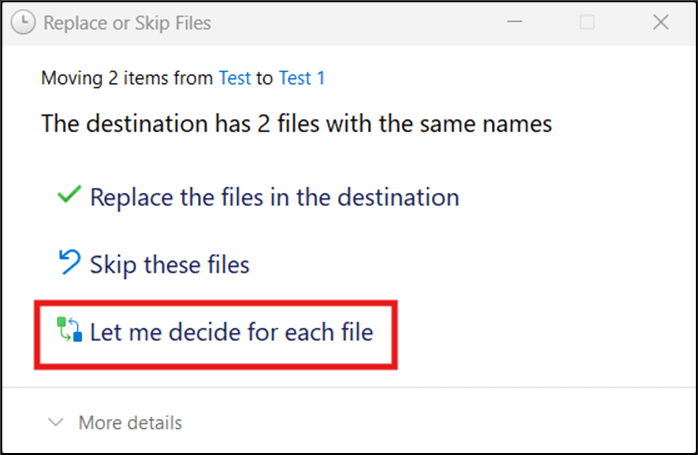
Additional information when choosing the ‘Let me decide for each file’ option
- Pressing Let me decide for each file opens a subsequent conflict dialog that allows you to choose which files to keep.
- When both files with the same name are kept, Windows appends a suffix number to the duplicate file to avoid overwriting.
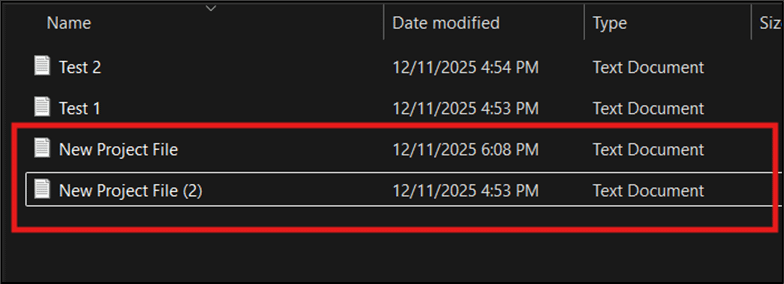
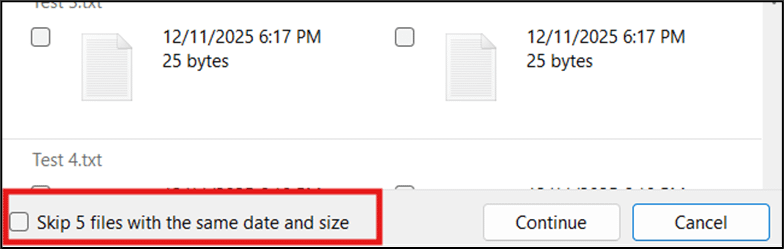
- The dialog box provides the option to skip multiple files with identical size and date.
Method 2: Keyboard shortcuts for handling Windows 11 file name conflicts
When handling conflict dialogs, users can use keyboard shortcuts to streamline navigation. This method is ideal for users who prefer keyboard-driven workflows rather than relying on mouse movements.
- Trigger a conflict dialog by copying or moving files.
- Press Alt and the corresponding underlined letter for each action to execute it
- Alt + R selects Replace the files in the destination.
- Alt + S selects Skip these files.
- Alt + L selects Let me decide for each file.

- After picking an action, allow the transfer to finish.
Method 3: Use Robocopy for predictable conflict handling
Robocopy is a native command-line interface (CLI) tool designed for advanced file transfer methods by applying conflict-handling rules through switches. This makes Robocopy a versatile scripting tool that can be deployed across managed endpoints.
📌 Use Case: Robocopy offers a consistent way to define conflict handling rules that you can reuse across managed endpoints.
- Press Win + R, type PowerShell, then press Ctrl + Shift + Enter.
- Use the command below to copy all subdirectories from your source to its destination:
robocopy <source> <destination> /E
#Input the correct <source> and <destination> paths
robocopy “C:\Users\USERNAME\Desktop\Test” “D:\Test 2” /E
⚠️ Important: To avoid issues, ensure that your Robocopy command references paths that exist inside your target endpoint’s directory structure. (See ⚠️ Things to look out for)
- Add any of the following switches after your command to control your script’s behavior:
- /XO: Add this to prevent <source> files from overwriting newer <destination> files.
- /XN: Use this to avoid overwriting <destination> files newer than the <source>.
- /XC: This switch makes Robocopy skip files that differ in attributes.
- /R:0: Use this to prevent retries on locked files.
- /E: Adding this switch copies all subdirectories, including empty ones.
💡 Note: Avoid using /XO, /XN, and /XC together as they conflict with each other.
#example
robocopy “C:\Users\USERNAME\Desktop\Test” “D:\Test 2” /E /XO /R:0
Method 4: File name conflict management outside Windows 11 File Explorer
Most managed environments use cloud-backed storage, file sync agents, hybrid file servers, and third-party profile solutions. These platforms typically have their own file-handling rules, which can lead to unexpected versioning, data loss, or cluttered directories across devices.
📌 Use Case: This method maintains consistent file name conflict handling in environments where third-party tools sync or transfer files across cloud, on-prem, and multi-profile setups.
Review conflict resolution settings of third-party sync tools
Sync tools use their own internal rules when handling identical filenames. Reviewing these rules helps determine the tool-specific behavior when conflicts occur, such as renaming files, creating separate versions, or suspending synchronization, depending on the product and its configuration.
Configure server-side or client-side handling
Server-side means that conflict handling policies are centrally set on the sync server, applying them consistently across users connected to the service. Meanwhile, client-side allows end users to decide how to handle naming conflicts independently.
Setting the correct mode ensures consistent, predictable behavior across an environment. For instance, apply server-side handling on managed environments to deploy consistent conflict-handling policies across endpoints.
Run tests to confirm correct file name conflict handling
Controlled tests help you verify whether your chosen file name conflict settings work as intended. Testing also surfaces inconsistent duplicate naming conventions, skipped files, sync delays, and version collisions before they impact users.
Method 5: Validate and document Windows 11 file name conflict results
Without verifying the result of file name conflict workflows, you risk data inconsistencies, broken files, or silent data loss. That said, validation is a crucial step in any move or copy operation, whether performed through File Explorer, Robocopy, or a sync tool.
📌 Use Case: The following validation workflow ensures that conflict decisions don’t result in accidental file overwrites, skips, or duplications.
- Sort the destination folder by date modified to see which items were affected by the recent transfer.
- Verify that overwritten files reflect the expected timestamps or content changes, based on the tool and copy method used, to confirm overwrite success.
- Check if duplicate files follow the correct naming convention to see if Windows handled the conflict properly.
- Validate if the timestamps, sizes, and metadata of skipped files remain unchanged.
- Document how conflicts were handled during migrations to support repeatability and build reference materials for future investigations.
⚠️ Things to look out for
| Risks | Potential Consequences | Reversals |
| Conflict dialog not appearing during transfers | Without the conflict dialog, file name conflicts can go unnoticed, leading to unintended overwrites. | Ensure that filenames truly match to trigger the file name conflict dialog. |
| Unable to keep both files using the conflict dialog box | This can prevent users from preserving multiple versions of the same file, potentially leading to data loss. | Confirm that the destination folder allows write access, as restricted paths or read-only locations can prevent file duplication. |
| Robocopy overwrites files unexpectedly. | Older or incorrect files may replace newer ones without warning. | Use the correct switch, /XO, /XN, or /XC, to ensure Robocopy’s overwrite behavior matches your intended behavior. |
| Cloud sync shows repeated conflicts. | This can cause users across an environment to end up with multiple conflicting file copies or inconsistent versions. | Check for file locks, versioning behavior, or server-based overwrite policies that may cause sync engines to drift from your intended content-handling preferences. |
| Merge operations consistently stall. | Incomplete transfers can leave directory structures partially merged. | Confirm permission on both source and destination folders to prevent stalls caused by access failures. |
Handle Windows 11 name conflicts for predictable file management
When handling numerous files under strict naming conventions, a streamlined conflict-resolution workflow keeps things simple. By using the File Explorer dialog box, keyboard shortcuts, or Robocopy, technicians can help maintain consistent file migration behavior.
For hybrid or managed environments, configuring third-party sync tools helps reduce conflicts between Windows and server-based file handling policies. Verifying the results of each conflict-handling workflow ensures predictable and repeatable outcomes.
Related topics: