Key Points
- Adjust power, screen, and sleep settings so a Windows 11 laptop stays on and active while plugged in during long tasks.
- Disable idle locking and adjust sign-in behavior to prevent unexpected lock screens, while maintaining continuous access for remote sessions or automation.
- Configure the lid close action to ‘Do nothing’ so that docked or closed-lid setups continue running on external monitors without interruption.
- Script power settings with powercfg and Registry updates to enforce consistent awake-on-AC behavior across fleets in enterprise environments.
- Check for Modern Standby (S0) and tune OEM standby behavior to stop unexpected sleep or network drops on newer hardware.
When your laptop is plugged into AC power, Windows defaults to conserving energy rather than running continuously. That works for everyday use, but it gets in the way when you’re running a kiosk, a lab bench, or a docked workstation that needs to stay awake and accessible at all times.
This guide shows how to set AC timeouts, disable idle locking, control lid behavior, script fleet-wide changes, and check Modern Standby settings to keep a Windows 11 laptop awake on AC power.
📌 Recommended deployment strategies:
Click to Choose a Method | 💻 Best for Individual Users | 💻💻💻 Best for Enterprises |
| Method 1: Set AC Screen and Sleep to Never (Settings app) | ✓ | |
| Method 2: Prevent idle locking | ✓ | |
| Method 3: Set the lid close action on AC to Do Nothing | ✓ | |
| Method 4: Script and enforce at scale (powercfg and Registry) | ✓ | |
| Method 5: Modern Standby considerations | ✓ | ✓ |
| Method 6: Kiosk and shared devices hygiene | ✓ | |
| Method 7: Validate and document | ✓ | ✓ |
Methods to keep a laptop awake on AC Windows 11
Before diving into the methods, set the right foundation. These prerequisites help avoid surprises and keep changes controlled.
📌 General prerequisites:
- Local admin access on a test device
- A clear reason for leaving sessions unlocked and an understanding of the associated risks
- For scripted deployment, a pilot group and a rollback plan
Method 1: Set AC screen and sleep to Never (Settings app)
An automatic display turn-off or sleep mode during continuous AC connection can interrupt long-running tasks, remote sessions, or presentations. This method explicitly configures power settings to keep the system awake whenever it is plugged in.
📌 Use Cases: Running downloads, updates, imaging, batch jobs, rendering tasks, or remote sessions without interruption.
📌 Prerequisites: Device is plugged into AC power.
Steps:
- Press Win + I to open the Settings app.
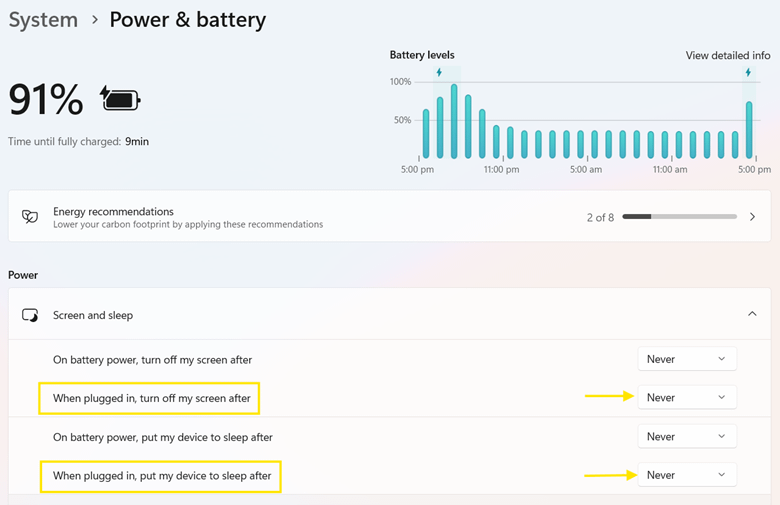
- Navigate to System > Power & battery > Screen and sleep.
- Leave On battery settings unchanged. Under When plugged in, set:
- Turn off my screen after: Never
- Put my device to sleep after: Never
Method 2: Prevent Idle Locking
Stopping sleep doesn’t stop Windows from locking the session. It can still bring up the lock screen after a period of inactivity. Turn off idle locking if you need the session to stay open.
📌 Use Cases: Remote sessions, automation tasks, dashboards, and any workflow that depends on a continuously active desktop.
📌 Prerequisites: Administrative access to change account and screen saver settings.
Steps:
- Press Win + I to open the Settings app.
- Navigate to Accounts > Sign-in options.
- Under If you’ve been away, when should Windows require you to sign in again, select Never.
- Search for ‘Screen saver’ from Start and open the Screen Saver Settings.
- If a screen saver is enabled, clear On resume, display logon screen.
Method 3: Set the lid close action on AC to Do Nothing
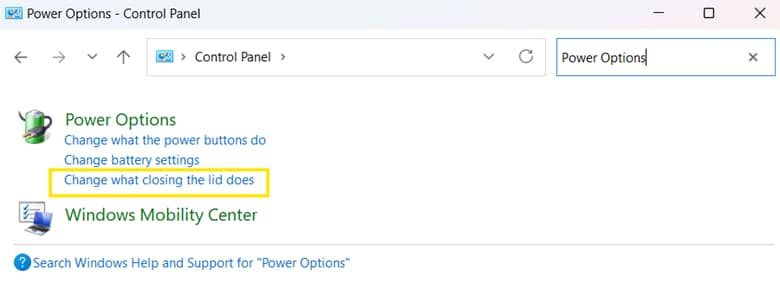
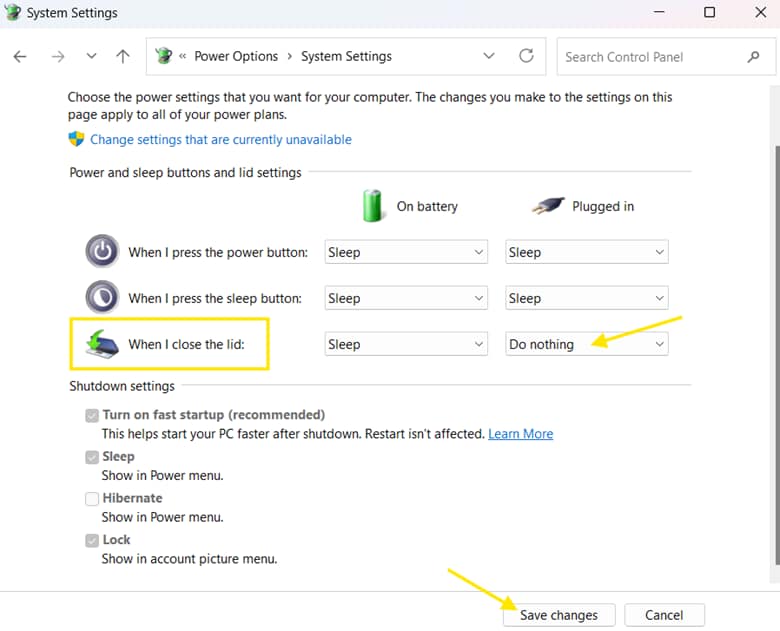
A closed laptop lid normally triggers Sleep, stopping active workloads. Configure the lid action to Do Nothing so the system remains awake and usable when plugged in.
📌 Use Cases: Docked laptops with external monitors, kiosk or display setups running with the lid closed, and remote access scenarios requiring continuous uptime.
Steps:
- Open Control Panel > Hardware and Sound > Power Options > System Setting, then configure the list close action.
- Under When I close the lid, set:
- On battery: Leave as desired
- Plugged in: Do nothing
- Click Save changes.
Method 4: Script and enforce at scale (powercfg and Registry)
Manual configuration works for individual devices, but in enterprise or multi-device environments, scripting delivers consistency and saves time. Windows includes the powercfg tool for adjusting power settings through scripts.
📌 Use Cases: IT teams managing many laptops, pushing baseline configurations, or enforcing power settings across an environment.
📌 Prerequisites:
- Admin rights
- Access to PowerShell or Command Prompt
- Optional: Group Policy or Intune for centralized control
Steps:
- Press Start, type PowerShell or Command Prompt.
- Right-click the result and select Run as administrator.
- Confirm the UAC when prompted.
- Set AC timeouts to Never:
powercfg /x monitor-timeout-ac 0powercfg /x standby-timeout-ac 0
This prevents the display and system from going to sleep when plugged in.
- Set lid close action on AC to Do Nothing:
powercfg -setacvalueindex SCHEME_CURRENT SUB_BUTTONS LIDACTION 0powercfg -SetActive SCHEME_CURRENT
This keeps the laptop awake when the lid is closed on AC power.
- Optional: Apply idle lock configuration through the Registry or policy.
- Group policy:
Computer Configuration → Administrative Templates → Control Panel → Personalization → Do not display the lock screen
- Registry keys for screen saver lock:
HKCU\Control Panel\Desktop\ScreenSaveActive and ScreenSaverIsSecure.
📌 Note: These registry values may not exist by default. If they are not present, they can be manually created to explicitly disable screen saver activation and prevent lock on resume.
- To validate, go to PowerShell or Command Prompt and run:
powercfg /query
Confirm that AC timeouts and lid actions are set correctly.
Method 5: Modern Standby considerations
Some Windows 11 laptops use S0 Modern Standby, a low-power active state that is used instead of classic S3 sleep on many newer platforms. This mode gives you instant-on and some background activity, but the device can still slip into low-power states or drop the network during idle time, even on AC. Knowing how it behaves is key if you need steady uptime.
📌 Use Cases: Devices that still sleep, slow down, or disconnect even after AC settings are configured.
📌 Prerequisites:
- Administrative rights to run power queries
- BIOS/UEFI access if the hardware supports an S3 override
Steps:
- Check supported sleep states by opening PowerShell as Administrator and running:
powercfg /a
If S0 Low Power Idle is listed, the device uses Modern Standby.
- Check OEM or Microsoft guidance for connected standby and idle behavior tuning. Modify Registry or OEM settings only if necessary.
- Only turn on S3 if the hardware actually supports it. Test it first, since switching away from Modern Standby can affect instant-on behavior and how the device manages power.
Method 6: Kiosk and shared device hygiene
Running a device awake and unlocked raises security risks, especially in shared or public areas. Use simple hygiene practices to limit exposure while keeping the system available.
📌 Use Cases: Kiosks in retail, classrooms, warehouses, lobby displays, and other shared spaces.
📌 Prerequisites:
- A device already set to stay awake and unlocked
- Admin access to adjust accounts and profiles
Steps:
- Limit account rights by using a standard local profile instead of an administrator account and restricting access to sensitive data and corporate resources.
- Apply physical safeguards by adding a privacy screen to prevent shoulder surfing, using an external inactivity timer or scheduled lock in public areas, and considering cable locks or secure enclosures for kiosk setups.
- Optional: Configure kiosk mode using Windows Assigned Access or Shell Launcher for dedicated scenarios, and disable unnecessary apps and features to minimize risk.
Method 7: Validate and document
After applying all configurations, it’s critical to verify that your laptop behaves as expected and to document the changes for future reference. This step confirms reliability and provides a record for troubleshooting or compliance audits.
📌 Use Cases: IT teams validating baseline configurations or confirming expected behavior before deployment.
Steps:
- Leave the device plugged in and idle for longer than the previous screen-off or sleep thresholds. Confirm the display stays active and the session remains unlocked.
- If the lid action is set to Do nothing, close and reopen the lid. Verify that the system remains awake and the applications continue to run.
- Check for unexpected behavior, including no sleep, no lock, network drops, and app suspensions during idle periods.
- Run validation commands:
powercfg /query
Confirm AC timeouts and lid actions match the configured values.
- Capture screenshots of applied settings and the commands used. Add notes to the device record or support ticket for traceability.
Best practice summary table
Here’s a quick reference for the most effective configurations when keeping a Windows 11 laptop awake and unlocked on AC power.
| Practice | Purpose | Value delivered |
| Separate AC vs battery timeouts | Keep mobility sane on battery | Better user experience |
| Set Require sign-in to Never | Prevent idle lock on AC | Fewer interruptions |
| Do nothing on lid close for docks | Maintain sessions when docked | Stable kiosk and lab setups |
| Use powercfg for scale | Consistent enforcement across devices | Reduced configuration drift |
| Evaluate Modern Standby | Align the power model to operational needs | Fewer surprises on S0 devices |
Troubleshooting
Here are common issues and their solutions for keeping a Windows 11 laptop awake and unlocked on AC power.
Device still locks after a while
Check Sign-in options and Screen Saver settings. Some shells trigger their own lock behavior independent of Windows. Third-party security tools may also enforce idle locking even when timeouts are set to Never.
Sleeps even with AC timeouts at Never
On Modern Standby systems, the device may still enter low-power states due to connected-standby rules or OEM-defined policies. On systems using classic sleep, firmware or vendor power-management tools may also trigger sleep behavior. Review the applicable power model and device-specific settings.
Settings revert after reboot
A Group Policy, MDM profile, OEM utility, or vendor power tool is overriding local settings. Audit GPO, Intune/MDM, and any bundled power-management software.
Closes lid and external monitors go dark
Confirm that the lid action on AC is set to Do nothing, and verify that the system does not enter sleep. Be aware that external displays may still turn off due to dock, GPU driver, or firmware behavior.
Battery conservation overrides when on AC through some hubs
Verify the device detects AC power correctly. Some USB-C hubs negotiate limited power, triggering battery-protection features. Update dock firmware and drivers.
Reliable ways to keep a laptop awake on AC Windows 11
Keeping a Windows 11 laptop awake and unlocked on AC comes down to how the system handles AC timeouts, sign-in behavior, and lid actions, with Modern Standby shaping the outcome on newer hardware. Set the posture you need, script it where scale matters, test it on a small group first, and document the final configuration so the behavior stays predictable.
Related topics:
- How to Disable Modern Standby in Windows 11
- How to Add or Remove “Lid close action” from the Power Options in Windows
- How to Automatically Lock Windows After Inactivity Using PowerShell
- How to Enable or Disable the Require Sign-in on Wakeup Setting in Windows 11
- Mastering Windows Power Management: A PowerShell Guide for IT Pros and MSPs [NinjaOne Script Hub]