


Key Points
- Understanding Kernel-mode Hardware-enforced Stack Protection:
- Enabling VBS and HVCI: As a prerequisite step, you need to open Windows Security > Device security > Core isolation details, toggle Memory integrity On, and restart the device to enable the underlying VBS and HVCI.
- Toggling Kernel-mode Hardware-enforced Stack Protection:
- Windows Security method: Open Windows Security > Device security > Core isolation details and toggle the Kernel-mode Hardware-enforced Stack Protection switch to your preferred state.
- Local Group Policy Editor method: In Local Group Policy Editor, navigate to Computer Configuration > Administrative Templates > System > Device Guard > Turn on Virtualization Based Security, confirm VBS is enabled, then set Kernel-mode Hardware-enforced Stack Protection to Enabled in enforcement mode and click Apply, then OK.
As technology evolves, hackers are also perpetually sharpening their tools to breach our digital walls. As such, understanding your computer’s built-in defenses is crucial. Kernel-mode hardware-enforced stack protection is one such mechanism. This article will discuss how to enable and disable Kernel-mode Hardware-enforced Stack Protection and the other intricacies of this feature.
There are many ways to harden your endpoints.
Download this endpoint defense guide on everything you need to know about endpoint security.
Enabling or disabling Kernel-mode Hardware-enforced Stack Protection
Enabling Kernel-mode Hardware-enforced Stack protection enables your CPU’s shadow stack to verify return addresses in kernel code. This allows blocking return-oriented programming (ROP) exploits that attackers use to hijack the Windows kernel and run malicious code. In this section, we’ll walk you through how to enable or disable this feature step-by-step.
Prerequisites
Before toggling this feature, make sure that you meet the following prerequisites:
General requirements
- Windows 11 2022 update or newer
- Windows Security app version 1000.25330.0.9000 or newer
- Hardware that supports Intel Control-flow Enforcement Technology (CET) or AMD Shadow Stacks
Prerequisite setting: Enable VBS and HVCI
Before proceeding with toggling Kernel-mode Hardware-enforced Stack Protection, Virtualization-Based Security (VBS) and Hypervisor-enforced Code Integrity (HVCI) must be enabled.
By default, these are enabled on Windows systems that meet hardware requirements. You can also turn these on by following the steps below:
1. Click on the Start menu and open the Windows Security app.
2. Go to Device Security, then click Core isolation details.
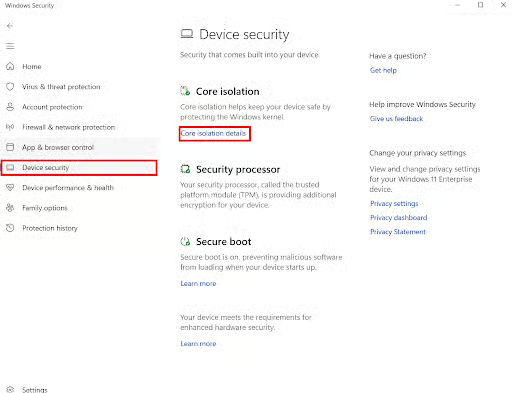
3. Locate Memory integrity and toggle the feature On.
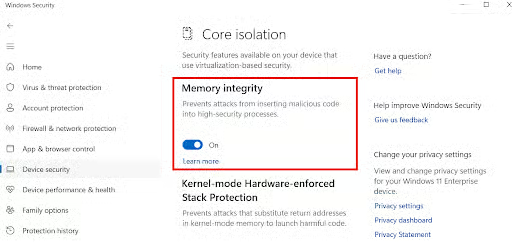
4. Restart the device after making this change.
Method 1: Toggling Kernel-mode Hardware-enforced Stack Protection settings on Windows Security
The most direct method of enabling Kernel-mode Hardware-enforced Stack Protection is through Windows Security. To do so, follow the steps below:
1. Click on the Start menu and open the Windows Security app.
2. Go to Device Security, then click Core isolation details.
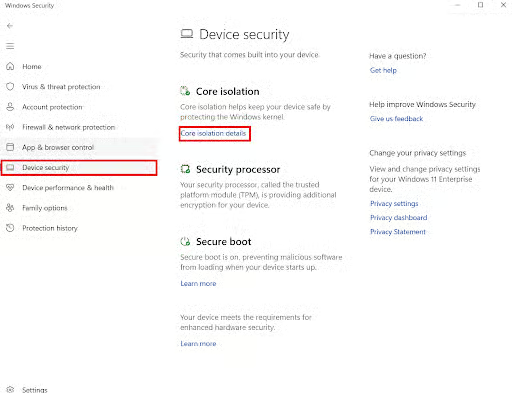
3. Locate Kernel-mode Hardware-enforced Stack Protection and toggle it based on your preferences.
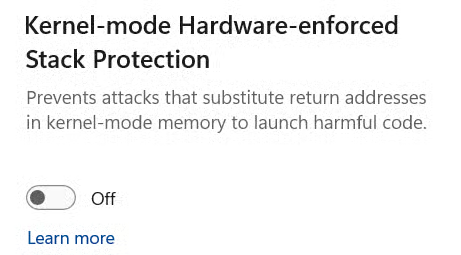
Method 2: Enabling Kernel-mode Hardware-enforced Stack Protection settings via Local Group Policy Editor
Alternatively, technicians can use the Local Group Policy Editor to turn on the feature. This is ideal for enterprise environments.
- Open Local Group Policy Editor.
- Go to Computer Configuration > Administrative Templates > System > Device Guard > Turn on Virtualization Based Security.
- Confirm that VBS is enabled.
- Go to Options, locate Kernel-mode Hardware-enforced Stack Protection, then select Enabled in enforcement mode.
- Click Apply, then OK.
What is Kernel-mode Hardware-enforced Stack Protection?
At the heart of your operating system lies the kernel, which you can consider to be the “brainstem” of your computer. The kernel oversees communication between your computer’s software and hardware. Now imagine adding a layer of thick armor around that brainstem. That’s where kernel-mode hardware-enforced stack protection comes in.
Kernel-mode Hardware-enforced Stack Protection is a Windows security feature that strengthens the kernel against return-oriented programming (ROP). Typically, it is disabled by default, but IT admins can turn it on to prevent attackers from exploiting specific security vulnerabilities. Key things to remember when enabling this feature include:
Protection specifically for ROP attacks
Shadow stacks defend against return-oriented programming, where attackers chain together small snippets of existing code (“gadgets”) by overwriting return addresses. Jump-oriented programming (JOP) and call-oriented programming (COP) attacks are addressed by a separate Intel CET capability called Indirect Branch Tracking (IBT), which Windows does not currently implement — so KMHESP should not be relied on to cover those attack types.
CPU-dependent, not just OS
The shadow stack lives in CPU-enforced memory, so the feature only works on processors that support it: Intel’s Control-flow Enforcement Technology (CET), available on 11th Gen “Tiger Lake” mobile and newer, or AMD Shadow Stacks, available on Zen 3 Ryzen and newer.
VBS is foundational
Kernel-mode Hardware-enforced Stack Protection requires VBS and HVCI to be enabled. Without those underneath it, the toggle in Windows Security will be unavailable.
Why is Kernel-mode Hardware-Enforced Stack protection important?
Now that you know what is kernel-mode hardware-enforced stack protection, you might be wondering, “Should I turn it on? The simple answer is likely yes, for several compelling reasons:
- Enhanced security against exploits: Kernel mode operates at the core level of your operating system providing full control over your system’s operations. By enabling this protection, you add a security layer that guards against common exploit techniques. These are what attackers use to inject malicious code through software vulnerabilities.
- Preventing unauthorized code execution: When malicious actors aim to hijack your software’s control flow, kernel-mode hardware-enforced stack protection effectively blocks their attempts to run unauthorized code. It works at the fundamental CPU level, deeper than anti-malware tools alone can penetrate.
- Maintaining system integrity: Protecting your computer’s operations is paramount. Enabling kernel-mode hardware-enforced stack protection ensures that every interaction with the kernel maintains your system’s integrity.
Troubleshooting: What to do if you can’t turn on kernel-mode hardware-enforced stack protection
If the steps above aren’t working for you, check the following as these may be causing issues:
Check Memory Integrity
As stated above, the feature requires both VBS and HVCI to be enabled. If these are disabled, the Kernel-mode Hardware-enforced Stack Protection toggle will be unavailable. Check if these are turned on in Windows Security first.
Inspect and update drivers
Outdated or corrupt drivers may prevent you from enabling the features:
- Open Device Manager by navigating to This PC > Manage -> Device Manager.
- Look through the devices, especially under the categories “Processor” and “System Devices.”
- Right-click a device you suspect of causing issues, and select “Update driver.” You may also want to visit the device manufacturer’s website directly and download the driver.
Verify or enforce the setting via Registry
If you manage devices at scale, you can verify or set the feature’s state through the registry. Always back up the registry before editing.
- Navigate to HKEY_LOCAL_MACHINE\SYSTEM\CurrentControlSet\Control\DeviceGuard\Scenarios\KernelShadowStacks
- Check the DWORD value; if it’s 1, then the feature is enabled. If it’s 0, then it is disabled.
⚠️IMPORTANT: Making any changes to the registry can cause issues. Make sure to backup your registry so you can revert changes.
Inspect and update drivers
Outdated or corrupt drivers may cause enabling kernel-mode hardware-enforced stack protection to fail. Here’s how you deal with them:
- Open Device Manager (go to This PC > Manage -> Device Manager).
- Look through the devices, especially under the categories “Processor” and “System Devices.”
- Right-click a device you suspect of causing issues, and select “Update driver.” You may also want to visit the device manufacturer’s website directly and download the driver.
Safeguarding your devices
Enabling kernel-mode hardware-enforced stack protection is a critical step for safeguarding your computer’s data and applications. However, it’s just one action you can take to improve IT security. If you need to oversee security on multiple devices, consider using a powerful, flexible, and robust endpoint management tool like NinjaOne.
The NinjaOne endpoint management software helps IT departments control and monitor the devices being used within an organization. NinjaOne can do everything from software deployment and patch management to monitoring and alerting, helping you stay on top of all your devices.