Key Points
- macOS can connect to most NAS (Network Attached Storage) devices using standard file-sharing protocols like SMB.
- Modern versions of macOS prioritize Server Message Block (SMB) protocols for performance, security, and compatibility, while legacy protocols like AFP are being phased out.
- Incorrect server paths, credential mismatches, or permission issues are the most common causes of macOS NAS connection failures.
- Persistent NAS connections can be configured in macOS for automatic reconnection at login.
- NAS connectivity provides file access, not automatic backup or ransomware protection.
- SMB 3 supports encrypted file sharing, but encryption and permissions must be enabled on both the NAS and macOS client to protect sensitive data.
Network-attached storage (NAS) is commonly used to centralize files for teams and applications. macOS users often need direct access to NAS devices for shared storage, collaboration, or media access, which can lead to access, authentication, or configuration issues between users and IT administrators.
Understanding how to connect a NAS to macOS devices will help reduce access issues, credential confusion, and support requests while improving consistency in file access. This can help reduce access-related issues and improve user access to shared files, depending on network availability and permissions.
A guide to connecting a NAS to a Mac
How macOS connects to NAS devices
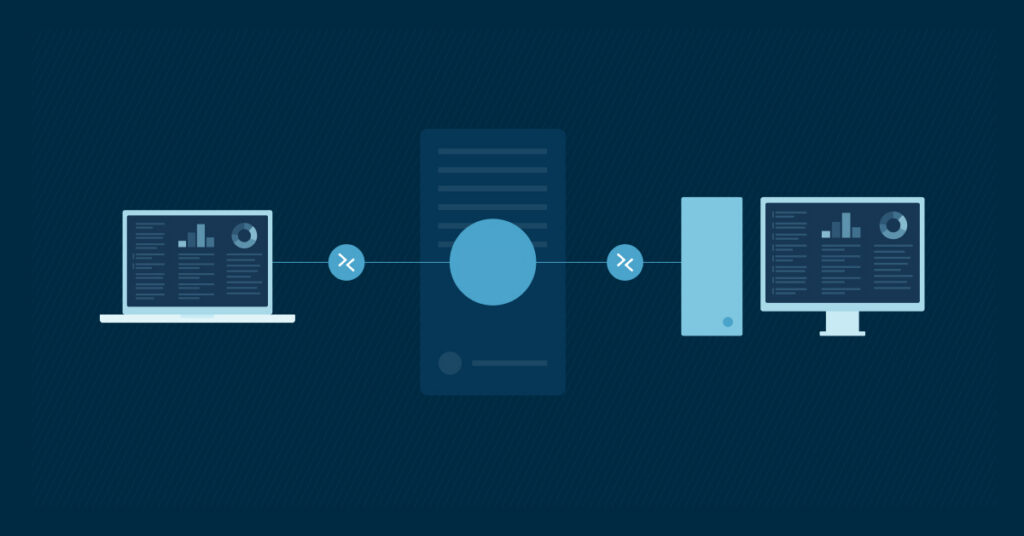
macOS connects to NAS devices using network file-sharing protocols (such as SMB), which allow users to authenticate and mount shared network volumes.
The NAS must be reachable over the network (locally or via VPN) and require valid credentials before you can mount shared folders.
Common NAS protocols used by macOS
There are several protocols that Apple macOS can use to connect to a NAS. Here are the most common ones:
- Server Message Block (SMB) – This is used for modern file sharing.
- Apple Filing Protocol (AFP) – This is used in legacy environments. However, this method is being phased out of Mac systems, so it may not be accessible or reliable in newer devices.
Connecting to a NAS share in macOS
- Press Command + K.
- Type the NAS server address in the Server Address box. It should look something like this: smb://192.168.1.50/share
- Click Connect.
- Input the correct username and password > Connect.
After this, the network share will be mounted on macOS, and you can access the files.
Managing credentials and permissions when connecting a Mac to a NAS
A macOS user’s access to the network-attached storage will depend on:
- Existing NAS user accounts
- The NAS share-level permissions
- The macOS keychain (for stored credentials)
If a user inputs the incorrect credentials, they won’t be able to access the contents of the network-attached server.
Making NAS connections persistent
To help users maintain consistent access to NAS shares, you can:
Add NAS shares to login items
- Press Command+K.
- Enter the NAS address (e.g., smb://hostname or IP) > Connect.
- Enter the appropriate credentials.
- Check the box next to Remember this password in my keychain.
- Click Connect.
Reconnect to NAS automatically at sign-in
- Connect to your NAS.
- Open System Settings.
- Go to General > Login Items.
- Click the + button.
- Go to Locations, find the mounted network share, and select it.
- Click Add.
- Restart the computer. When it boots up again, the network share should mount automatically at login, depending on network availability and credentials.
Common connectivity issues with NAS connections
Here are some common problems you may encounter when mounting a NAS share on macOS:
- Incorrect network paths
- DNS resolution issues
- Credential mismatches
- Protocol incompatibility
To troubleshoot, start by validating network connectivity (e.g., reachability, DNS resolution, and SMB port access). Then review the common issues listed above to identify the root cause.”
Operational considerations when connecting a macOS to a NAS
While NAS connectivity provides access to shared data, it doesn’t cover all aspects of data management. Here are a few things you must consider:
- NAS connectivity doesn’t provide automatic backup.
- NAS connectivity doesn’t protect data against deletion or ransomware.
- NAS connectivity requires another layer of data security and protection planning.
Remember that access and protection are two different things. Your users are now able to access the files on your NAS, but don’t forget that the same data remains vulnerable to bad actors.
Limitations and scope considerations for macOS to NAS connections
NAS connectivity has limitations and may not be suitable for all environments. It will still:
- Depend on network availability.
- Be affected by specific user permissions.
- Need to be continuously reviewed for security and effectiveness, especially when the environment around it changes.
Common misconceptions about NAS connections
| Misconception | Reality |
| Connecting the Mac to a NAS means that the data in the computer is automatically backed up. | Connecting and accessing a NAS doesn’t mean that your data is backed up. |
| A macOS will always support all NAS protocols. | Compatibility will still depend on device version and configuration. |
| If you experience credential problems when connecting to a NAS, it’s always because of the macOS. | Credential problems can come from either the NAS or the macOS, depending on the configuration. |
NinjaOne visibility for endpoints accessing shared storage
Tools like NinjaOne’s endpoint management software can provide visibility into endpoint health and activity, helping IT teams monitor devices that access shared storage and maintain operational awareness across the environment.
Connect a NAS to a Mac safely and securely
Connecting a NAS to macOS is a simple and straightforward process as long as your protocols, credentials, and permissions are understood and well-organized. Organizations that clearly distinguish between file access and data protection reduce confusion and avoid false assumptions about recoverability.
Related topics: