Key Points
- Remote access software enables IT teams to connect to any device from any location with the same visibility and control as being physically present.
- IT teams use remote access tools to troubleshoot issues, deploy updates, monitor system health, and support employees regardless of location.
- A structured remote access workflow, from authentication to session logging, helps IT teams troubleshoot efficiently while maintaining security and accountability.
- IT teams use unattended access, background management, and scheduled maintenance to get work done without disrupting employees.
- Securing remote access requires MFA, end-to-end encryption, role-based permissions, and consistent session logging.
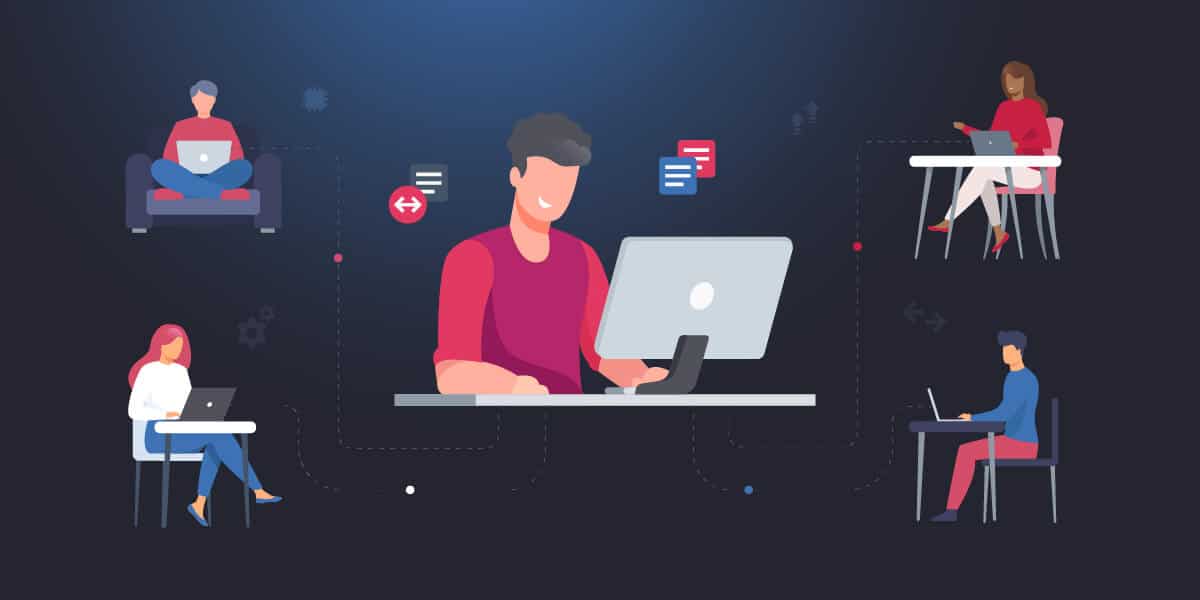
Organizations today run an IT infrastructure that is no longer confined to a single location. Employees work from home and from offices scattered across different time zones. When a device crashes in Manila, and the IT team is in Austin, someone needs to see exactly what’s on that screen, fast.
Remote access software exists to close that gap. It allows IT teams to securely connect to devices or servers from a different location with near-local visibility and control. This guide breaks down how remote support for IT teams actually works.
What is remote access software (and why do IT teams rely on it)?
Remote access software allows IT teams to access and control computers from any location. In practice, that covers a wide range of day-to-day work such as supporting remote employees, troubleshooting user issues, monitoring system health, and more. It specifically enables:
- Viewing and controlling user screens – the technician sees exactly what the user sees, and can take control to provide PC remote support and fix it on the spot
- Running diagnostics and fixes remotely – technical work, from log checks to patch deployment, gets done without a site visit
- Transferring files securely – moving files between devices without shared drives or email workarounds
- Performing administrative tasks remotely – restarting services, modifying system settings, and troubleshooting issues or remote devices.
Remote IT support tools make consistent and scalable support possible for IT teams supporting distributed workforces.
How remote access works in IT support workflows
To understand how remote access works in practice, it helps to look at how connections are established and what happens once a session is active.
Access methods
IT teams connect to devices in several ways, depending on the environments, the type of device, and the level of control required. Here are the common approaches:
- Remote desktop connections – Built into Windows, RDP gives IT teams direct access to machines through local networks, VPNs, or secure remote access gateways.
- Agent-based remote access tools – A software agent installed on each endpoint gives IT persistent, managed access across large device fleets.
- Cloud-managed remote platforms – Cloud-managed platforms provide browser-based access without a VPN, which makes them the practical choice for distributed and hybrid teams.
Workflow
Once the access method is in place, here’s what a typical remote support session looks like from start to finish.
| Step | Action | What happens |
| 1 | Initiate connection | The technician requests access to the user’s device. Depending on the tool and policy, this either prompts the user for approval or connects automatically if pre-authorized for unattended access. |
| 2 | Authenticate access | The technician’s credentials are verified before the session opens. Multi-factor authentication is required at this stage to prevent unauthorized access. |
| 3 | Establish a secure session | An encrypted communication channel opens between the technician’s machine and the target device, helping keep the session secure while data is being transmitted. |
| 4 | Perform support actions | The technician investigates the issue, reviews logs or files, performs troubleshooting tasks, and carries out authorized administrative actions as needed. |
| 5 | End session and log activity | Once the task is complete, the session is closed and the activity is recorded for auditing, compliance, or internal review. |
How IT teams support employees without disrupting them
One of the practical realities of IT work is that most of it needs to happen without interrupting the people it supports. Remote access tools are built with this in mind, enabling teams to work through:
- Unattended access – connect to devices and carry out work without requiring the user to be present
- Endpoint remote management – perform administrative tasks, deploy updates, and monitor managed devices through background management capabilities, often without requiring an interactive remote session.
- Scheduled maintenance – plan and perform changes outside working hours so nothing touches an active machine
Best practices for Remote Access Security
The main takeaway here is that security must be enforced at every stage of remote access.
Use multi-factor authentication
MFA adds an extra layer of verification. Even if credentials are stolen, an attacker would typically need an additional verification factor to gain access. This helps reduce the risk of unauthorized access, even if credentials are compromised.
Encrypt all remote sessions
End-to-end encryption protects session data from interception or tampering while in transit.
Restrict access based on roles
Remember that not every IT staff member needs access to every system. Limiting permissions to what each technician actually needs reduces the blast radius if credentials are ever compromised.
Monitor and log activity
Every session should be recorded and attributed to a specific person. This protects the organization during audits and protects technicians if their actions are ever questioned.
Keep systems updates
Apply patches regularly because outdated remote access software often contains vulnerabilities that attackers actively look for.
Common mistakes in Remote Access Security
These are the issues that tend to surface gradually rather than all at once. Structured workflows help organizations manage these risks more consistently.
Interrupting users unnecessarily
Remote access software supports unattended access for a reason. Using attended access when it isn’t needed disrupts users and erodes trust over time.
Using insecure connections
Bypassing encryption or relying on weak authentication introduces risk that can be difficult to detect and even harder to trace back to its source.
Failing to log sessions
When logging is deprioritized, serious issues can arise during audits or compliance reviews. There should always be visibility into who accessed what and when, especially in regulated environments.
Not standardizing access methods
When technicians use different tools or connect differently, it creates inconsistencies that increase risk and make auditing nearly impossible. That inconsistency tends to compound quickly.
Over-relying on manual processes
Manual processes are more prone to human error and slow down response times. Structured, repeatable workflows make remote support more auditable and scalable.
How remote support in IT enables scalable IT operations
Remote access software allows IT teams to support users efficiently across distributed environments. To run it effectively, secure connections and structured workflows need to be in place. Once IT teams understand how remote access works in practice, they can deliver better service and scale operations with confidence.
Related topics: