Key Points
- Remote Access Defined: Remote access enables users to connect to IT systems, applications, and data from outside a physical location, supporting remote work, system administration, and business continuity.
- Primary Use Cases: IT teams and MSPs use remote access for real-time troubleshooting, secure file retrieval, granular user permission management, disaster recovery execution, and vendor collaboration.
- Core Mechanics: Establishing a connection relies on an endpoint agent, a centralized broker or server, and secure transport protocols (like RDP, VNC, or proprietary SSL/TLS tunnels) to encrypt data traffic over the internet.
- Operational Benefits: It accelerates support resolution times, cuts corporate overhead costs, minimizes system downtime through proactive maintenance, and ensures data integrity via controlled, encrypted sessions.
- Key Challenges: Primary hurdles include network bandwidth instability, restrictive firewall configurations, cross-platform OS or hardware incompatibilities, and elevated cyber risks if access points are left unsecured.
- Security Best Practices: Organizations should transition toward Zero Trust Network Access (ZTNA), enforce multi-factor authentication (MFA), utilize centralized RMM integration, log all session activities, and implement automatic session timeouts.
With the emergence of remote work, troubleshooting devices posed challenges for IT technicians and end-users. Since then, remote access has greatly benefited the IT landscape, creating a means to extend network access by establishing a connection over a server. This technology allowed users to manage and view the system from remote locations when they couldn’t connect to the system physically. This blog will explore remote access and how essential it is for IT departments who work remotely or manage multiple locations, as well as for managed service providers (MSPs) who manage various clients.
Prefer watching instead of reading? Check out the video version of this article: What is Remote Access: A Comprehensive Overview.
What is remote access?
Remote access is the process of establishing a connection between IT services, applications, or data from a location other than where that asset is kept. This connection serves several purposes, most commonly for controlling a remote computer or network via the internet or other means.
What is remote access used for?
Remote access is used for many applications:
- Accessing files without emailing. Remote access can be used to open files without the need to navigate the inconveniences of traditional file transfer methods like emailing.
- Defining file and folder access rights. This feature is also utilized to configure file or folder permissions without physical intervention.
- Organizing users into categories for group access privileges. Aside from managing individual access, remote access can also help IT administrators configure group access privileges when organizing users into categories.
- Enabling business continuity during disruptions. IT administrators leverage remote access to troubleshoot computers and systems from other locations, reducing instances of disruptive downtime. Technologies like IT helpdesk use remote access to streamline troubleshooting issue resolution.
- Supporting disaster recovery strategies. When a data breach occurs, urgent recovery must be carried out. Remote access reduces the complexities of data recovery when the computer is in another location.
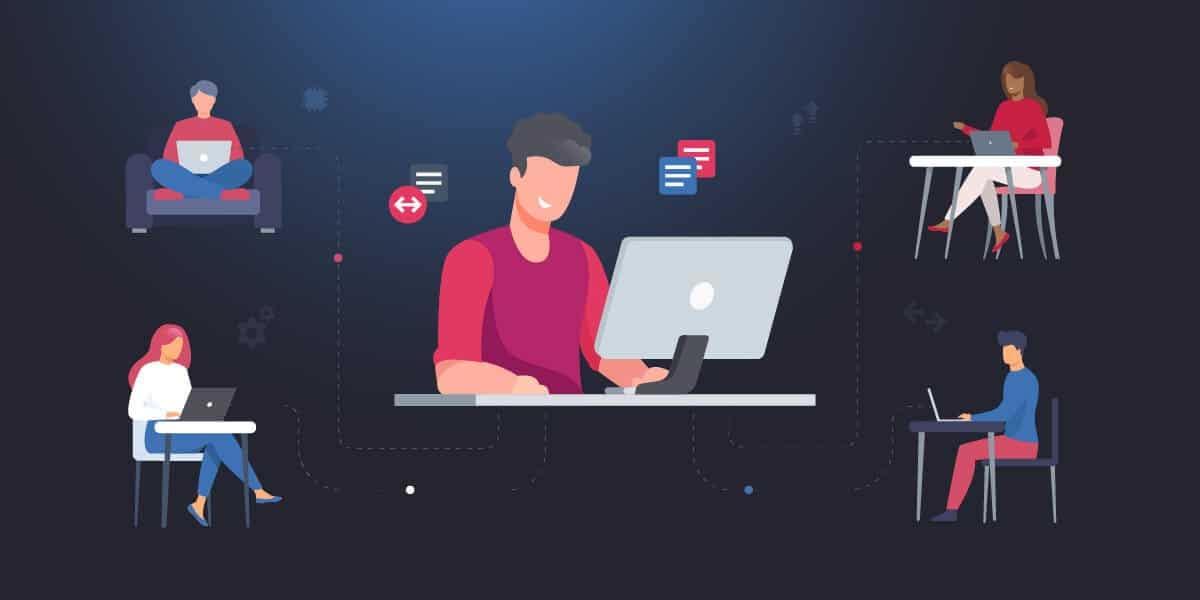
- Facilitating remote work for employees displaced from the office. The rise of remote and hybrid workforce has benefited from remote access to manage the computers of staff delegated to work outside the office.
- Making remote work easier for vendors and contractors. Working with third-party partners is improved when organizations utilize remote access solutions, fostering productive collaborations.
How does remote access work?
Remote access is typically achieved through a combination of three things:
- hardware (via a hard-wired or Wi-Fi network interface),
- software (via a secure software solution), and
- a network connection (via the Internet).
An example of secure software is a Virtual Private Network (VPN), which is used to communicate between hosts via a wired interface network or a Wi-Fi connection.
For instance, though mostly used in large-scale and cloud-native enterprise environments, a cloud VPN can connect any number of private networks to the VPN server, allowing outside users (e.g., remote workers) to connect to the primary network using security protocols that encrypt data traffic before it reaches its destination over the internet.
In this and other use cases, the organization can employ remote desktop software so the user can access the network and applications from anywhere. This software is integrated into the remote host’s operating system, allowing the applications to execute on a network server. In turn, the user can safely use cloud applications from any location on any device, further protecting their activity with different authentication techniques depending on the network configuration.
Improve your IT coverage with secure cross-platform and interactive in-session support.
Types of remote access protocols
Remote access protocols essentially control connections between remote access servers and endpoints. They also ensure safe and secure computer access from a remote location. Although there are many different remote access protocols, you’ll find that three types of remote access are the most common:
Virtual Private Network (VPN)
A VPN allows users to send and receive data via a private network extended over a public network. This method requires both computers to be connected to the same VPN and use the same remote access computer software.
Remote Desktop Protocol (RDP)
RDP is a Microsoft program that provides a graphical interface for connecting to another computer via a network connection. The user simply runs the RDP client software to connect to another computer running the RDP software.
Note on RDP for Helpdesks: While RDP is highly efficient, natively connecting to a Windows client workstation via RDP will lock out the local user’s session. For collaborative troubleshooting where the end-user needs to demonstrate an issue, VNC or specialized remote support tools are typically preferred.
Virtual network computing (VNC)
VNC provides a graphical system for sharing desktops between users. This is useful when one user, such as an IT helpdesk agent, needs to take control of another user’s computer. This allows the remote user to control everything as if they were the one sitting at the keyboard while also allowing the local user to see what they are doing on their own screen.
Aside from these three, here are other common remote access protocols:
Point-to-Point Protocol (PPP)
Used to establish a direct link between two endpoints over dial-up, PPP is a foundational protocol today most commonly seen adapted as PPPoE (Point-to-Point Protocol over Ethernet) by internet service providers to manage broadband connections.
Internet Protocol Security (IPsec)
IPsec is used when data being transmitted needs to be authenticated and encrypted. This promotes confidentiality and integrity, which are paramount for preventing data breaches.
Point-to-Point Tunneling Protocol (PPTP)
PPTP is used to deploy VPN tunnels between public networks. It was a common preference for creating VPN tunnels until security concerns were raised, rendering it obsolete.
Internet Proxy Servers
Internet proxy servers add a server as a go-between, allowing users to connect with another computer within the proxy server environment. Both computers connect to the same proxy server, serving as an intermediary, at which point one user can gain access to the other’s computer.
Proprietary Protocols
Some remote access solutions use proprietary protocols to utilize AES-256 and SSL/TLS key exchange, ensuring safety and security during sessions.
The importance of secure remote access
Security is a huge consideration when it comes to remote access since threats like Trojans are rampant. Malicious attacks carried out by sophisticated Trojans can easily move from one device to another without getting detected. Meanwhile, a Remote Access Trojan (RAT) can gain access to a machine and provide control to a threat actor outside of the network. They can then gain access to files and typically gain complete control of the device.
On the other hand, human error can be a catalyst for the spread of malicious files and viruses from one computer to another. If one isn’t careful, ransomware, spyware, and other malware can spread this way and can be difficult to contain once the threat is disseminated.
The Shift from VPNs to Zero Trust (ZTNA)
While traditional VPNs create an encrypted tunnel into a network, they often grant broad access once a user is inside. To counter modern threats, modern IT frameworks are shifting toward Zero Trust Network Access (ZTNA). ZTNA operates on the principle of ‘never trust, always verify,’ granting remote access only to the specific applications a user needs, rather than the entire corporate network.
So is it safe to use remote access? Well, the answer to this question depends on a mix of several factors, such as
- the tools you’re using,
- how secure they are, and
- how knowledgeable the people involved in a remote access session are.
Additionally, the safety and risk of remote access depend on how remote connections are deployed. For example, enforcing security strategies in a remote session, such as multi-factor authentication (MFA) can be considered good practice.
Pros and cons of remote access?
Remote access boosts positive outcomes for IT administration and their workflow, but it also introduces a number of challenges.
Pros of remote access
On one hand, remote access comes with these advantages:
- Increased productivity. Remote access allows employees to work from any location while being assured that IT administrators can troubleshoot issues remotely.
- Enhanced security. Properly implemented remote access makes threat remediation possible, making it a valuable asset to security efforts rather than a hindrance.
- Cost reduction. Remote workforce and hybrid setups are known to help organizations reduce costs by cutting expenses on office rentals, facility equipment, and commutes.
- Employee satisfaction. With remote access, IT support teams can remotely control a computer to troubleshoot and resolve any issues that might frustrate users or impact productivity.
Cons of remote access
On the other hand, the use of remote access involves a few setbacks:
- Network instability. Remote access sessions may be affected by an unstable network connection. More specifically, issues such as response delays and connectivity problems may contribute to an unsuccessful session.
- Security vulnerability. The risk of data exposure to bad actors is also possible when a remote connection is initiated. This can happen when a connection to an unsecured Wi-Fi network is established.
- Device compatibility. Remote access sessions may be affected when managed devices or systems are incompatible with each other. Examples of this are when some devices are running on different operating systems or if hardware components aren’t properly configured.
- Firewall restrictions. In some instances, company firewalls may block remote access activities, obstructing remote communications between IT administrators and computer systems. This may also disrupt operations and workflow.
Discover how NinjaOne Remote® adds speed and resilience to your IT support.
Remote access best practices
While remote access is designed to streamline hybrid and remote setup workflows, its functionalities can still be enhanced if implemented correctly. Here are some best practices for maximizing remote access while maintaining security.
Use a reliable remote access solution
Remote access sessions rely on tools, so choosing the right solution for these sessions is crucial. If you’re seeking a platform that consolidates essential IT functionalities, you should consider a reliable endpoint management solution that offers remote access tools.
Prioritize security
Practices like using public Wi-Fi may entice bad actors to execute intrusive attacks by exploiting system vulnerabilities. A connection to a secure, trusted network should always be used to create a direct link that excludes unauthorized users. Additionally, employing endpoint security tools ensures that each device participating in the remote connection is safe.
Implement robust password habits
A password that can be guessed easily is a vulnerability that bad actors constantly want to exploit. Follow password best practices, such as using strong passwords and changing them regularly. Also, never reuse passwords between applications.
Leverage multi-factor authentication (MFA)
While passwords are great for enhancing remote access security, other tools, like MFA, can also enhance it by adding an additional layer of protection. For instance, you can set up MFA for Office 365 and other tools containing important data.
These are just a few ways to strengthen your remote access strategy. Watch our video on Remote Access Best Practices for MSPs and IT Pros to learn more.
Utilize session logging
By recording information on every kind of user activity, session logging is an effective means to root out issues during troubleshooting sessions and unprecedented cyberattacks. It’s especially useful for compliance and auditing, especially for MSPs.
Enable automatic timeout or session lock
To reduce the possibility of bad actors taking advantage of idle and vulnerable devices (either physically or via remote access) in your network, automatic timeout or session lock is a necessity for added security.
How to choose the right remote access software
Consider the following factors and functionalities when evaluating the right remote access software for your organization:
- A trusted RMM solution. Consider a purpose-built remote monitoring and management (RMM) solution with endpoint security. Prioritize RMM tools with consolidated IT functionalities to help execute effective remote access sessions.
- Compliance. To MSPs, use your remote access solution for different industries. Ensure that your platform can maintain compliance with common industry regulations such as HIPAA and GDPR.
- Ease of use. Remote sessions can be complex operations, so consider, ease of use when deciding on a remote access tool. A solution that’s straightforward to operate helps streamline the whole process.
- Advanced support capabilities. If the tool you use offers advanced support capabilities, your user experience with a remote access session can be elevated. Multi-screen support, file transfer, and a chat function, are just some of the advanced features you may find in a robust remote access platform.
- Security. Security is a critical factor you need to consider more than anything else. Choosing a remote access solution that provides state-of-the-art encryption and data privacy is essential to protecting sensitive information from unauthorized access and cyber threats.
Watch our video guide on Best Remote Access Software in 2026: Secure Remote Access Solutions to learn what features to prioritize, compare leading remote access solutions, and choose the right platform to support your organization’s remote IT operations.
Leveraging secure remote access for efficient IT support
Remote access can give you the means to control a remote computer and use it as if you were sitting in front of it yourself. It also allows for file sharing between computers and facilitates quick, seamless troubleshooting for remote IT professionals.
IT solutions like NinjaOne can harden your entire environment against intrusion during remote access sessions. The platform offers IT teams and MSPs a complete suite for RMM at scale, and its included remote access software and security features ensure that you can get the most from these sessions without sacrificing your security.
NinjaOne Remote is G2’s no. 1 choice for remote support as it allows users to create secure, encrypted remote connections to Windows and Mac devices. It also seamlessly integrates with other industry leaders in remote control solutions such as TeamViewer, Splashtop, and Connectwise ScreenConnect. Watch a demo or sign up for a 14-day free trial.