

Key Points
- Match File Transfer Method to the Use Case: Use RDP clipboard/drive mapping for small, non-sensitive fixes, RMM/SFTP for bulk, and sanctioned SMB or cloud for collaboration.
- Protect data with MFA, using encrypted channels (TLS 1.3 or VPN) and blocking legacy or admin shares; apply RBAC and require peer review for regulated transfers to prevent unauthorized data exposure.
- Compute checksums (SHA-256) before and after transfer to confirm file integrity. Log details (operator, device, source, destination, hash, timestamp) and attach proofs (screenshots or automation logs) for audit readiness.
- Use resumable and compressed transfers during off-hours to minimize network load; canary test before large uploads; pivot to SMB or cloud if RDP is unstable.
- Block clipboard and drive mapping for restricted data; require quarantined staging with content scanning; schedule purges of staging areas; apply DLP across endpoints.
- Maintain a signed library of scripts, tools, and drivers with version control and hashes; define emergency file transfer paths for critical patches and require post-mortems for any break-glass incidents; rotate credentials immediately after emergency access.
Secure remote file transfers are crucial tools in any organization. They need to balance speed, reliability, and compliance. Learn the best practices and how you can best manage these file transfers safely and without compromising data security.
A guide for RDP file transfers
📌 Prerequisites:
- You need a file transfer policy that defines acceptable transfer methods by data class and environment.
- You should have MFA enforced on remote access tools and privileged accounts.
- You need role-based access and least privilege on target folders and SMB shares.
- You need a central evidence workspace for logs, hashes, approvals, and screenshots.
1. Pick the transfer method by scenario
Here are a few scenarios you can consider:
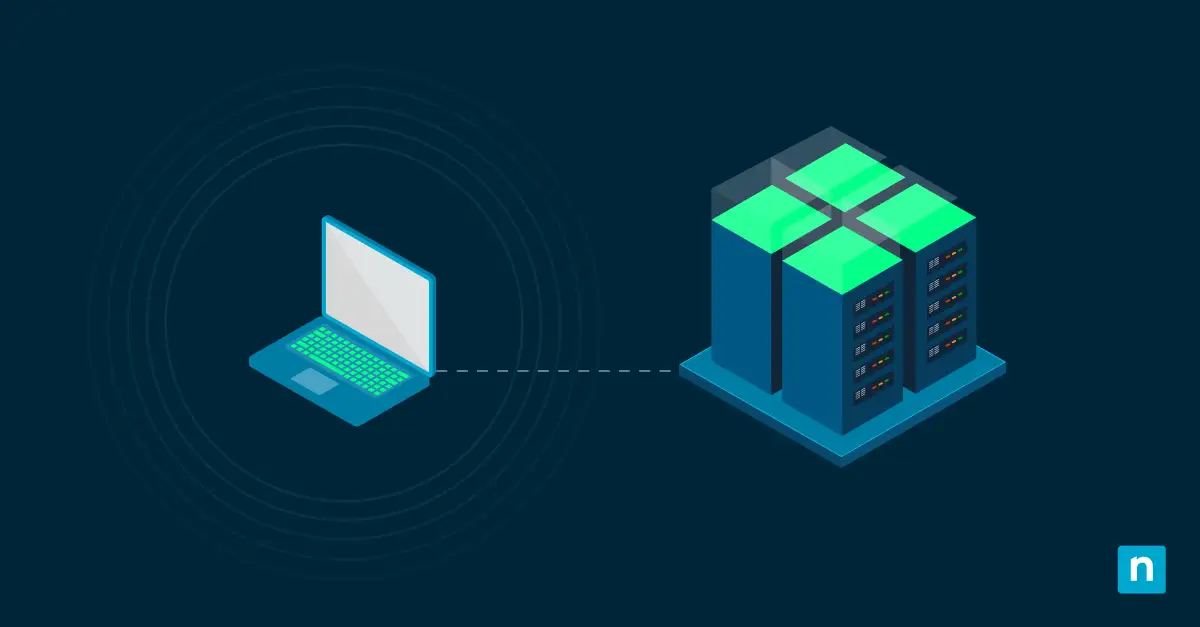
- For quick admin fixes in the same trust boundary – Use native features like the clipboard and temporary drive mapping for small, non-sensitive artifacts. Disable it after use.
- For scaled software distribution and scripts – Use your RMM tool or a remote access file transfer with integrity checks. Stage artifacts in a signed repository and capture exit codes.
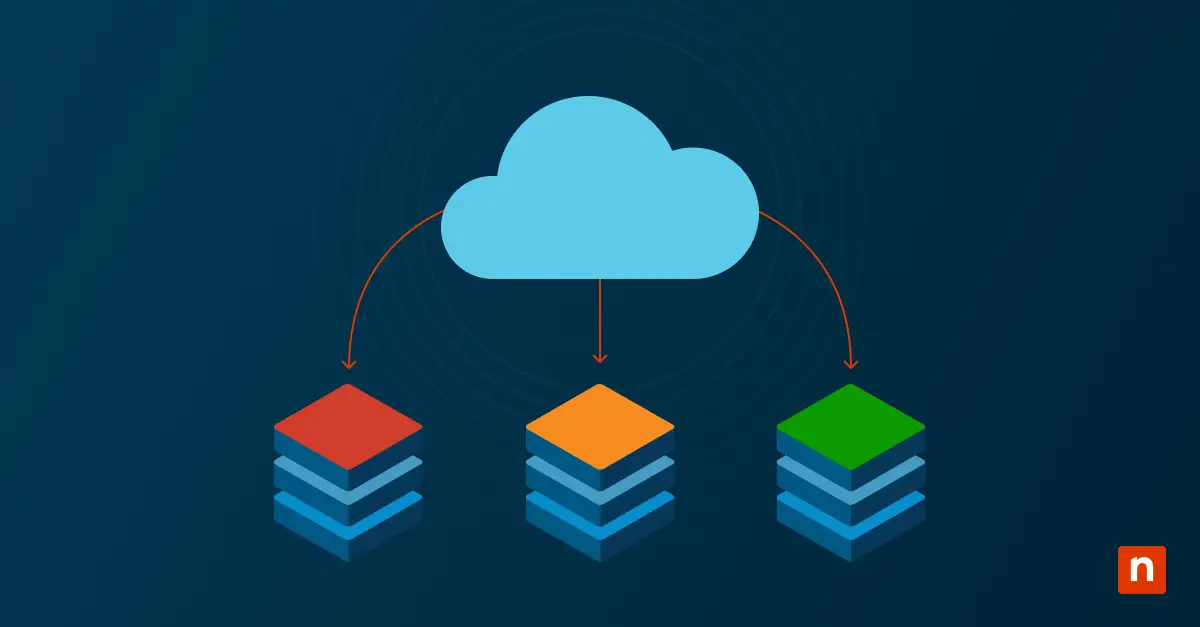
- For user collaboration and larger payloads – Use SMB (Server Message Block) shares, which enable file transfers across a local network, with least privilege or sanctioned cloud storage with retention and access reviews.
- For isolated, headless, or off-domain devices – Use out-of-band transfer features, short-lived SFTP or HTTPS staging, or a site relay that devices poll after authentication.
2. Secure the channel and the destination
Before any transfer begins, verify that both the transport layer and the destination are secured to the appropriate standard for the data class involved. Here are some things you need to strengthen your security and protect your organization’s data:
- Enforce MFA for remote access entry points, such as RDP Gateway, VPN, or your RMM console.
- Require TLS 1.2 or TLS 1.3 encryption for transfers and block legacy protocols, such as SSLv3, TLS 1.0, and TLS 1.1.
- For routine file transfers, avoid Windows admin shares, such as C$, ADMIN$, IPC$, FAX$, and PRINT$, which rely on the SMB protocol.Instead, use scoped service paths instead.
- For regulated data, require approval and document the approval references. Use DLP-friendly staging as well, since they can provide real-time data on network traffic.
3. Execute transfers with integrity and evidence
Logs and documentation are everything. Make sure that everyone is following the correct procedures when transferring data during remote sessions and that there’s a record of all their actions. This encourages transparency and is crucial for audits.
Here are a few things you can do to enforce integrity and evidence collection in your organization during file transfers:
- Compute and store checksums pre- and post-transfer for binaries and scripts.
- Log operator, ticket ID, device, source, destination, size, hash, start and end times, and result.
- For installers, verify the service state or file version after execution and attach proof.
4. Manage transfer bandwidth and reliability constraints
Network conditions directly affect whether a remote file transfer completes successfully and how long it takes. Your available bandwidth determines how quickly data moves across the connection, while latency and packet loss affect session stability, particularly for interactive protocols like RDP.
Here are a few things you can do to stay within your bandwidth constraints:
- Bandwidth scheduling: Use compression for text-based payloads, such as scripts and audit logs. For large binary payloads, including installers, disk images, schedule transfers during off-hours windows.
- Canary testing: Before pushing a large payload to a group of devices, transfer a small canary file first to confirm connectivity, write permissions, and available disk space on the destination. Capture the exit code before proceeding with the full transfer.
- SMB share: If the interactive channel becomes unstable, due to RDP session drops, VPN reconnections, or latency-induced timeouts, pivot to an out-of-band method rather than retrying over the same failing path. Suitable alternatives include an SMB share on the same LAN segment, a secured cloud staging location with time-limited access, or an RMM agent-based push that operates independently of the interactive session. Document the reason for the pivot and take note of what method failed and whether any partial files need to be cleaned up.
5. Govern sensitive classes of data during remote transfers
Security is another important point to consider, especially for remote file transfers. Here are some measures you can take to keep your data safe:
- Block clipboard and unsanctioned shares for restricted data classes
- Use quarantined staging plus content scanning when required
- Purge staging areas on schedule and keep transfer logs per policy
6. Fallbacks and break glass for remote data transfer problems
You should also have contingency plans in case something goes wrong. Here are some actions you can take:
- Have predefined emergency paths for critical patches when standard methods fail
- Require leadership approval and a post-mortem for any break-glass use.
- Rotate credentials and remove temporary access immediately after use.
7. Standardize recurring packages when transferring data
Standardizing your actions ensures that they’re repeatable and trackable. It makes things easier for onboarding as well. And if something goes wrong, you can also more easily pinpoint where things went wrong and what should be done to remedy it. Here are a few things you can do to optimize standardization:
- Maintain a curated, signed library of tools, drivers, and scripts with hashes and versions.
- Wrap deployments with pre-checks and post-checks and store outcomes.
- Document rollback steps and success criteria.
Best practices summary table for remote data transfers
| Practice | Purpose | Value Delivered |
| Scenario-based method selection | This will ensure that the method you’re using fits its purpose. | You’ll have fewer failed data transfers and need fewer reworks. |
| MFA, approvals, least privilege | This will give you stronger data security. | You’ll have a lower risk of breaches and misuse. |
| Checksums and detailed logs | This will give you evidence and ensure your integrity. | You’ll have audit-ready evidence whenever you need it. |
| Resumable and staged flows | This will make things more dependable and reliable. | You’ll have better results and fewer weak links in your overall process. |
| Curated package library | This will give you consistency. | You’ll have a higher first-pass success rate. |
NinjaOne integration ideas for secure remote file transfers
You can use NinjaOne tools to:
- Attach transfer logs and hashes to tickets
- Schedule bandwidth-aware windows
- Track transfer counts, success rates, top destinations, and exceptions
Quick-Start Guide
Here’s a concise guide based on best practices:
1. Use Built-in Remote Desktop Features
– Local Resources Redirection:
2. Secure File Transfer Protocols
– SFTP/SCP:
– FTPS:
3. Cloud-Based Solutions
– OneDrive/Google Drive:
– Dropbox:
4. Third-Party Tools
– TeamViewer:
– AnyDesk:
5. VPN for Added Security
– Set Up a VPN:
6. Best Practices
– Strong Passwords:
– Two-Factor Authentication (2FA):
– Regular Updates:
By following these steps, you can ensure that file transfers during remote sessions are both secure and reliable.
Enhance data protection with a robust, secure file transfer protocol
To keep your remote data transfers secure, you need to match the method to the scenario, enforce least privilege and MFA, verify integrity, and keep simple evidence. By doing this, secure remote file transfers become fast, reliable, and defensible. With small automations and a curated package library, teams scale transfers without sacrificing control.
Related Links: