


Key Points
- Configure Task Manager Minimize on Use by toggling the setting directly in Task Manager.
- Validate the change by reopening Task Manager and checking how it behaves when switching apps.
- Troubleshoot issues related to missing UI options, cached Task Manager state, or third-party window tools.
Task Manager in Windows 11 includes a setting called Minimize on use, which hides the window after you switch tasks or trigger specific actions. Some users prefer a cleaner workspace, while others require the Task Manager to be visible during live monitoring.
This guide covers how to turn the Task Manager Minimize on use setting on or off using the Task Manager interface and how to confirm that the change was applied correctly.
| Click to Choose a Method | 💻 Best for Individual Users | 💻💻💻 Best for Enterprises |
| Method 1: Turn the setting on or off through Task Manager | ✓ | |
| Method 2: Verify Task Manager behavior | ✓ |
Methods to configure Task Manager Minimize on Use settings on Windows 11
Confirm the basic requirements before applying any method. This keeps the process clear and avoids interruptions.
📌 General prerequisites:
- Windows 11 (any edition)
- Basic familiarity with Task Manager navigation
Optional: scripting tools for automation
Method 1: Turn the setting on or off through Task Manager
This method is the fastest way to control whether Task Manager minimizes when you switch to another app. You change the setting from within the Task Manager.
📌 Use Cases: You end tasks often and want Task Manager to stay open for repeated actions.
Steps:
- Press Ctrl+Shift+Esc to open the Task Manager.
💡 You can also right-click the Start button and select Task Manager.
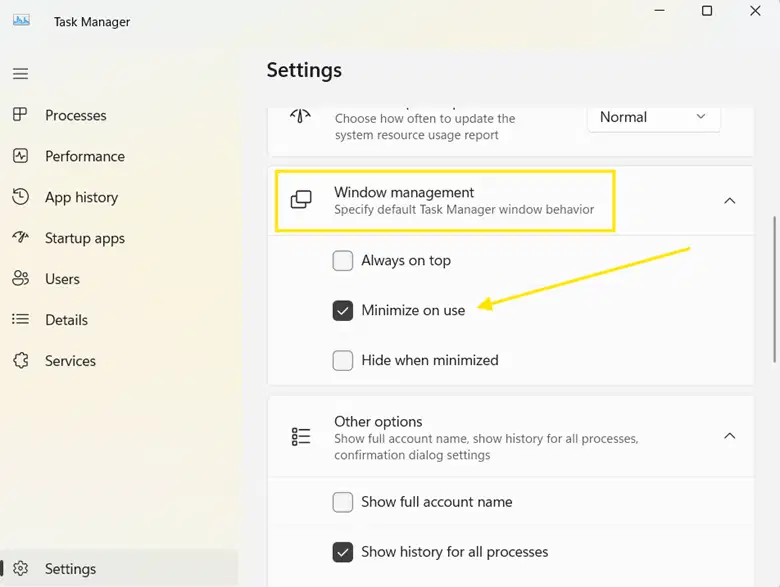
- Click Settings from the lower left corner.

- Scroll to the Window management section.
- Toggle Minimize on use:
- Turn On to minimize Task Manager after each action.
- Turn Off to keep Task Manager open.
- Select an app and click End task to check if the Task Manager minimizes or stays open.
Method 2: Verify Task Manager behavior
After changing the setting, confirm that the Task Manager behaves as expected.
Steps:
- Close and reopen Task Manager.
- Switch to another application or open any program on the desktop.
- Observe the behavior:
- If Minimize on Use is enabled, the Task Manager should minimize after the action.
- If disabled, it should remain open.
- If behavior is inconsistent, restart Windows Explorer from Task Manager or restart your PC.
Troubleshooting
You may see issues while configuring the Minimize on use setting. Below are common problems and how to resolve them.
Setting does not appear in Task Manager
If the Minimize on Use option is missing, your Windows build may not support it. Update Windows 11 to the latest version through Settings > Windows Update.
Task Manager does not minimize after enabling
Task Manager may still be using a cached state if it was open when you changed the setting. Close and reopen it, or sign out and back in. A full restart can also help.
Minimize on use occurs even when disabled
Window managers or productivity tools can affect how windows handle focus. Disable or adjust these tools, then test the setting again.
Making Task Manager “Minimize on Use” work reliably across devices
The Minimize on Use setting in Task Manager is a small feature with a big impact on how you work. It can keep Task Manager visible during monitoring or minimize it automatically to reduce screen clutter during repetitive actions.
Since Microsoft only exposes this setting through the Task Manager interface, it must be configured per user. Verifying the behavior after making the change helps keep Task Manager predictable and aligned with how the device is used.
Related topics:






