Key points
- Windows 11 “Remember my apps” and “Remember my preferences” use your personal Microsoft account to sync installed Store apps and system settings across multiple devices.
- The sync feature includes critical configuration data such as accessibility settings, language preferences, and saved Wi-Fi networks.
- Users can manage these features through the Accounts > Windows backup section of the Settings app, provided they are using a Microsoft account rather than a local one.
- Enterprise administrators can use Local Group Policy or MDM tools to disable these sync features to ensure compliance with data protection and privacy laws.
- Sync settings for Microsoft Edge and OneDrive are managed independently from the standard Windows app and preference sync.
- For professional environments, centralized management platforms are recommended over native sync features to maintain consistent configurations and secure remote provisioning.
Windows 11 includes functionality for app sync and preferences sync – keeping all your Windows devices with the same installed Microsoft Store apps, and automatically applying the same settings across your devices. This tutorial demonstrates how to enable or disable apps or preferences for Microsoft accounts in Windows 11.
Remember my apps and remember my preferences in Windows 11
Remember my apps is the Windows 11 feature that stores what apps you have installed on your device in your Microsoft account in the cloud, and installs the same apps on a new device. This is for personal Microsoft accounts only.
Remember my preferences stores some of your Windows settings in your Microsoft account and applies them across devices, including remembered Wi-Fi networks, language preferences, personalization, and accessibility settings.
These sync settings are often enabled by default or encouraged to be enabled during Windows onboarding.
Enable or disable app and preferences sync in Windows 11 Settings
To enable and disable app and preferences sync in Windows 11, you’ll need a Windows 11 device that you’re signed in to with your Microsoft Account (local accounts don’t support app or preference sync). If you cannot update these options as described below, and you’re using a managed device (for work or school), check with your IT team that they haven’t disabled this functionality.
In enterprise environments, where data covered by data protection and privacy laws is handled, you must confirm that no covered data is uploaded, or ensure that if it is, it is done in a compliant manner.
To turn on or turn off app sync and preferences sync in Windows 11, follow these steps:
- Right-click on the Start button and click Settings
- Click Accounts in the sidebar in the Settings app
- Click Windows backup
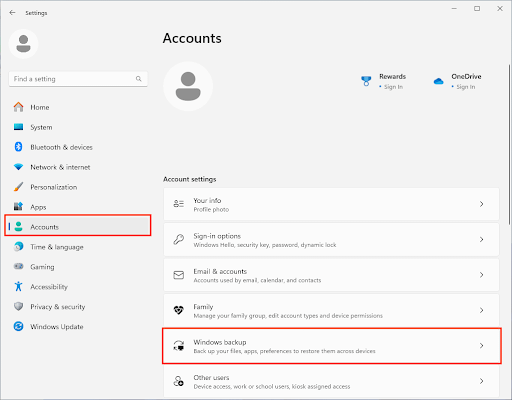
- Toggle Remember my apps and Remember my preferences
- Test by signing in on a new device

You can expand the Remember my preferences options for granular control of what is synchronized.
Using Local Group Policy to disable Windows 11 app and preferences sync
To turn on or off app and preferences sync using Local Group Policy:
- Right-click on the Start button and click Run
- Enter the command gpedit.msc and press OK to launch the Local Group Policy Editor
- Navigate to Local Computer Policy\User Configuration\Administrative Templates\Windows Components\Microsoft User Experience Virtualization
- Configure the settings for Do not synchronize Windows apps and Synchronize Windows settings
- Run gpupdate /force in the command prompt or PowerShell to apply the new policy
You can use your remote monitoring and management (RMM) or mobile device management (MDM) tools to deploy Local Group Policy settings to multiple devices to enforce this configuration in an enterprise or education environment.
Configure Edge and OneDrive sync
The Microsoft Edge web browser handles sync separately (including favorites, passwords, and browsing history) from Windows apps and preferences, as does OneDrive. They must be configured independently.
Disable Microsoft sync for your whole fleet, and centrally manage consistent configurations
The Remember my apps or Remember my preferences features provided by Microsoft to sync settings for home users are unsuitable for managing Windows in enterprise environments. Administrators are only given the ability to broadly disable the functionality on managed devices, and most functionality is limited to personal Microsoft accounts. The comprehensive IT management platform provided by NinjaOne lets you centrally manage Windows, macOS, and Linux endpoints, as well as Apple and Android mobile devices, from a single, unified interface.
You can deploy consistent configuration across devices, remotely deploy software based on user role, and remotely provision, back up, and restore devices so that new devices can be delivered to users ready for them to start work.