Key points
Sync browsing data management in Edge
- Microsoft Edge sync allows users to share browsing data across devices, but it can introduce privacy, compliance, and standardization concerns in enterprise environments.
- Individual users can enable or disable Edge sync directly from Settings >Profiles > Sync, with the option to control which types of browsing data are synchronized.
- Enterprises can centrally manage or disable Edge sync using Group Policy by configuring the Configure browser sign-in policy after deploying the Edge ADMX templates.
- Administrators can enforce the same sync restrictions using the Windows Registry, controlling browser sign-in and synchronization behavior through policy keys.
- PowerShell scripts provide a fast, repeatable way to disable Edge sync or browser sign-in across multiple managed devices.
- When sync is disabled by policy, users see the option grayed out, and organizations using Microsoft Entra ID, Intune, or profile management tools can further enforce consistent browser behavior.
In this guide, we offer step-by-step instructions for enabling or disabling Microsoft Edge browser sync. While this feature is convenient for maintaining a consistent browsing experience across multiple devices, it may pose challenges in enterprise environments where data privacy, IT compliance, and standardized configurations are paramount.
How to modify sync in an Edge browser across devices
Before proceeding, make sure you meet the following technological requirements:
- Microsoft Edge installation: Make sure you have the latest version of Microsoft Edge installed on your device.
- Group Policy requirements: For Group Policy configurations, devices must run Windows 11 Pro, Enterprise, or Education editions.
- Administrator privileges: If you work in a managed environment, you may need to ask your IT admin to apply these changes for you.
- Microsoft account: A Microsoft or Microsoft Entra ID (formerly Azure AD) account is necessary for utilizing sync features.
Method 1: Using Microsoft Edge settings (per user)
This allows individual users to control their sync settings directly within the Edge browser.
- Launch the Edge browser on your device.
- Click on the profile icon located in the top-right corner of the browser window.
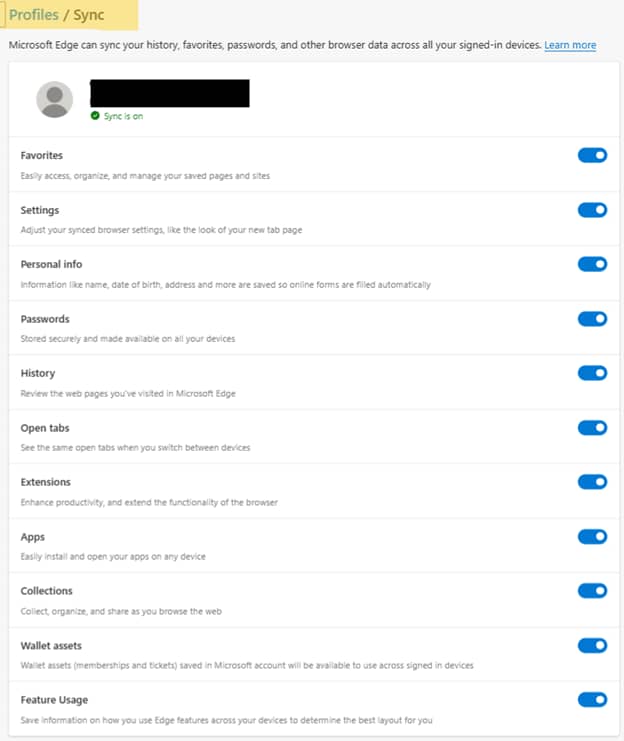
- Select Manage profile settings and then select Sync.
- Use the toggle switch to enable or disable sync. Turning it off will halt all synchronization activities.
- (Optional) If you prefer more customization, you can enable or disable syncing for specific device types, including:
- Favorites: Saved pages and sites
- Settings:
- Personal info: Such as name, date of birth, and address
- Passwords
- History
- Open Tabs
- Extensions
- Apps
- Collections
- Wallet assets: Memberships and tickets (Available sync options may vary by Edge version, region, or account type.)
- Feature usage: How you use Edge
Method 2: Using Group Policy (for enterprises)
This method is recommended for enterprise-level management.
Step 1: Download and extract files
- Download the Microsoft Edge policy templates file from Microsoft and extract the contents of the ZIP file.
- In the extracted files, navigate to the Windows > admx folder.
- Copy msedge.admx to the central PolicyDefinitions folder on your domain controller.
Example:
%systemroot%\SYSVOL\domain\Policies\PolicyDefinitions - Open the language-specific folder that matches your environment (for example, en-US).
- Copy msedge.adml to the corresponding language folder within PolicyDefinitions.
Example:
%systemroot%\SYSVOL\domain\Policies\PolicyDefinitions\en-US - If the language folder does not exist, create it before copying the file.
Step 2: Confirm the files
- Press Win + R, type msc, and click Enter to launch the Local Group Policy Editor.
For domain-managed environments, use the Group Policy Management Console (gpmc.msc). - Go to Computer Configuration > Policies > Administrative Templates > Microsoft Edge. You should see one or more Microsoft Edge nodes.
Step 3: Configure browser sign-in policy
- Find and configure the following policy: Configure browser sign-in. Right-click it.
- Set this to Disabled to prevent all sign-ins. This prevents all sign-ins, consequently disabling sync.
- If you want to disable sync only, set the tab to Enabled and select Disable sync to allow sign-in but prevent synchronization.
Step 4: Apply the policy
- Open an elevated Command Prompt and run
gpupdate /forceto enforce the new settings immediately. Alternatively, you can close and reopen Microsoft Edge.
💡 How to check: Users should find the sync option grayed out. This indicates that the synchronization is disabled by organizational policy.
Method 3: Using Registry Editor
⚠️ Make sure to back up your Windows Registry before attempting any changes. Incorrect configurations can lead to system instability.
- Press Win + R, type regedit, and click Enter.
- Go to: HKEY_LOCAL_MACHINE\SOFTWARE\Policies\Microsoft\Edge
- Modify the registry values as follows:
BrowserSignin:
- 0: Disable browser sign-in (also disables sync)
- 1: Enable browser sign-in, sync off
- 2: Enable browser sign-in and sync (default)
SyncDisabled:
- 1: Disables synchronization
- 0: Allows synchronization
- Close and reopen the browser to apply the new settings.
Method 4: Using PowerShell
💡 Sign up for this free crash course, PowerShell for IT Ninjas, for a refresher.
- Open PowerShell.
- Execute this script:
- To disable sync:
New-Item -Path "HKLM:\SOFTWARE\Policies\Microsoft\Edge" -Force
Set-ItemProperty -Path "HKLM:\SOFTWARE\Policies\Microsoft\Edge" -Name "SyncDisabled" -Value 1
- To disable sign-in and sync.
Set-ItemProperty -Path "HKLM:\SOFTWARE\Policies\Microsoft\Edge" -Name "BrowserSignin" -Value 0
Additional considerations when modifying the Microsoft Edge browser sync
- When syncing is disabled via policy, users will see the sync toggle grayed out, accompanied by a message that sync has been disabled by the organization.
- For organizations using Microsoft Entra ID and Intune, sync policies can be enforced using the Settings Catalog or custom ADMX-backed policies.
- None of the methods listed above will work if you are using guest/kiosk mode. Utilizing local accounts without Microsoft sign-in naturally prevents sync.
- In environments with profile redirection or tools like FSLogix, Edge browser sync may be redundant, as user data is already managed centrally.
Managing sync in Microsoft Edge across devices
Effectively managing Microsoft Edge’s synchronization features is crucial for maintaining data security, compliance, and consistent user experiences in enterprise environments. MSPs or IT enterprises can disable this feature using any of the methods outlined earlier.
Quick-Start Guide
Here’s how to enable or disable sync browsing data in Microsoft Edge across devices:
1. Open Microsoft Edge
2. Click on the Settings and more (three dots) button
3. Go to Settings
4. Click on Profiles
5. Select Sync
From here, you can:
– Turn on/off sync for specific types of browsing data
– Disable sync entirely
– Choose what data gets synced across your devices
For enterprise environments, Microsoft provides additional configuration options through group policies to control sync settings across an organization.
A few key points to remember:
– Syncing allows you to access bookmarks, browsing history, and other settings across different devices
– You can selectively choose what data to sync
– For complete privacy, you can turn off sync entirely