In Windows 11, the Quick Settings panel allows users to instantly access essential and frequently used system controls, such as Wi-Fi, volume, brightness, and more. Microsoft also introduced a simplified Quick Settings layout that reduces visual clutter by displaying only the most critical functions. This simplified panel can be beneficial in environments like kiosks, classrooms, or managed enterprise systems to keep users focused.
If you’re an IT administrator or advanced user looking to manage this display, keep reading to learn how to simplify the Windows 11 Quick Settings panel using the Registry Editor and PowerShell.
For a visual guide, watch our video on “How to Enable or Disable Simplified Quick Settings in Windows 11“.
How to enable or disable the simplified Quick Settings panel in Windows 11
Windows 11 does not currently provide a built-in graphical option or Group Policy Object (GPO) for modifying the layout of the Quick Settings panel. However, advanced users and IT administrators can configure this setting using the Windows Registry or automate it via PowerShell.
📌 Prerequisites:
- Windows 11 version 22H2 and later
- Administrator privileges, as changes will affect all users on the device
⚠️ Back up the registry before proceeding.
💡 We also recommend checking Things to look out for before proceeding.
📌 Recommended deployment strategies:
| Click to Choose a Method | 💻 Best for Individual Users | 💻💻💻 Best for Enterprises |
| Method 1: Registry Editor | ✓ | |
| Method 2: PowerShell | ✓ |
Method 1: Enable or disable via Registry Editor
This method modifies the system registry to enable or disable the simplified Quick Settings layout. It directly sets a policy under the Windows Explorer registry hive to reduce the number of visible toggles in the Quick Settings panel.
📌 Use Cases: Individual device adjustments and pilot configurations before automating across systems
📌 Prerequisites: Administrator privileges
- Open the Registry Editor. Press Windows key + R, type “regedit,” and press Enter.
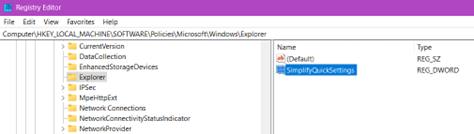
- On the left pane, follow this path:
HKEY_LOCAL_MACHINE\SOFTWARE\Policies\Microsoft\Windows\Explorer
💡 If the Explorer subkey doesn’t exist, create it. Right-click the Windows key, hover over New, select Key, and name it “Explorer.”
- On the right pane of the Explorer key, double-click the SimplifyQuickSettings DWORD.
💡 If the SimplifyQuickSettings DWORD doesn’t exist, create it. Right-click the Explorer key, hover over New, select DWORD (32-bit) Value, and name it “SimplifyQuickSettings.”
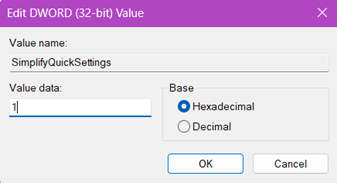
- In the pop-up dialog box, change the Value data to:
- 0 = Show the full Quick Settings panel (default)
- 1 = Show the simplified Quick Settings with fewer toggles
- Click OK.
- Restart the system or sign out and back in for the change to take effect.
Method 2: Enable or disable via PowerShell
This method automates the registry modification process using PowerShell, which is ideal for deploying the change across multiple machines with minimal manual effort. It also reduces time and human error in manual registry editing.
📌 Use Cases: Deploying standardized configurations over multiple endpoints (e.g., classrooms, enterprise rollouts) and integration with automation tools like Group Policy Preferences, Microsoft Intune, or provisioning packages
📌 Prerequisites: Administrator privileges
- Open PowerShell as Administrator. Press Windows key + R, type “powershell,” and press Ctrl + Shift + Enter.
- Copy and paste the appropriate command for the action you want to take before pressing Enter:
- Enable simplified Quick Settings:
New-Item -Path "HKLM:\SOFTWARE\Policies\Microsoft\Windows\Explorer" -Force
Set-ItemProperty -Path "HKLM:\SOFTWARE\Policies\Microsoft\Windows\Explorer"
-Name "SimplifyQuickSettings" -Value 1
- Disable simplified Quick Settings (revert to full panel):
Set-ItemProperty -Path "HKLM:\SOFTWARE\Policies\Microsoft\Windows\Explorer"
-Name "SimplifyQuickSettings" -Value 0
- Restart the system or sign out and back in for the change to take effect.
⚠️ Things to look out for
| Risks | Potential consequences | Reversals |
| Loss of access to critical features such as Night Light, Cast, Focus Assist, or mobile hotspot toggles | Users may be unable to access features they depend on for productivity, accessibility, or connectivity | Use Registry Editor or PowerShell to change the SimplifyQuickSettings value back to 0 |
| Incompatibility with third-party tools | Applications that expect full Quick Settings access may fail to function as intended, leading to application behavior inconsistencies | Audit impacted systems and restore the default layout as needed |
| Limited troubleshooting insight | End users cannot visually confirm or access settings that may be contributing to performance issues (e.g., screen brightness stuck, airplane mode enabled) | Temporarily revert to the full Quick Settings panel for troubleshooting sessions |
What is Quick Settings in Windows 11?
The Windows 11 taskbar Quick Settings panel is a streamlined control panel designed to give users immediate access to frequently used settings and functions. It is located in the system tray and can be accessed by clicking the network, volume, or battery icons. This panel, along with the Notification Center, replaced the Action Center from previous Windows versions.
Quick Settings allows users to toggle and adjust key features such as Wi-Fi, Bluetooth, Airplane Mode, Battery Saver, Night Light, and screen brightness or volume levels. When configured to be simplified, Quick Access will have fewer visible toggles and show only essential controls, typically Wi-Fi, Bluetooth, Battery Saver, and Accessibility.
Why manage a simplified Quick Settings panel?
Quick Settings offers more convenience and better productivity by reducing the steps needed to access essential controls. However, configuring a simplified panel can provide users with a controlled and user-friendly display. This can be useful in professional, educational, or public settings.
Streamline the UI in controlled environments
A streamlined interface can prevent unnecessary distractions and interactions for kiosks, digital signage, or public-access terminals. Implementing a simplified Quick Settings layout will remove unnecessary toggles and create a clean and focused interface. This helps the display align with the device’s limited use case.
Prevent user misconfiguration
Having too many visible and configurable settings increases the risk of accidental or intentional changes that may affect system behavior. By limiting what users can access in Quick Settings, administrators can reduce support tickets caused by users disabling network connectivity, altering display settings, or interfering with device security.
Meet organizational UX standards
Many organizations want to deliver a consistent user experience across devices. Enforcing a simplified layout helps standardize how systems look and function. This makes it easier for users to navigate and operate different machines, especially in large or distributed environments, such as in healthcare, education, retail, or manufacturing industries.
Improve accessibility and usability
A simpler layout can be beneficial to users with cognitive disabilities or those unfamiliar with technology because it removes clutter and presents only the most important options. It enhances clarity and ease of interaction to make the system more inclusive and accessible.
Additional considerations for managing simplified Quick Settings in Windows 11
When enabling or disabling the simplified Quick Settings layout in managed environments, you must first understand the broader implications of this configuration. Consider the following points to avoid unwanted side effects:
System-wide impact
This configuration affects all user accounts on the device, which is beneficial in standardized environments, such as kiosks, shared terminals, or classroom PCs. However, it may not be appropriate for multi-user machines where individuals have different accessibility needs or personal preferences.
No Graphical User Interface (GUI) toggle
This setting cannot be changed via the standard Windows Settings app. Once applied through the registry or via PowerShell, the change is enforced silently, so users will not find a toggle to revert or adjust the layout themselves. Only administrators can modify or undo this setting.
Enforced via registry-based policy
The registry path used (HKLM\SOFTWARE\Policies\Microsoft\Windows\Explorer) is part of the standard location for system-wide administrative policies. Settings applied through this registry path are persistent and not easily reverted by standard users. Careful testing is recommended to ensure the change does not conflict with other configuration management tools or user expectations.
User experience
Simplifying the Quick Settings panel improves focus and usability in some contexts, but it can also restrict access to frequently used features like Night Light, Cast, or Focus Assist. This may frustrate users who rely on those tools for productivity or accessibility. Make sure to evaluate whether the simplified panel provides enough functionality for your users’ typical tasks.
Key takeaways for configuring a simplified Quick Settings panel
Managing the simplified Quick Settings layout in Windows 11 can streamline the user experience, reduce distractions, and enforce consistent UI behavior across devices. The setting can be implemented manually via the Registry Editor or through scalable automation with PowerShell. The change will affect all users, so it’s essential for administrators to understand its implications and deployment best practices to support focused and efficient computing environments.
Related topics: