Some users prefer the Windows Terminal to minimize in the system tray instead of the taskbar, allowing it to run quietly in the background. This keeps the Terminal from occupying any visible desktop space, reducing taskbar clutter while allowing the sessions to persist.
In this guide, we’ll walk you through ways to manage the Terminal icon in the Windows taskbar, giving you control over where the app minimizes. We’ll also discuss some precautions to remember before proceeding, along with key considerations when managing the Terminal’s minimized state.
For a visual version of this guide, watch Manage the Terminal Icon in Windows Taskbar’s System Tray.
Manage Terminal’s minimized state in the Windows 11 taskbar
The Windows Terminal app is a unified environment that hosts multiple command-line tools within a window. If you frequently switch between command-line interfaces (CLIs), this tool provides a tabbed interface and split panes ideal for managing concurrent workflows.
When multitasking using Terminal, particularly when running persistent scripts in the background, some prefer the app to be minimized to the system tray. Meanwhile, some prioritize app visibility and quick access to avoid confusion when cycling through multiple open instances of Terminal.
For a smooth configuration experience, ensure that you meet the following prerequisites before proceeding:
- Windows Terminal v1.17 or later.
- Any Windows 11 edition
💡 Recommended deployment strategies:
| Click to Choose a Method | 💻 Best for Individual Users | 💻💻💻 Best for Enterprises |
| Method 1: Manage via Windows Terminal settings | ✓ | |
| Method 2: Configure via settings.json file | ✓ | |
| Optional: PowerShell script for JSON automation | ✓ | ✓ |
Method 1: Manage via Windows Terminal settings
The easiest way to manage the Terminal app in the taskbar is to modify it per user using Windows Terminal settings.
📌 Use Cases: This method is ideal for everyday users looking to configure where the Terminal app minimizes. Since this only affects the currently logged-in user, you won’t need administrative privileges to make this change.
- Press Win + X and then select Terminal.
- Press Ctrl + comma key (,) to open Windows Terminal settings.
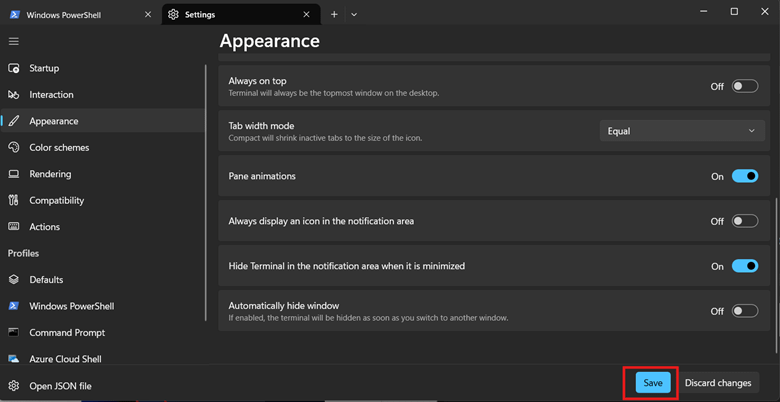
- Click Appearance on the left pane, then find Hide terminal in the notification area when it is minimized on the right pane.
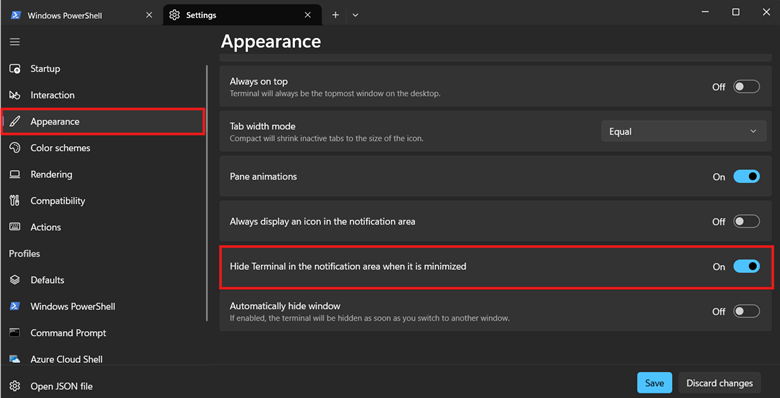
- Toggle the setting according to the minimized state you want:
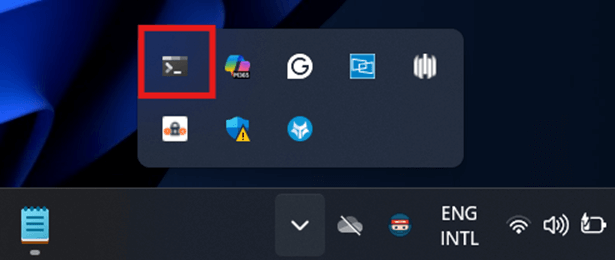
- On: This hides the Terminal app in the system tray when minimized. (See ⚠️ Things to look out for.)
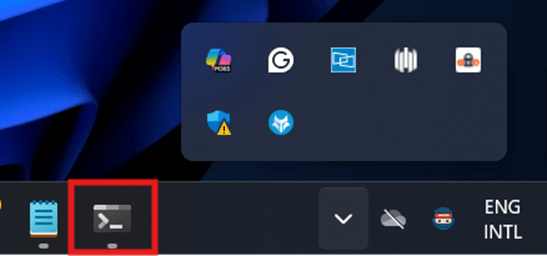
- Off: This shows it in the taskbar when minimized.
- Press the Save button below to apply the changes.
Method 2: Configure via settings.json file
In addition to manually configuring this setting via the Windows Terminal GUI, administrators and end users can directly manage the JSON file containing the app’s minimize-to-tray behavior.
📌 Use Cases: This method offers full visibility and control when working in environments that don’t rely on GUI configurations.
(See ⚠️ Things to look out for.)
- Press Win + X and then select Terminal.
- Open the Settings menu by pressing Ctrl + comma key (,).
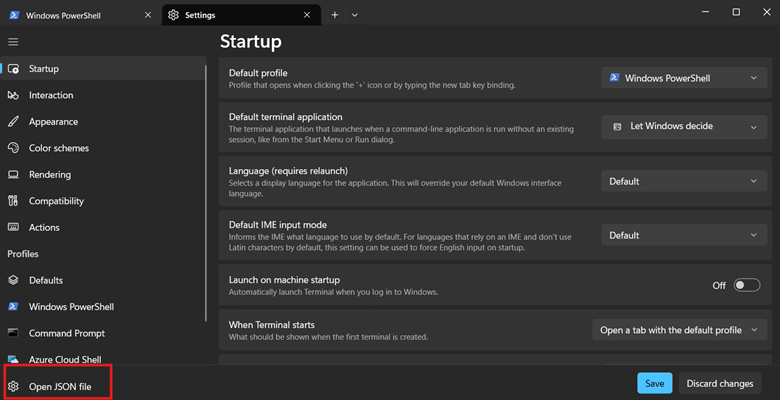
- Click the Open JSON file button on the bottom left.
- Select the application you’d like to use to edit the JSON file.
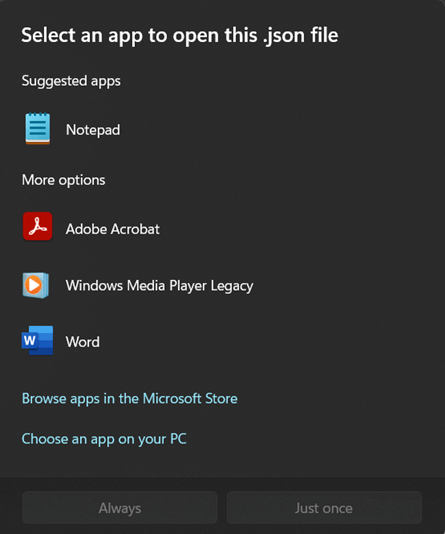
- You can pick Notepad if you don’t have a dedicated app for editing JSON files.
- Optionally, you can replace Notepad with Notepad++ for JSON file editing.
- You can pick Notepad if you don’t have a dedicated app for editing JSON files.
- Find the JSON key “minimizeToNotificationArea” and set its value to match the minimize-to-tray behavior you prefer:
- “minimizeToNotificationArea”: false, = minimizes the Terminal app to the taskbar.
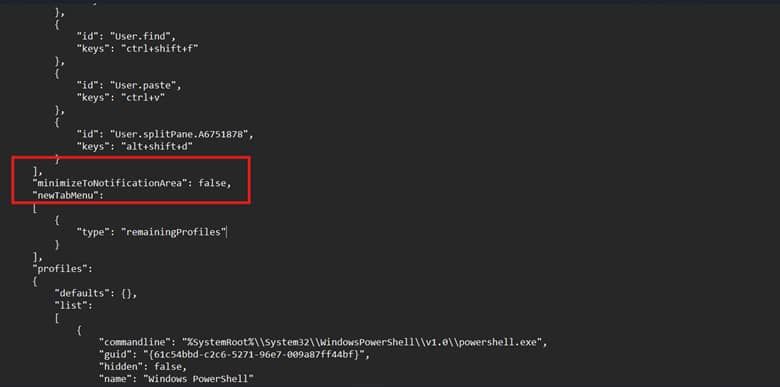
- “minimizeToNotificationArea”: true, = minimizes it as an icon in the system tray, removing it from the taskbar.
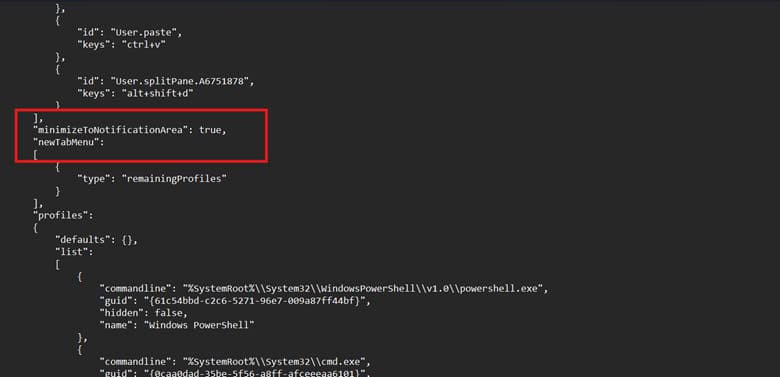
- Press Ctrl + S in the settings.json Notepad file to save the changes.
- Depending on your Terminal version, the changes will apply immediately or upon the next app restart. (See ⚠️ Things to look out for.)
💡 Tip: If you don’t want to edit the settings.json file manually, you can automate this change using PowerShell instead.
Optional: PowerShell script for JSON automation
📌 Use Cases: You can use PowerShell to conveniently deploy the Terminal icon’s taskbar behavior as a script for multiple endpoints. This method helps automate deployment, allowing the change to be repeated multiple times while retaining consistency and minimizing human error.
(See ⚠️ Things to look out for.)
- Press Win + X and select Terminal.
- Click the dropdown menu beside the new tab (+) button and select Windows PowerShell.
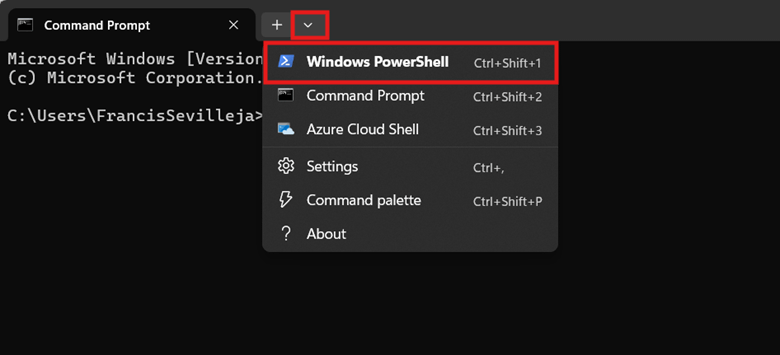
- Enter the command that best reflects the change you want to enforce:
- Input the command below to show Terminal in the Windows taskbar when minimized.
$settingsPath = "$env:LOCALAPPDATA\Packages\Microsoft.WindowsTerminal_8wekyb3d8bbwe\LocalState\settings.json" (Get-Content $settingsPath -Raw) -replace '"minimizeToNotificationArea"\s*:\s*(true|false)', '"minimizeToNotificationArea": false' | Set-Content $settingsPath
- Input the command below to hide the Terminal in the system tray:
$settingsPath = "$env:LOCALAPPDATA\Packages\Microsoft.WindowsTerminal_8wekyb3d8bbwe\LocalState\settings.json" (Get-Content $settingsPath -Raw) -replace '"minimizeToNotificationArea"\s*:\s*(true|false)', '"minimizeToNotificationArea": true' | Set-Content $settingsPath
- Once you’re done inputting the command, close the Terminal app.
💡 Note: Administrative privileges aren’t required if you’re applying this for your user profile. You’ll only need elevated permissions to deploy this as a script for another user’s profile.
⚠️ Things to look out for
| Risks | Potential Consequences | Reversals |
| Wrong edits in the JSON file | One mistake in editing the settings.json file can lead to errors, configuration failures, or corrupt the Terminal’s settings. | Before editing a JSON file, consider backing it up by creating a duplicate copy. It’s also a good rule of thumb to use JSON-specific editors like Notepad++ to maintain syntax accuracy when making changes. |
| Outdated Terminal app | Editing the “minimizeToNotificationArea” setting inside the Terminal’s JSON file won’t work for Windows Terminal version 1.16 or earlier. | Open a PowerShell prompt and enter Get-AppxPackage Microsoft.WindowsTerminal | Select Name, Version. Check if the resulting version equals or exceeds Terminal version 1.17. |
| Hidden Terminal icon in the system tray’s overflow menu | Windows may hide the Terminal icon behind the overflow menu, causing some users difficulty in finding the Terminal icon. | A workaround is to drag and drop the Terminal icon from the overflow menu to the visible part of the system tray. This pins it for persistent visibility every time it’s running in the background. |
| Restarting the Terminal app to save the changes | Sometimes, certain visibility settings don’t take full effect until the next restart of Windows Terminal. However, closing the Terminal will terminate in-progress sessions or scripts. | To avoid losing progress, save your work in the Terminal into script files like .ps1, .sh, or .cmd. This allows you to rerun tasks without having to retype everything. |
Considerations when managing the Terminal’s minimized state
When implementing changes to the minimized state of the Terminal app, it’s important to know how the Terminal can potentially behave under certain use cases. The following considerations highlight the nuances in how the Terminal can potentially interact with the system tray or taskbar.
Single icon for multiple Terminal sessions in the system tray
End users can see all the open sessions of Windows Terminal when it minimizes to the taskbar, which allows them to identify the contents of each open Terminal session at a glance. However, minimizing the Terminal app to the system tray only displays a singular icon for all open Terminal sessions.
If you open separate Terminal panes, they are all hosted within a single Terminal instance. That means only the unified Terminal window is represented in the system tray when you’re running multiple sessions. This can make navigation harder due to the lack of a window preview afforded by the taskbar.
Background session behavior
All Terminal tabs and sessions remain active when minimized to the tray, including the processes inside them, such as PowerShell scripts and persistent Secure Shell (SSH) sessions. In this light, the Terminal app continues to consume memory and CPU according to the resource demands of each minimized session.
Manage Terminal in the Windows taskbar to streamline CLI workflows
If you like keeping Terminal sessions accessible on the taskbar or prefer keeping your desktop clean, you’ve got options to manage the Terminal’s behavior. You can let it stay on the taskbar like a regular app or quietly minimize to the system tray while running in the background.
The quickest way to configure this is through the Terminal’s settings. The interface has a simple toggle that allows you to switch the Terminal’s minimize-to-tray behavior on or off. If you’d like to fine-tune things a bit more, you can make changes in the settings.json file.
Just keep in mind that this change applies on a per-user basis. There’s no dedicated setting available in the Group Policy to apply this change system-wide. If you’re making this change for multiple user accounts, use a PowerShell script.
Related topics: