
Key Points
- Manage Checkpoints with Hyper-V Manager: Use the GUI to right-click and delete specific snapshots or entire checkpoint subtrees to consolidate virtual machine data.
- Remove Checkpoints via PowerShell: Use the Remove-VMCheckpoint command for faster, scriptable management of single or multiple snapshots across the environment.
- Consolidate Data via the Merge Process: Understand that deleting a checkpoint triggers a background merge, merging .avhdx changes into the parent .vhdx disk without data loss.
- Optimize Storage and Performance: Regularly delete unused checkpoints to prevent excessive disk space consumption and maintain optimal virtual disk I/O performance.
- Perform Live Merges Safely: Delete checkpoints while the virtual machine is running using Hyper-V’s Live Merge feature (available in Windows Server 2016 and later), and confirm the host has enough free disk space to complete the AVHDX merge process.
Virtual machine checkpoints provide a snapshot of your configurations and act as a safety net during testing. While these are important in staging environments, knowing how to use Hyper-V to delete a checkpoint lets you manage saved states for increased performance.
Free up space and keep your host machine stable and efficient. This article explains how to remove a Hyper-V checkpoint, answers commonly asked questions, and provides key points.
📌 Recommended deployment strategies:
| Click to Choose a Method | 💻 Best for Individual Users | 💻💻💻 Best for Enterprises |
| Method 1: GUI | ✓ | |
| Method 2: PowerShell | ✓ | ✓ |
🎥 Check How to Delete Checkpoints for a Hyper-V Virtual Machine in Windows 11— a useful on-screen reference.
Easily automate the Hyper-V delete checkpoint process
These methods remove unwanted checkpoints from your virtual machine (VM). Certain limitations may require tailored solutions, so choose one that aligns with your organization’s needs.
📌 Prerequisites:
- Windows 11 Pro, Enterprise, or Education is required.
- Hyper-V must be enabled.
- Administrator privileges are required.
Method 1: Delete checkpoints using Hyper-V Manager (GUI)
Have granular control over how checkpoints are deleted with Microsoft’s Hyper-V Manager.
📌 Use case: Use this to delete specific checkpoints or entire subtrees.
- Press Win + R, type virtmgmt.msc, and press Enter.
- In the left-hand pane, select your virtual machine (e.g., “Windows 11 Home”).
- In the middle pane, right-click the checkpoint you want to delete.
- Select Delete Checkpoint to remove that specific snapshot.
- If you don’t see this option, left-click on the checkpoint and press Delete.
- Select Delete Checkpoint Subtree to remove the checkpoint and its descendants.
- Select Delete Checkpoint to remove that specific snapshot.
- Click Delete.
⚠️ CRITICAL NOTE: Monitor your Task Manager or Resource Monitor after deleting. If the VM is large, you will see heavy disk usage while the .avhdx file merges into the .vhdx. Do not restart the host computer until the status in Hyper-V Manager shows 100% complete.
🛑 | Easily create shortcuts to Hyper-V Manager for efficient system administration.
Read NinjaOne’s guide on how to add Hyper-V Manager to the Control Panel.
Method 2: Delete checkpoints using PowerShell
Delete checkpoints automatically across multiple VMs with PowerShell to streamline data management in Hyper-V.
📌 Use case: Use this to automate checkpoint removal using scripts.
- Press Win + R, type Powershell, and press Enter.
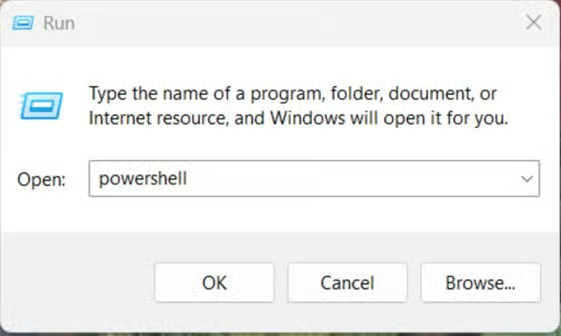
- Run this command to list available checkpoints within your VM:
Get-VMCheckpoint -VMName "<VM Name>"
Replace <VM Name>with the actual virtual machine’s name.
- Note the checkpoint’s name (e.g., Windows 11 Home – (6/23/2025 – 12:09:44 PM).
⚠️ Important: Use the checkpoint’s exact name for the “-Name” parameter. Use Get-VMCheckpoint to get the exact name.
- To delete all checkpoints on all VMs, run this command:
Remove-VMCheckpoint -VMName * -Name *
- To delete all checkpoints on a specific VM, run this command:
Remove-VMCheckpoint -VMName "<VM Name>" -Name *
Replace <VM Name>with the actual virtual machine’s name.
- To use Hyper-V to delete a checkpoint on a specific VM, run this command:
Remove-VMCheckpoint -VMName "<VM Name>" -Name "<Checkpoint Name>"
Replace <VM Name>with the actual virtual machine’s name and <Checkpoint Name>with the checkpoint’s name.
Before running a bulk delete, add -WhatIf to the end of your command. This will simulate the deletion and tell you exactly what would happen without actually removing anything: Get-VM | Remove-VMCheckpoint -WhatIf
⚠️ Things to look out for
This section highlights potential challenges and considerations to keep in mind while following this guide.
| Risks | Potential consequences | Reversals |
| Delete a checkpoint that the VM depends on | Merge failures and corrupted data |
|
| Insufficient disk space | Slow/disrupted merge process | Free up space to accommodate all of your checkpoint files. |
Additional considerations when removing a Hyper-V checkpoint
Understanding how Hyper-V uses checkpoints can aid in future troubleshooting efforts. Make sure you review these key points before deploying changes.
AVHDX merge behavior triggers in Hyper-V when you delete a checkpoint
A Hyper-V checkpoint creates an AVHDX file, which “captures” the changes made to the parent Virtual Hard Disk (VHDX). When a checkpoint is deleted, Hyper-V merges the AVHDX with the VHDX (or another capture file if it’s part of a chain).
This process consolidates your changes and loads the VM’s latest version. However, its speed depends on the ADHDX file size and your storage performance. Additionally, you may delete checkpoints when running Virtual Machines.
Live Merge support
Live Merge allows you to delete checkpoints while the VM is running. The feature was introduced in Windows Server 2016 and is intended to reduce downtime, especially in production environments.
Storage management
Merging multiple large checkpoints requires sufficient free disk space to accommodate the consolidation process. For a seamless merge, go to your VM’s folder and make sure you have more space than all of your AVHDX files combined.
Dependencies
Third-party backup software or replication tools can create VM checkpoints. Removing these without knowing their origin can disrupt backup chains or produce conflicting dependencies. Always check with your backup solutions before deleting important checkpoints.
Naming best practices
Be descriptive when you’re naming your checkpoints. If possible, include the save state’s purpose for easier recall. Doing so will also remind you to delete any lingering snapshots that are irrelevant or old.
| Feature | Production Checkpoint (Default) | Standard Checkpoint |
| Technology | Uses VSS (Backup technology) | Uses saved state (Memory snapshot) |
| Consistency | Data-consistent (Best for apps) | State-consistent (Includes RAM) |
| Recovery | Like restoring a backup | Like resuming from “Sleep” mode |
Is your merge stuck at 99%? This is usually a visual bug. The system is performing the final file swap. If it stays there for more than 30 minutes, check the Event Viewer under Applications and Services Logs > Microsoft > Windows > Hyper-V-VMMS for specific error codes.
Using Hyper-V to delete a checkpoint optimizes your VMware workflow
Knowing how to remove a Hyper-V checkpoint lets you be efficient with VM memory usage. While save states help maintain data consistency while you work in virtualized environments, remember that good performance is key to operational efficiency.
Patch management deals with plenty of factors, prompting more time-consuming tests that can hinder production. Consider centralized solutions that help optimize your workflow and make VMware monitoring a breeze.
Related topics:






