


Key Points
Configuring svchost.exe Split Threshold in Windows 10/11
- Adjust the SvcHostSplitThresholdInKB DWORD in the registry (HKLM\System\CurrentControlSet\Control) to a value slightly higher than your total RAM (in KB) to force one service per svchost.exe.
- Windows 10 Creators Update (build 14942) automatically splits svchost.exe when the system has ≥ 3.5 GB RAM, resulting in many visible processes.
- Most users don’t need to tweak this setting because Windows already balances performance and resource consumption for typical hardware configurations.
This tutorial provides step-by-step instructions to change the split threshold for svchost.exe in Microsoft Windows 10 and Windows 11. It also includes an explanation of what svchost.exe does, the split threshold, and why you may want to adjust it.
Use the Registry Editor to split the threshold for svchost.exe
Before attempting to make changes to the Windows Registry, ensure that you back up your Windows Registry data and create a full system backup, allowing you to restore your system to its previous state.
Once you’re set, follow the steps below to change the svchost.exe split threshold in Windows 10 or Windows 11.
- Open the Windows Registry Editor
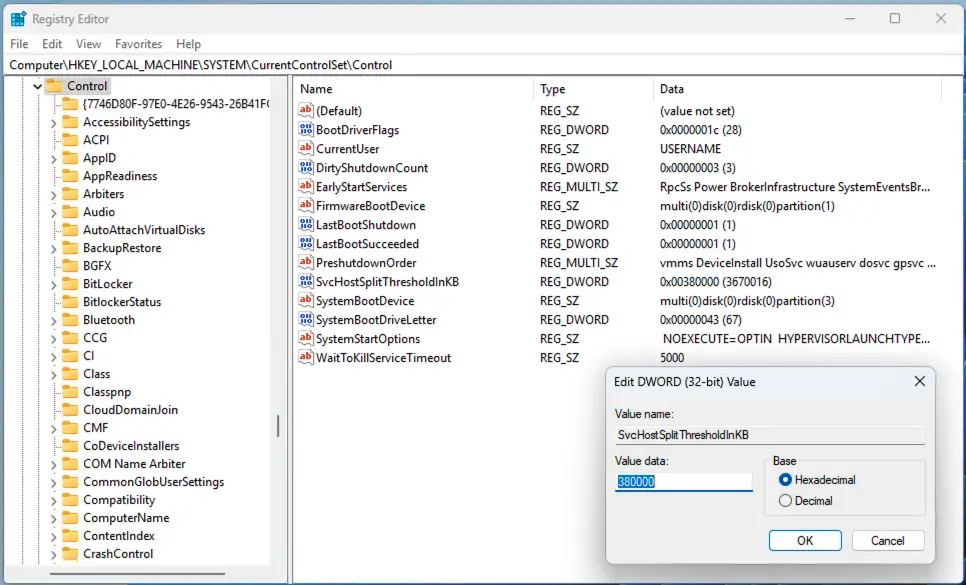
- Navigate to the registry path:
Computer\HKEY_LOCAL_MACHINE\SYSTEM\CurrentControlSet\Control
- Update the value of the SvcHostSplitThresholdInKB DWORD by double-clicking it, updating the Value Data, and pressing OK. Ensure that you do not include commas in the Value Data; only use numeric characters.
- Restart your PC to apply changes.
You can also watch How to Change the svchost.exe Split Threshold for a video demonstration of this guide.
Set the split threshold so each svchost.exe runs a single service
To set the split threshold so that each svchost.exe process only runs one service (excluding hard-coded grouping), set the value of SvcHostSplitThresholdInKB slightly higher than the amount of RAM your system has.
You can convert GB to KB using the formula [Your System RAM in GB] * 1024 (convert GB to MB) * 1024 (convert MB to KB). For example, on a Windows PC with 8GB of RAM, you would use: 8GB * 1,024 * 1,024 = 8,388,608KB to get the correct value.
Finally, round up to ensure the split threshold is higher than the amount of physical memory, giving a value of 8,400,000.
Manage and backup your Windows systems from a single console with NinjaOne.
Troubleshooting svchost.exe split threshold
There are risks involved in changing the split threshold for svchost.exe: modifying the threshold from the default can increase resource usage and impact performance, or cause stability issues in the system.
You can monitor how svchost.exe is behaving using the Windows Task Manager and Resource Monitor. The Sysinternals Process Explorer can also be downloaded for an even more detailed look at running processes.
If you notice system instability following your changes, restore the SvcHostSplitThresholdInKB value to its default of 380000. If you are unable to do so, you may need to restore from a backup taken before the change was made.
What is svchost.exe, and the split threshold?
The Service Host executable or svchost.exe allows multiple services to run (in the background) under a shared svchost.exe process, with the goal of reducing their collective resource consumption (i.e., RAM and CPU usage).
In short, svchost.exe ‘hosts’ multiple other Windows services under its process. This was originally done to optimize performance on Windows PCs with 64 MB to 256 MB of RAM. Modern PCs have upwards of 4GB of RAM, making the need for this optimization largely unnecessary.
When svchost.exe groups processes, it may appear that a single svchost.exe process has unusually high CPU or memory usage, leading users to think that the process itself is malware or is malfunctioning. Additionally, if one service running under a svchost.exe process crashes, the entire process crashes along with other services running within it. This can also lead users to mistakenly think svchost.exe itself is the cause of system instability.
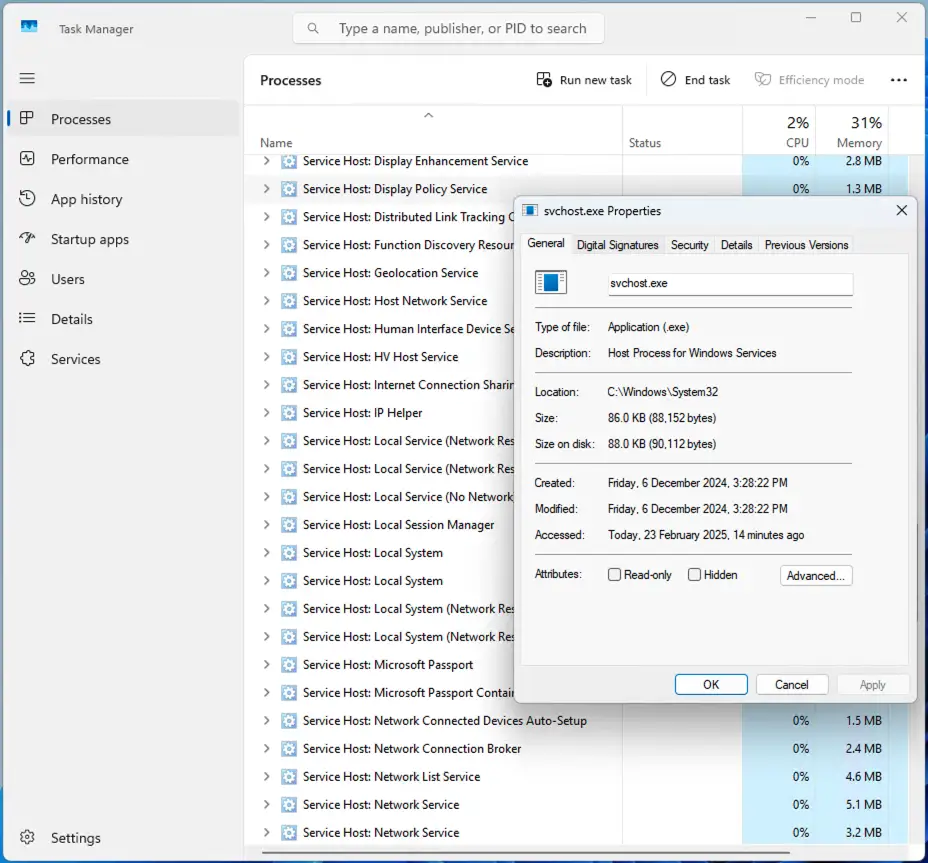
Due to these issues, and as modern PCs usually have lots of free memory available, it now makes more sense to group as few services as possible in a single svchost.exe process (ideally, just one service). This is the default behavior on systems with more than 3.5GB of RAM in Windows 10 1703 and later. This can result in multiple svchost.exe processes being shown in the Windows Task Manager.
The split threshold is the setting that controls this behavior. It allows you to override when Windows places multiple running services under a single svchost.exe process.
Why modify the split threshold?
Generally, users don’t need to adjust the split threshold, as devices now typically ship with ample memory and are optimized for optimal general performance. However, power users may want to make changes for the following reasons:
- Forcing a single service for each svchost.exe process to improve stability.
- Reducing resource usage by consolidating services.
- Troubleshooting by ensuring processes are not grouped, allowing each service to be assessed more easily.
In these cases, the split threshold can be optimized to isolate services for better stability, consolidate processes to save resources, or simplify troubleshooting.
Take control of your Windows devices with NinjaOne Endpoint Management.
Control how services split across svchost.exe for stability and resource efficiency. Watch How to Change the svchost.exe Split Threshold.
Optimizing fleets of Windows devices in enterprise and education environments
Tweaking the performance of Windows devices using the registry makes sense for enthusiasts working from home, but is not suitable for maintaining and optimizing large numbers of PCs in enterprise and education environments.
Remote monitoring and management (RMM) by NinjaOne gives you oversight over your entire IT infrastructure, including end-user devices and servers. This allows you to monitor for performance issues (including high CPU and RAM usage by svchost.exe processes), and pre-empt problems before they affect your operations and staff productivity. NinjaOne can also automate patching and ensure configuration updates are smoothly deployed to all of your Windows, Apple, Android, and Linux devices.
Related topics:






