
Key Points
- Inventory every Shared Drive and rank it by risk, since team ownership, limited deletion recovery, and compliance retention needs create backup gaps.
- Set retention periods, version limits, then choose backup frequency and scope, including immutable backups for ransomware recovery.
- Define restore granularity, recovery time, and data loss limits, and quarterly restore tests, then map policies to compliance frameworks.
- NinjaOne SaaS Backup supports automatic Shared Drive backups, monitors failures through dashboards and alerts, and restores data by backup date.
Google Workspace Shared Drives make collaboration between multiple parties easy. However, they also introduce specific risks, such as:
- Ownership risks: Files belong to the team, not an individual, making recovery more complex.
- Deletion risks: If a member with elevated rights deletes content, recovery windows are limited.
- Compliance risks: Certain industries require retention beyond Google’s default policies.
Without clearly defined backup requirements, managed service providers (MSPs) risk data gaps, compliance failures, and client dissatisfaction.
Defining these Google Workspace requirements allows you to establish consistent retention and recovery standards and avoid blind spots in backup coverage. Communicating expectations during onboarding and Quarterly Business Reviews (QBRs) also keeps clients aligned and supports the creation of compliance-ready documentation for audits.
Automate backups and policy deployment with NinjaOne
Find out how NinjaOne Backup can automate backup workflows in a free demo
Best practices for backing up Google Shared Drives
Prerequisites:
- You need access to the Google Admin Console (Drive and Vault, if licensed).
- You must have a list of Shared Drives, owners, and membership groups.
- You must know your organization’s industry-specific compliance requirements, such as the Health Insurance Portability and Accountability Act (HIPAA), General Data Protection Regulation (GDPR), and the Sarbanes-Oxley Act (SOX).
- You should have clearly defined Recovery Point Objectives (RPOs) and Recovery Time Objectives (RTOs).
- You need a backup policy documentation repository (SharePoint, IT Glue, or NinjaOne Documentation).
Step 1: Assess Shared Drive usage and risk profile
Make an inventory of all your Shared Drives and, their sizes. Plus, how much data you’re hosting in each one. Map drive usage to different categories. For example, files for critical business operations or interdepartmental collaboration. You should also identify high-risk categories. This usually applies to departments that hold sensitive information, such as finance, legal, and HR. The expected deliverable for this step is a CSV file containing a Shared Drive risk assessment inventory.
Step 2: Define retention and versioning requirements
Determine how long a file must be retained per your organization’s policies. Does it need to stay for 30 days, 7 years, or even longer to meet regulatory compliance requirements? This will play a significant role in your backup requirements and how you implement them.
You should also set rules for file versioning. Do you want a backup of all versions or just of the previous 10? Do you need to keep track of the metadata as well?
Finally, plan for different scenarios such as accidental deletion or a legal hold. Once done, you should map all these rules to Google Vault retention policies when applicable. The expected deliverable for this step is a retention matrix for Shared Drives. Make sure to organize this by department and function, taking all these questions into account.
Step 3: Establish backup frequency and scope
You have to define how often you back up your data. For example, it can be daily for routine data and hourly for critical workloads. You should also specify the scope of backups. Will you back up the entire drive, specific folders, or just the metadata? Refer to your organization’s policies to ensure you comply with all requirements.
You should also plan for different scenarios. What are you going to do in the event of a ransomware attack? Do your current backup plans include immutable backups? The expected deliverable for this step is a Shared Drive backup schedule. It should align with business-critical needs and comply with your organization’s policies and regulatory requirements.
Step 4: Determine restore and recovery requirements
Now that you’ve defined when you back up your organization’s data, you need to define when and under which conditions backups will be used for restoration and recovery. The first thing you must determine is the restoration granularity, which refers to the amount of data you will restore in the event of data loss. Will you just recover one file? A folder? Or will you restore the whole drive? And what are the requirements for each scenario?
You must also establish RTOs based on business expectations. For example, finance-related files might need to be restored within 4 hours, with a defined limit on acceptable data loss. Finally, document an acceptable testing frequency for restores; quarterly is recommended. The expected deliverable for this step is a recovery plan that specifies the RTO and RPO for Shared Drives.
Step 5: Align with compliance and audit readiness
Map your Shared Drive backup policies to the compliance frameworks your organization must follow (HIPAA, GDPR, ISO 27001). For transparent record-keeping, you should also document access logs and retention enforcement for audits.
Include these requirements in client-facing agreements to set clear expectations. The expected deliverable for this step is a compliance-ready Shared Drive backup policy documentation.
Record backup polices and other essential knowledge with NinjaOne Documentation
Learn how NinjaOne Documentation can boost IT efficiency in a free trial
Best practices summary table for implementing Google Shared Drive backups
| Component | Purpose and Value |
| Risk assessment | Identifies which Shared Drive will need stricter backup controls |
| Retention rules | Supports compliance and business continuity |
| Backup frequency | Balances performance, cost, and recovery needs |
| Recovery requirements | Defines expectations for downtime and data loss |
| Compliance alignment | Maps backup policies to required frameworks and keeps documentation audit-ready |
NinjaOne integrations for defining backup requirements for Google Workspace Shared Drives
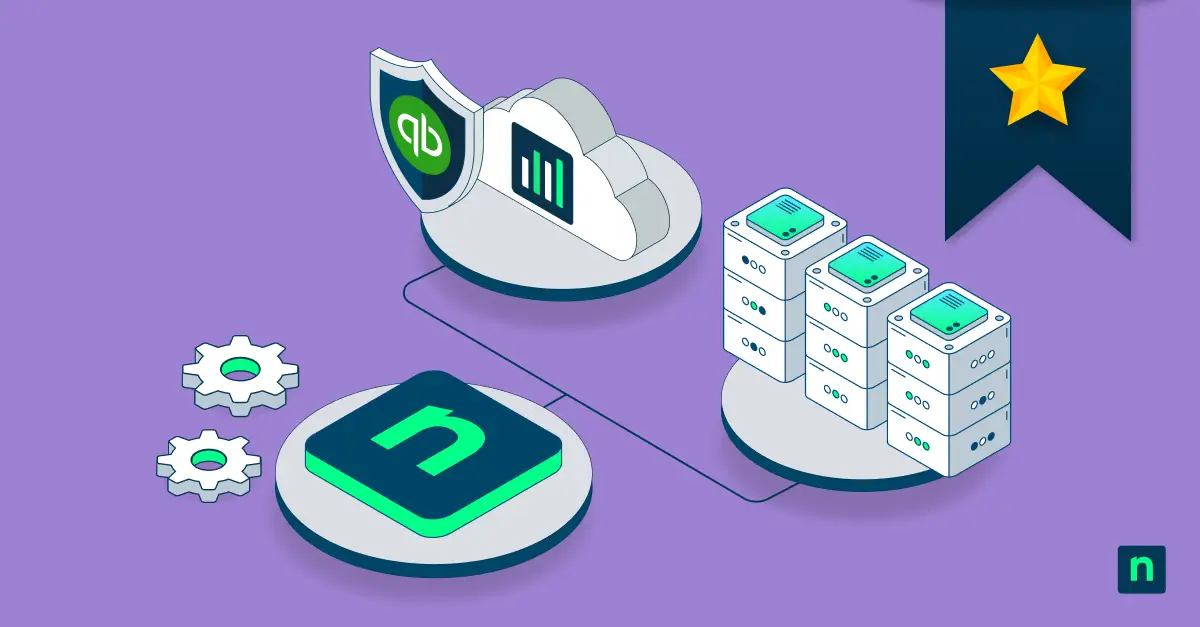
NinjaOne SaaS Backup can support Shared Drive backup planning by:
- Defining and managing policy-based Shared Drive backup configurations.
- Scheduling automated backups and monitoring policy status through reports and dashboards.
- Alerting and reporting when Shared Drive backups fail or do not meet defined policies.
- Integrating backup policy documentation with NinjaOne Documentation or other client management tools.
Quick-Start Guide
Backup Requirements for Google Workspace Shared Drives
Enable AutoDiscover:
– New Backup: Navigate to the organization, click Add Backup, Sign in with Google Workspace, install the app, and authenticate.
– Existing Backup: Re-authenticate to activate filters.
Apply Filters:
– On the Google Workspace page, click Edit under Filter Accounts, select Groups/OUs, and confirm.
Exclude Shared Drives:
– In the End-User Portal, click +Add Backup, select the tenant, exclude the account, and confirm.
Restore Data:
– In the Dashboard, go to the Shared Drive tab, hover over the drive, click Restore, and configure options (Backup Date, Destination, Default Folder, Advanced Options).
Download Data:
– In the Dashboard, go to the Shared Drive tab, hover over the drive, click Download, select the Backup Date, and confirm.
These steps will help you define and manage backups for Google Workspace Shared Drives with NinjaOne.
Standardize Google Shared Drive backup requirements
Google Workspace Shared Drives are essential collaboration tools. But you need to have defined backup requirements. Otherwise, you may leave clients vulnerable to compliance gaps and data loss. By establishing retention, recovery, and compliance-focused requirements, MSPs can ensure Shared Drive data is secure and resilient.
Related Links: