


Key Points
- Windows 11 allows toggling the read-only attribute through File Explorer; adding a read-only context menu option provides a more accessible option.
- You can add a Set Read Only context menu option to enable quicker attribute changes by modifying the classic shell registry keys.
- Creating a complementary Clear Read Only entry ensures users can remove the read-only attribute easily through the context menu.
- Users can access the read-only context menu option by pressing “Show more options” or by setting the classic context menu as the default.
- Leveraging the attrib commands along with wildcard matching allows techs to deploy read-only attributes through scripts, RMM, and deployment platforms.
- Validating that the Set Read Only and Clear Read Only actions work correctly ensures predictable attribute behavior and supports reliable deployment across endpoints.
The read-only file and folder attribute offers low-risk file protection controls that can be useful in various use cases. For instance, this attribute offers protection from accidental changes, which is essential when reviewing logs, configuration files, or scripts.
Although the read-only attribute is useful for both everyday users and technicians alike, it’s not enabled by default. If you want to enable this feature, read on. This guide explains how to add a read-only context menu option that Windows 11 users can use for quick file protection.
Ways to add or remove read-only in the context menu window
By default, the read-only attribute checkbox is located inside the File Explorer Properties dialog. However, some users prefer a more straightforward access to this attribute for a smoother workflow experience.
There are multiple methods that you can leverage to add the read-only option to your Windows context menu. But before proceeding, ensure that you meet the following prerequisites for a smooth configuration experience:
- Windows 11 endpoint
- Administrative privileges for context menu registration and registry access
- Basic understanding of attrib commands
- Familiarity with Windows 11 classic and compact context menus
- Optional: RMM, GPO, or scripting platform for deployment
📌 Recommended deployment strategies:
Method 1: Use the File Explorer Properties to toggle the read-only attribute
The Windows Explorer Properties offers a simple, scriptless way to toggle the read-only attribute with just a click. This method is the manual, default way to enable the read-only attribute for specific folders or files.
- Right-click any file, then select Properties.
- Under the General tab, look for Attributes, then mark the checkbox beside Read-only.
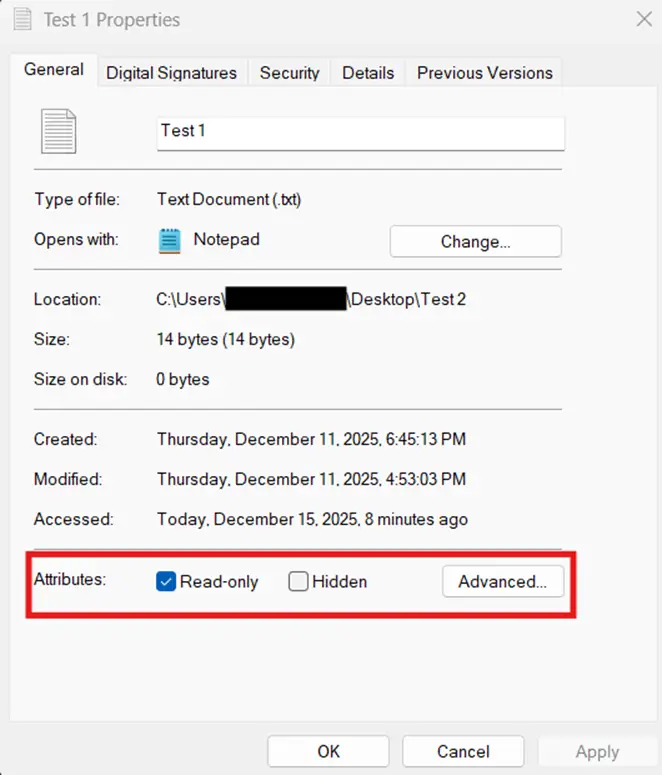
- Alternatively, unmark the checkbox to disable the read-only attribute.
- When applying read-only as a baseline for a folder, choose whether to apply the change to all files inside.
- Setting Read-only to – allows you to apply custom read-only attributes to specific folder contents.

- Mark the checkbox beside Read-only to apply the attribute to all folder contents.

- Unmark the checkbox to disable the attribute for the folder.

- Afterward, select Apply to save the change.
Method 2: Add a read-only option to the Windows 11 classic context menu
Rather than toggling the Read-only attribute file by file, some users prefer a faster option through the context menu. This reduces the need to navigate the Windows Explorer’s File Properties menu, streamlining read-only workflows through a few clicks.
📌 Prerequisite: Create a Windows Registry backup before proceeding.
- Press Win + R, type regedit, then press Ctrl + Shift + Enter.
- Go to HKEY_CLASSES_ROOT/*/shell, right-click shell, then select New > Key.
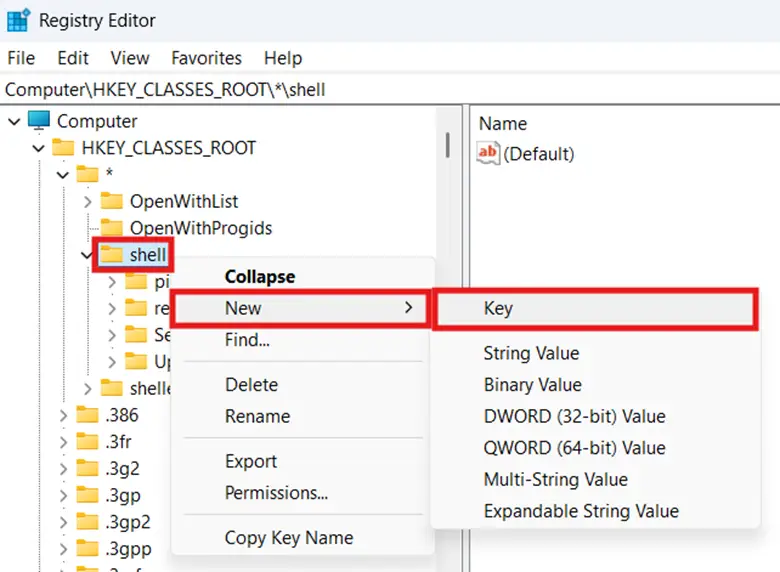
- Name the newly created key SetReadOnly, and set its default value to Set Read Only.

- Under SetReadOnly, create a subkey and name it command, then set its default value to cmd /c attrib +r “%1” /s /d.
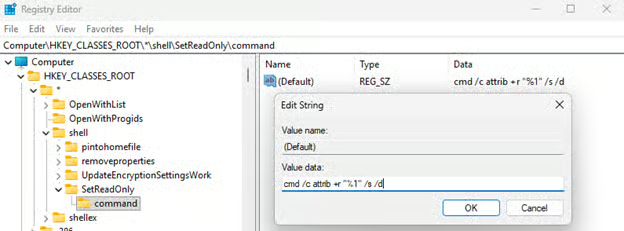
- Afterward, go to HKEY_CLASSES_ROOT\Directory\shell, then recreate the SetReadOnly key and command subkey and their associated default value.
- Close the Registry Editor, right-click a file or folder, select Show more options, then select Set Read Only.
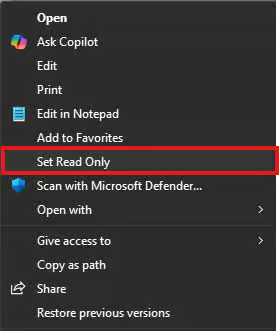
Method 3: Add a Clear Read-Only option in your Windows 11 context menu
After enabling the read-only option in your context menu, the next step is to add a complementary clear read-only option. This method ensures that you can reverse the attribute with the same convenience as adding it.
📌 Prerequisite: Create a Windows Registry backup before following the steps below.
- Run the Windows Registry as an administrator.
- Navigate to HKEY_CLASSES_ROOT\*\shell, right-click shell, and select New > Key.
- Name the key ClearReadOnly and set its default value to Clear Read Only.
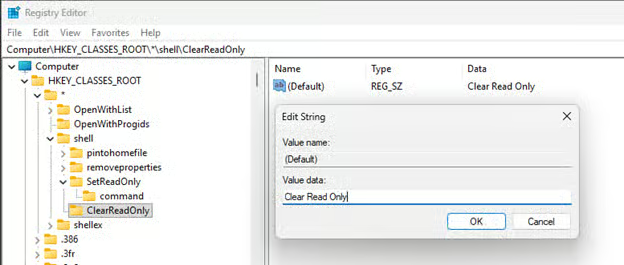
- Under ClearReadOnly, create a command subkey, then set its default value to attrib -r “%1”.

- Go to HKEY_CLASSES_ROOT\Directory\Shell, recreate the ClearReadOnly and command subkeys and their associated default values.
- Restart the File Explorer via Task Manager to apply the changes.
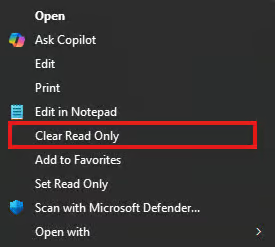
- Right-click a file or folder, select Show more options, then check if the Clear Read Only option is available.
Method 4: Accessing the Windows 11 context menu’s Show more options
In Windows 11, both the read-only and clear read-only options are hidden behind the context menu’s Show more options submenu. Because Read-only entries are within the classic shell registry paths, they will not appear in the modern context menu without further customization.
Do the following to access the Show more options:
- Right-click on a folder or a file to open the Windows 11 context menu.
- Select Show more options to open the classic, full-sized context menu.
💡 Tip: Alternatively, you can instead press Shift + Right-click on a folder or file to open the classic context menu directly.
Set the classic context menu as the default via the Windows 11 Registry Editor
If you prefer the classic context menu, a quick registry change can set it as the default:
- Open the Registry Editor as an administrator, then go to HKEY_CURRENT_USER\Software\Classes\CLSID.
- Right-click the CLSID key, choose New > Key, and name it {86ca1aa0-34aa-4e8b-a509-50c905bae2a2}.
- Right-click the newly-created subkey, select New > Key, then name it InprocServer32.
- Leave the default value data blank and then restart the Windows Explorer.
💡 Note: This change sets the classic context menu as the default on a per-user basis.
Method 5: Manage read-only attributes via command line or scripts
When handling bulk operations, manually toggling the read-only attribute file by file across multiple endpoints and environments can prove too tedious and repetitive. By leveraging scripts and deployment platforms like an RMM, you can automate toggling the read-only attribute centrally and at scale.
- Open an elevated Command Prompt.
- Execute attrib +r “path\file” to apply read-only to a file or folder.
:: Example command for a file
attrib +r "file.txt"
:: Example command for a folder
Attrib +r "C:\Users\USERNAME\Desktop\Test"
- Run attrib -r “path\file” to remove the read-only attribute for a file or folder.
:: Example command for a file
attrib -r "file.txt"
:: Example command for a folder
Attrib -r "C:\Users\USERNAME\Desktop\Test"
- Consider using wildcard handling matching for bulk operations, for example:
- attrib -r *.*: Removes read-only from all files in the folder.
- attrib +r *.txt: Apply read-only to all text files.
- attrib -r Report*.pdf: Remove read-only from any PDF starting with Report.
- Use deployment tools or scheduled tasks to deploy scripts across environments.
- Verify the success of the change by using the attrib command.
:: Example verification command
attrib "C:\Users\USERNAME\Desktop\Test\example.txt"
- If the output displays R, the read-only attribute is applied.
- If R is missing, then the file is not read-only.
Method 6: Validate the system’s read-only and clear read-only behavior
After adding or removing the read-only option from the context menu, it’s essential to verify that the feature functions as intended. This method validates the reliability of both options, a crucial step before implementing these changes in daily workflows or large-scale deployments.
- Right-click a file or folder, select Show more options, and verify if both read-only and clear read-only options appear.
- Test Set Read Only on a file or folder, then verify the change via Properties.
- Test Clear Read Only and confirm whether it removes the read-only attribute.
- Modify and save a read-only file to ensure the change works as expected.
- Document outcomes to support future audits and reviews.
⚠️ Things to look out for
Issues can unexpectedly arise when adding or removing both the Set Read Only and Clear Read Only context menu options. The following table outlines the most common pitfalls when making the change, their impact, and how to fix them.
| Risks | Potential Consequences | Reversals |
| Making changes in the wrong Registry path. | Adding the read-only registry keys in the incorrect Registry path causes the change to fail silently. | Confirm that the new Registry entries exist within the correct classic menu shell locations as specified in methods 2 and 3. |
| The attrib command fails when executed. | Typos, incorrect filenames, non-existing paths, or misplaced quotation marks can cause the script to fail. | Ensure all paths are enclosed in quotes and verify if your target file exists and is not locked by another app. |
| Windows 11 hides both Set Read Only and Clear Read Only options by default. | Users may incorrectly assume that the changes they made were not effective. | Within the modern context menu, select Show more options to find both options. |
| Inconsistent folder attribute behavior. | The files inside folders may not inherit the expected file attributes. | Use the attrib command in CMD to verify file-level attributes as outlined in Method 5. |
| Scripts are not applying attributes. | This can cause inconsistent attribute behavior across an environment or lead to failed deployments. | Check the file or folder’s NTFS permissions and ensure the script runs under an account that has write privileges. |
Add read-only in the Windows 11 context menu for easier access
Integrating a read-only option into the context menu offers a streamlined way for users and technicians to manage file attributes. Windows 11’s classic shell registry makes it possible to add and maintain these custom entries with minimal configuration.
Leveraging scripts and pairing them with a deployment platform, such as NinjaOne’s Remote Script Deployment, enables the deployment of configurations at scale. With proper validation, you can ensure the read-only attribute behaves reliably and applies consistently across users.
Related topics:






