Remote file transfer with NinjaOne Remote
NinjaOne Remote lets IT teams and MSPs send and receive files during remote sessions using drag-and-drop, clipboard sync, or a dedicated transfer window.
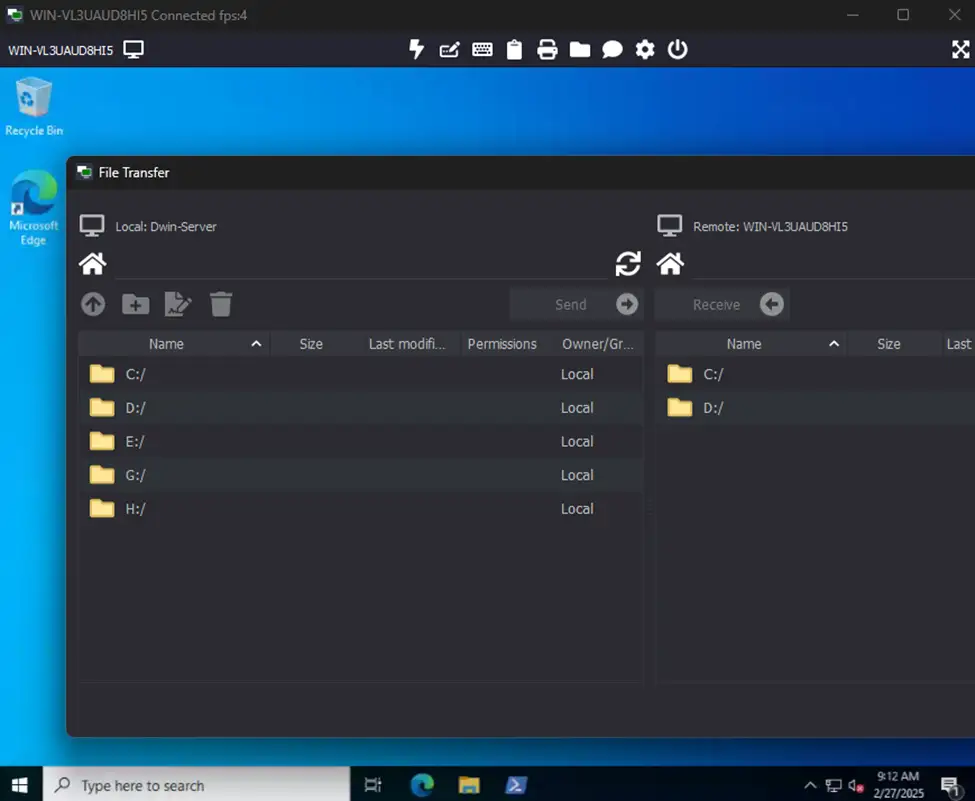
NinjaOne Remote lets IT teams and MSPs send and receive files during remote sessions using drag-and-drop, clipboard sync, or a dedicated transfer window.






IT teams and MSPs need reliable ways to move files during remote support without switching tools or losing control over what is transferred. NinjaOne Remote brings file transfer directly into remote sessions.
| Problem | How NinjaOne Remote addresses it |
Moving files during remote support requires switching to another tool. | NinjaOne Remote lets technicians transfer files directly within the remote session using drag-and-drop, clipboard sync, or a dedicated transfer window. |
Large file transfers can affect remote session responsiveness. | NinjaOne Remote prioritizes available bandwidth for the transfer and pauses session input until the transfer completes. |
IT teams need control over what can move between devices. | NinjaOne Remote provides clipboard controls that let administrators turn clipboard synchronization on or off and clear the clipboard when a session ends. |
NinjaOne Remote helps IT teams and MSPs move files during remote sessions without relying on separate file-sharing tools, providing multiple transfer methods and controls within the remote support workflow.
Move logs, scripts, installers, and other files directly during remote sessions to support troubleshooting and maintenance.
Use drag-and-drop, clipboard synchronization, or the dedicated file transfer window to move files between local and remote devices.
NinjaOne Remote prioritizes available session bandwidth for file transfers and pauses session input until the transfer completes.
Clipboard settings let teams enable or disable synchronization and clear clipboard contents when a remote session ends.
NinjaOne Remote provides built-in file transfer capabilities that help technicians move files between local and remote devices without leaving the remote session.

Technicians can drag and drop files between local and remote devices during a NinjaOne Remote session, providing a direct way to transfer files without leaving the session.

NinjaOne Remote provides a dedicated file transfer window with local and remote file explorer views, allowing technicians to browse both file systems and transfer files between them.

Technicians can copy and paste files between local and remote devices using clipboard synchronization. NinjaOne Remote provides settings to enable or disable clipboard synchronization and clear the clipboard when a session ends.

During a file transfer, NinjaOne Remote directs available session bandwidth to the transfer and pauses session input until the transfer completes.
NinjaOne Remote helps IT teams and MSPs transfer files directly during remote sessions to support common troubleshooting, maintenance, and endpoint support workflows.
Technicians can retrieve logs or other files from a remote device for troubleshooting and send scripts, installers, or supporting files needed to resolve an issue.
IT teams can transfer files needed for software installation, configuration, or other maintenance activities without using a separate file-sharing tool.
MSPs can transfer files during NinjaOne Remote sessions when supporting devices across customer environments, keeping file transfer within the same remote support workflow.
100,000
Endpoints managed
“NinjaOne is a scalable solution. It’s built on a modern SaaS architecture and it’s future-proof.”
40%
More Cost Effective
“NinjaOne’s price point is 40% less than any other endpoint management tool on the market, while being more powerful and easy to use.”

10-15
Tools Replaced
“Before, I needed 10-15 different tools to execute what NinjaOne does in its centralized, single pane of glass.”

30%
Less time for patching
“We observed a 30% reduction in the time taken for patch deployments compared to our previous solution.”

2,000
Endpoints managed
“NinjaOne gives me much more flexibility and security in my work”

30%
Annual ROI
“[NinjaOne] has already shown its value in ROI…it’s at least a hundred thousand dollars annually.”

24x
Faster Endpoint Management
“Our processes have become 24x faster with NinjaOne.”

20-40
Hours Saved Each Week
“Leveraging the automations feature within NinjaOne has enabled me to save upwards of what would likely be 20 to 30 to even 40 hours per week.”

Launch a NinjaOne Remote session from a managed device in the NinjaOne console.
Drag and drop a file directly from your local computer to the remote device, copy and paste it, or open the dedicated file transfer window.
Send files from your local computer to the remote device or retrieve files from the remote device to your computer during the active session.
Once the file transfer is complete, continue troubleshooting or supporting the remote device within the same NinjaOne Remote session.
ERGOS Technology Partners uses NinjaOne Remote to perform more support activities remotely, helping reduce situations where technicians need to be dispatched onsite.
“With NinjaOne Remote, we can do far more remotely and only send someone on-site when absolutely critical.”
Chris Amalfi VP of Operations, ERGOS Technology Partners
Source: NinjaOne customer story – Ergos
Move files between local and remote devices using built-in file transfer capabilities within NinjaOne Remote sessions.
NinjaOne Remote file transfer lets technicians send files to and receive files from a remote device during a remote session. Technicians can use drag-and-drop, clipboard synchronization, or a dedicated file transfer window.
Connect to a device with NinjaOne Remote, then drag and drop files between the local and remote devices, use copy and paste, or open the dedicated file transfer window. File transfer is built directly into the NinjaOne Remote session.
File transfers take place within the encrypted NinjaOne Remote session, and access follows role-based permissions. This keeps file transfer within the same secured remote support environment rather than requiring a separate file-sharing tool.
NinjaOne Remote directs available session bandwidth to the file transfer and pauses session input until the transfer is complete. This behavior applies to transfers performed through the file transfer window and drag-and-drop.
Technicians can send files from their local computer to the remote device and retrieve files from the remote device during a NinjaOne Remote session.
Take direct control of remote IT assets for complex remediation with NinjaOne integrated remote access software for Mac and Windows. Access with a single click.

Learn how to connect to a remote device securely and access managed endpoints for troubleshooting and support.
Read some list of questions about NinjaOne Remote that are commonly asked by customers, and the answers provided by our support team.
Learn how the remote file browser works and how to view, manage, and transfer files on devices without a live session.