

The File Explorer’s Home button provides quick access to frequently accessed folders, recommended documents, and recently opened files. Users can toggle the Home page by managing the “Show Home” option; however, this isn’t always present in Folder Options.
This guide will show you ways to make the “Show Home” option visible for all users. Additionally, we’ll discuss how to verify the configuration, key considerations, and solutions to common issues.
The “Show Home” option allows users to toggle Home in the File Explorer’s navigation pane. With one click, users can customize the File Explorer for quick file access or simpler navigation. This improves the navigation experience and boosts productivity by streamlining the File Explorer’s UI to match user preferences.
📌 Prerequisites:
- Admin privileges
- Windows 11 PC
📌 Recommended deployment strategies:
Click to Choose a Method | 💻 Best for Individual Users | 💻💻💻 Best for Enterprises |
| Method 1: Add the “Show Home” option in File Explorer through the Registry | ✓ | |
| Method 2: Automate “Show Home” configurations using PowerShell scripts | ✓ | |
| Method 3: Make the “Show Home” option visible via the Local Group Policy | ✓ | ✓ |
🎥 Catch the video and see Ways to add “Show Home” to the File Explorer’s Folder Options.
Method 1: Add the “Show Home” option in File Explorer through the Registry
The Registry allows enforcement of system-wide changes, ensuring consistent settings for non-domain machines, especially those running Windows 11 Home editions.
⚠️ Warning: Changes in the Registry apply instantly, and misconfigurations can significantly impact system functionality and stability. (See ⚠️ Things to look out for.)
📌 Use Case: Administrators can ensure consistent visibility of Show Home for all users on devices with no Local Group Policy support.
📌 Prerequisite: Windows Registry backup.
- Press Win + R, type regedit, then press Ctrl + Shift + Enter.
- Navigate the following path: HKEY_LOCAL_MACHINE\SOFTWARE\Microsoft\Windows\CurrentVersion\Explorer\Advanced\NavPane
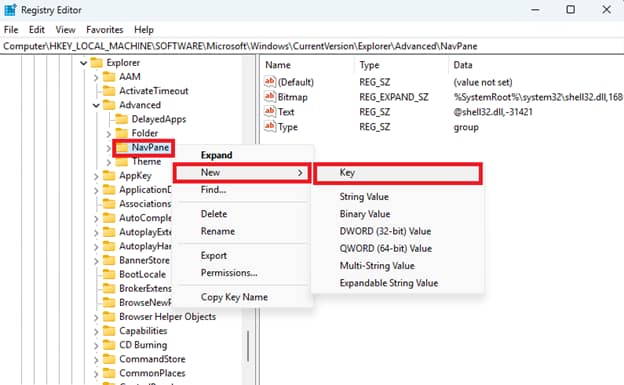
- Right-click NavPane, select New > Key, and name it ShowHome.
- Right-click ShowHome, select New > DWORD (32-bit) value, and create the following values one by one:
DWORD value name Value data CheckedValue 1 DefaultValue 1 HKeyRoot 0x80000001 Id 13 Type checkbox UncheckedValue 0 - Right-click ShowHome, select New > String value, and create the following values one by one:
String value name
Value data
RegPath Software\Classes\CLSID\{f874310e-b6b7-47dc-bc84-b9e6b38f5903} Text Show Home ValueName System.IsPinnedToNameSpaceTree - Close the Registry Editor and restart your device to apply the changes.
- Alternatively, you can restart Windows Explorer to avoid device reboots.
Method 2: Automate “Show Home” configurations using PowerShell scripts
Manually editing the Registry becomes more difficult and error-prone as you implement it for multiple endpoints. A workaround to automate Registry configurations is by scripting changes using PowerShell.
⚠️ Important: It’s crucial to execute the scripts outlined in this section exactly as written to avoid errors and misconfigurations. (See ⚠️ Things to look out for.)
📌 Use Case: Leverage PowerShell scripts to automate Registry changes across non-domain endpoints, ensuring consistent configurations while minimizing the risk of errors.
📌 Prerequisite: Windows Registry backup.
- Press Win + R, type PowerShell, and press Ctrl + Shift + Enter.
- Execute the following commands:
| $path = “HKLM:\SOFTWARE\Microsoft\Windows\CurrentVersion\Explorer\Advanced\NavPane\ShowHome” New-Item -Path $path -Force New-ItemProperty -Path $path -Name “CheckedValue” -PropertyType DWord -Value 1 -Force |
- Close PowerShell and restart your device to apply the configuration.
Method 3: Make the “Show Home” option visible via the Local Group Policy
The Local Group Policy Editor lets administrators control policies to determine which settings users can access and configure.
📌 Use Cases: Administrators can use the Local Group Policy to ensure user access to the Folder Options in File Explorer. Additionally, this can be deployed as a GPO through the Group Policy Management Console (GPMC) for enterprise-wide deployments.
📌 Prerequisites: Windows 11 Pro, Enterprise, or Education editions.
- Press Win + R, type gpedit.msc, and press Ctrl + Shift + Enter.
- Go to: User Configuration > Administrative Templates > Windows Components > File Explorer
- Find and double-click Do not allow Folder Options to be opened from the Options button on the View tab of the ribbon.
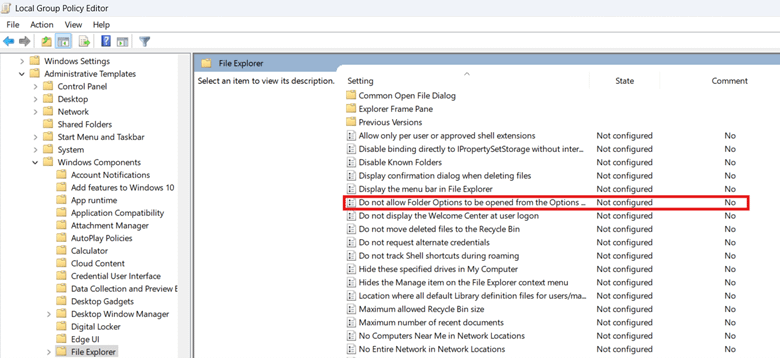
- Select Disabled or Not Configured to allow user access to Folder Options.
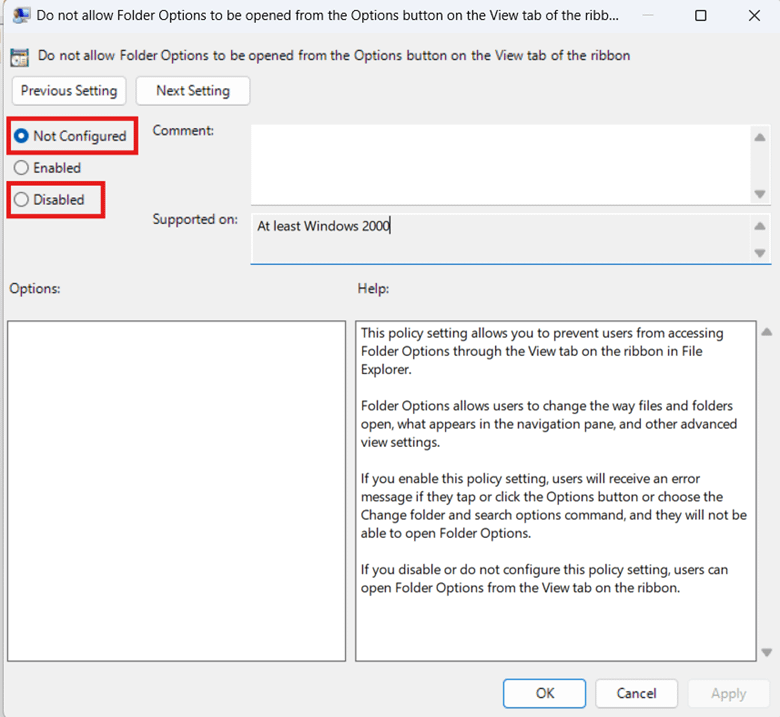
- Press Apply, then OK to apply the changes.
- Launch PowerShell and enter the following script to refresh the Local Group Policy: gpupdate /force
💡 Note: User Configuration settings apply per user. (See ⚠️ Things to look out for.)
Steps to verify if “Show Home” appears in the File Explorer
Follow these steps to check if the Show Home setting is visible within Folder Options:
- Open File Explorer and click the three-dot menu (•••) located on the upper-right.
- Select Options and press the View tab inside the resulting window.
- If Options is inaccessible, go to Method 3 and set the target policy to Disabled or Not Configured.
- Scroll down within Advanced settings until you reach the Navigation pane section.
- Under the Navigation pane, look for the “Show Home” checkbox.
- If “Show Home” is hidden, redo the configuration via Registry or PowerShell.
⚠️ Things to look out for
Risks | Potential Consequences | Reversals |
| Manually editing the Registry | Registry changes apply instantly, and a misconfiguration can cause system instability and break device functionality. | Back up the Windows Registry before making changes to easily roll back misconfigurations. |
| Executing inaccurate PowerShell scripts | Inaccurate PowerShell scripts can lead to errors or misconfiguration of Registry values. | Verify the syntax and accuracy of each command in a PowerShell script before executing. Alternatively, you can copy and paste the scripts under Method 2 instead of manually inputting them. |
| Using a standard user account when modifying the HKEY_LOCAL_MACHINE (HKLM) hive | The HKLM Registry hive hosts system-wide settings; using a standard account during configuration will result in an error. | Before editing the HKLM, ensure that you have admin rights. To do this, go to Settings > Accounts > Your info and check for the Administrator label below your username. |
| Deploying untested scripts and GPOs | Untested configurations may contain faulty settings, and deploying them impulsively can introduce problems across your environment. | Test scripts and GPOs locally to verify their effects on an endpoint before deploying across an environment. |
| Limited system-wide enforcement of per-user policy settings | The target policy in Method 3 is located within the User Configuration node, which means it applies per-user. | Create a group for the target users via lusermgr.msc, then apply the Local Group Policy to that group using MMC. |
Considerations when managing “Show Home” in File Explorer
Adding or removing the “Show Home” checkbox can significantly impact navigation, user preferences, and system consistency. This section outlines key considerations to help you make the best configuration for your environment.
Impacts of adding or removing the Home page in File Explorer
Users can add Home to their navigation pane if “Show Home” is visible in the Folder Options. By clicking Home, users can quickly access their frequently used folders and recent files, improving their overall navigation experience.
However, some users prefer a minimalist interface for simpler navigation. If you want to declutter the navigation pane, then clearing the “Show Home” checkbox is the way. To prevent users from reversing this configuration, you can hide Folder Option using the Local Group Policy Editor.
Striking a balance between organizational policies and user preferences
Before deploying a configuration, consider how users in your environment interact with the navigation pane. Some may rely on the Home page for better file accessibility, while others may prefer a simpler UI. If you enforce a configuration, it’s advisable to still allow users to toggle “Show Home” to match their preference.
Allow users to add or remove the home page in File Explorer
Adding the “Show Home” option to Folder Options in File Explorer provides users with the ability to toggle the Home page. This enables them to customize their File Explorer’s navigation pane to match their preference.
You can make the “Show Home” option visible by modifying the Registry, and this can be automated using PowerShell. When making the change, also ensure that Folder Options is accessible to users by checking the Local Group Policy.
Related topics: