


Key points
- Use a dedicated patch management tool to automate updates, secure your network, and maintain compliance.
- Upgrade to modern, cloud-based tools that easily support remote workers and update non-Microsoft applications.
- Choose a solution offering automated approvals, automatic restarts, and local data storage to maximize IT efficiency.
- Require automated reporting on missing updates and deployment failures to easily prove compliance during audits.
- Roll out updates in phased stages to test groups first to protect critical systems from sudden crashes.
- Maintain human oversight alongside automation to evaluate high-risk updates before they disrupt business operations.
Choosing between the top patch management tools for Windows is a key step in building your IT team or MSP’s patch management strategy, and for the security and compliance of your organization. This guide explains the factors you should consider when designing and implementing patch management, as well as best practices to keep in mind while doing so.
What is Windows patch management?
Windows patch management centralizes the testing, deployment, and ongoing management of the Windows update process. Patch management is vital for protecting your Windows endpoints from software bugs and cybersecurity exploits, while maintaining the compatibility and reliability of your systems. Effective patch management is also a core component of maintaining compliance with cybersecurity frameworks and regulations.
The goal of patch management is to streamline patching in ever-changing and scaling enterprise environments, while ensuring continuous coverage. This requires implementing approval workflows, maintenance windows, deployment rings, rollback plans, and compliance reporting.
What Windows patch management tools should give IT teams use
Patch management tools for Windows should provide this functionality, centralizing and automating the full update workflow while generating audit-ready compliance evidence.
This generally includes:
- Vulnerability and patch correlation
- Automated approval for low-risk patches
- Manual review workflows
- Deployment rings and staged rollouts
- Maintenance windows and deployment scheduling
- Failed patch detection
- Patch rollback and retry
- Exception management
Visibility is one of the primary patch management benefits for tech teams: consolidated patch history and compliance reporting help ensure there are no gaps, and that exceptions are known, justified, and periodically reviewed.
Windows Autopatch vs. WSUS
The Windows ecosystem includes two primary tools for patch management: Windows Server Update Services (WSUS) and Windows Autopatch. These provide native support for patch management, but are not as feature-rich as third-party solutions.
WSUS is used for on-premises Windows Server deployments. Once the role is added to a server, it can be used to manage and deploy updates for Windows clients and servers on the same network. WSUS has long been popular with tech teams, providing critical patch management at no additional cost, however it has been deprecated in favor of more modern solutions and will receive no new features.
Windows Autopatch is a cloud-based Windows patch management tool. It includes features such as role-based access, update rings, groups, policies, driver/firmware updates, and can also handle updates for Microsoft 365 Apps, Teams, and the Edge web browser. It also supports Intune integration for reporting. This makes it a more modern and versatile solution compared to the legacy WSUS.
While WSUS is still useful for managing Windows updates and simple on-premises deployments, it does incur additional management overheadoverheads as you scale. Enterprises should consider migrating to a solution that is designed to meet modern needs like distributed workforces, and advanced AI-driven automation, and workflows.
How to find tools that streamline Windows update deployment
Beyond the core features already discussed, patch management tools for Windows should streamline operations for your IT team, rather than adding additional management and oversight burdens.
You should look for features such as:
- Patch caching: Locally caching patch data reduces load on your internet connection, preventing multiple devices from downloading the same update, from bringing operations to a crawl.
- AI-supported automated approvals: Reduce the need for manual human intervention with automated approvals. AI can assist here, analyzing private and public data to identify risky patches that may cause issues, and flagging them for manual approval.
- Reboot management: Automate reboots to ensure patches are fully applied.
- Cross-platform support: Most enterprise IT environments consist of more than just Windows devices. Using multiple patch management tools for each leads to gaps.
- Alerts and notifications: Patches need to be applied in a timely manner, especially for zero-day exploits. Technicians can be notified when a patch is available so it can be quickly tested and deployed.
Autonomous, third-party app patching support is also a massive boon to IT teams managing fleets of devices. Each additional endpoint brings with it a suite of productivity, communication, and other business tools that must also be kept up-to-date, exponentially growing the patch management workload and dragging down IT operations as you scale.
Reporting features to look for in Windows patch tools
Compliance is not a once-off implementation, and proving that you are compliant “right now” is insufficient. During a compliance audit, you must have evidence that you have been continuously compliant using the methods prescribed in the relevant framework or regulation.
Routine reports should also indicate any remediation that must take place to meet patch compliance.
To enable this without having to manually gather patch information and deployment results, you should look for the following reporting features in patch management tools for Windows operating systems:
- Patch compliance by device group
- Missing patches
- Failed patch deployments
- Pending updates and reboots
- Patch approval, rejection, and deferral history
- Known vulnerability coverage
- SLA and remediation timeline tracking
- Exportable audit evidence
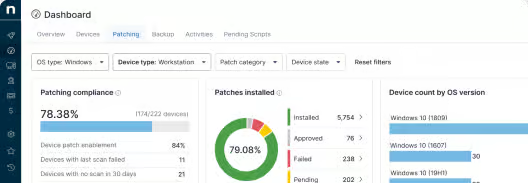
Web-based consoles and real-time dashboard views for operations and security teams also help streamline operations by providing a consolidated view of your Windows patch management status.
How to build a Windows patch approval workflow
Automated patch management tools for Windows should support workflows, rather than adding more work. Automation does not eliminate the need for governance to ensure that visibility and responsibility are maintained.
Keeping an up-to-date asset inventory ensures that all devices are covered by agent-based patch management tools. Devices can then be categorized by role and criticality and organized into deployment rings for tested, controlled update rollouts that don’t interfere with productivity.
Low-risk, predictable patches can be handled with automation during scheduled maintenance windows, while patches that may interrupt users or cause compatibility issues should be held for review. Automatic reboot, deployment retry, and rollback should be implemented to ensure patches are applied, and if not, left in an unambiguous state (and reported). Failed patches should be flagged for manual rectification.
Your Windows patch management process should be thoroughly documented, including a centralized repository for reports.
Windows patch management approval tiers
You can use the below recommended approval tiers as a framework when building your own workflow:
- Emergency approval for actively exploited vulnerabilities
- Expedited approval for critical security updates
- Standard approval for routine cumulative updates
- Manual review for feature updates or high-impact changes
- Deferred approval for updates with known compatibility concerns
- Rejection with documented rationale when deployment is not appropriate
Using deployment rings to reduce Windows patch risk
Deployment rings are used to gradually deploy updates in a phased manner, checking for issues as they are rolled out to more and more devices to help reduce issues.
- Lab or IT test devices
- Pilot business users
- Standard production endpoints
- Critical business systems
- Servers or high-availability workloads
By updating mission-critical endpoints last, you can identify potential problems early to reduce the impact of an update that introduces instability.
Common Windows patch management mistakes
Patch automation should enhance workflows, not replace them. Human oversight is still required to ensure coverage and compliance.
Automation should also be backed by feedback and intelligent patch assessment: auto-approving every Microsoft patch, and not implementing deployment rings, could lead to potential issues if it is buggy (which is known to happen), or has compatibility issues with your specific IT environment.
Conversely, taking too long to deploy a patch can leave the window open for exploits and potential intrusions into your infrastructure that require significant cleanup efforts.
Choosing the right tool for reliable, streamlined, AI-powered patch management at scale
Patch management is only one part of secure, reliable IT operations. Windows patch management tools should integrate with your IT support toolchain so that Windows patching is reliable, monitored, documented, and audit-ready.
NinjaOne provides a unified IT operations platform that includes multi-OS and third-party app patch management with AI-powered automation, alongside asset inventory, mobile device management (MDM), remote monitoring and management (RMM), remote access, and cloud backup.