


Every Windows user utilizes the search feature to quickly access files, apps, and settings without having to get to them manually. However, it tends to slow down in the long run, missing recent files and even stopping to respond. When issues arise, you can reset Windows Search to restore its functionality and settings.
In this guide, we’ll help you use proven methods, like simple GUI steps or advanced scripting, to fix search issues in Windows 11 reliably.
Prefer a visual guide? Watch our video: Resetting Windows Search in Windows 11.
How to reset Windows Search
When you reset Windows 11’s Search, you are giving it a fresh start, fixing common glitches, and restoring speed.
📌 Use cases: Resetting Windows Search is ideal when the searching speed is slowing down, it has high CPU/RAM usage, or when the search seems incomplete or is missing files you know you have. In some instances, resetting also helps when Cortana or the search box fails.
📌 Prerequisites: The recommended methods in this guide can be done in all Windows 11 editions. Some tools here will need administrative privileges to work efficiently.
We recommend review the ⚠️ Things to look out for section before proceeding.
📌 Recommended deployment strategies:
| Click to Choose a Method | 💻 Best for Individual Users | 💻💻💻 Best for Enterprises |
| Method 1: Using Indexing Options in Control Panel | ✓ | |
| Method 2: Using Registry Editor | ✓ | ✓ |
| Method 3: Using Command Prompt | ✓ | |
| Method 4: Using PowerShell | ✓ | |
| Method 5: Using Group Policy Editor | ✓ |
Method 1: Using Indexing Options in Control Panel
Control Panel can help rebuild the search index and reset its functionality without taking any complicated steps.
📌 Use case: This method directly tackles the corrupted index database, which is often the main cause of slow or missing search results. This procedure is best used when resolving general issues like slow search speed, missing files in results, or suspected index corruption.
- Press Win + R to open Run, then type Control Panel to open it.
- Alternatively, you can search for the tool (Win + S) if Windows Search is working and available.
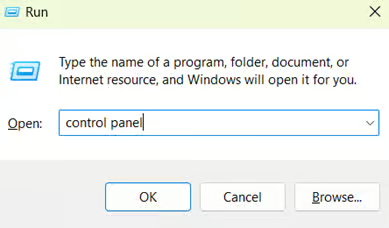
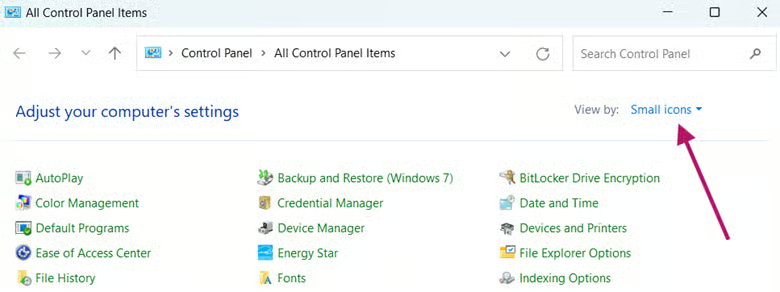
- In Control Panel, click View, then select Small icons.
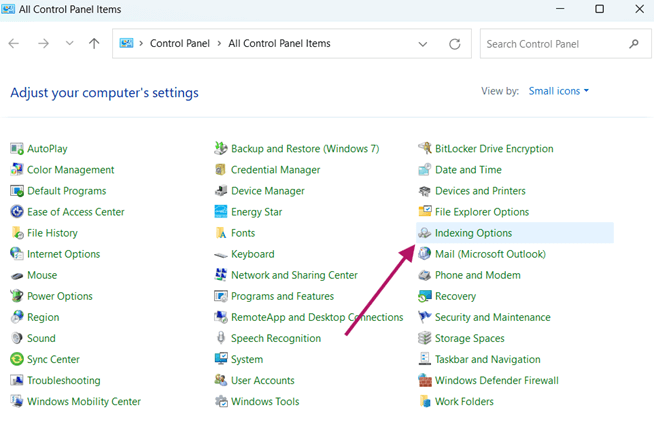
- Look for and select Indexing Options.
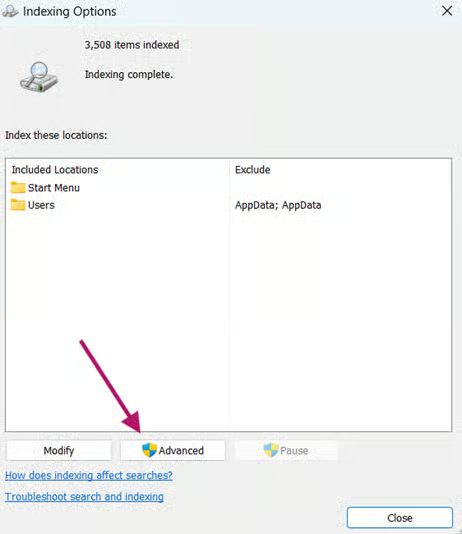
- Click the Advanced button.
- Click Continue if prompted by UAC.
- Under the Index Settings tab, click Rebuild.
- A “Rebuilding the index might take a long time…” warning message will appear. Click OK to confirm you want to proceed.
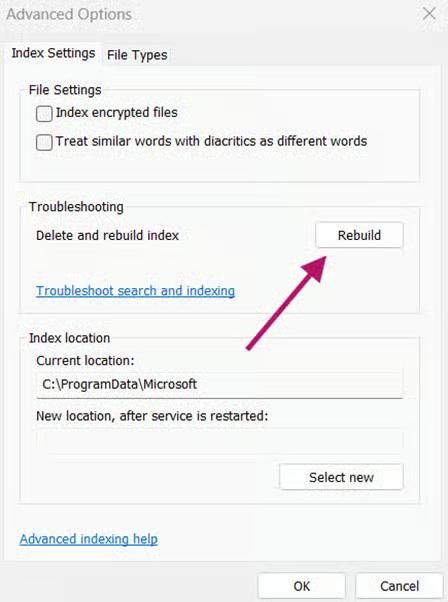
- The rebuilding process will immediately start.
- Waiting time may take several minutes to hours, depending on the number and size of files indexed. In the meantime, avoid heavy disk activity.
Once completed, Windows Search should be working properly. If this doesn’t resolve search issues, proceed to the more advanced methods below.
Method 2: Using the Registry Editor
The Registry Editor allows targeted configuration over features and tools in Windows 11 like Windows Search. This tool addresses problems in core service initialization and persistent corruption that a simple rebuild in Control Panel couldn’t fix.
📌 Use cases: This method is ideal when the Control Panel procedure fails and you’re still experiencing severe search issues, like searching failing to start, or highly erratic behavior and errors.
⚠️ Warning: Editing the Registry incorrectly can lead to serious system instability. Always back up your Registry or create a system restore point before proceeding. Review the ⚠️ Things to look out for section to learn more.
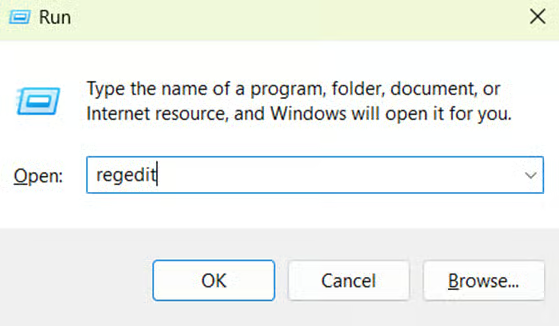
- Press Win + R to open Run.
- Type regedit, then press Enter to open the Registry Editor.
- Click Yes or Continue if UAC prompts you to do so.
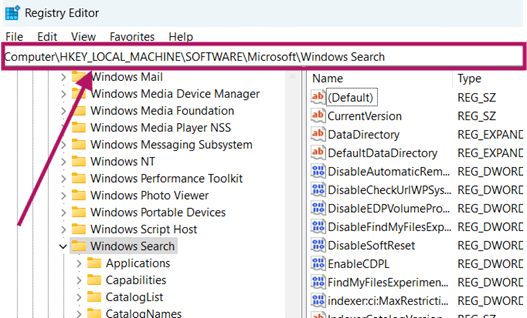
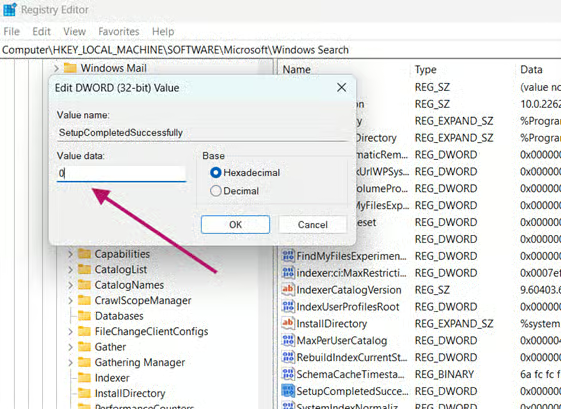
- Go to the address key: HKEY_LOCAL_MACHINE\SOFTWARE\Microsoft\Windows Search
- Double-click the SetupCompletedSuccessfully DWORD.
- If it doesn’t exist, right-click the right pane of the Windows Search key, then click New > DWORD (32-bit) Value.
- Name it SetupCompletedSuccessfully.
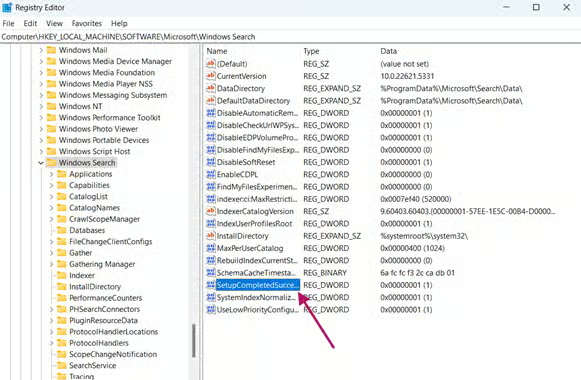
- Change the DWORD’s value from 1 to 0, then click OK.
- Close the Registry Editor.
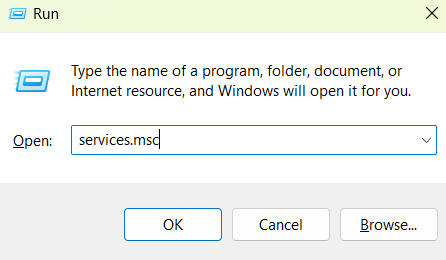
- Open Run (Win + R) again, then type services.msc, press Enter.
- Scroll down and look for the Windows Search service.
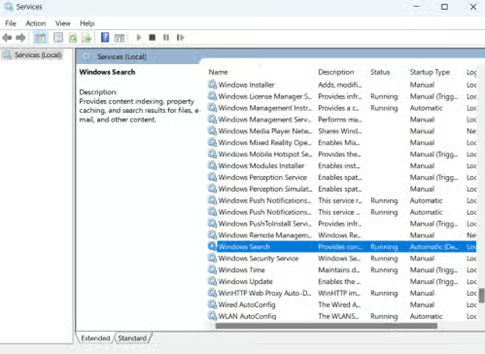
- Right-click the Windows Search service, then select Restart.
Once done, the Windows search engine should start fresh.
Method 3: Using Command Prompt
Command Prompt can quickly automate the Windows Search reset in the Registry. This does the task without having to manually edit the Registry.
📌 Use cases: This is a good alternative to Method 2 if you prefer scripting the procedure. You can also do this to deploy the fix across multiple devices under the same domain.
- Press Win + X, then select Terminal (Admin).
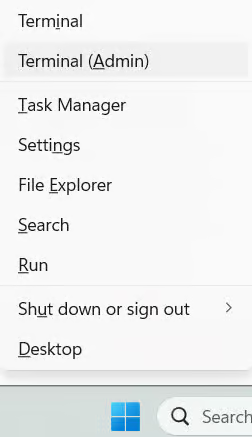
- In the Terminal (Admin) window, click the drop-down arrow in the tabs section above the window, then select Command Prompt.
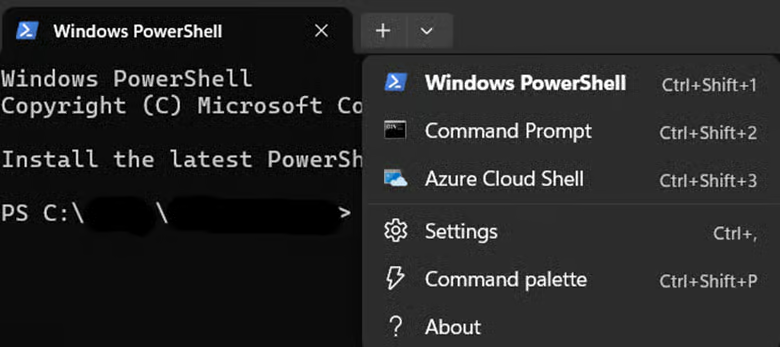
- Run the following commands.
- Command for resetting the Search Initialization Flag:
reg add "HKLM\SOFTWARE\Microsoft\Windows Search" /v SetupCompletedSuccessfully /t REG_DWORD /d 0 /f
- Command for restarting the Windows Search Service:
net stop wsearchnet start wsearch
- Close Command Prompt.
The index rebuilding process should begin automatically.
Method 4: Using PowerShell
PowerShell can help you specifically reset the Windows Search application component, which fixes issues in the interface, like a broken search box or Cortana errors. It reinstalls the search UI package without modifying the index.
📌 Use cases: Use this method when you are experiencing a completely black or unresponsive search box, Search is missing in the taskbar, or Cortana/Search app crashes.
- Press Win + X, then select Terminal (Admin).
- If PowerShell is not the default command-line tool, click the drop-down arrow (˅) in the tabs section above the window, then select Windows PowerShell.
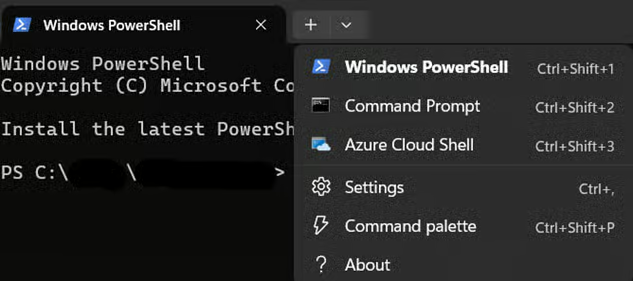
- Execute the reset script:
- Carefully type or paste this script:
Get-AppxPackage -AllUsers Microsoft.Windows.Search | ForEach-Object {Add-AppxPackage -DisableDevelopmentMode -Register "$($_.InstallLocation)\AppXManifest.xml" -Verbose}
- Restart your computer.
- Alternatively, you can reset your device in PowerShell via this script: Restart-Computer -Force
💡 Tip: Since this method doesn’t touch the index, you can pair this with Method 1 (Control Panel Index Rebuild) if search results are also broken.
Method 5: Using Group Policy Editor
The Group Policy Editor offers a centralized way to reset the Windows Search configurations across multiple enterprise devices.
📌 Use cases: This method is useful when you are resolving search issues for multiple devices in the same domain. This is also a good tool to fix Cortana-specific issues.
💡 Note: This method requires Windows 11 Pro, Enterprise, or Education editions. If you are a Home user, we recommend using the previous methods.
- Open Run (Win + R), then type gpedit.msc, and tap Enter to open the Group Policy Editor.
- Follow this address path: Computer Configuration > Administrative Templates > Windows Components > Search
- In the right pane, double-click Allow Cortana.
- Select Disabled, then click Apply > OK.
- Restart your device for the changes to take effect.
⚠️ Things to look out for
This section highlights potential challenges to keep in mind while following this guide.
| Risks | Potential Consequences | Reversals |
| 1. Search is not working after reset | Persistent “Search isn’t working” errors | Verify Windows Search service status: Open services.msc > Check Windows Search = “Running”. If stopped, right-click > Start. Run sc query WSearch in Command Prompt. |
| 2. Indexing is slow/stuck | Delays in search availability | Exclude resource-heavy locations: Open Indexing Options > Modify > Uncheck large folders |
| 3. Search results are incomplete | The search results still show missing files or apps. | Confirm indexed locations: Indexing Options > Modify > Ensure critical folders (Documents, Desktop) are checked You can also rebuild the index again if exclusions were overzealous. |
| 4. Incorrect Registry edits | The operating system becomes unstable, and booting up fails. | Back up the registry (regedit > File > Export) or create a System Restore Point. Watch How to Back Up and Restore Windows Registry for more details. |
| 5. Service restart fails | Search is not starting or happening after the reset. | Run sc query WSearch in Command Prompt (Admin). Alternatively, check Event Viewer > Windows Logs > Application for errors. |
Pro tips when resetting Windows Search
When you are resetting Windows Search, there are some things you have to consider when doing the procedure. Keep these tips in mind to ensure lasting performance and reliability in your search tool.
Rebuilding takes time
Reconstructing your search index is not instant, and completion time varies depending on file volume, drive speed, and system load. When you plan on resetting your search index, be sure to do it in your free time or when you have ample time for possible delays.
Verify your Windows Search Service health
A successful Windows Search reset relies on the background service running properly. In your Windows Services (services.msc), go to Windows Search properties, then ensure that Startup type is on Automatic (Delayed Start) and Service status is on Running.
Regularly updates Windows to prevent future issues
Microsoft routinely patches search engine bugs through Windows Update. To maintain stability, enable automatic updates in Windows Settings, restart promptly after every major update, and check for possible failed update installations monthly.
Keep productivity up by resetting Windows Search
When files vanish from results or search boxes freeze, resetting Windows Search in Windows 11 transforms frustration into efficiency. By rebuilding corrupted indexes, reinitializing services, or refreshing UI components using our five targeted methods, you restore instant access to critical resources. Implement these steps confidently to maintain a seamless, responsive search experience that keeps workflows moving.
Related topics:
- How to Enable & Disable Search Indexing in Windows 10/11
- How to Enable or Disable Advanced Indexing Options in Windows 10/11
- How to Configure Search History in Windows File Explorer
- How to Configure Search History in Windows File Explorer (video)
- How to Reset and Rebuild the Search Index in Windows 10
- How to Add or Remove File Types from the Search Index in Windows 10






