Key Points
- Instantly Open Settings Pages: Settings URI commands let you jump directly to specific Windows 11 Settings pages or categories, reducing the need to navigate menu paths
- Create Desktop Shortcuts for Fast Access: Using explorer.exe ms-settings:<page> lets you build consistent one-click shortcuts to Settings pages.
- Automate Shortcut Creation for Scalability: PowerShell scripting can quickly generate multiple Settings shortcuts to support onboarding or device provisioning workflows.
- Deploy Shortcuts Across Devices: Group Policy lets administrators distribute standardized Settings shortcuts to user desktops or Start menus throughout the organization.
- Validate URI Behavior for Compatibility and Correct Navigation: Testing each shortcut confirms the URI is supported on the current Windows build and opens the intended page consistently.
Windows 11 includes built-in Settings URI commands (also known as ms-settings URIs) that allow you to jump directly to a specific Settings page without navigating through menus or subpages. With these URIs, you can create desktop shortcuts, automate workflows, or build quick-launch tools for helpdesk teams and managed environments. This makes it so much easier to streamline routine tasks and reduce troubleshooting time.
In this guide, you’ll learn how to create a settings shortcut in Windows 11, how to automate shortcut creation at scale, how to deploy shortcuts through Group Policy, and how to validate and troubleshoot the process.
Prerequisites
Before proceeding, ensure that you have:
- Windows 11: The steps and Settings URIs in this guide are designed for Windows 11 and may behave differently or be incomplete on Windows 10.
- Local admin permissions: You may need administrator rights to deploy shortcuts for other users or through Group Policy—check with your IT team if you don’t have them.
- PowerShell access: Required only if you plan to automate shortcut creation or run scripts.
- Group Policy Management (optional): Needed for organizations that want to distribute shortcuts across multiple devices using GPO.
Creating a shortcut to open the Settings page
Method 1: Create a desktop shortcut using the shortcut wizard
This is the simplest way to create a shortcut to Settings in Windows 11. It works on any edition and doesn’t require scripting.
Steps
- Right-click the Desktop and choose New > Shortcut.
- In the location field, enter the command: explorer.exe ms-settings:<page>
Example: explorer.exe ms-settings:windowsupdate
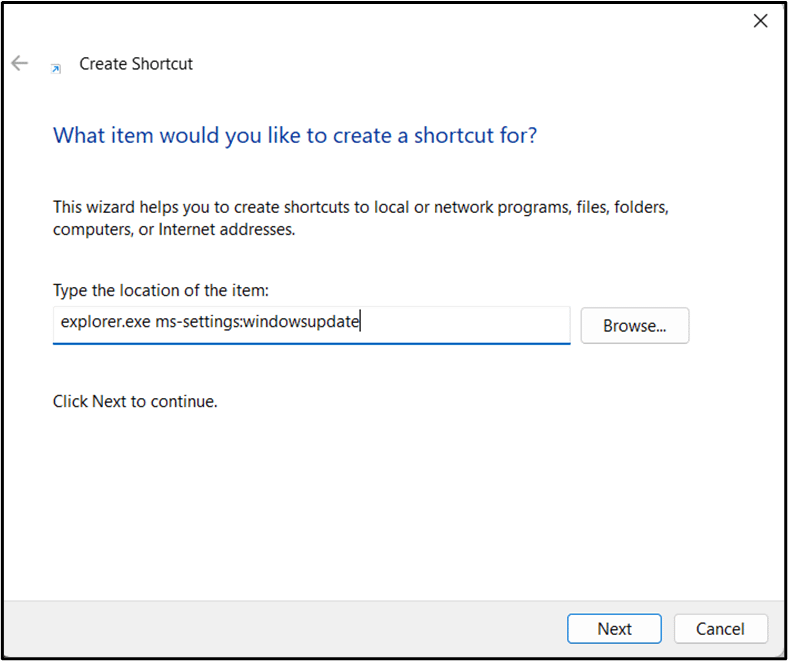
- Click Next, then give the shortcut a meaningful name (e.g., Windows Update Settings).
- Click Finish to create the shortcut.
- (Optional) Right-click the shortcut → Properties → Change Icon to assign a Settings-style icon.
- (Optional) Right-click the shortcut → Show more options → Pin to Start or Pin to Taskbar.
This method creates a standard Windows Settings shortcut that behaves consistently, launches quickly, and requires no additional tools.
Method 2: Automate shortcut creation with PowerShell
If you’re onboarding new devices or building out your IT automation scripts, PowerShell is the fastest way to mass-create shortcuts.
Steps
- Open PowerShell.
- Run the following script:
$Desktop = [Environment]::GetFolderPath("Desktop")
$Shell = New-Object -ComObject WScript.Shell
$Shortcut = $Shell.CreateShortcut("$Desktop\WindowsUpdate.lnk")
$Shortcut.TargetPath = "explorer.exe"
$Shortcut.Arguments = "ms-settings:windowsupdate"
$Shortcut.Save()
- Change Arguments to target other pages by replacing the URI.
- Run the script per user or package it into your deployment process.
This automation mirrors the standard MSI/Store app shortcut-creation model and works across any scripting platform, including RMM tools.
Method 3: Deploy Settings shortcuts with Group Policy Preferences
For managed environments, Group Policy Preferences (GPP) is the easiest way to distribute Settings shortcuts across a fleet.
Steps
- Open Group Policy Management by clicking Win + R, typing gpmc.msc, and pressing Enter.
- Edit or create a GPO.
- Navigate to: User Configuration > Preferences > Windows Settings > Shortcuts
- Right-click > New > Shortcut.
- Configure the shortcut:
- Action: Create
- Target type: File System Object
- Target path: explorer.exe
- Arguments: ms-settings:<page>
- Location: Desktop or Start Menu
- Name: Something descriptive (e.g., Network Settings)
- Link the GPO to the appropriate OU.
- Apply the policy and use gpupdate /force from Command Prompt or PowerShell on a target client device.
This distributes consistent shortcuts without touching individual systems, making it ideal for standardized onboarding.
Method 4: Launch settings pages directly without shortcuts
If you don’t want to create a shortcut but still need fast access to a page, you can call Windows 11 ms-settings URIs directly.
Ways to launch URIs instantly:
- Win + R: Type ms-settings:<page>
- File Explorer address bar: Enter the same command
- PowerShell or batch files: Call the URI using start ms-settings:<page>
- Admin tools or support scripts: Invoke the command during diagnostics
This is especially useful for technicians who frequently jump between settings pages and don’t want desktop clutter.
Concise settings URI reference table
Below are the most commonly used URIs for Windows 11 Settings shortcuts. Each one works with explorer.exe and launches the corresponding Settings page directly, allowing you to bypass menus and navigation steps. You can find a more exhaustive list in the List of Shortcuts to Directly Open Pages in Settings in Windows 10.
💡 Note: These URIs are supported across most Windows 11 editions, though a few pages may vary depending on features available on the device.
| Category | Page | Settings URI |
| System | Display | ms-settings:display |
| Multitasking | ms-settings:multitasking | |
| Clipboard | ms-settings:clipboard | |
| Notifications | ms-settings:notifications | |
| Power & Sleep | ms-settings:powersleep | |
| Remote Desktop | ms-settings:remotedesktop | |
| Network & Internet | Network & Internet | ms-settings:network-status |
| Ethernet | ms-settings:network-ethernet | |
| WiFi | ms-settings:network-wifi | |
| VPN | ms-settings:network-vpn | |
| Mobile Hotspot | ms-settings:network-mobilehotspot | |
| Personalization | Home | ms-settings:home |
| Themes | ms-settings:themes | |
| Lock Screen | ms-settings:lockscreen | |
| Taskbar | ms-settings:taskbar | |
| Colors | ms-settings:colors | |
| Accounts | Your Info | ms-settings:yourinfo |
| Email & Accounts | ms-settings:emailandaccounts | |
| Sign-in Options | ms-settings:signinoptions | |
| Family & Other Users | ms-settings:familygroup | |
| Sync Settings | ms-settings:sync | |
| Privacy & Security | General Privacy | ms-settings:privacy-general |
| Camera | ms-settings:privacy-camera | |
| Microphone | ms-settings:privacy-microphone | |
| Location | ms-settings:privacy-location | |
| Windows Update | ms-settings:windowsupdate |
Troubleshooting common issues
Shortcut opens the main Settings screen instead of the correct page
This usually means Windows couldn’t interpret the URI correctly.
- Double-check for spelling errors, missing hyphens, or extra spaces in the ms-settings: value, since even small mistakes will cause Windows to fall back to the default Settings home page.
- If the URI looks correct, test it in Win + R. Some URIs change across Windows builds, and older or deprecated URIs may no longer open their intended page.
Double-clicking the shortcut does nothing
If nothing opens at all, the shortcut may not be pointing to the correct executable.
- Make sure explorer.exe is set as the TargetPath and that the URI is placed in the Arguments field rather than merged into the TargetPath.
- Verify that the shortcut wasn’t created with quotes in the wrong place or extra characters in the path, as these can prevent Windows from parsing the command.
GPO shortcut is not appearing on user devices
When deploying via Group Policy Preferences, shortcuts only appear if the GPO is linked to the correct OU and the user or device falls within its scope.
- After confirming OU targeting, run gpupdate /force and review the Group Policy Results Wizard to check for filtering issues or conflicts with other GPOs.
- If the shortcut appears intermittently, ensure the shortcut location (Desktop, Start Menu, etc.) is not being overwritten by another policy.
URI page isn’t available on this Windows edition
Some Settings pages only exist in specific Windows editions, such as Pro or Enterprise. For example, pages related to Remote Desktop or BitLocker may not open on Windows 11 Home or S Mode.
If a URI redirects to a generic Settings category, verify that the feature exists on the device and is supported by the Windows edition before troubleshooting further.
The URI launches inconsistently or conflicts with another handler
Testing the URI in Win + R is the quickest way to confirm whether the issue is with the shortcut or with the command itself. If it doesn’t launch from Win + R, the URI is either deprecated, unsupported, or being intercepted by something else on the system.
Creating a shortcut to Settings in Windows 11
Windows 11’s Settings URI system gives administrators a powerful way to open configuration pages instantly and streamline support workflows. Whether you use the built-in shortcut wizard, PowerShell scripts, or Group Policy deployment, creating shortcuts in Windows 11 saves time and ensures consistency across environments.
Related topics:
- CLSID Key GUID Shortcuts Guide in Windows 11
- How to Create a Desktop Shortcut of Microsoft Store Apps in Windows 11
- How to Create Desktop Shortcuts with PowerShell: A Step-by-Step Guide
- How to Enable or Disable “Show Desktop” on the Taskbar in Windows 11
- Complete Guide: How to Refresh the Desktop in Windows