Key Points
- Microsoft Edge toolbar buttons can be customized via Appearance settings, feature-linked controls, extensions management, and quick right-click edits.
- Feature-linked buttons, such as Collections and Sidebar, require enabling the underlying feature or policy before they appear on the toolbar.
- Managing extensions and pinned items reduces toolbar clutter, improves usability, and maintains consistent UI layouts across users and devices.
- Profile Sync and role-based layouts standardize toolbar configurations, ensuring consistent button visibility across sign-ins and environments.
- Enterprise-level policies allow admins to enforce predictable, tamper-proof toolbar settings at scale for large organizations and MSP deployments.
- Test toolbar configurations across various screen sizes, vertical tabs, and different environments to ensure usability and reliability, preventing post-deployment layout issues.
Microsoft Edge offers users the flexibility to customize their browser’s functionality and performance. Some users prefer visual simplicity through a minimal toolbar, while others opt for better access to browser controls.
If you’re looking to customize your Edge toolbar, you’ve come to the right place. The following guide will walk you through ways to personalize your toolbar according to your taste and browsing preferences.
Methods to add or remove toolbar buttons on Edge
The MS Edge toolbar consists of various features that you can freely customize as needed. These include numerous areas, such as Appearance settings, per-button toggles, and extension visibility, to name a few.
While Edge offers many elements that you can show or hide, managing them is a straightforward process, either using the browser or policy-based settings. The following steps outline ways to enable or disable each toolbar area for a consistent and predictable experience.
📌 Prerequisites:
- Microsoft Edge on Windows 11
- Local access to Edge settings
- Optional enterprise templates for policy deployments
Method 1: Customize the MS Edge toolbar via Appearance settings
The Appearance settings page stores UI element settings, such as the Home button, Favorites, Downloads, and Collections, into simple toggles. Once switched, changes take effect immediately unless overridden by policy.
This method is ideal for quickly toggling common toolbar elements without configuring policies or modifying the registry.
- In Microsoft Edge, enter edge://settings/appearance in the search bar.
- Under Other appearance settings, select Toolbar.

- Toggle the buttons you want to show or hide on the toolbar.
Method 2: Adjust feature-linked buttons on your Edge toolbar
Some areas in Microsoft Edge can’t be customized with a simple toggle, as they are tied to the availability of the feature they represent. These feature-linked buttons only appear when their feature is enabled, configured, or allowed by policy.
This method is suitable for controlling feature-driven UI elements within the MS Edge toolbar.
Configuring the Collections feature
- Enable the Collections feature in Microsoft Edge.
- Enter edge://settings/appearance in the browser’s search bar.
- Scroll down and press Toolbar.
- Toggle the Collections feature on or off by pressing the switch beside it.

Show or hide the browser sidebar
- Press the browser’s search bar and enter edge://settings/appearance.
- Scroll down and press the Copilot and sidebar option under Other appearance settings.
- Select between Always on, Auto hidden, and Off to add or remove the sidebar.

Modifying MS Edge’s New Tab Page content
- Enter edge://settings/startHomeNTP in the browser’s search bar.
- Scroll down until you find the New tab page section.
- Press the Customize button beside Customize your new tab page.

- Customize your new tab page as you see fit by tweaking the Page settings options.
💡 Note: Although this setting doesn’t change the browser’s toolbar, it can reduce visual clutter, especially when you’re aiming for a streamlined browser interface.
Method 3: Customize the Edge toolbar’s extensions and pinned items
Extensions allow Microsoft Edge to leverage third-party functionalities to streamline and fine-tune a user’s browsing experience. However, extensions can also clutter the browser’s toolbar or create inconsistent UI layouts across users.
Manage extensions and pinned items to ensure your browser toolbar reflects the actual needs of users while minimizing unnecessary clutter.
- On Microsoft Edge’s search bar, enter edge://settings/appearance/toolbar.
- Press the dropdown beside Extensions and choose whether to show or hide the Extensions button.
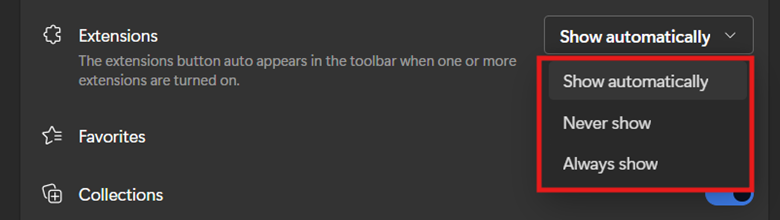
- Open the Extensions flyout (#1), then pin the frequently used extensions or hide those that create visual clutter by unpinning them (#2).

- Review extension permissions and remove any unused or unnecessary items to reduce noise and minimize security risk.
Method 4: Use the right-click quick edits to speed up Edge customization
You can right-click toolbar icons to make immediate adjustments to Microsoft Edge’s toolbar interface. This feature allows you to conveniently hide icons, move buttons to the address bar, or restore visibility with just a few clicks.
Leverage this method for quick cleanups without navigating through settings pages or applying policies.
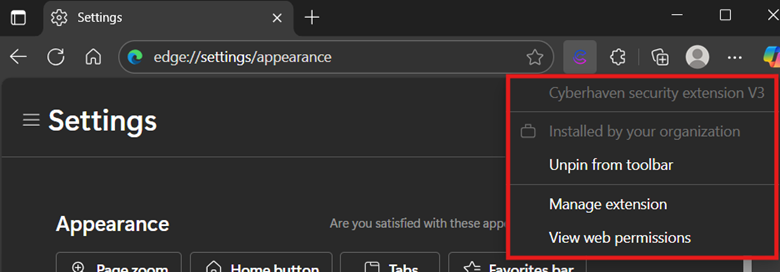
- Right-click an icon or area within the toolbar; we’ll be using an extension for this example.

- Select options such as Unpin from toolbar or Show next to address bar when applicable.
Method 5: Sync profiles to standardize toolbar layouts per role
Building a role-based matrix standardizes toolbar layouts according to each team’s workflow. With sync enabled, users maintain a consistent toolbar layout across all sign-ins, ensuring they see the necessary buttons and extensions relevant to their role.
This method helps maintain toolbar layout consistency per user role, eliminating the need for subsequent manual edits.
- Define a standard toolbar layout across user roles (e.g., general staff, technicians, team leads).
- In Microsoft Edge, go to Settings > Profiles > Sync, then enable the settings you want to sync for that profile’s role.
- Maintain a concise, role-based matrix that lists which toolbar buttons should be visible or hidden, simplifying onboarding and troubleshooting.
Method 6: Scale the delivery of Edge customization settings
Policies, whether applied through Group Policy, Intune, or other management tools, allow admins to enforce specific Microsoft Edge behaviors centrally and at scale. These policies allow you to lock down feature availability, hide or show UI components, and prevent user-initiated changes.
Leverage this method if you need to enforce a standardized and tamper-proof toolbar layout across your organization or clients.
- Download and install the Edge administrative templates on your domain controller.
- Set feature visibility and restrict unwanted toolbar buttons centrally by deploying your policies through the Group Policy Management Console.
- Pilot policies within a small user group first before broad rollout to ensure workflow compatibility and minimize accidental downtimes.
Method 7: Verify MS Edge usability after applying toolbar changes
After configuring your toolbar, it’s essential to verify that the new layout functions as expected, especially under real-world conditions. Validating usability provides you with insights into whether your toolbar layout is working, practical, and accessible across different endpoints.
Testing toolbar configurations ensures layouts are working as intended, preventing unexpected issues in the future.
- Test new toolbar configurations on small laptops and ultrawide monitors to see how the toolbar rearranges itself at different resolutions.
- Enable and disable Vertical Tabs to understand how the left-side pane affects toolbar spacing and accessibility of pinned items.
- Verify if essential buttons and extensions remain easy to find, appear where expected, and aren’t buried in the overflow menu.
⚠️ Things to look out for
After configuring your toolbar layout, your validation workflow can surface issues, such as missing buttons, unexpected visibility changes, or inconsistent layouts across devices. The following troubleshooting steps will guide you through common issues encountered when customizing Edge toolbars, alongside the solutions to resolve them.
| Risks | Potential Consequences | Reversals |
| Missing button toggles | Missing buttons may impact productivity, especially if the missing element is essential to workflows. | Ensure that your Microsoft Edge is up to date and verify if any policy has disabled the button. |
| Extensions keep reappearing. | Users may experience inconsistent or confusing behavior from extensions. | Unpin or remove the extension and verify whether profile sync or a policy is reinstalling it. |
| Crucial controls are buried. | Productivity slows as users waste time searching for expected controls and tools. | Train users on how to customize their account’s toolbar and demonstrate the functionality of the overflow menu. |
| Removed buttons return after sync. | Your organization’s toolbar layout becomes inconsistent across devices, requiring repeated cleanup. | Validate the sync scope and ensure users aren’t signed into multiple conflicting profiles. |
| Sidebar controls not matching button state | Users may escalate if they believe the browser is malfunctioning due to inconsistent button or sidebar behavior. | Align sidebar feature settings with the desired toolbar visibility. |
Customize Edge toolbar buttons to support workflows
By adjusting each component of the Edge toolbar, you create a flexible process that supports smooth and efficient user workflows. With the right approach, you ensure a consistent and predictable user experience that adapts naturally to user needs.
When combined, the methods above create a workflow for customizing Edge toolbars across roles and devices. This helps you deliver a cleaner interface and a more productive browsing experience across your managed environment.
Related topics: