Key Points
- Protect Essential Knowledge Assets: File and document backups ensure end-user files, intellectual property, and productivity data remain safe from accidental deletion, corruption, or ransomware.
- Differentiate Endpoint vs. Server Backups: Endpoints primarily hold personal productivity files suited for file/folder backup, while servers hold large datasets and complex configurations requiring full image backups.
- Match Storage Location to Workforce Structure: Use local storage for fully on-premise teams, cloud backups for distributed/remote workforces, and a hybrid local+cloud strategy for maximum reliability in mixed environments.
- Prioritize Backups by User Role and Criticality: Schedule higher backup frequencies and stricter RPOs for executives, high-impact roles, and departments managing sensitive intellectual property.
- Align Frequency with Data Sensitivity: Critical files may require hourly backups, full-file capture, or hybrid redundancy, while lower-priority users only need periodic document-level protection.
- Strengthen Overall Operational Resilience: Preserving knowledge assets and enabling rapid file restoration minimizes downtime, reduces rework, and accelerates recovery after cyber incidents or data loss.
The best way to back up files and documents is to match your storage location and backup frequency to who owns the data and how critical it is: use local storage for on-prem teams, cloud storage for distributed teams, and a hybrid approach for mixed environments, with more frequent backups for high-value roles and critical data. A recent survey by TELUS Digital Experience found that 57% of enterprise employees who use generative AI at work admit to entering sensitive company information into publicly available AI tools, highlighting a growing security exposure for IT and compliance teams. Backups of your files and documents are essential to ensure that organizational knowledge and data are not lost.
File backups are just one part of a comprehensive data backup and recovery plan. File and folder backups are copies of the files that individual end users generate, manipulate, and handle directly or indirectly. This type of backup is focused on protecting the critical business data located on files, rather than system data or other general data. Discover what the options are for your organization to backup files and documents.
For a visual guide, watch How to Backup Files and Documents for Your Organization.
Unprotected documents can expose your business to compliance violations and legal risk.
When to use file and folder backup vs image backup for documents and files
The use case for file and folder backup is to back up individual files, while image backup is used to back up either parts of or entire systems. This makes each kind ideal for certain types of devices or data. How do you know which endpoint devices require file backup vs image backup?
Your server typically requires an image backup due to the large amount of data, and more importantly, the higher cost of downtime compared to end-user devices. Image backup is also necessary to capture the specific, complex configurations of the system.
The end user devices in your IT environment, on the other hand, do not contain anywhere near the amount of data that servers contain. They also don’t contain settings or configurations that would affect an entire IT environment. That’s why in most standard endpoint environments, file and folder backup is sufficient. However, image backup may be reserved for devices with specialized configurations or regulatory requirements.
Where to back up files and documents
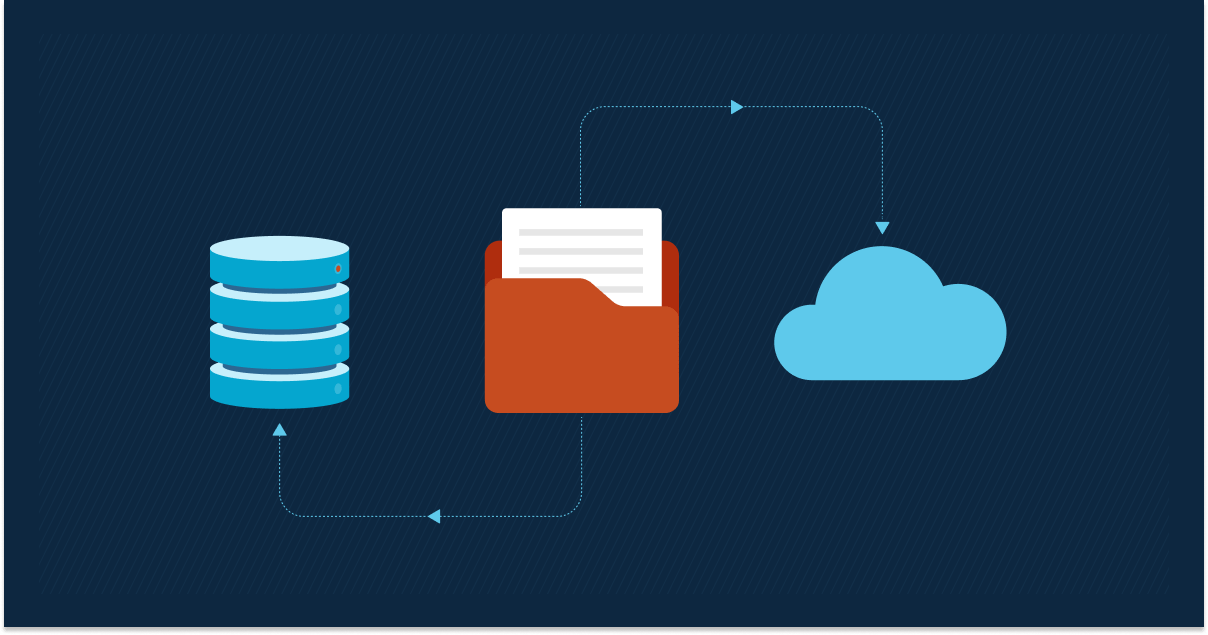
There are plenty of backup options when it comes to backing up your organization’s files and documents. You can back them up to the cloud, back them up to local storage, or take a hybrid approach and use both types of storage locations.
Ultimately, your best approach for “where” to backup your data will be based on the environment your organization operates in.
- Local storage: If everyone is on-prem and working in the office, local storage is probably the most convenient and logical.
- Cloud storage: For companies with a remote and distributed workforce where they have people off-network and don’t want to rely on VPN, cloud storage makes sense.
- Hybrid storage: Businesses that have members going in and out of the office, working from home part-time and the office part-time, would benefit the most from a hybrid backup
At a glance
| Storage Type | Best For | Key Benefit |
| Local storage | Fully on-prem teams | Fastest access, no dependency on internet connectivity |
| Cloud storage | Remote and distributed teams | No VPN or network dependency |
| Hybrid storage | Teams split between office and remote work | Reliability and flexibility from both approaches |
💡 Note: Cloud Sync is Not a True Backup Solution
While cloud synchronization services (like OneDrive, Dropbox, or Google Drive) are useful for real-time collaboration, they are not dedicated backup tools. If a local file is encrypted by ransomware, corrupted, or accidentally deleted, those changes can instantly sync to the cloud, overwriting the healthy version. True endpoint file backup maintains isolated, version-controlled copies that ransomware cannot automatically overwrite.
How to determine the best way to backup files and documents
Determining the ideal method to backup your business data requires the consideration of a variety of factors. The best ways to backup files and documents are based on the people using the data, the criticality of the data, and the type of data:
Backup files and documents based on the people using the data
Different people within an organization require varying levels of backup needs. For high-impact business roles (such as the CEO of a company) and ultra-sensitive data, higher backup frequency and shorter Recovery Point Objective (RPOs) may be required. It’s recommended to prioritize the data being backed up based on the end user function and role.
Backup files and documents based on the criticality of the data
Sectors such as accounting, engineering, or anyone dealing with critical IP would also be in rough shape if the data is lost, so backup of their data should also be prioritized. With other employees, they may have to redo their work if they lose a file, but they’re most likely not working with critical data so it’s most likely not as big of a deal.
Backup files and documents based on the type of data
Productivity docs (such as docx, ppt, etc.) and PDFs are the types of data that are typically duplicated using file backups. For most knowledge workers, if you just back up productivity files, that’s all the data they’re working on and what you really need to keep.
Strategies for backing up important files and documents
After you’ve determined the priority of the various files and documents, you should employ strategies to secure the data according to their importance and risk. For very important files and documents, consider using one or a combination of these strategies:
- Use local and cloud backup (hybrid strategy)
- Back up more frequently
- Back up everything (all the files and documents an individual or group is working on)
- Use immutable backup storage to prevent ransomware or malicious changes from altering backup copies
- Implement the 3-2-1-1-0 Backup Strategy: Modernize traditional backup rules by keeping 3 copies of your data on 2 different media types, with 1 copy offsite, 1 copy offline or immutable (immutable cloud/air-gapped), and 0 errors verified through automated restore testing.
- Regularly test your backups by performing restore drills to verify that files can be recovered quickly and completely
Follow these other backup tips and best practices to formulate a successful backup strategy for your organization.
User errors may be unpredictable, but your backups never should be.
3 benefits of backing up files and documents
1. Preserve organizational knowledge
Files and documents contain the expertise of your end users in a digital format. Backing these up is important to continually build a knowledge base for the business.
2. Prevent wasted money and time
If any files or documents are damaged or destroyed, taking preventative measures by proactively backing them up will save you from spending time redoing the work, or paying extra money (possibly to a ransomware actor) to restore them.
3. Quickly restore files
The whole purpose of backups in the first place is to provide an extra copy of the data to be used in the case that the original information becomes lost. File backups enable you to quickly restore data so business operations can continue forward.
Backup your files and documents with ease using NinjaOne
Backing up files and documents is a simple way to keep organizational data for your end users safe, secure, and ready to restore when needed. Discover more about the different types of backup available to use for your organization, or learn why you shouldn’t be using Dropbox as a backup solution for your business.
NinjaOne provides a cloud backup solution for your endpoints that’s fully automated and easy to manage. Protect your endpoint data and sign up for a free trial today.